- Home
- Data Recovery
- ArkThinker Video Repair

- Version
- 1.0.6
- Developer
- ArkThinker Studio
- Languages
- English, German, French, Japanese
- License type
- K'ed by TNT team
| macOS range | macOS 10.12 or later |
|---|---|
| Chip | Intel 64-bit |
| Download | 41 MB |
Screenshots
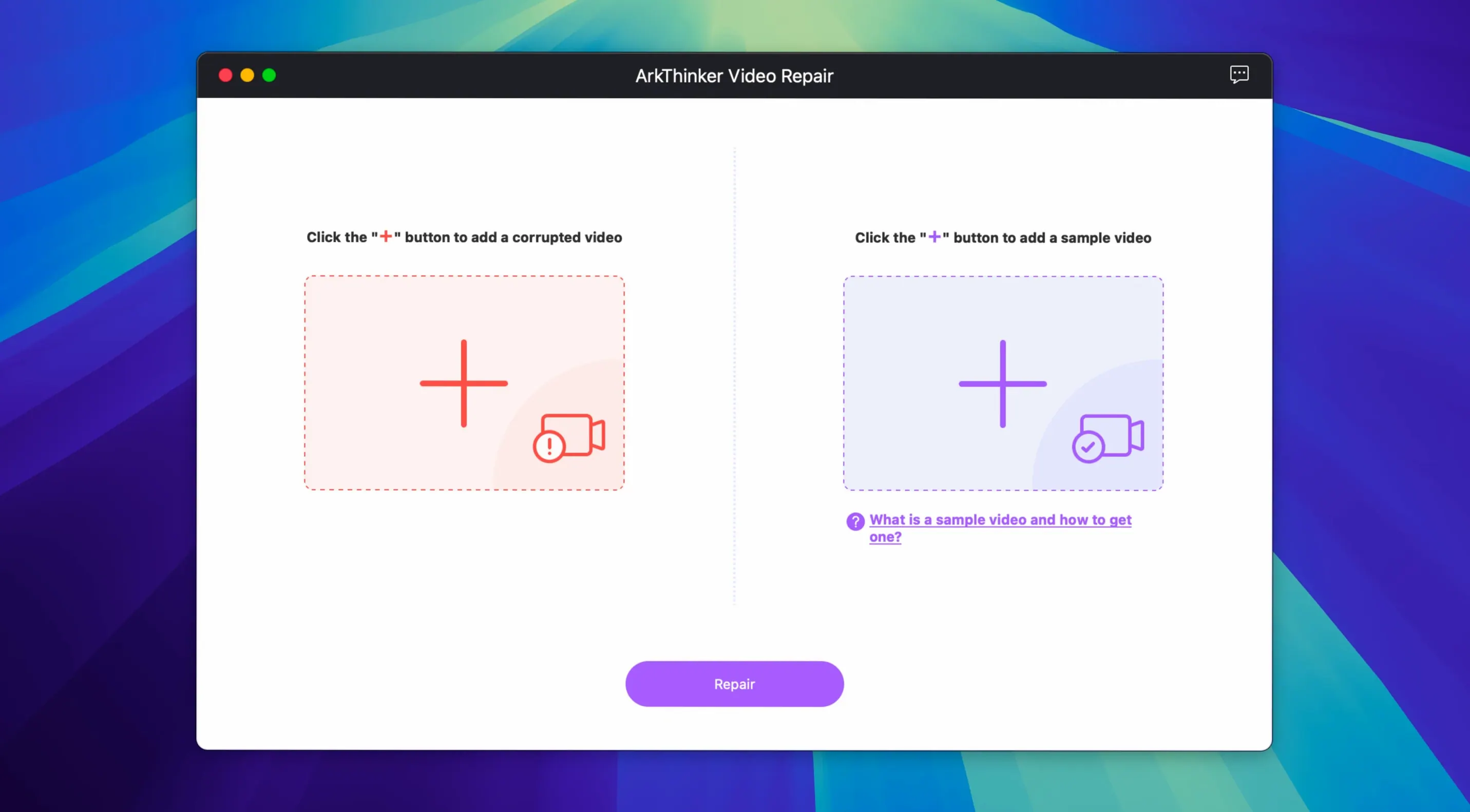
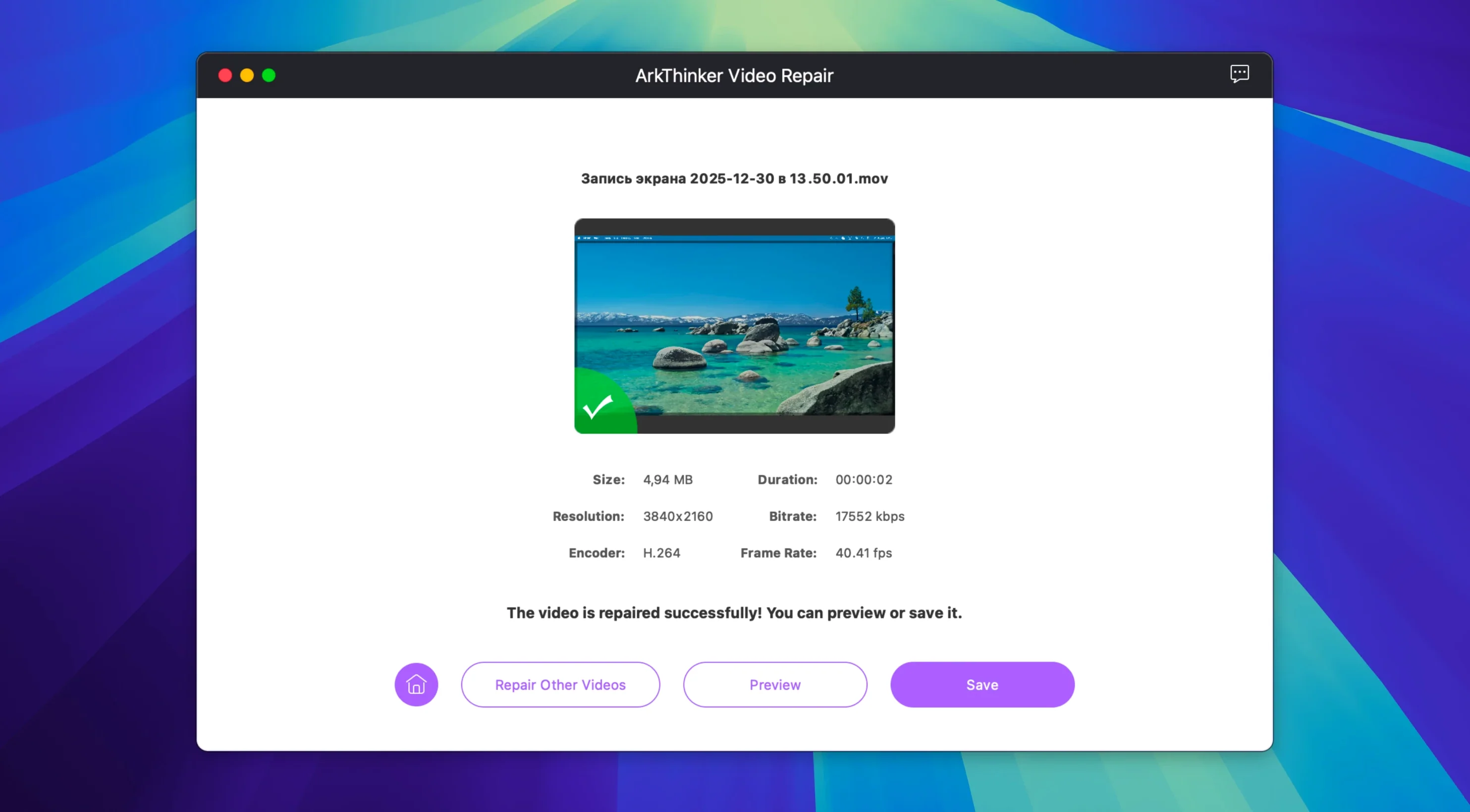
Click a screenshot to see it wider.
Video files break. A botched transfer, a crash mid-record, a dead memory card — and the footage is stuck. ArkThinker Video Repair 1.0.6 is the tool for that first attempt.
Repair engine — rebuilds damaged or unplayable MP4, MOV, AVI, MKV, FLV, WMV, and 3GP files.
High-resolution support — handles 4K, 5K, and 8K footage from cameras, drones, and phones.
Preview before saving — check the fixed clip first, then export only what works.
Error coverage — recovers after transfer errors, recording glitches, conversion failures, system crashes, or drive issues.
Interface — English, German, French, or Japanese.
Beginner mistakes
The most common error is skipping the preview. Then they find audio is still out of sync or the first five seconds are black. Always preview the repaired clip before you hit save.
Another is using the wrong sample video. The app accepts a sample for tricky repairs — but the sample needs to match the broken file's camera, codec, and settings. A random clip from a different phone will confuse the AI. If you do not have a matching sample, run the repair without one first. It often works.
Third mistake: quitting mid-repair. Large 4K or 8K files take time to rebuild. Closing the app because nothing seems to happen can leave the file half-fixed. Let it finish.
Bypass Gatekeeper to open the app
App does not open — On macOS 10.12 or later with Intel hardware, the most likely cause is Gatekeeper blocking the unsigned app. The install process includes a step to bypass Gatekeeper: mount the disk image, run Open Gatekeeper friendly, and press Enter in the Terminal prompt. Drag the app to Applications after that.
Repair runs but file still does not play — The file may be too damaged for a single pass. Try adding a matching sample video and run the repair again. If you do not have a sample, re-record a short clip with the same device at the same settings and use that.
Preview shows a black screen — The file structure is partially rebuilt but frame data is still scrambled. Run the repair again with a sample file if you have one. If not, check that the original file was not overwritten by a failed conversion — a fresh copy of the original sometimes yields better results.
Common mistakes beginners make
New users often grab a sample video from the wrong source. A clip shot on an iPhone will not help repair a file from a Canon camera. The sample needs the same camera, codec, and resolution. Without a match, the AI has less to work with.
Another mistake is running the repair on the original file without making a backup first. If the repair process alters the file structure and fails, you lose the original. Always copy the damaged file before you start.
Some users skip the format check. ArkThinker Video Repair supports MP4, MOV, AVI, MKV, FLV, WMV, and 3GP. Trying to repair a file in a format outside that list — like WebM or TS — will not work. Check the extension before you drag it in.
People also forget to close other apps. Video repair uses system resources, especially on older Intel Macs. Running Final Cut Pro or a browser with many tabs in the background can slow the repair or cause it to stall. Close what you do not need.
Snags during installation and first use
Gatekeeper still blocks the app after following the steps — Some Macs have stricter security settings. If the Terminal command did not work, go to System Preferences > Security & Privacy > General and look for a message about ArkThinker Video Repair. Click "Open Anyway" to allow it.
App opens but shows a blank window — This usually means the app did not finish loading. Quit and relaunch. If it happens again, re-mount the disk image and re-drag the app to Applications, making sure the copy completes before you run it.
Repair finishes but the file size is much smaller than the original — The repair likely recovered only a portion of the video data. This happens with files from badly damaged drives. Try the sample video method for a second pass. If that does not help, the original file may be too fragmented to rebuild fully.
Audio comes through but video stays black — The audio stream was intact, but the video stream header was corrupted. A sample video from the same device can help the AI reconstruct the video track. Without a sample, the repair may only salvage the audio. You can still save the audio file separately if that is useful.
App crashes when loading a 4K or 8K file — Large files push the limits of older Intel Macs. Ensure you have enough free disk space — the repair process needs room to write a temporary copy. If the crash persists, try repairing a smaller clip first to confirm the app works, then move to the large file with fewer background processes running.
- macOS 10.12 or later
- Intel 64-bit
- Languages: English, German, French, Japanese
Questions I get about this line
Yes, it supports high-resolution video up to 8K.
MP4, MOV, AVI, MKV, FLV, WMV, and 3GP.
The install order
- Mount the disk image.
- Open Gatekeeper friendly — press Enter in Terminal to bypass Gatekeeper.
- Drag the app to the Applications folder.
- Launch the app once installation is done.