
- Version
- 10.15.7 (19H15)
- Developer
- Apple
- Languages
- Russian, English, German, Arabic, Hungarian, Vietnamese, Greek, Danish, Hebrew, Indonesian, Spanish, Italian, Catalan, Chinese (Traditional), Chinese (Simplified), Korean, Malay, Dutch, Norwegian, Polish, Portuguese, Romanian, Slovak, Thai, Turkish, Ukrainian, Finnish, French, Hindi, Croatian, Czech, Swedish, Japanese
- License type
- DRM-free
| Chip | Intel 64-bit |
|---|---|
| Download | 7.7 GB |
Screenshots
Scroll the row, it snaps to each screenshot. Click one to see it wider.
The current version, 10.15.7 (19H15), delivers important security updates and bug fixes, including a fix for Wi-Fi auto-connect and an iCloud Drive sync issue.
macOS Catalina — the operating system for Intel-based Macs, available as a free DMG download.
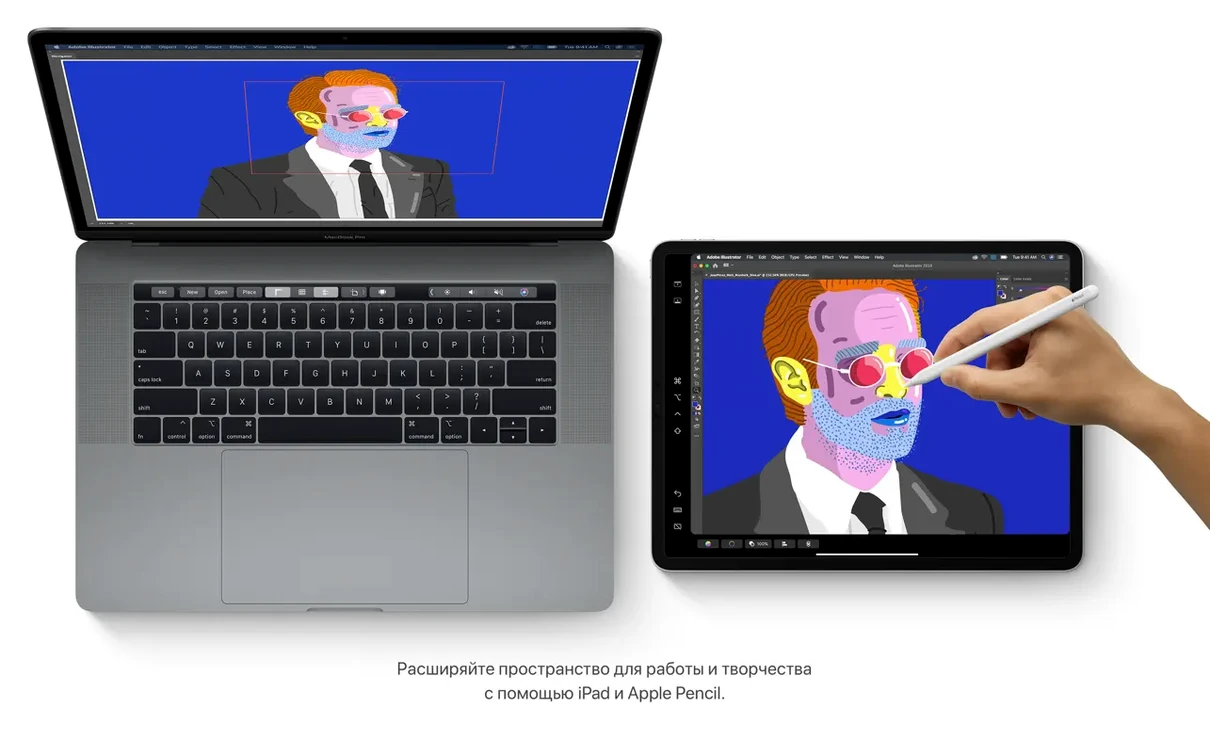
Sidecar — lets an iPad extend or mirror the Mac desktop.
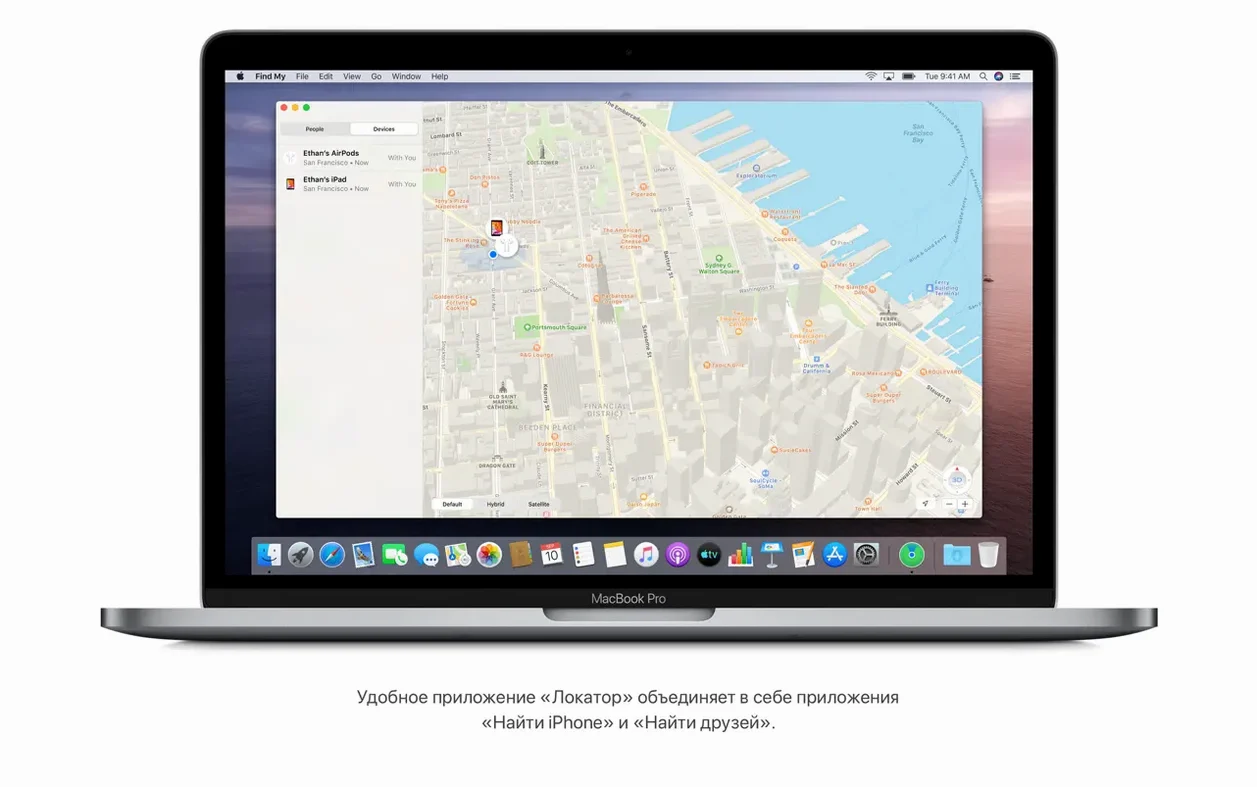
Find My — locates a missing Mac.
Finder device management — syncs, backs up, updates, and restores iPhone or iPad when connected.
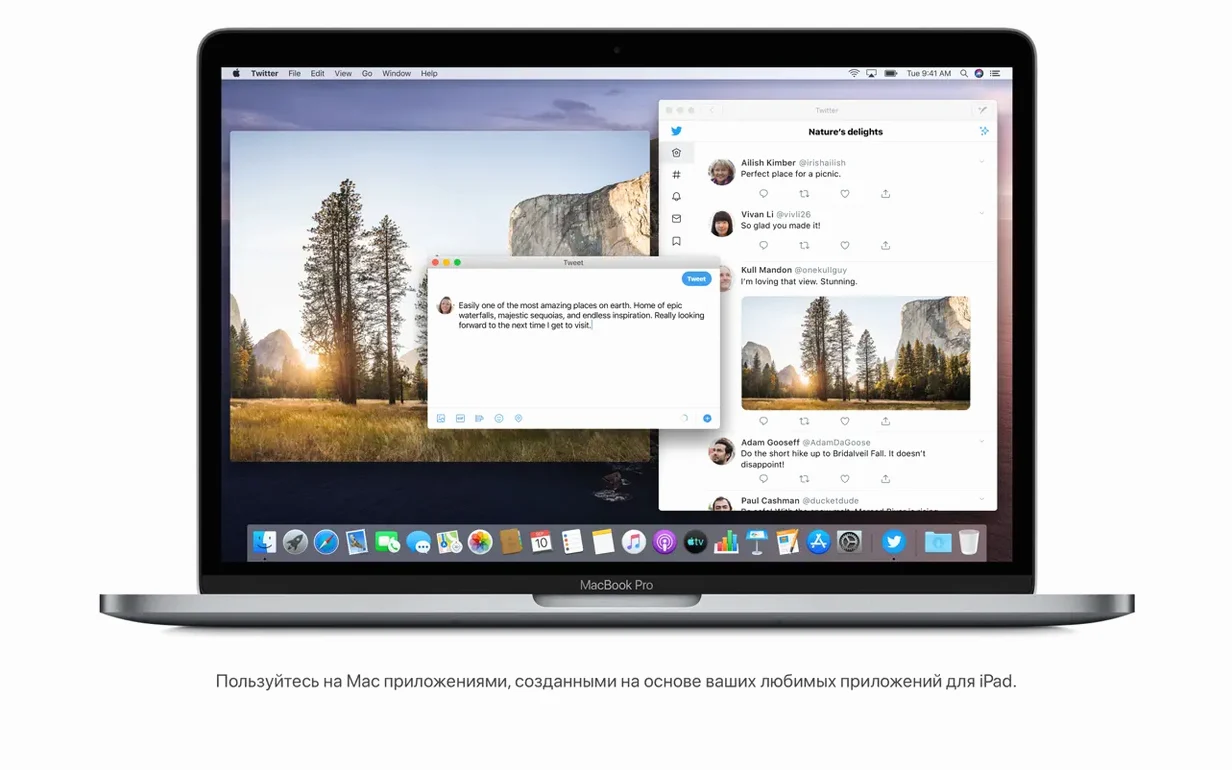
iPad apps — runs iPad apps on the Mac.
Safari — redesigned start page with history, bookmarks, Reading List, iCloud tabs, and Messages links.
Reminders — adds date, location, flag, attachment details with new editing controls.
After you install Catalina, a few early settings make the daily experience more predictable. Spend ten minutes here and you will avoid the common annoyances that trip up new users.
First day checklist
- Check that your backup strategy still works. Time Machine remains in Catalina, but verify your backup drive mounts and the latest snapshot completed.
- Open System Preferences > Notifications and review which apps can send alerts. Catalina tightens notification permissions, so some third-party tools may stop showing alerts until you grant them access.
- Test your printer and scanner drivers. Catalina drops support for 32-bit applications and some older printer utilities. If your device stops working, check the manufacturer's site for a Catalina-compatible driver.
- Re-authorize cloud storage apps. iCloud Drive sync had a known issue that 10.15.7 fixes, but Dropbox, Google Drive, and OneDrive may prompt you to re-authenticate after the upgrade.
- Set up Find My in System Preferences > Apple ID > Find My Mac. It does nothing until you enable location tracking. Do this before you need it.
Privacy location toggle off first
Catalina ships with defaults that favor a clean demo experience. For daily work, adjust these:
- Privacy tab in System Preferences — Turn off "Allow apps to request access to your location" unless you use location-aware apps regularly. Catalina respects this setting, and it stops unexpected permission prompts.
- Trackpad gesture sensitivity — If three-finger drag or pinch-to-zoom feels too jumpy, lower the sensitivity in System Preferences > Trackpad. The default works on new MacBooks, but older trackpads may need tuning.
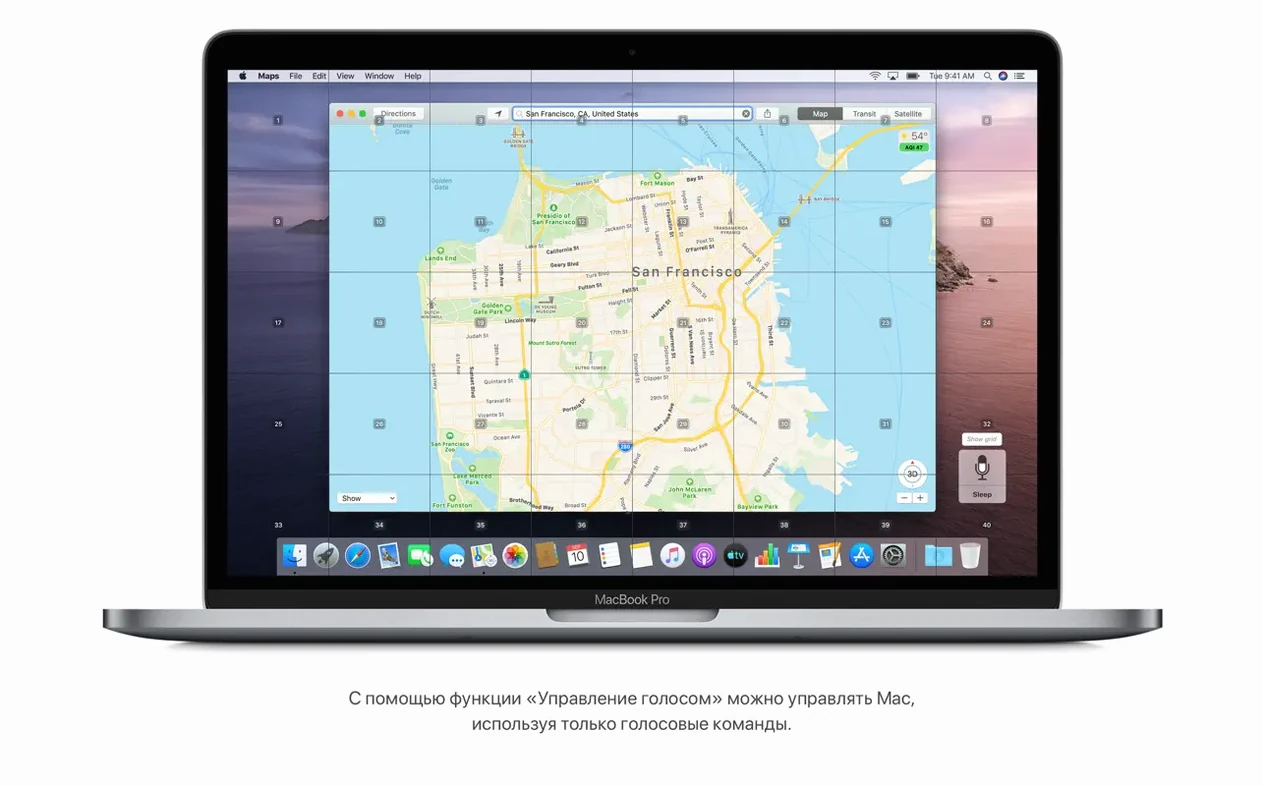
- Voice Control wake word — If you enabled Voice Control but do not need it always listening, set it to require a wake word in Accessibility > Voice Control. This prevents accidental commands during typing.
- iPad Sidecar mode — When using Sidecar for the first time, open Displays in System Preferences and arrange the iPad position. Sidecar defaults to mirroring, which duplicates the Mac desktop. Switch to "Extend" to get more screen space.
Avoid restoring pre-Catalina backups
I see the same errors repeatedly in IT tickets. Avoid these:
- Installing over an old backup — Catalina changes the file system behavior for Time Machine. If you restore a full backup from an earlier macOS version onto a Catalina drive, you may get permission errors. Do a clean install and migrate your data manually through the Migration Assistant instead.
- Assuming 32-bit apps will run — Catalina drops 32-bit app support entirely. Check your critical applications beforehand. This catches people with older Adobe CS suites or legacy games.
- Ignoring the Wi-Fi auto-connect fix — 10.15.7 addresses a Wi-Fi reconnect issue, but the fix only works if your network profile is saved correctly. If you still have trouble, forget the network in System Preferences > Network and reconnect fresh.
- Using the old iTunes for media — Catalina replaces iTunes with separate Music, TV, and Podcasts apps. Trying to launch iTunes will redirect you. Get comfortable with the new apps early — they handle the same library but with different menus.
- Skipping the 12.5 GB requirement — The upgrade needs that much free space, not just for the installer but for temporary files during the copy phase. Running low on disk mid-upgrade can corrupt the installation. Clear space before you start.
Catalina 10.15.7 runs on Intel Macs from 2012 onward with 4 GB RAM and macOS 10.9 or later. The DMG installer works on any compatible machine that meets the disk space requirement.
Supports 34 languages, including English, Spanish, French, German, Chinese, Japanese, and Russian. Requires an Intel 64-bit Mac.
- Provides important security updates and bug fixes.
- Resolves an issue where macOS would not automatically connect to Wi-Fi networks.
- Fixes an issue that could prevent files syncing through iCloud Drive.
- Addresses a graphic issue on iMac (Retina 5K, 27-inch, 2020) with Radeon Pro 5700 XT.
- macOS 10.9 or later
- Intel 64-bit processor
- 4 GB memory
- 12.5 GB available storage (if upgrading from OS X El Capitan 10.11.5 or later)
Questions I get about this line
Yes, macOS Catalina is built for Intel 64-bit Macs. You need at least 4 GB of memory and 12.5 GB of available storage for an upgrade from OS X El Capitan 10.11.5 or later.
Sidecar lets you use an iPad as a second display, extending or mirroring your Mac desktop wirelessly.
The install order
- Open the downloaded disk image.
- Copy the installer app to the Applications folder.