Free download (432 MB) Previous versions
- Version
- 4.0.0
- Developer
- artquant
- Languages
- Russian, English, German, Chinese (Simplified), French, Japanese
- License type
- DRM-free
| macOS range | macOS 12 or later |
|---|---|
| Chip | Apple Silicon |
| Download | 432 MB |
| Previous versions | 8 on file |
Screenshots
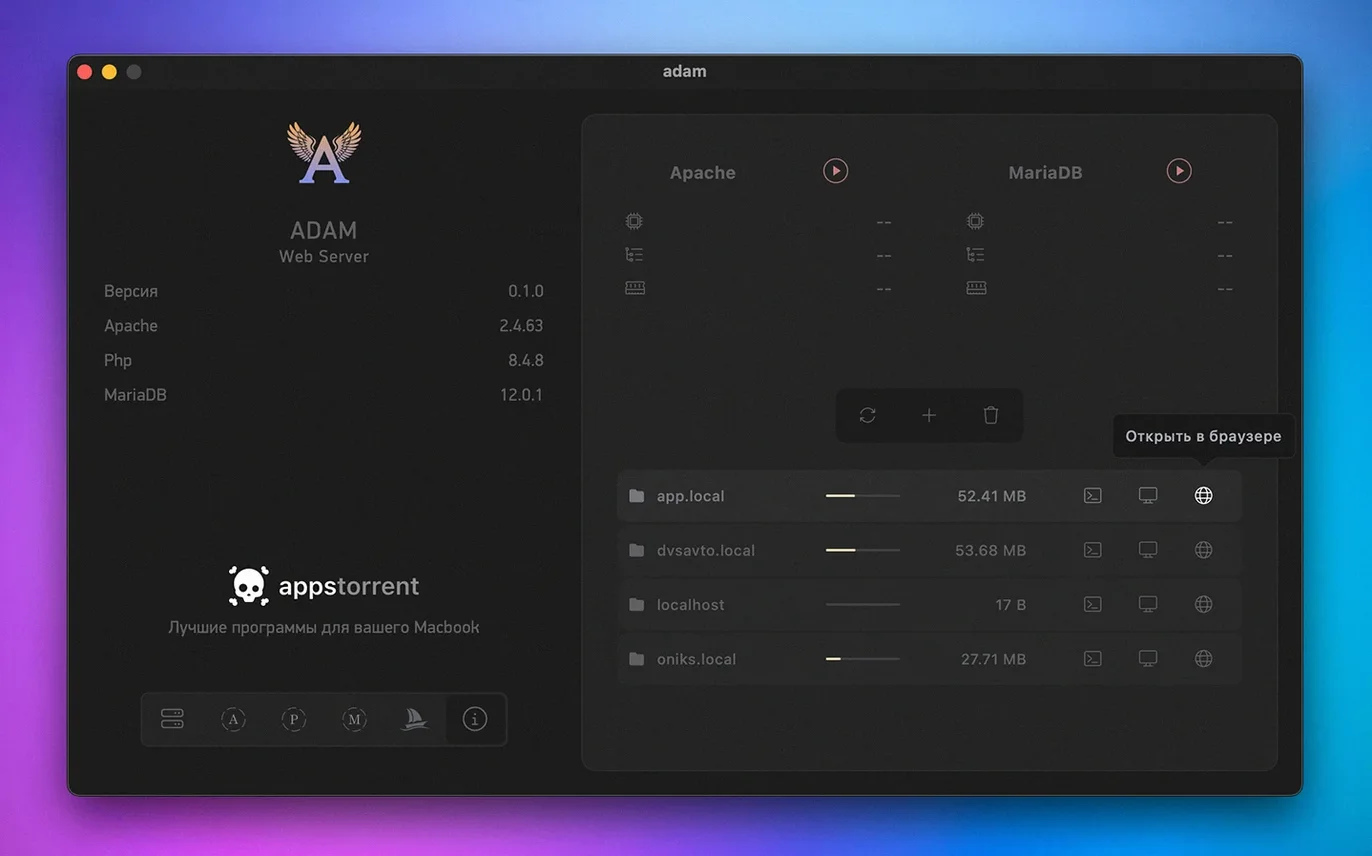
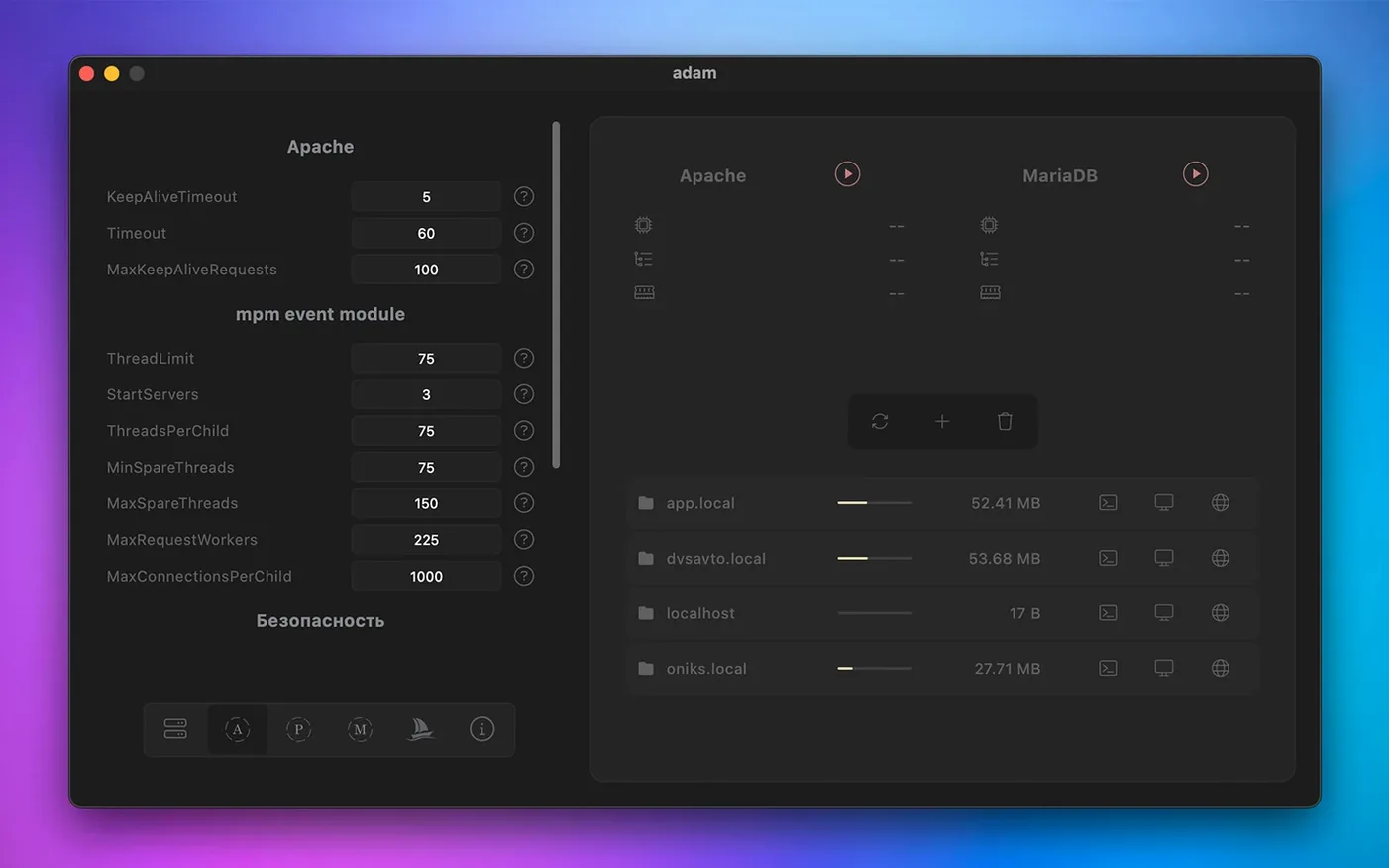
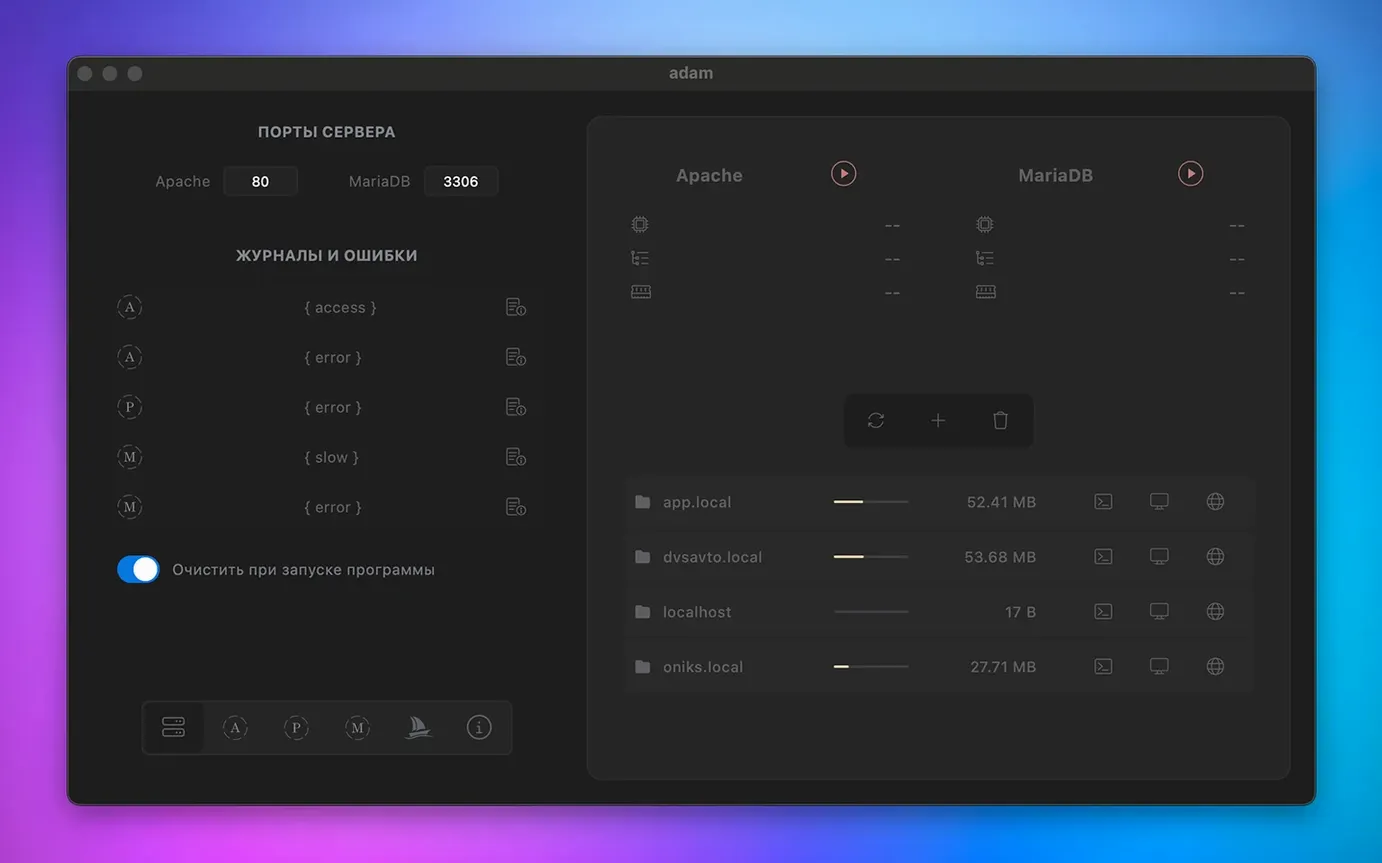
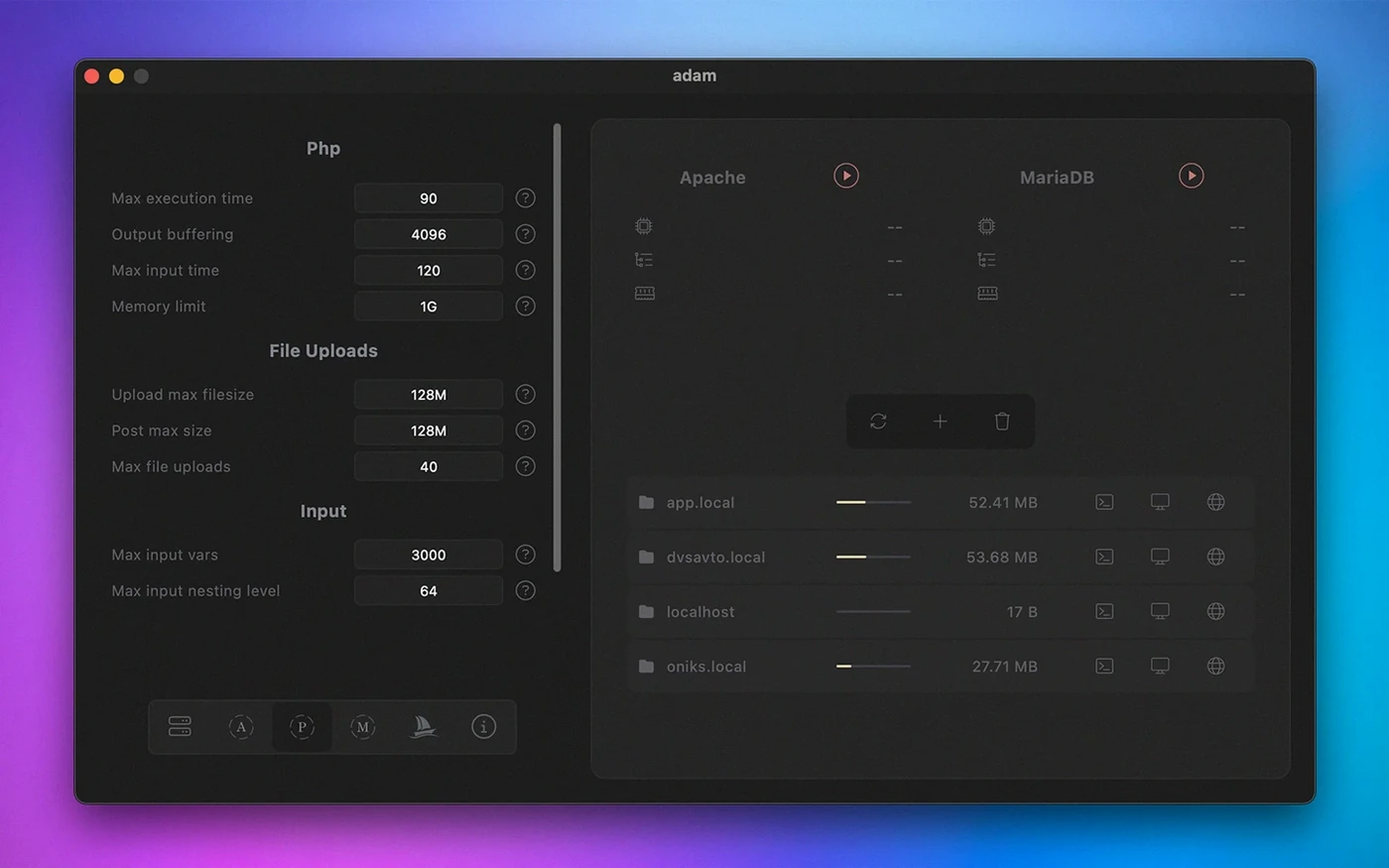
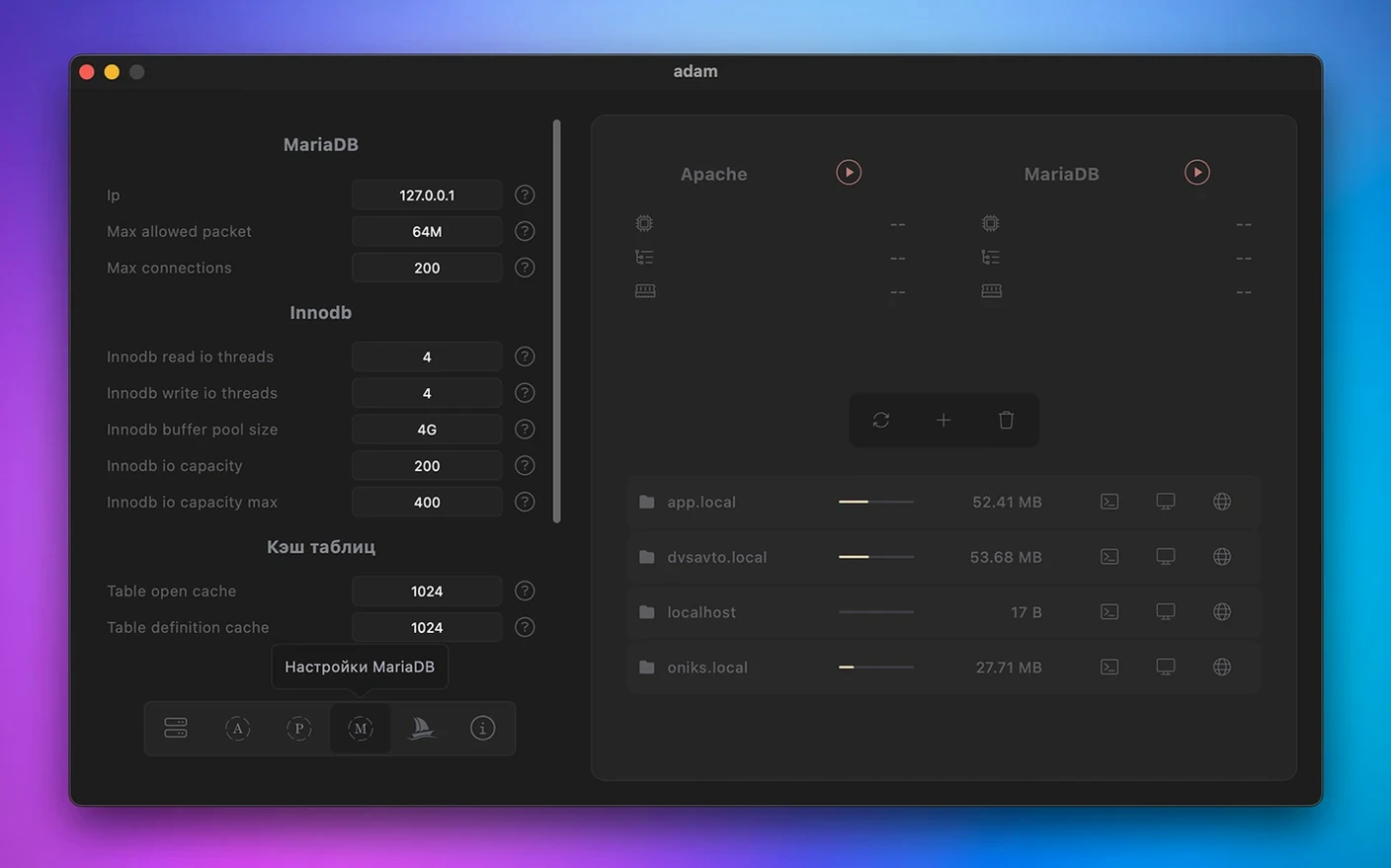
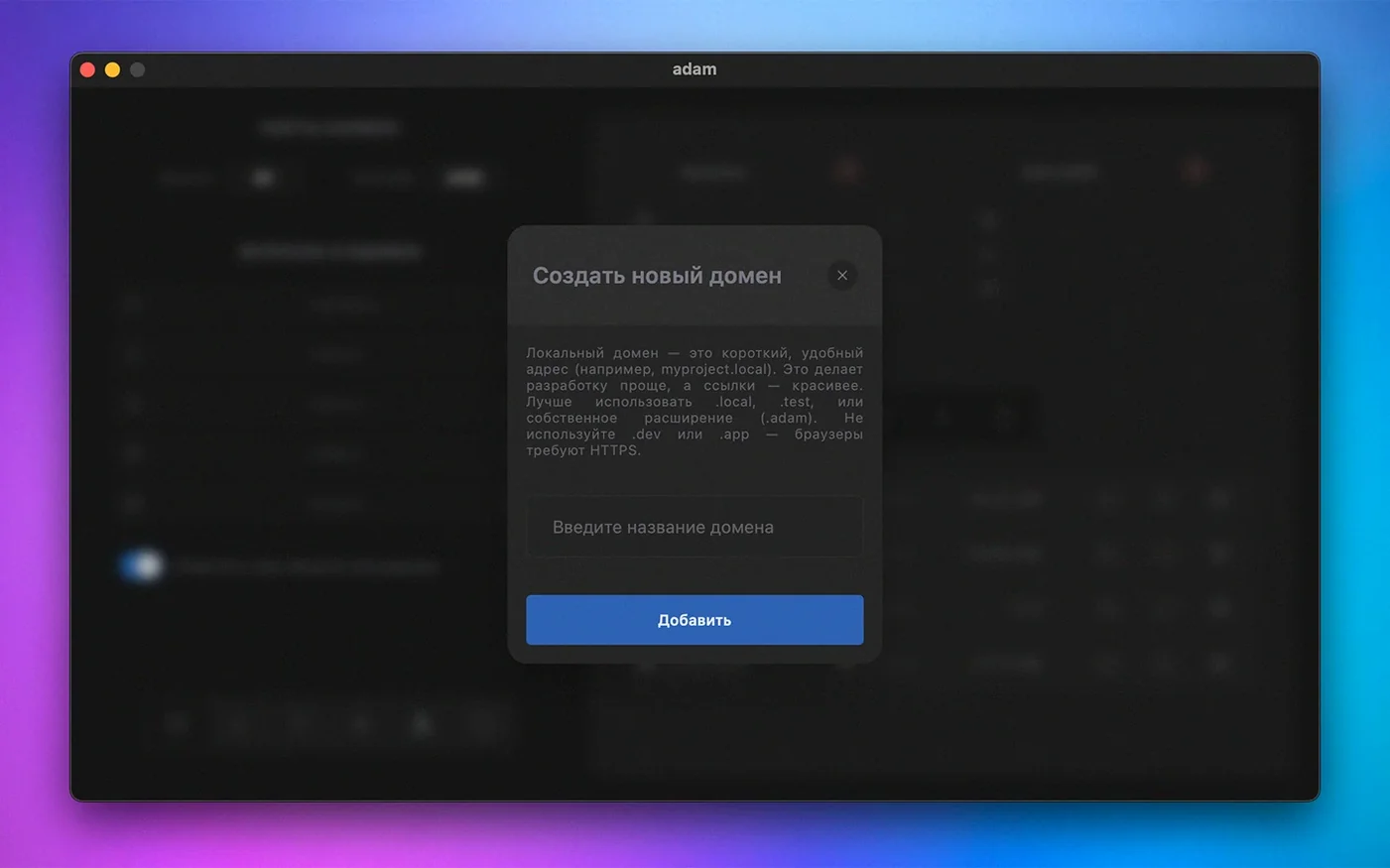
Click a screenshot to see it wider.
Web developers who need a local server stack without the overhead of MAMP or Docker reach for Adam. It bundles Apache, PHP, and MariaDB 12.0.1 in one app, controlled from a simple GUI.
- Set up a local WordPress or Laravel site in under two minutes – just point the document root to your project folder and start the services from the Adam window.
- MariaDB 12.0.1 is built in, so you don’t install or configure a separate database.
- The graphical interface shows server status, lets you toggle services individually, and exposes logs without digging into terminal.
- Works natively on Apple Silicon (M-series chips) and requires macOS 12 or later.
- Drag the app to the Applications folder, launch from Launchpad – no homebrew or extra dependencies.
- Interface is available in English, Russian, German, French, Simplified Chinese, and Japanese.
For freelancers juggling multiple client sites
Freelancers and small-agency developers who juggle multiple client sites get the most out of it. You spin up a new project directory, point Adam at it, and the stack is live in seconds. No editing httpd.conf files, no wrangling MySQL versions.
WordPress developers working on several local instances at once will appreciate the per-project isolation. Laravel and Symfony developers get the PHP 8.4.8 they need without touching a system install. It also suits anyone who prefers a GUI for server management – not everyone wants to memorize brew services commands.
Students learning web development benefit too. Adam removes the upfront configuration barrier that trips up beginners. You can focus on PHP and SQL without fighting environment setup.
Stop Adam's Apache before launching
New users sometimes forget that Adam runs its own Apache instance. If you already have a web server running on port 80, the services won't start until you stop the other one. Check Activity Monitor for httpd processes before launching Adam.
Another frequent misstep: pointing the document root at the Applications folder or another system directory. Keep project files in your user folder. Adam gives you a warning, but users still do it and wonder why permissions break.
Beginners also expect MariaDB to appear in Sequel Ace or TablePlus automatically. It does – once Adam's services are running. Start the stack first, then connect on localhost:3306.
Some users drag the app back to the Downloads folder after first launch. Adam needs to stay in Applications. Running it from Downloads causes permission issues with the included servers.
PHP 8.4 and MariaDB 12 in daily use
Version 4.0.0 brought PHP 8.4.8 into the stack. If you work with modern PHP frameworks, that means support for property hooks, asymmetric visibility, and the #[\Deprecated] attribute without a separate PHP upgrade. MariaDB jumped to 12.0.1, which adds instant DDL for some ALTER operations and better JSON performance.
The interface gained multilingual support – you can switch the UI to Russian, German, French, Simplified Chinese, or Japanese from the preferences. For teams that share a Mac or for non-English-speaking developers, that removes friction.
ARM-native support also landed in this version. On Apple Silicon Macs, the entire stack runs without Rosetta translation. That means Apache, PHP, and MariaDB all use the M-series chip directly.
For a clean, fast local development stack that stays out of your way, Adam does the job.
- macOS 12 or later
- Apple Silicon (ARM architecture)
Questions I get about this line
Yes, Adam 4.0.0 supports ARM architecture (Apple Silicon) and requires macOS 12 or later.
Adam includes MariaDB 12.0.1 as its database component, with Apache and PHP built into the same stack.
The install order
- Open the downloaded disk image.
- Drag the app to the Applications folder shortcut.
- After copying finishes, open the app from Launchpad.