Free download (3.5 GB) Previous versions
- Version
- 28.0.0
- Developer
- Adobe
- Languages
- Russian, English, German, Hungarian, Hebrew, Spanish, Italian, Chinese (Simplified), Korean, Polish, Portuguese, Ukrainian, French, Czech, Japanese
- License type
- K'ed by boringman
| macOS range | macOS 14 or later |
|---|---|
| Chip | Apple Silicon, Intel 64-bit |
| Download | 3.5 GB |
| Previous versions | 96 on file |
Screenshots
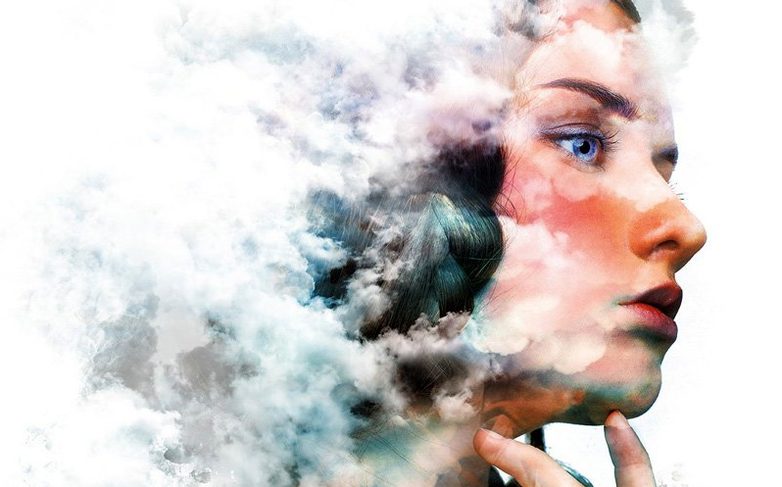


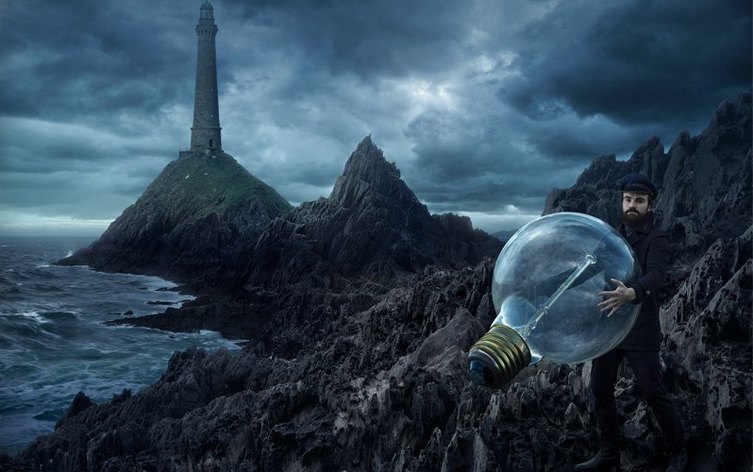
Click a screenshot to see it wider.
Adobe Photoshop 27.10 introduces a Light adjustment layer for non-destructive lighting work and a new AI Assisted editor (Beta) that lives inside the app. Prompt to Edit and Markup let you describe changes in natural language and have Photoshop apply them — no menu hunting.
This release keeps the core design tools for posters, packaging, banners, and web graphics. You still get layers, a large brush collection with custom brush creation, neural filters, and Adobe Stock integration. Retouching, background replacement, compositing, and object removal all work as expected.
The AI Assisted editor is the headline feature. It processes your text prompts and applies edits directly to the image. Combined with the new Light adjustment layer, you can make complex lighting changes without destroying the original pixels. The desktop version runs on macOS 14 with native Apple Silicon and Intel support. The iPad companion app is available separately.
Workflow: Replacing a Background with the AI Assisted Editor
A typical background swap goes like this. Open your photo in Photoshop 27.10. Select the subject using any selection tool you prefer — the new one-click selection option works well for clearly defined subjects. Once the subject is selected, refine the edge with the Select and Mask workspace if needed. Do not feather or smooth the selection too much at this stage; the AI Assisted editor handles soft edges better than older methods.
With the selection active, open the AI Assisted editor (Beta) from the menu. Type a prompt like “replace background with a sunset beach” or “make the background a brick wall.” The editor applies the change only inside the selection area. You can then use Markup to draw rough shapes over areas you want the AI to ignore or focus on. After the first generation, use Prompt to Edit for follow-up changes — “brighten the sky” or “add a door to the left.” The Light adjustment layer lets you fine-tune exposure and contrast on the new background non-destructively.
Save the result as a PSD with layers intact. That way you can revisit the AI edits or the selection later.
Intel Macs Need Rosetta First
Over-Selecting Before AI Edits
New users spend too long perfecting a selection before running the AI Assisted editor. The built-in Markup and Mask features are designed to handle rough input. A fast, loose selection followed by a quick Markup annotation often gives a better result than a painstakingly refined edge.
Ignoring the Neural Filters Pack
The Neural Filters Pack contains the model files that some filters and the AI editor require. Beginners skip extracting it to the Adobe UXP plugins folder, then wonder why a feature doesn't load. Extract it during the install step. Without it, generative features are unreliable.
Forgetting the Light Adjustment Layer
Many users apply adjustments directly to the background layer. That commits the change permanently. The Light adjustment layer for exposure, contrast, highlights, and shadows is non-destructive. Keep it on its own layer above the background. Then you can toggle it off to compare or adjust values later.
Not Checking the Save As Format List
Photoshop 27.10 lets you customize which file formats appear in the Save As and Save a Copy dialogs. Beginners leave every format enabled, which clutters the list. Go into Preferences and disable formats you never use — TGA, SGI, Scitex CT, for example. It makes saving faster.
macOS 14 or Later Required
The software runs on macOS 14 or later. It supports both Apple Silicon (ARM) and Intel-based 64-bit x86 Macs. If you are on an Intel Mac, Rosetta is required for the install to proceed. If Rosetta is not already installed, the instructions tell you to install it first and then repeat the install step.
The application itself is a large suite. Expect disk space to be used for the application files plus the Neural Filters Pack. The interface is available in 15 languages including Russian, English, German, French, Spanish, Italian, Japanese, Korean, Polish, Portuguese, Ukrainian, simplified Chinese, Czech, and Hebrew. The AI Assisted editor and Prompt to Edit features rely on local processing. No cloud account is needed for the Beta features, but Adobe Stock content requires an internet connection to browse and license.
Generative Fill is listed as unavailable in this build. If you look for that specific feature, it will not appear. The AI Assisted editor replaces its function for most generative tasks.
How Photoshop 27.10 Fits With Other Apps and macOS
Integration with Adobe Apps
Adobe Stock content is available directly inside the app. You can search, preview, and place licensed stock images without leaving Photoshop. The Light adjustment layer and AI Assisted editor are desktop-only for this release.
macOS Features
Photoshop 27.10 respects macOS system-wide shortcuts and input methods. If you use dictation or accessibility tools on macOS 14, they work alongside the app. The dynamic text on shapes and paths feature is useful when designing directly on the canvas for print or web mockups. It keeps text editable in the final layout.
Workflow with Other Graphics Tools
The app opens PSDs created in older versions without conversion. You can bring in vector files from Illustrator, raw photos from Lightroom, or exported frames from After Effects. The layers structure is preserved when moving between these apps. For catalog and web design workflows, combining photos, diagrams, and text into a single composite is straightforward. The one-click selection and automatic masking speed up the compositing process across projects that involve multiple source images.
Interface languages include English, German, French, Spanish, Italian, Japanese, and more.
Photoshop 28.0.0 ships with the full set of changes detailed in the developer release notes on Adobe's site.
- macOS 14 or later
- Apple Silicon or Intel 64-bit Mac
Questions I get about this line
Yes, it requires macOS 14 and supports both Intel and Apple Silicon Macs.
The install order
- Follow the included installation and activation instructions.
- If Rosetta is not installed, install Rosetta first, then repeat the installation.
- Extract the Neural Filters Pack to the specified Adobe UXP plugins storage folder if needed.
- If an Adobe Genuine window appears, a blocking utility is included with the package — add it to startup.