
Free download (24 MB) Previous versions
- Version
- 3.0.8 FIX
- Developer
- Swinsian
- Languages
- English
- License type
- Included
| macOS range | macOS 10.13 or later |
|---|---|
| Chip | Apple Silicon, Intel 64-bit |
| Download | 24 MB |
| Previous versions | 2 on file |
Screenshots
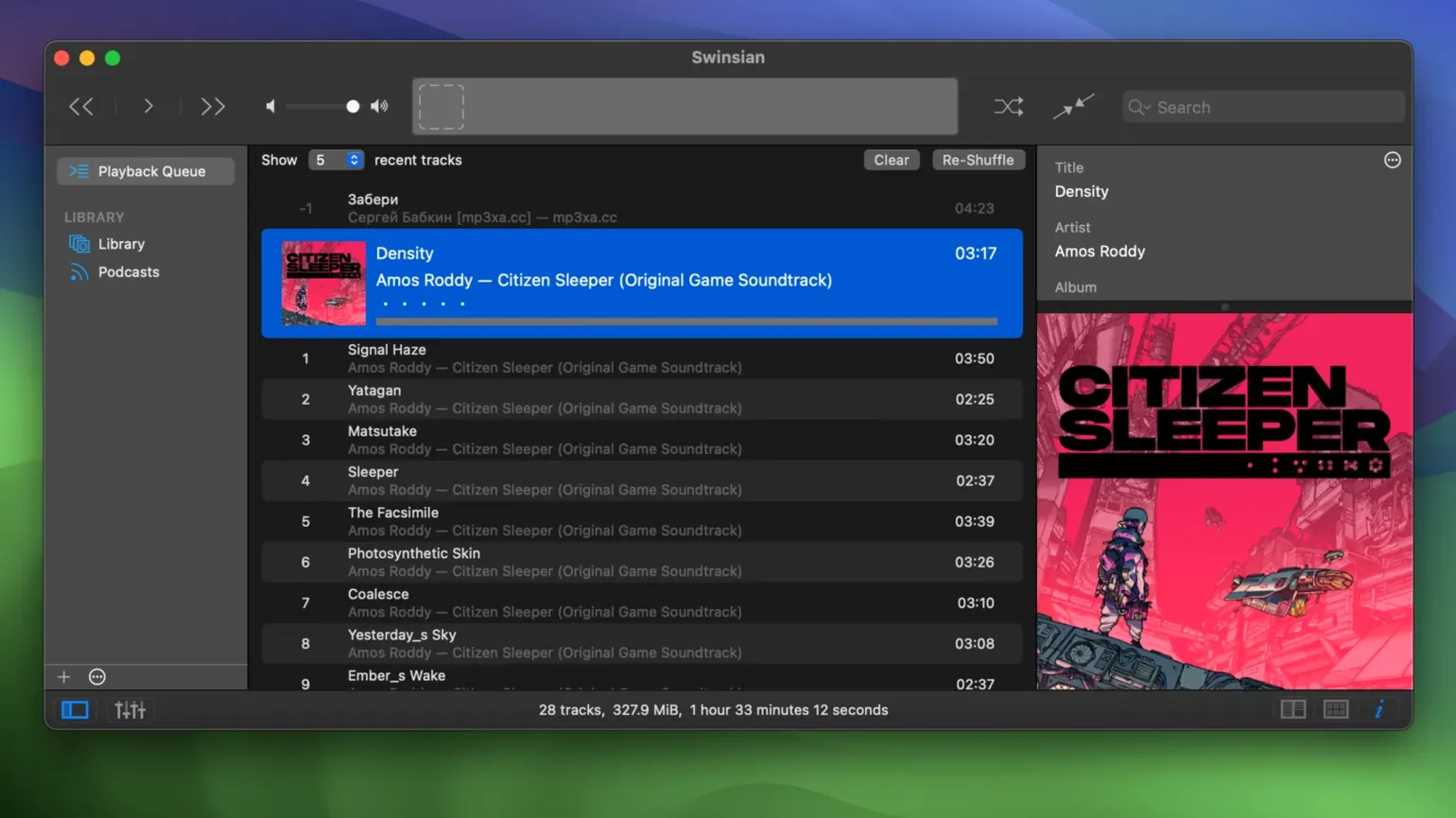
The Complete Tags window is where Swinsian earns its keep. Instead of hunting through separate panes, you get every field in one place, and sorting there behaves correctly in 3.0.8. That attention to detail carries through the rest of the app.
Folder watching is the core feature. Point Swinsian at your music directory, and it updates the library when files change. No manual rescan, no import step. Add a file, rename a folder, drop in a new album — the library follows.
- Graphic equalizer with 10-band or 31-band precision
- Automatic podcast downloads so episodes land without babysitting
- Cue sheet support, including embedded metadata
- AirPlay playback to speakers and receivers
- Last.fm scrobbling for those who track their listening
- Format coverage from FLAC and ALAC to Opus, WMA, and APE
Album art label options in the March 2026 update
The March 2026 update is small but practical. The art grid labels now show more options — you can pick what text appears under album covers without digging into a config file. That matters if you browse by artwork and want artist name, album title, or both visible at a glance.
Interface text can be scaled larger now, though it is a hidden setting. Open Terminal and run a defaults command to bump the font size. Handy if you run a 4K display or just want the playlist pane easier to read.
- Quadraphonic FLAC files play correctly now — no channel mix-up on surround-encoded files
- Transcoding rules stick after you save them; previous versions would drop the rule on restart
- Removing tracks from an iPod playlist works without errors
- Complete Tags window sorts columns properly when you click the header
AppleScript and global shortcut integration
Swinsian sits alongside the rest of your workflow rather than replacing it. AppleScript support means you can link it to Keyboard Maestro, Hazel, or a simple script that pauses playback when a certain app opens. The global keyboard shortcuts work system-wide — play, pause, next, previous from any app without a menu bar helper.
Playback notifications show track info in Notification Center. If you use a focus mode, the notifications still appear on the screen or funnel into the notification list depending on your settings. AirPlay sends audio to HomePod or Apple TV without AirPlay 2 multi-room, but it works for single-room streaming.
iTunes library import is still present. Point it at your old iTunes Music Library.xml or the Music app database, and Swinsian reads playlists, play counts, ratings, and file references. After the import, folder watching takes over so new files are picked up automatically.
Last.fm scrobbling runs in the background without a separate helper app. Smart playlists use rules similar to iTunes — artist, genre, play count, date added, rating — and they update live as your library changes.
Setting the library folder and initial preferences
After you mount the disk image and drag Swinsian to Applications, open Preferences. A few changes make the experience better right away.
- Set the library folder. Go to General and point Swinsian at your master music directory. Turn on folder watching. This is the only step that matters for library maintenance.
- Enable the equalizer. Under Playback, turn on the equalizer. Choose 10-band or 31-band. The 31-band gives finer control if you have problem frequencies in a room or headphones.
- Configure keyboard shortcuts. In Global Hotkeys, assign play/pause, next, previous, and volume. They override other apps only when Swinsian is playing, so they do not conflict with system shortcuts.
- Turn on automatic sample rate switching. Under Audio, enable automatic device sample rate change. The audio output switches to the file's native rate — no resampling, no clock drift.
- Set artwork fetching. In Metadata, let Swinsian fetch album art from embedded metadata first, then online sources. It saves you from manually dragging cover images.
- Enable Last.fm scrobbling. If you scrobble, enter your credentials in Scrobbling. It caches plays offline and uploads when you reconnect.
These adjustments take two minutes. After that, Swinsian runs without much intervention — add music, and it appears. Tag errors get fixed with find-and-replace and regex in the Complete Tags window. The app stays out of the way until you need it.
Standalone means it doesn't lean on Apple Music. It plays your files, tags them, watches the folders, and stays out of the way.
- More customization options for art grid labels
- Hidden options to make interface text larger
- Fixes playback of quadraphonic FLAC files
- Fixes transcoding rules not being saved correctly
- Fixes problems removing tracks from iPod playlists
- Fixes sorting in the Complete Tags window
- macOS 10.13 or later
- Intel or Apple Silicon
- English
Questions I get about this line
Yes, Swinsian includes AirPlay playback, so you can stream your music to compatible speakers and devices directly from the app.
The install order
- Mount the downloaded disk image.
- Drag the app to the Applications folder alias.
- Open the app from Launchpad after copying finishes.