Free download (1 GB) Previous versions
- Version
- 4.3.1
- Developer
- Apple
- Languages
- English, German, Spanish, Chinese (Simplified), French, Japanese
- License type
- K'ed by Antibiotics x TEAM EDiSO
| macOS range | macOS 15.6 or later |
|---|---|
| Chip | Apple Silicon |
| Download | 1 GB |
| Previous versions | 7 on file |
Screenshots
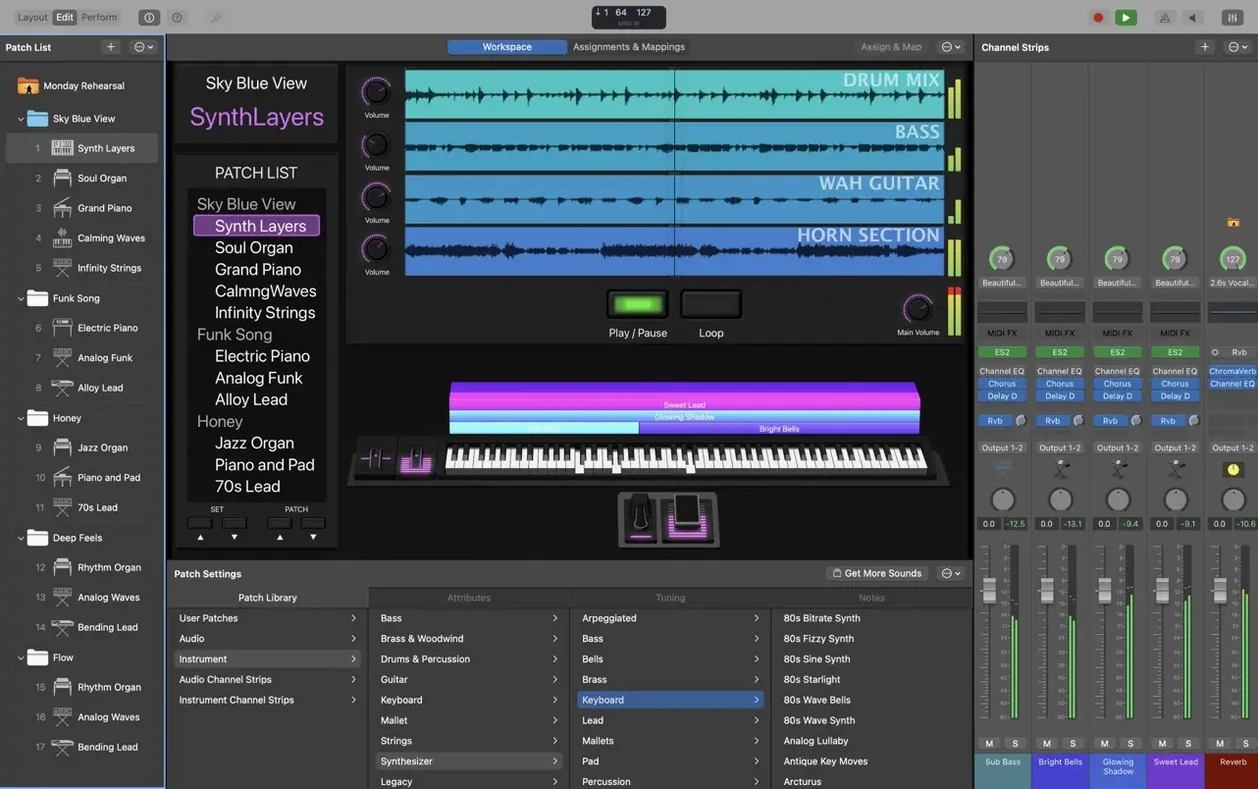
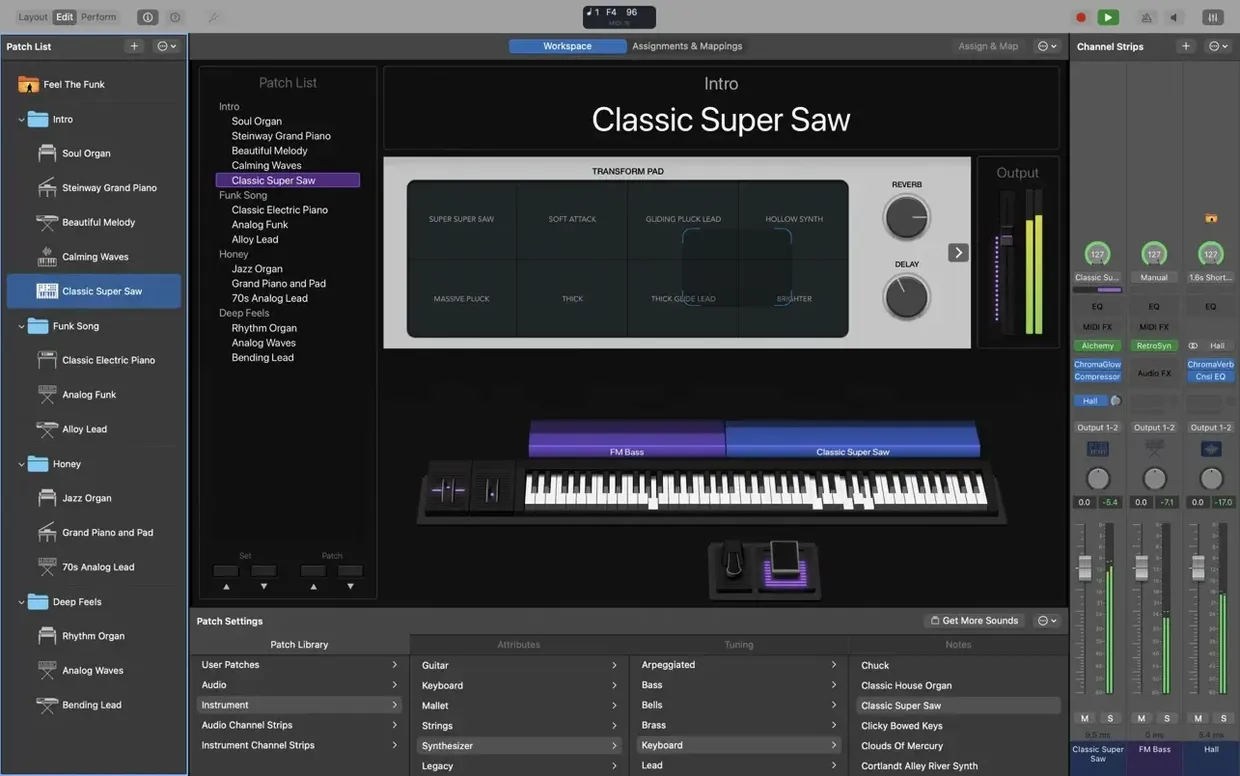
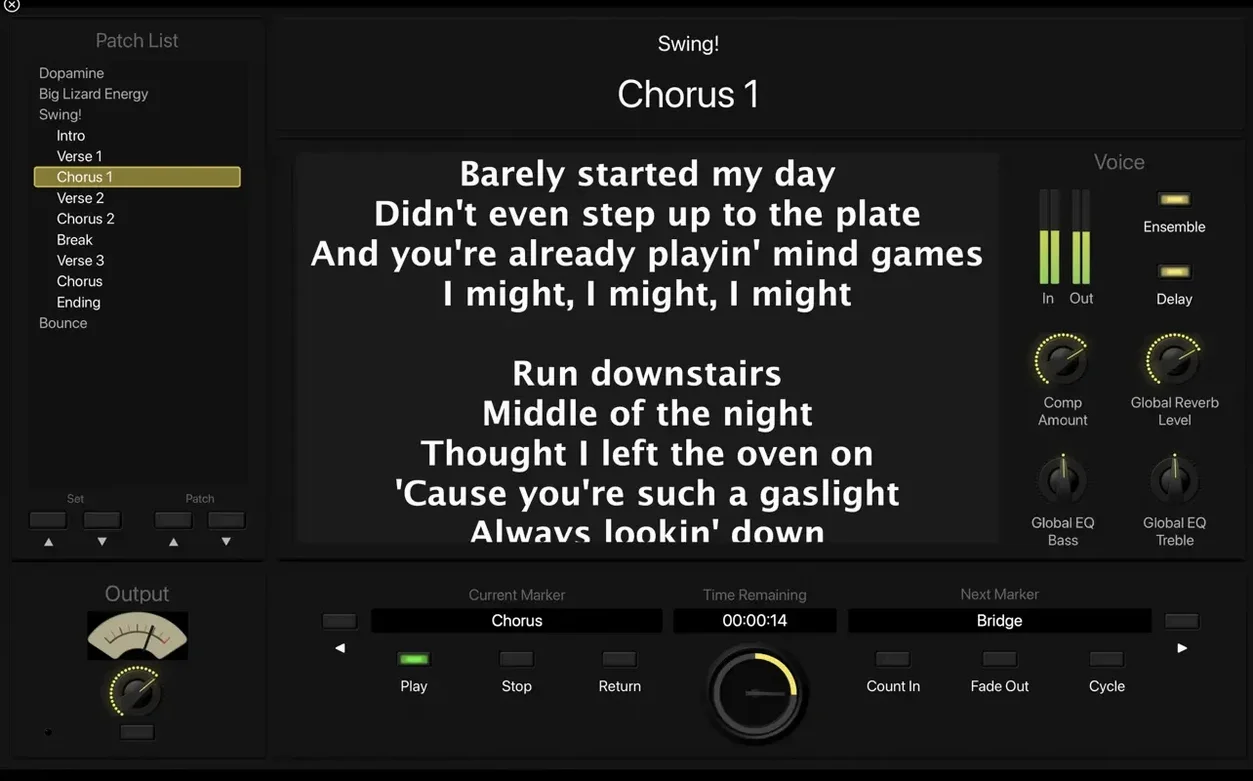
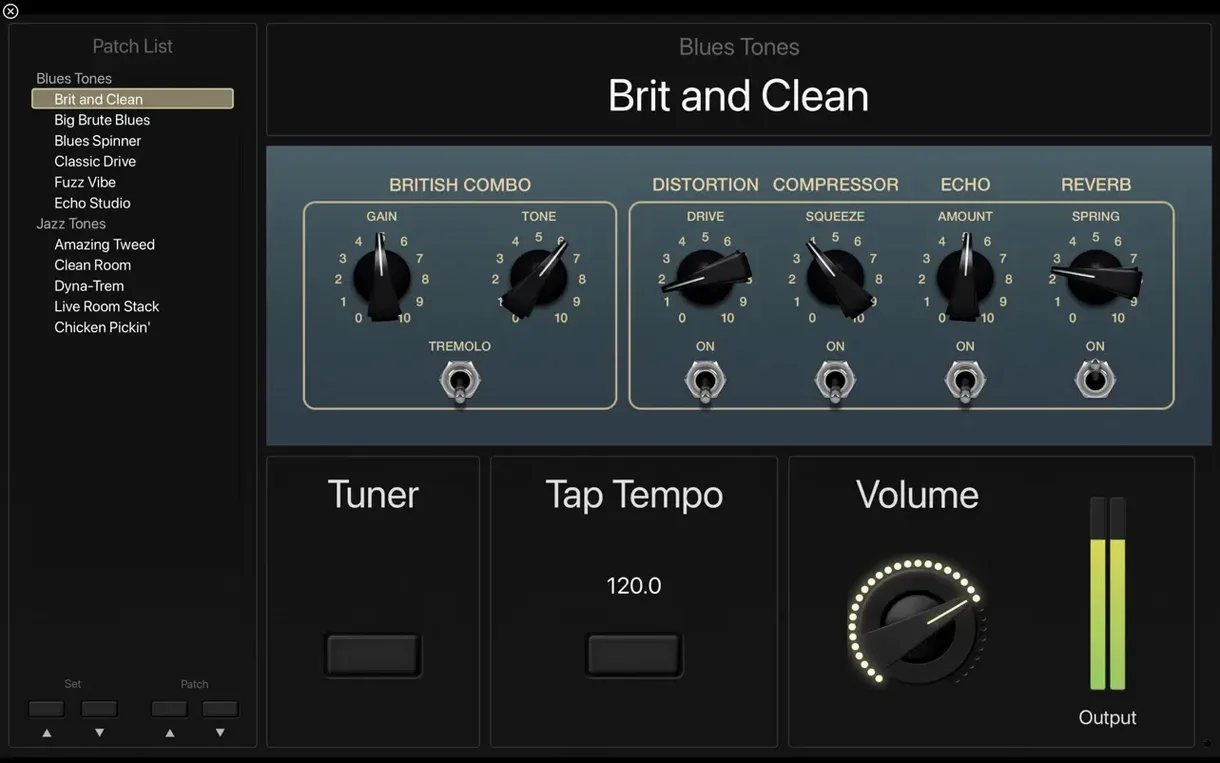
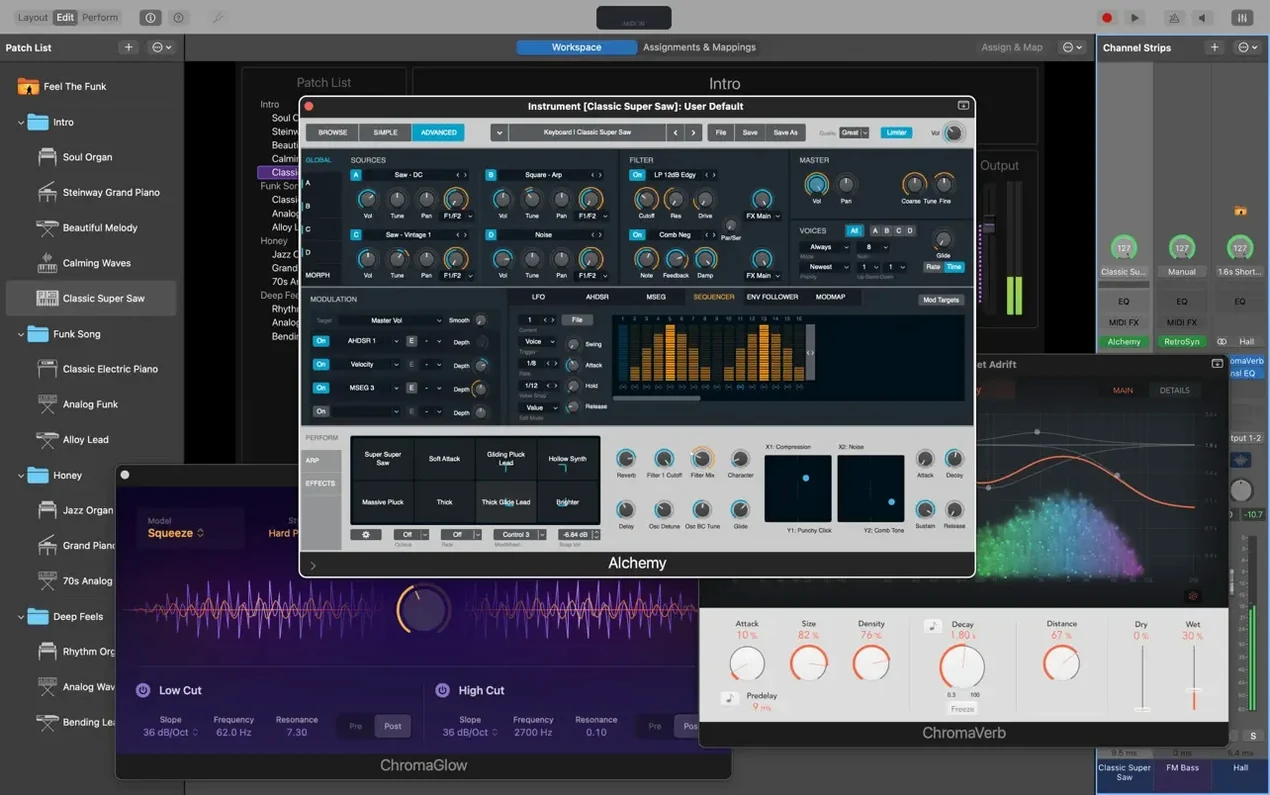
Scroll the row, it snaps to each screenshot. Click one to see it wider.
Channel Strip presets are where MainStage starts to feel like a real live rig. You build a patch around an instrument or effect chain, then trigger it from a keyboard, pedal, or controller without touching the screen. The full-screen interface keeps everything visible and focused, so you are not hunting through menus mid-set.
- Full-screen performance view — a clean, optimized layout for live shows, with controls that match your hardware.
- Amp Designer and Pedalboard — guitar and bass tones that behave like the real thing, plus a full-screen tuner that is always one tap away.
- MIDI plug-ins — Arpeggiator, Chord Trigger, and Transposer let you play beyond your usual patterns or trigger chords from single notes.
- Vintage keyboards — Vintage B3, Electric Piano, and Clav sit alongside Retro Synth and over 750 sampled instruments.
- Space Designer and delays — convolution reverb, tape delays, multi-tap, and stereo delays give you room to shape the sound.
- Touch Bar support — on MacBook Pro, the Touch Bar puts key edits and workspace controls right under your fingers.
Built for live use, MainStage works with Logic and GarageBand sounds, and it accepts any 64-bit Audio Unit plug-in. If you play keys or guitar and want a dependable live setup, this is the tool.
Audio Device and MIDI Setup First
Open Preferences before you load any patches. A few adjustments there save time later.
- Audio Device — set your interface or built-in output before building patches. MainStage remembers the selection per set.
- MIDI Controllers — connect your keyboard or pedal and verify it appears in the MIDI Devices list. Name it so you can identify it at a glance.
- Smart Controls — enable them from the View menu. These give you patch-specific sliders and knobs that map to whatever instrument or effect is active. Assign the controls you use most (volume, reverb mix, delay feedback) early so you are not reaching for a mouse on stage.
- Sound Library Location — if you install the full 57 GB library, point it to an external SSD or internal drive with room to spare. The minimal 6 GB install fits on most machines, but the full library wants a dedicated spot.
- Tap Tempo — set a MIDI note or key command if you use delays or arpeggiators. It keeps time without stopping playback.
The built-in Touch Bar support on MacBook Pro works immediately after you enable it in the Display settings. No extra configuration needed.
Requires Apple Silicon and 6 GB
MainStage 4.3.1 runs on macOS 15.6 or later and requires Apple Silicon hardware. It is a 64-bit app that loads Audio Unit plug-ins of the same architecture.
- Disk space — a minimal install uses 6 GB. The full Sound Library with all 1,800 patches and 4,600 Apple Loops needs 57 GB. Download only what you need for your sets.
- Plug-in format — only 64-bit Audio Unit plug-ins work. VST and AAX are not supported. If you own Logic Pro or GarageBand, their instrument and effect libraries load directly.
- Languages — English, German, Spanish, Simplified Chinese, French, Japanese. Switch in Preferences after the first launch.
- Appearance — the interface stays full-screen during a performance. You can window it for editing, but the live view is designed to fill the display with no distractions.
No performance numbers here — every setup differs. What matters is that the app expects a clean install of macOS 15.6 and does not share resources with 32-bit plug-ins.
SysEx Fix in Current Build
These come up often in forums and support tickets. Knowing them saves a restart mid-set.
- MIDI SysEx messages not passing through — older builds blocked them. Version 4.3.1 fixes that. If you control hardware via SysEx, update to this build.
- Patch List jumping unexpectedly — entering values with the keyboard could flip patches in earlier versions. That is resolved in 4.3.1. If it still happens, check that no MIDI controller messages are accidentally mapped to patch-change.
- Sampler instruments loading wrong sounds — a bug in prior releases caused incorrect sample mapping. This version loads the correct round-robin and velocity layers. If you imported patches from an older install, verify the instrument assignments in the Channel Strip.
- Add Channel Strip window not accepting typed numbers — the fix in 4.3.1 restores that. Type values directly into the fields again.
- Sound Library not appearing — after a mainstage download, the library may need to be pointed to manually. Use the Preferences > Sound Library path to navigate to the folder.
- Plug-in not showing in the list — only 64-bit Audio Unit plug-ins appear. If you have a 32-bit plug-in, it will not load. Run the plug-in installer again to confirm the correct architecture.
The Scripter now receives MIDI messages on patch change. That matters if you use the Scripter to send program changes or control voltage commands — test your patches in rehearsal after updating.
Plug‑in Shared with Logic and GarageBand
MainStage shares a plug-in ecosystem with Logic Pro and GarageBand. Any instrument or effect you own from those apps works here without conversion. The Sound Library patches are compatible too, so a Logic project can be a starting point for a live patch.
- Logic Pro sounds — open your existing Logic instrument tracks and save them as patches. The plug-ins, routing, and Smart Controls carry over.
- GarageBand sounds — same idea. Drag instruments from GarageBand into a MainStage patch for quick setups.
- Audio Unit plug-ins from third parties — install them normally. MainStage scans for new plug-ins on launch. If a plug-in requires a separate installer (like iLok or a license manager), handle that before opening MainStage.
- Touch Bar — on MacBook Pro models with a Touch Bar, you can use it for editing and workspace control. It maps to the same functions as the on-screen toolbar, with no extra setup.
- Apple Creator Studio — release notes for MainStage are now part of the same coverage. If you follow Apple Creator Studio updates, you get MainStage changes in the same place.
- macOS virtual MIDI — MainStage sees internal MIDI ports created by other apps. Route MIDI between MainStage and a DAW or a standalone synth using the macOS MIDI Bus (if available in 15.6) or third-party tools like LoopMIDI.
The full-screen tuner works system-wide once MainStage is the active app. It does not interfere with other audio apps unless they share the same audio interface, so plan your routing before a set.
A mainstage torrent or mainstage download gives you the same disk image as any other source. After installing, connect your hardware and check the Preferences before loading your first patch.
- Fixes an issue where incoming MIDI SysEx messages were blocked.
- Restores the ability to type numbers into the Add Channel Strip window.
- Sampler instruments now load the correct sounds.
- macOS 15.6 or later
- Apple Silicon
- 64-bit Audio Unit plug-ins required
- 6 GB free disk space for a minimal installation
- 57 GB free disk space for a full Sound Library installation
Questions I get about this line
No, MainStage 4.3.1 requires Apple Silicon and macOS 15.6 or later.
Yes, MainStage can use sounds from Logic Pro and GarageBand, so your existing patches carry over.
The install order
- Open the downloaded disk image.
- Drag the MainStage app to the Applications folder alias.
- After copying finishes, launch MainStage from Launchpad.