Free download (900 MB) Previous versions
- Version
- 15.2.14
- Developer
- ABBYY
- Languages
- Russian, English, German, Italian, Chinese (Simplified), French
- License type
- K'ed by TNT team
| macOS range | macOS 11 or later |
|---|---|
| Chip | Intel 64-bit |
| Download | 900 MB |
| Previous versions | 1 on file |
Screenshots
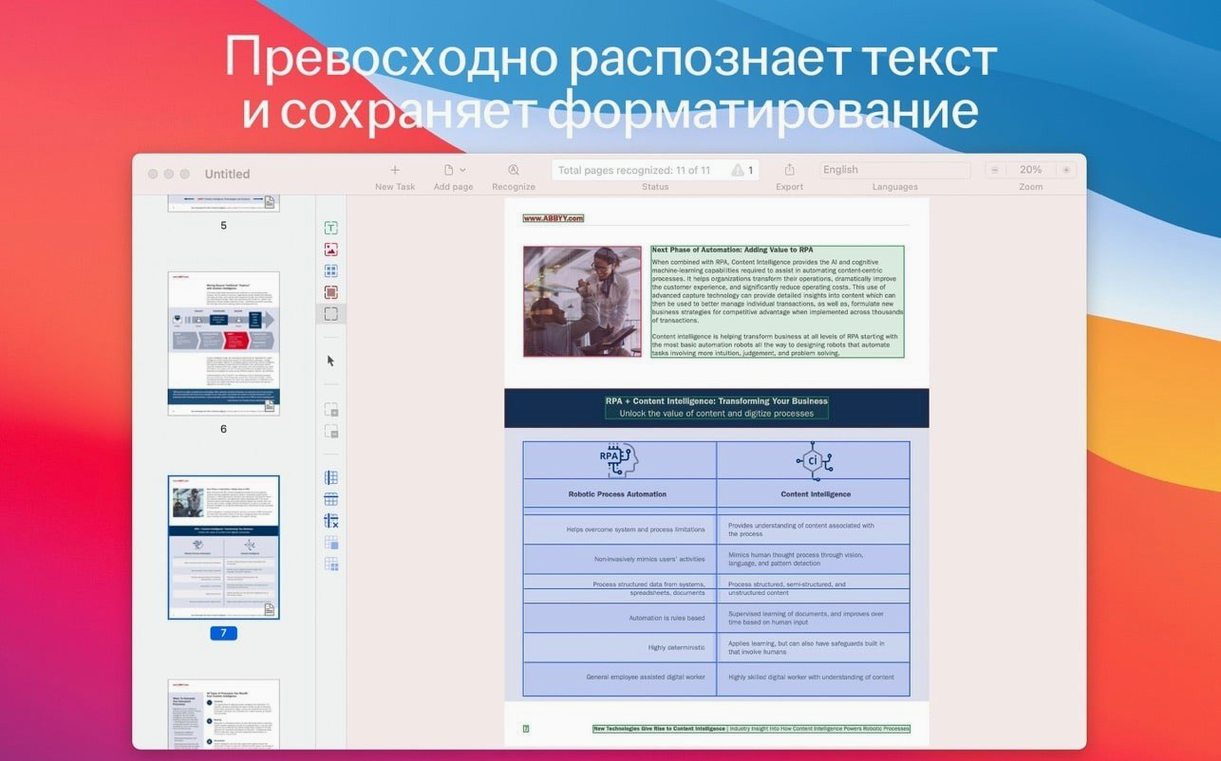
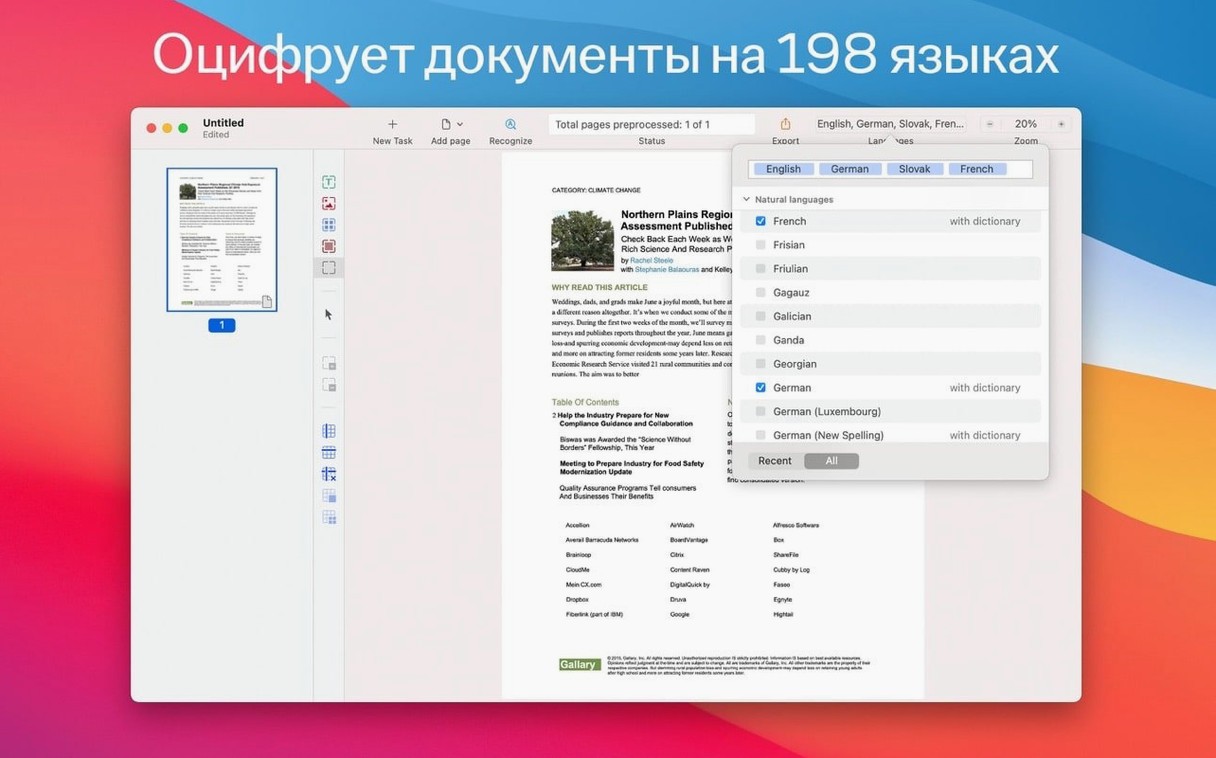
Scroll the row, it snaps to each screenshot. Click one to see it wider.
ABBYY FineReader PDF runs on any Mac with macOS 11 or later, Intel or Apple Silicon. It’s a solid pick if you deal with scanned PDFs, paper documents, or locked text and tables.
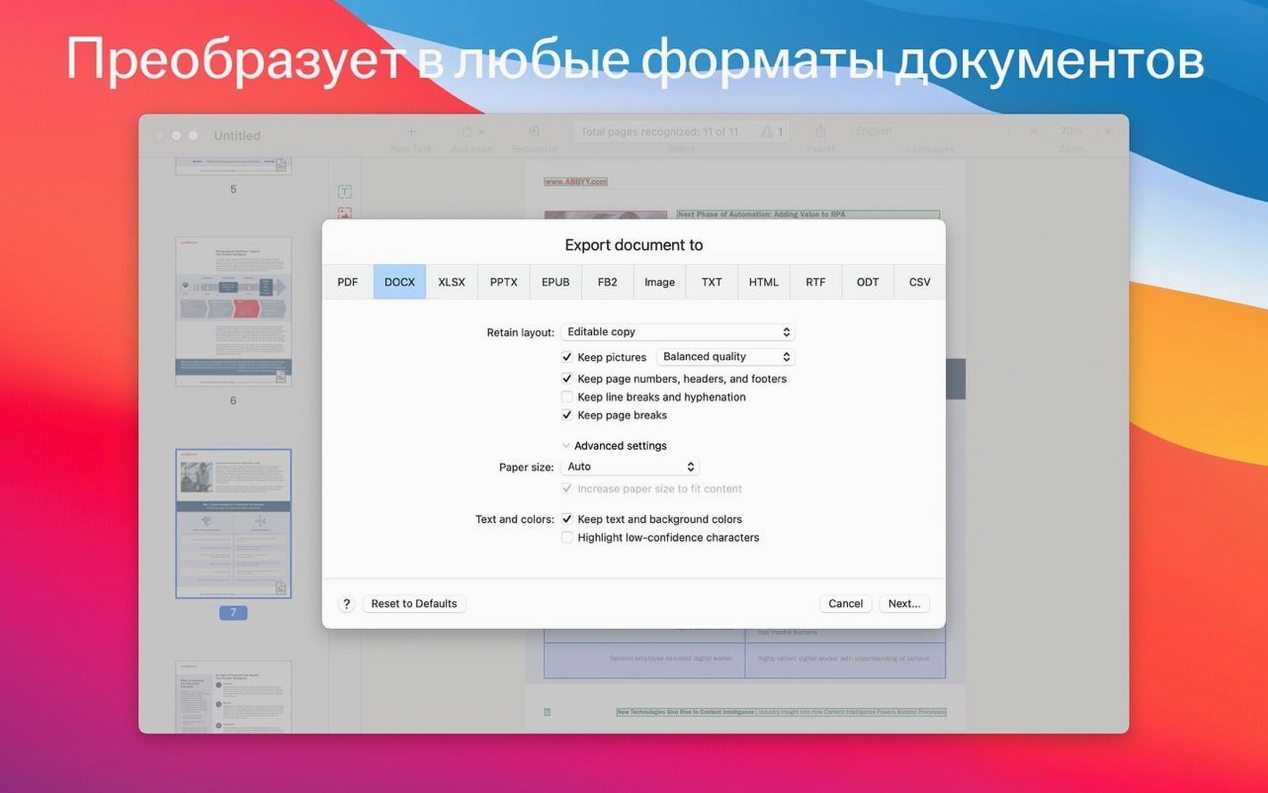
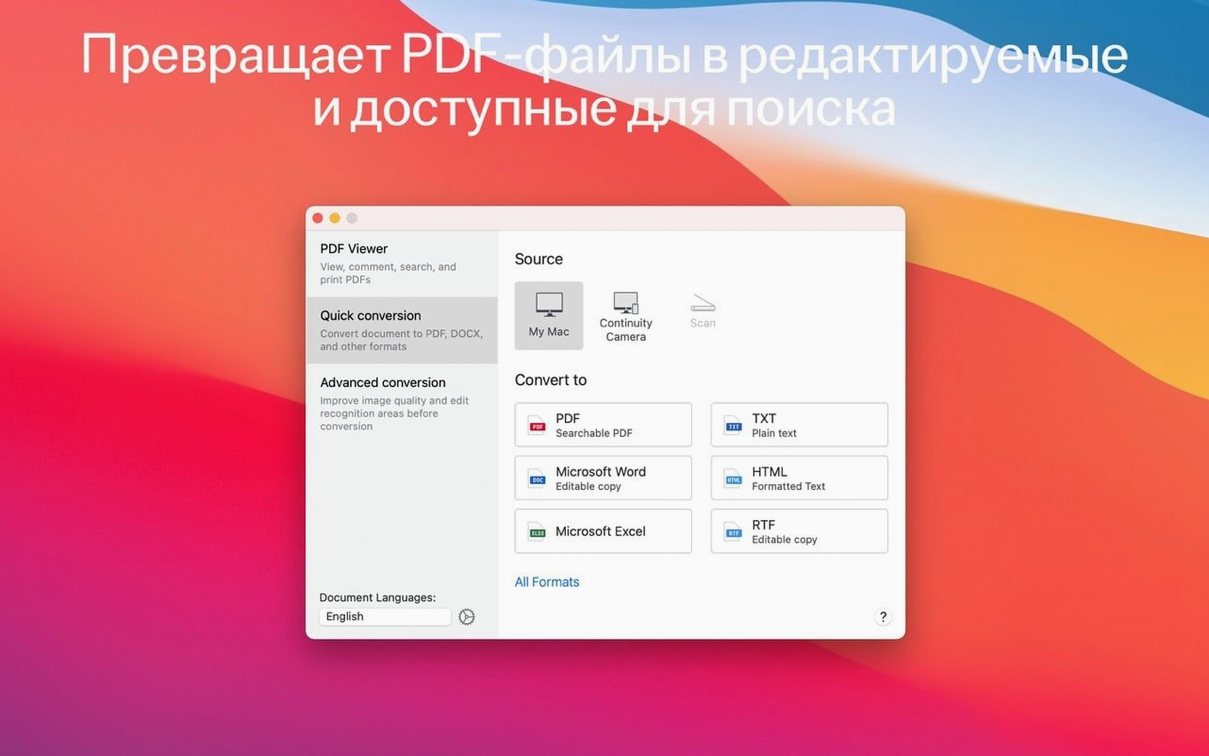
Scans to searchable PDFs or editable Word
- Converting scans and images into searchable PDFs or editable Word-style files.
- Editing text and tables trapped inside PDFs or paper documents.
- Making PDF/UA files for accessibility.
- Using Continuity Camera to import documents straight from your iPhone or iPad.
PDF viewer and OCR editor as separate modes
- The built-in PDF viewer and OCR editor are two separate modes, so you can switch between reading and editing.
- Dark mode is supported.
- Interface languages: English, Russian, German, Italian, Simplified Chinese, and French.
Workflow: turn a scanned contract into an editable document
- Open the app. In the PDF viewer mode, drag in a scanned contract (a multi-page PDF or a photo of each page).
- Switch to OCR editor mode.
- Select the recognition language — for a contract in English pick English from the 198 supported languages.
- Run OCR. The app processes each page, identifies text blocks and table cells, and makes the content selectable.
- Proof the result in the OCR editor. Text that was locked in the scan is now editable.
- Export the result. Pick DOCX if you need to send it to a client for editing, or RTF if the recipient works with older software. For an archive copy, export as PDF/A.
- If the document needs to be accessible, re-export as PDF/UA.
This routine covers the most common scenario in legal work and translation. The same steps work with paper documents imported via Continuity Camera — scan from your iPhone or iPad and the photo appears in the app ready for OCR.
Runs natively on Intel, Rosetta 2 on Apple Silicon
The app is built for x86 64-bit architecture. On an Intel Mac it runs natively. On Apple Silicon it runs under Rosetta 2, which is standard for apps that haven’t been ported yet. No compatibility issues there — it just works.
You need at least macOS 11. You’ll want enough free space for whatever documents you’re processing, but the app doesn’t cache large temporary files unless you’re working with big image sets.
Dark mode works out of the box. The interface switches with your system setting, so it won’t be a shock in a late-night editing session.
Set recognition language and output format defaults
- Recognition language. Set your primary language right away. If you work with mixed-language documents, add a second language to the recognition profile.
- Output format preferences. Under the conversion settings, pick your default export format. If you mostly send documents as DOCX, set that as the default so you don’t have to choose it each time.
- PDF/A and PDF/UA options. If you archive documents regularly, enable PDF/A by default. If accessibility is part of your workflow, turn on PDF/UA generation.
- Continuity Camera import. Make sure the feature is on if you plan to scan from an iPhone or iPad. It saves a step — you don’t have to transfer photos manually.
- Interface language. Pick English, Russian, German, Italian, Simplified Chinese, or French from the preferences. The setting sticks.
These adjustments take two minutes and make the first run-through faster. The rest of the defaults are fine for most work.
Start with a scan or a PDF that has text you can’t select. Open it, run OCR, and see the difference.
- macOS 11 or later
- Intel or Apple Silicon
Questions I get about this line
Yes, the app runs on macOS 11 and later, including Apple Silicon models.
The install order
- Mount the disk image and launch the Open Gatekeeper friendly app.
- Press Enter in the Terminal window to bypass Gatekeeper.
- Drag the app into the Applications folder.
- Start the app.
- Use any data for registration or activation.