
Free download (783 MB) Previous versions
- Version
- 2.6.5
- Developer
- Serif Labs
- Languages
- English, German, Spanish, Italian, Chinese (Simplified), Portuguese, French, Japanese
- License type
- K'ed by TNT team
| macOS range | macOS 10.15 or later |
|---|---|
| Chip | Apple Silicon, Intel 64-bit |
| Download | 783 MB |
| Previous versions | 1 on file |
Screenshots
Scroll the row, it snaps to each screenshot. Click one to see it wider.
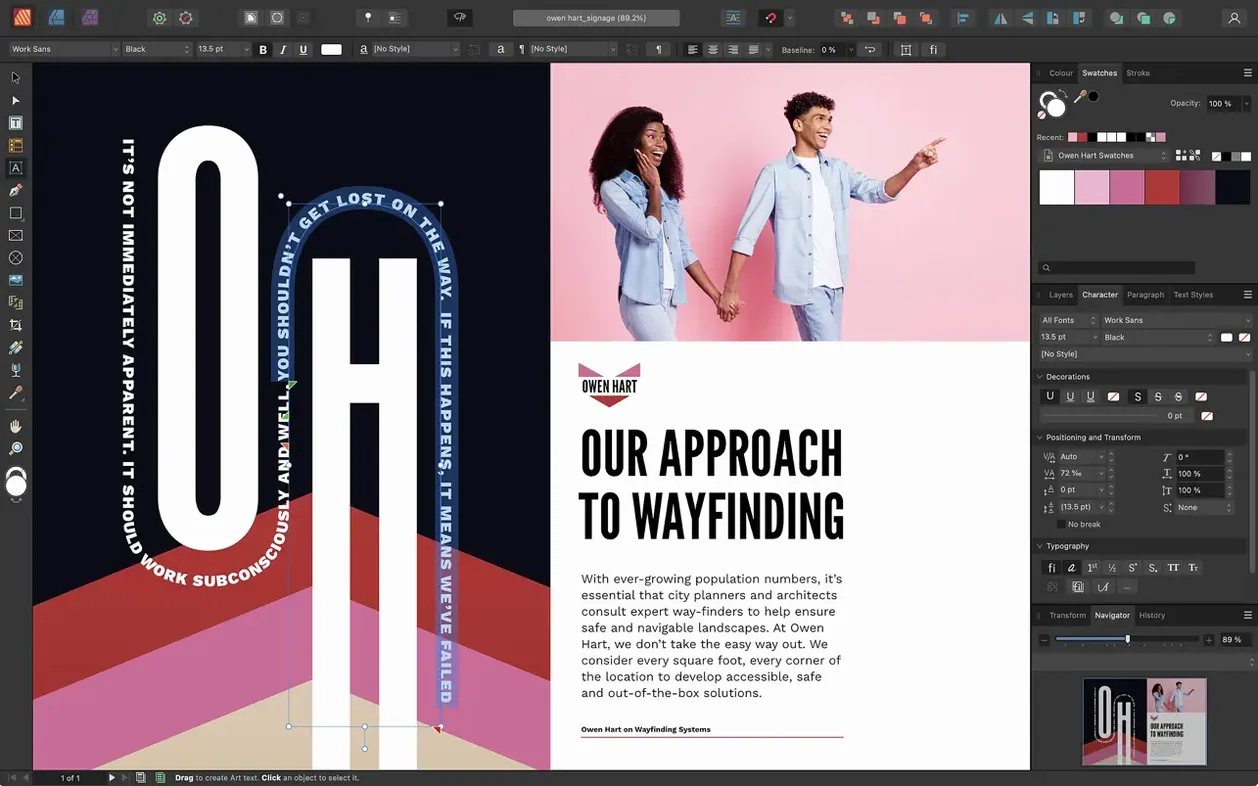
Affinity Publisher 2.6.5 supports up to 2.8 GB of installed data and handles page counts that strain lesser apps. It is the desktop publishing tool for Mac users who build books, brochures, and magazines without leaving the Affinity ecosystem.
| Detail | Value |
|---|---|
| Developer | Serif Labs |
| Version | 2.6.5 |
| macOS | 10.15 or later |
| Architecture | Apple M-series or Intel |
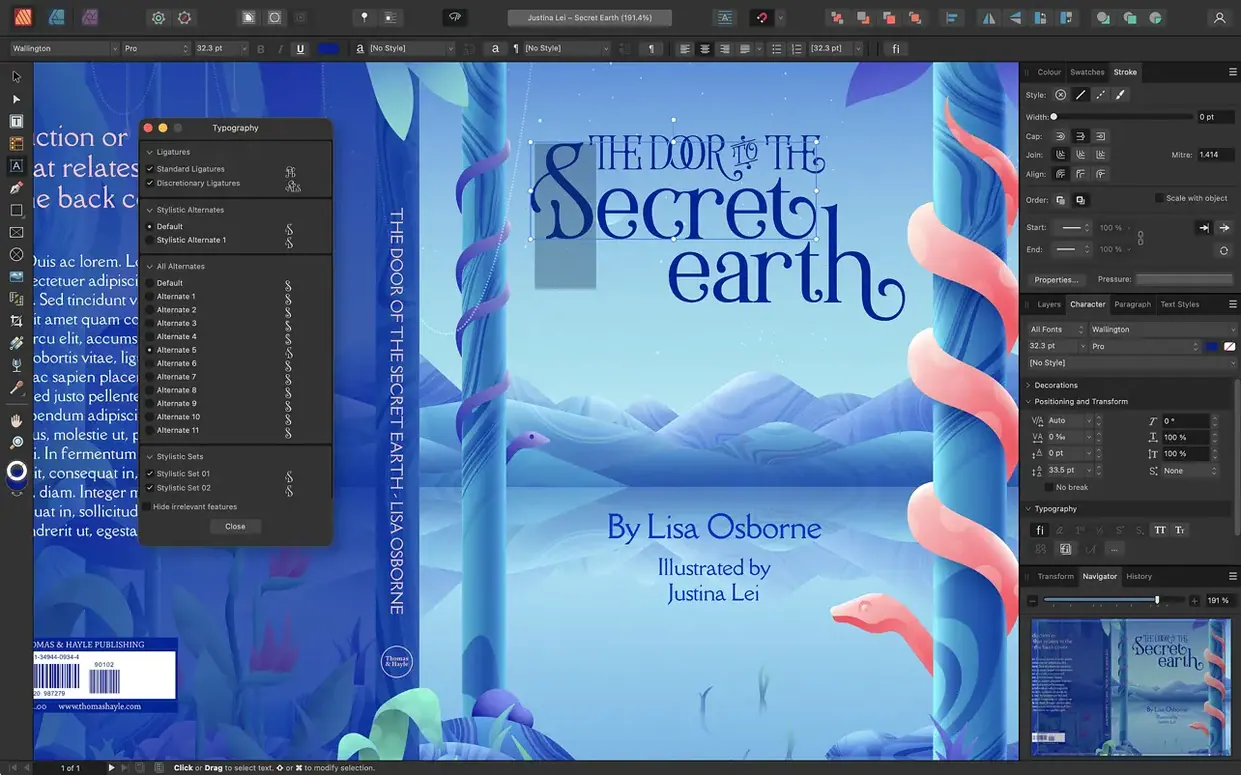
For the experienced user, the depth is in the details: boolean shape operations, non-destructive adjustment layers, and full control over text wrap with fill options. Tables, character and paragraph styles, drop caps, and initial words are all there. The 2.6 release adds multiple-page spreads—gatefolds, trifolds, accordion folds—and a Reading Order panel for tagged PDF exports. StudioLink bridges directly to Affinity Designer and Photo when you need vector or pixel work inside the same project.
Multiple-Page Spreads Replace Fake Gatefolds
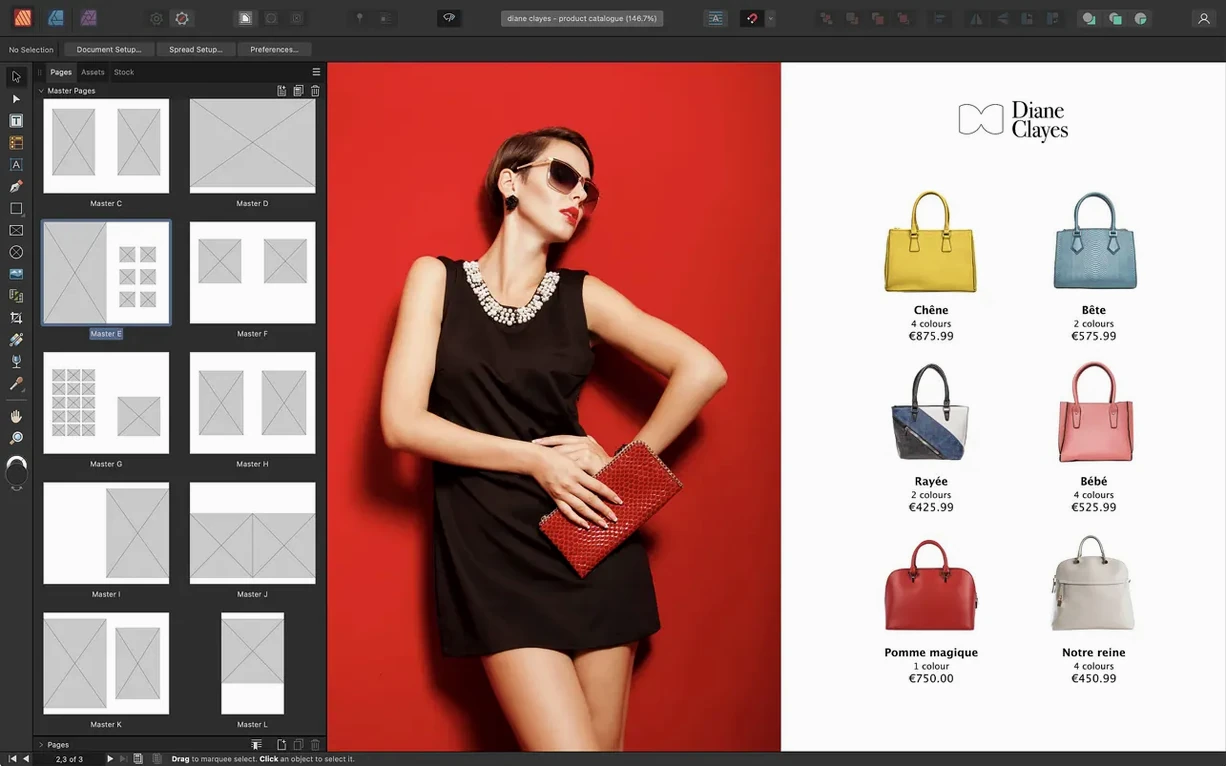
The 2.6 release is not a ground-up redesign, but the additions shift how you set up a document and how you finish one. Multiple-page spreads mean you no longer fake a gatefold with separate artboards or manual spacing. A six-page accordion fold runs as a single spread with the correct fold order. That saves cleanup time before export.
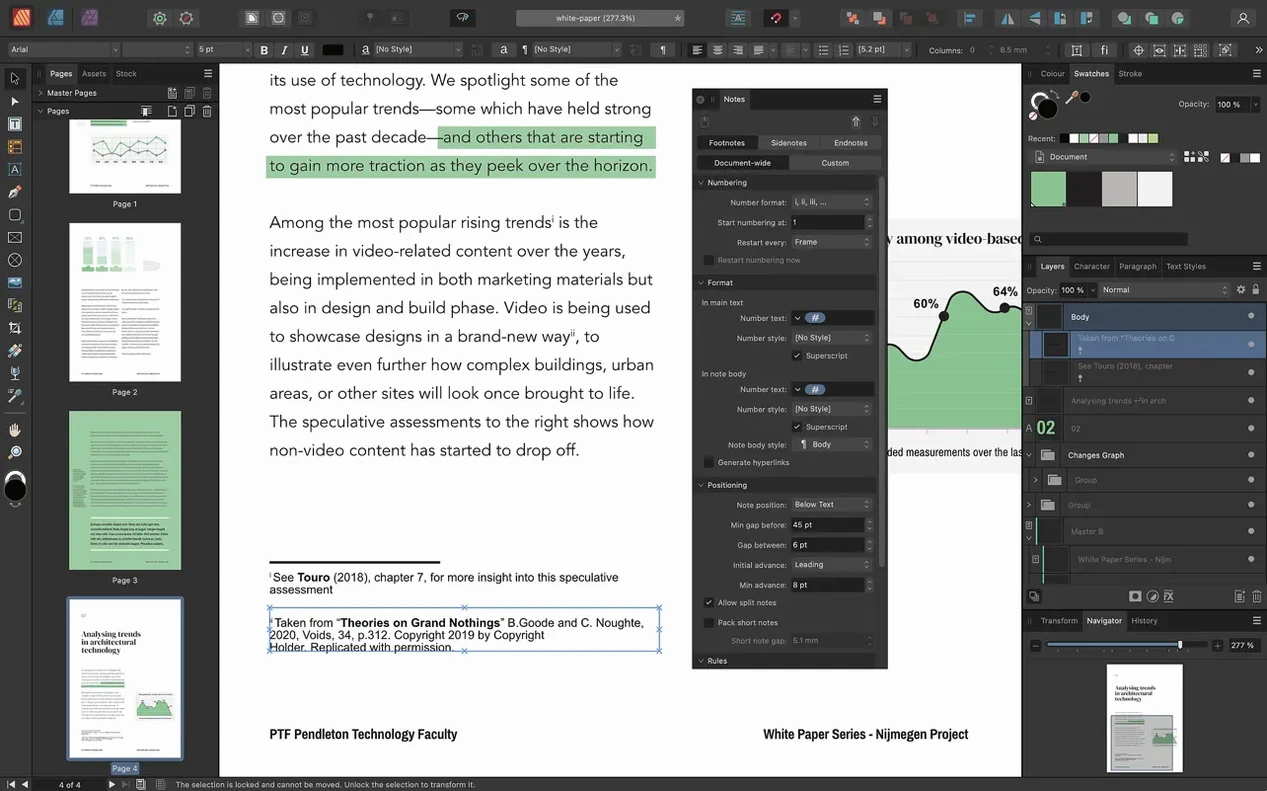
The Reading Order panel is the other noticeable change. If you send tagged PDFs to clients who rely on screen readers, you used to handle tags in Acrobat after export. Now you assign reading order inside Publisher and export PDF/X-4 with tags intact. It is a small panel that removes a whole post-processing step.
Foldable spreads and accessibility are not flashy, but they reduce the number of apps you need open. For a production layout artist that is the point.
A Session: Magazine Layout from Start to Export
You open Affinity Publisher and create a new document. For a 32-page magazine you set facing pages, a bleed of 3 mm, and a default master page with a running header and page number. The master page uses a nested master for the first page of each section so you can swap the header text across the whole document later.
You place a linked text frame on the first page. The text flows from a Word document you saved as RTF. You adjust the text frame to a two-column layout and apply paragraph styles you already built: Body, Pull Quote, and Headline. The styles carry fonts, leading, and color. You do not touch individual paragraphs.
Images come in as placed files. You resize a full-bleed photo and use the non-destructive adjustment layers to lift the shadows. All edits stay inside Publisher; the original file is untouched. You wrap the body text around the photo with a 5 mm fill so the text does not touch the image edge.
For a four-page feature spread, you change the document setup to a multiple-page spread. You choose a gatefold layout. The panel rearranges the pages into a single horizontal spread with fold lines shown as guides. You move images and text blocks across the whole spread as if it were one canvas. No piecemeal alignment.
Before export you open the Reading Order panel. You drag the main text frame to the top of the order and move decorative images to the bottom. You export as PDF/X-4 with tagged PDF checked. The file is ready for the printer and for screen-reader testing without opening another application.
Text Frame Linking Fails on Grouped Master Layers
Text frames not linking. You click the red overflow triangle on the first frame, then click the second frame. If the second frame is inside a group or nested in a master page layer, the link fails. Unlock the master page or move the frame outside the group, then try again.
Master page elements showing on the wrong side. Publisher respects facing pages. If your master page left and right are swapped, the header appears on the wrong spread. Duplicate the master page, swap the left and right content, and reapply it to the affected pages.
Images appearing pixelated on screen. Publisher uses a low-res proxy for screen performance. The proxy looks soft. Go to View and set the quality to High Quality. The proxy updates and shows the true image sharpness. The print output is unaffected either way.
PDF export fails with a font error. The font might be installed but not activated. Check your system font book. If the font is variable weight and you only installed one style, Publisher cannot build the bold or italic variant. Install the full family.
Foldable spread not folding correctly. You selected the wrong fold type. Delete the spread and create it again with the correct type: gatefold, trifold, or accordion. Publisher previews the fold order so you can verify before adding content.
Scenario: One-Person Publishing Office
Sarah runs a small press that publishes three poetry collections a year. She is the layout editor, proofreader, and production manager. Before 2.6 she built each book as a single long document with manual section breaks for foldable covers. The cover spreads required a separate file and manual imposition.
With the 2.6 update she creates the book as one document. The cover uses a gatefold spread so the front, inside flap, and back sit as a single layout. The interior pages use standard facing pages with nested masters for the table of contents and poem sections. She places images without leaving the document and runs spell check across all files. The only external app she opens is a PDF viewer to proof the export. That is a typical Saturday afternoon for her, and the software does not get in the way.
For anyone running a similar one-person operation, the 2.6 additions cut file counts and reduce context switching. That is worth an affinity publisher mac download on its own.
- Multiple-page spreads for complex fold layouts.
- Foldable spreads: gatefolds, trifolds, accordion folds.
- Reading Order panel for PDF accessibility tagging.
- macOS 10.15 or later
- Apple M-series or Intel processor
- 8 GB RAM recommended
- Up to 2.8 GB hard drive space (more during install)
- Display 1280x768 or larger
Questions I get about this line
Yes, it runs natively on both Apple M-series chips and Intel processors.
It lets you manage PDF accessibility tags, controlling how screen readers navigate your exported documents.
Version 2.6 adds multiple-page spreads, including gatefolds, trifolds, and accordion folds.
The install order
- Mount the disk image and run the Open Gatekeeper friendly helper.
- Press Enter in Terminal to bypass Gatekeeper when prompted.
- Drag the app to the Applications folder.
- Launch and start publishing.