Free download (129 MB) Previous versions
- Version
- 3.14
- Developer
- Aiarty
- Languages
- English, German, Chinese (Traditional), Chinese (Simplified), Japanese
- License type
- K'ed by TNT team
| macOS range | macOS 11 or later |
|---|---|
| Chip | Apple Silicon, Intel 64-bit |
| Download | 129 MB |
| Previous versions | 2 on file |
Screenshots
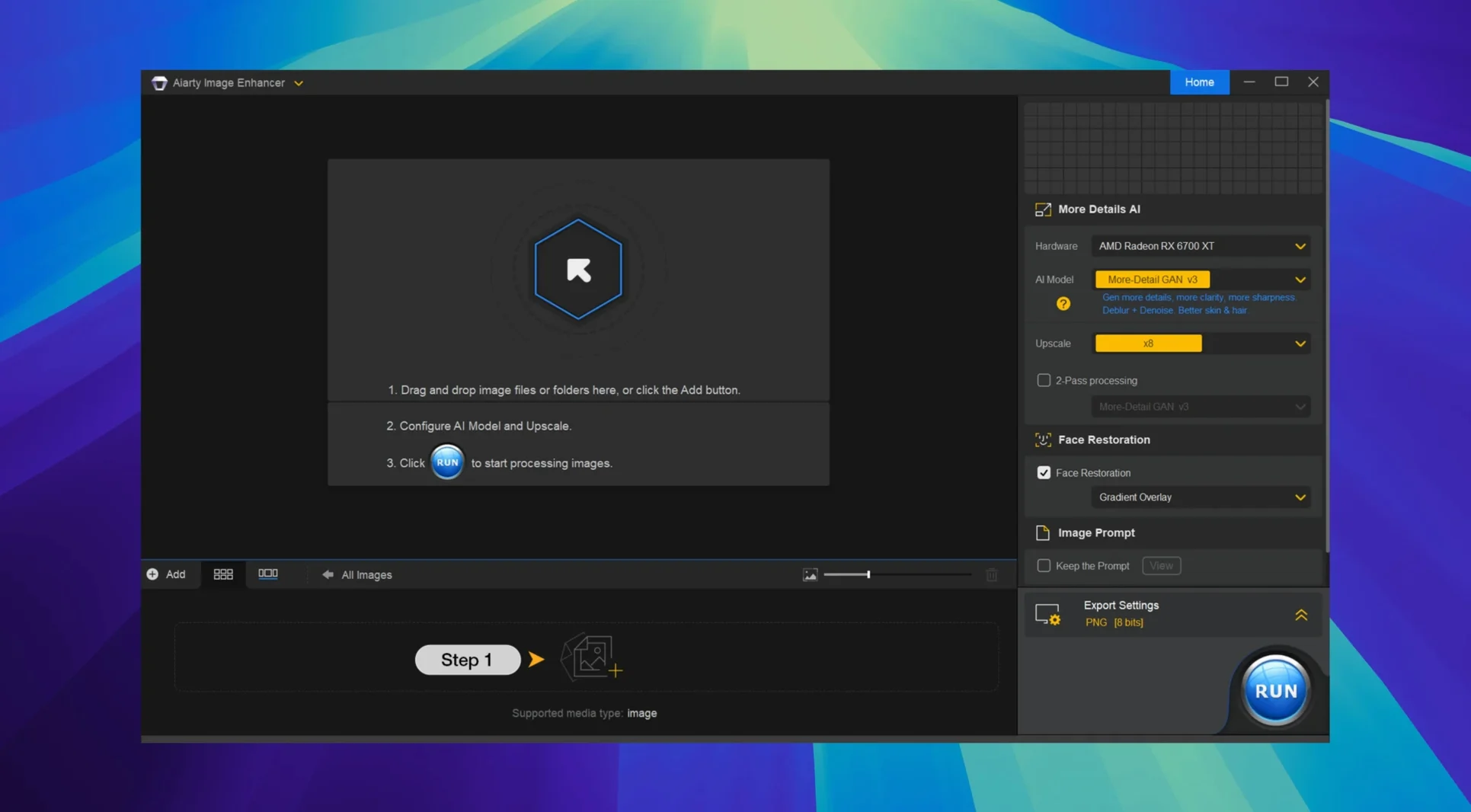
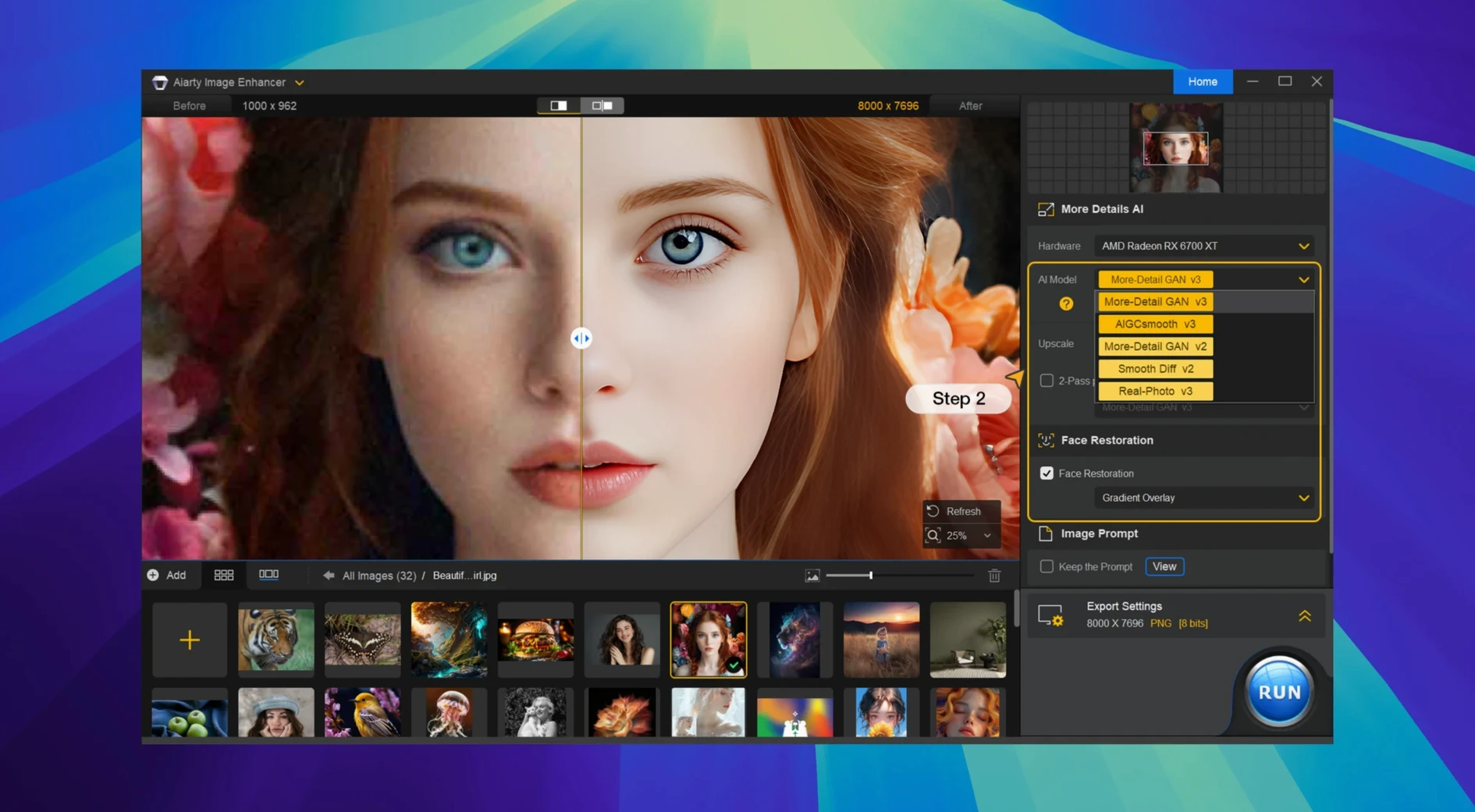
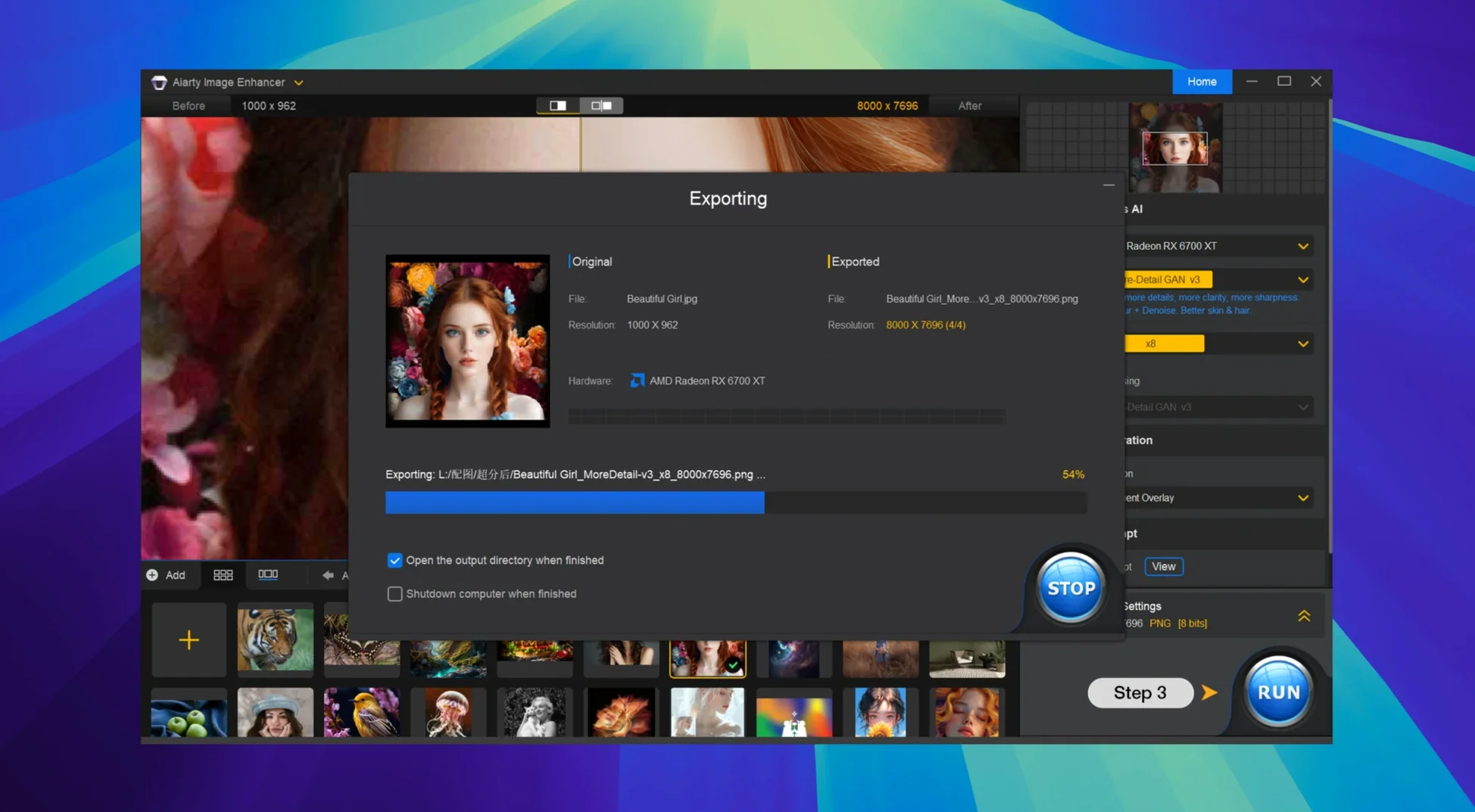
Scroll the row, it snaps to each screenshot. Click one to see it wider.
Version 3.14 of Aiarty Image Enhancer focuses on Lightroom Classic workflow improvements, making it easier to move enhanced images back into your editing pipeline. The desktop app uses deep learning to clean up noise, sharpen blur, restore damaged areas, and upscale resolution — all in one pass.
It is built for photographers and anyone working with large image libraries. The tool generates realistic detail in skin, hair, and fabric, so upscaled portraits hold up close. RAW file support means you can feed it unprocessed captures straight from the camera.
For Photographers, Retail Teams, Archivists, and Designers
- Photographers cleaning up high-ISO shots or old scanned film.
- Retail and e-commerce teams upscaling product photos for large displays.
- Archivists restoring damaged or faded images.
- Designers needing quick deblurring before compositing.
Drop, Pick a Mode, Let the Model Work
You drop an image in, pick a processing mode, and let the model do the heavy lifting. The output is a new file with improved clarity and resolution. If you work in Lightroom Classic, the 3.14 workflow tweaks save time on round-trips. It runs natively on both Apple Silicon and Intel Macs, with English, German, and Chinese interface options.
Runs on macOS 11+ with Apple Silicon or Intel
Aiarty Image Enhancer 3.14 runs on macOS 11 and later, supporting both Apple Silicon and Intel 64-bit Macs. You will see a clean, straightforward interface in your choice of English, German, Traditional Chinese, Simplified Chinese, or Japanese. The app processes images entirely on your machine — no cloud uploads, no waiting on a server.
Expect the app to request file access when you point it at folders or RAW files. Gatekeeper will block the first launch unless you take the steps in the install section. After that, it opens like any other app.
File formats covered: JPEG, PNG, TIFF, WebP, BMP, AVIF, and RAW. That covers almost everything a photographer or archivist would hand it. Output resolution goes up to 32K if your source material and disk space allow it.
Which Mac Users Benefit Most
Photographers editing high-volume shoots
If you shoot events, weddings, or sports, you end up with a pile of high-ISO frames. Aiarty cleans up noise and sharpens faces without making skin look waxy. The Lightroom Classic workflow in 3.14 means you can send files out and bring them back without breaking your library structure.
Archivists and restoration specialists
Old scans and damaged prints benefit from the denoise and restore tools. The model fills in missing detail rather than just blurring over scratches. EXIF metadata access in 3.14 keeps track of original capture info when you output restored files.
E-commerce and product teams
Upscaling product shots to 32K lets you display them on large screens or print at poster size. The detail generation works well on fabric textures and product edges, which keeps zoomed-in shots from looking soft.
Test with Noisy, Blurry, and Small JPEG Files First
- Test with a few files first. Pick a noisy photo, a slightly blurry one, and a small JPEG you want to upscale. Run each through the default mode and note what changes. This gives you a baseline before you batch-process anything.
- Check the Lightroom Classic integration. If you use Lightroom, send a single image out, enhance it, and bring it back. Verify that the EXIF data carries over. This step saves headaches later when you process a full set.
- Organize output folders. The app creates new files rather than overwriting originals. Decide where those files go before you run your first batch — a dedicated folder per project keeps things tidy.
- Try different source formats. Feed it a RAW file, then the same shot as a high-quality JPEG. Compare the output. RAW files contain more data and usually produce better results, but JPEGs are faster to process and often good enough for web use.
- Aiarty is for stills only — do not expect it to upscale frames from a video timeline.
- macOS 11 or later
- Apple Silicon or Intel 64-bit
Questions I get about this line
Yes, it supports RAW files, so you can process unedited camera captures directly.
It runs on both Apple Silicon and Intel 64-bit Macs with macOS 11 or later.
The install order
- Mount the disk image and launch Open Gatekeeper friendly.
- Press Enter in Terminal to bypass Gatekeeper.
- Drag the app to the Applications folder.
- Open the app. If needed, run it with Rosetta and use a VPN.