
Free download (18 MB) Previous versions
- Version
- 2.8.14 (2680) Beta
- Developer
- Martin Hairer
- Languages
- English, German, Danish, Spanish, Italian, Finnish, French
- License type
- K'ed by TNT team
| macOS range | OS X 10.9 or later |
|---|---|
| Chip | Intel 64-bit |
| Download | 18 MB |
| Previous versions | 1 on file |
Screenshots
Scroll the row, it snaps to each screenshot. Click one to see it wider.
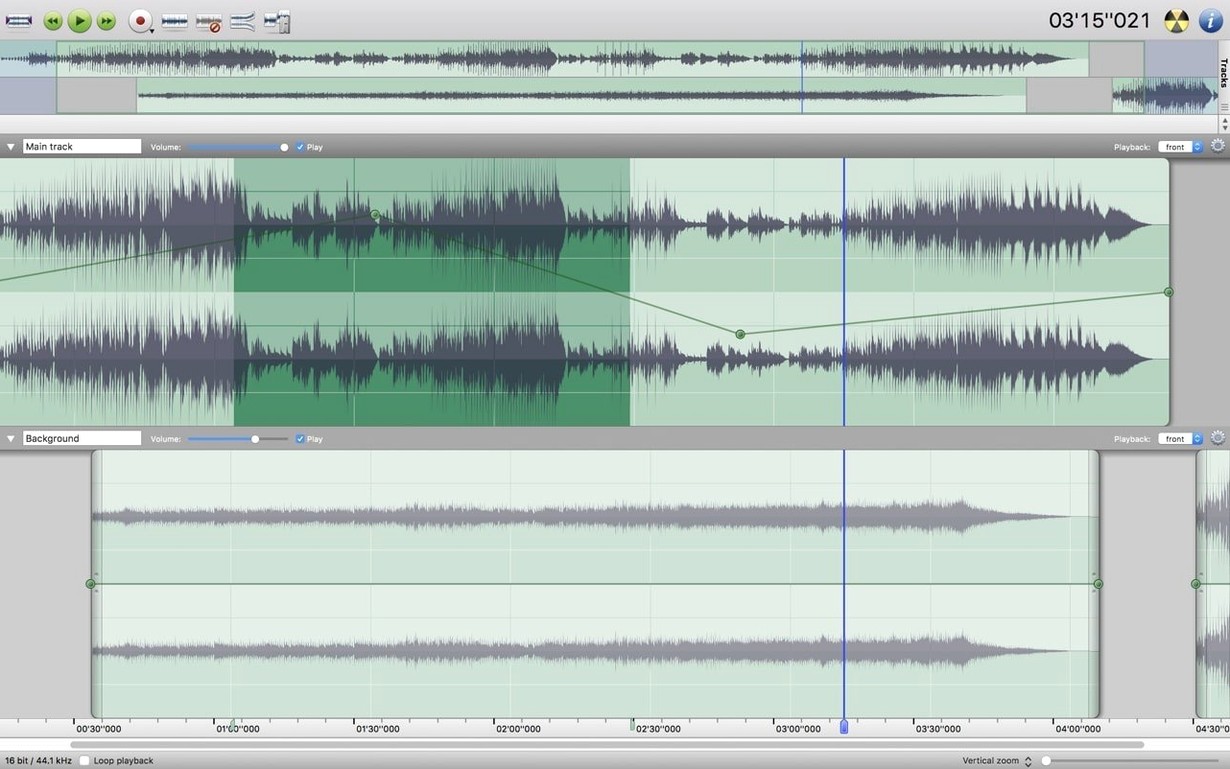
You’ve got a two-hour podcast with a hum on every other track, or a live recording that needs the coughs clipped before you send it off. Amadeus Pro is the macOS audio editor built for that kind of cleanup work. It handles multi-track editing, so you can align, trim, and mix several takes without jumping between windows.
The toolset is practical. Markers let you flag sections for later edits. The Favorite Actions panel keeps frequently used commands one click away. Batch processing means you can apply the same filter or format conversion to a whole folder of files, which saves time when you’re normalizing a set of interviews. Noise reduction works on the entire track or just the part you select, so you can clean up a noisy section without touching the rest.
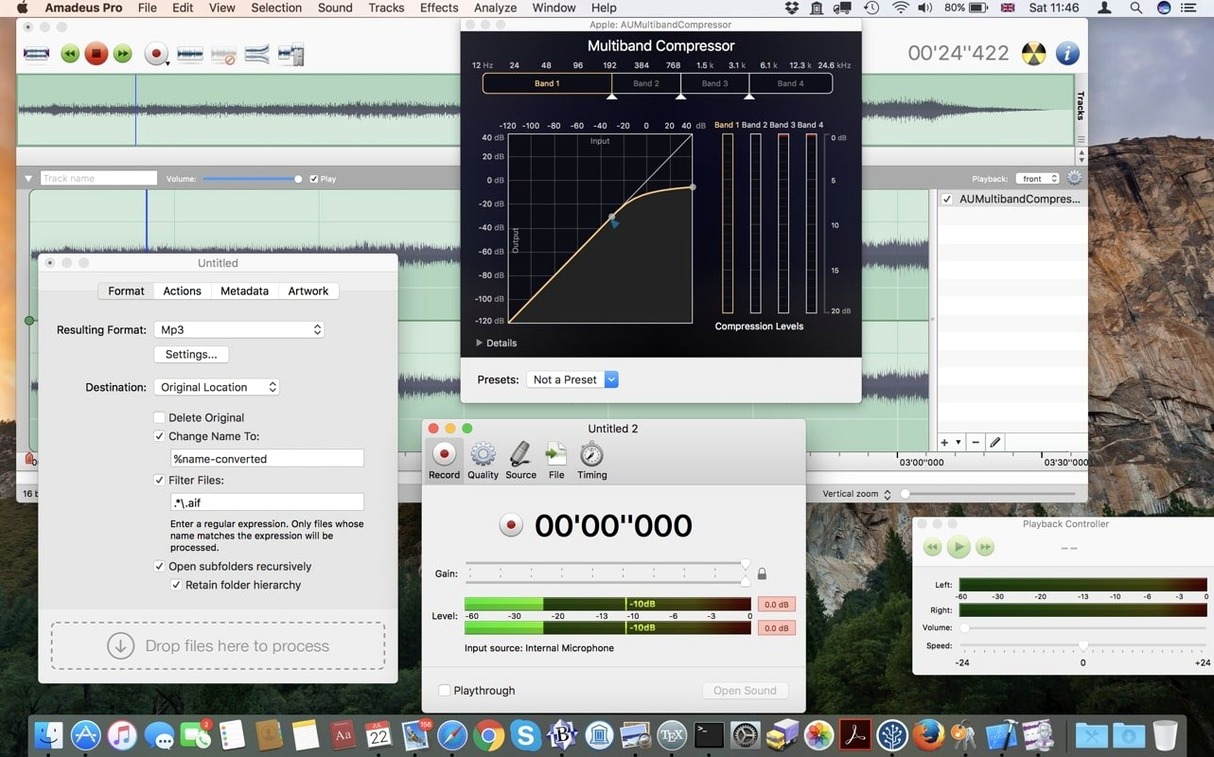
Audio Units plug-ins are supported, so any macOS effect you already own works here. Waveform caching keeps scrolling smooth even on long files. It runs on macOS 10.9 or later, Intel architecture, and speaks English, German, Danish, Spanish, Italian, Finnish, and French.
Import a Raw Interview and Fix a Mic Bump
You open Amadeus Pro and start by importing a raw interview recording. Drag the file onto the timeline, or use the import dialog.
You see a mic-bump thump around the 12-minute mark. Zoom in with the trackpad gesture or the zoom slider. Select the damaged segment, apply a short fade in and fade out to smooth the edges. No need to cut it out entirely.
Later, you add a second track for a phone-call recording that came in at a lower level. Align the waveforms visually using the markers you dropped when you started. Adjust the gain on the second track until the levels match. You hear the difference right away.
For the last thirty minutes, a refrigerator hum runs underneath the guest's voice. Select a quiet section of the hum alone, then use the noise reduction tool. It samples the noise profile and removes it from the entire track. The voice stays clean.
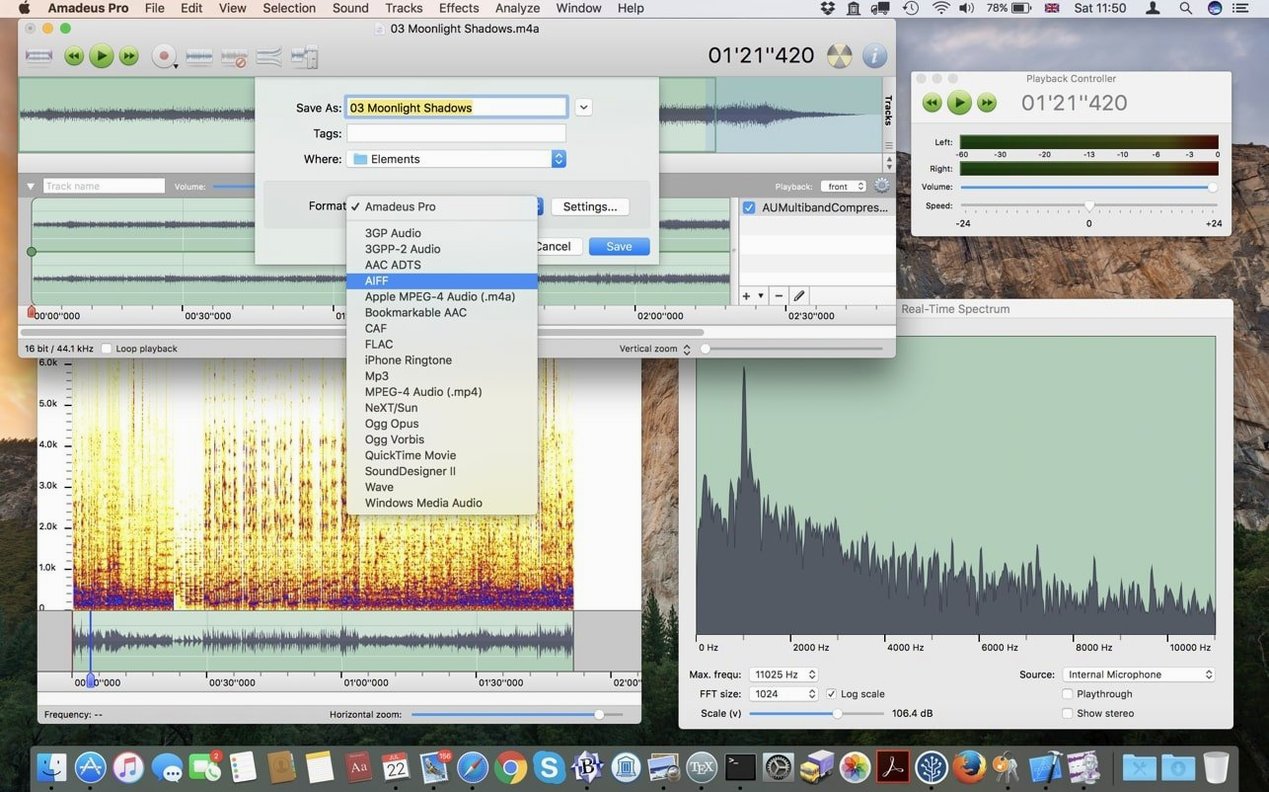
When you're done, export the whole project as a single MP3 file. Or, if you need separate files for each speaker, batch export selected regions directly to disk.
Use Audio Units Plug-Ins and Record Live Audio
Amadeus Pro works with Audio Units, so any macOS plug-in you've collected over the years is usable. No need to find a VST wrapper. Effects you trust from other apps work here too.
You can record live audio through your interface or even capture an internet stream directly. That makes it useful for digitizing old tapes or records through your Mac's line-in, or for grabbing a broadcast for later editing.
Direct-to-disk output means you can process a large file without waiting for the whole thing to load into memory. The waveform caching handles the rest, keeping navigation quick even on long recordings. This matters when you're working on an hour-long lecture or a full band rehearsal.
Batch processing ties into Finder workflows. Select a set of files, run a batch command in Amadeus Pro, and get normalized, converted files back in the same folder. No extra steps.
Set Default Export Format and Keyboard Shortcuts First
- Set your preferred export format. If you always deliver MP3, configure the default output in Preferences before you start your first project. Saves one dialog per export.
- Configure keyboard shortcuts. The Favorite Actions panel is useful, but binding common actions like "Noise Reduction" or "Fade In" to a key combination speeds up repetitive edits.
- Set marker display options. Markers are less useful if they clutter the waveform. Adjust their visibility so they show only when you need them.
- Check Audio Units plug-in paths. If you have custom effects in a nonstandard folder, point Amadeus Pro to that directory in the plug-in settings. Otherwise, they won't appear.
- macOS 10.9 or later
- Intel architecture
The install order
- Mount the disk image.
- Run Open Gatekeeper friendly.
- Press Enter in Terminal to bypass Gatekeeper.
- Drag the app to the Applications folder.
- Open the app from Applications.