- Home
- Mac Cleaners
- App Cleaner & Uninstaller
Free download (47 MB) Previous versions
- Version
- 10.0
- Developer
- Nektony
- Languages
- Russian, English, German, Spanish, Italian, Chinese (Traditional), Chinese (Simplified), Ukrainian, French, Japanese
- License type
- Not required
| macOS range | macOS 12 or later |
|---|---|
| Chip | Apple Silicon, Intel 64-bit |
| Download | 47 MB |
| Previous versions | 15 on file |
Screenshots
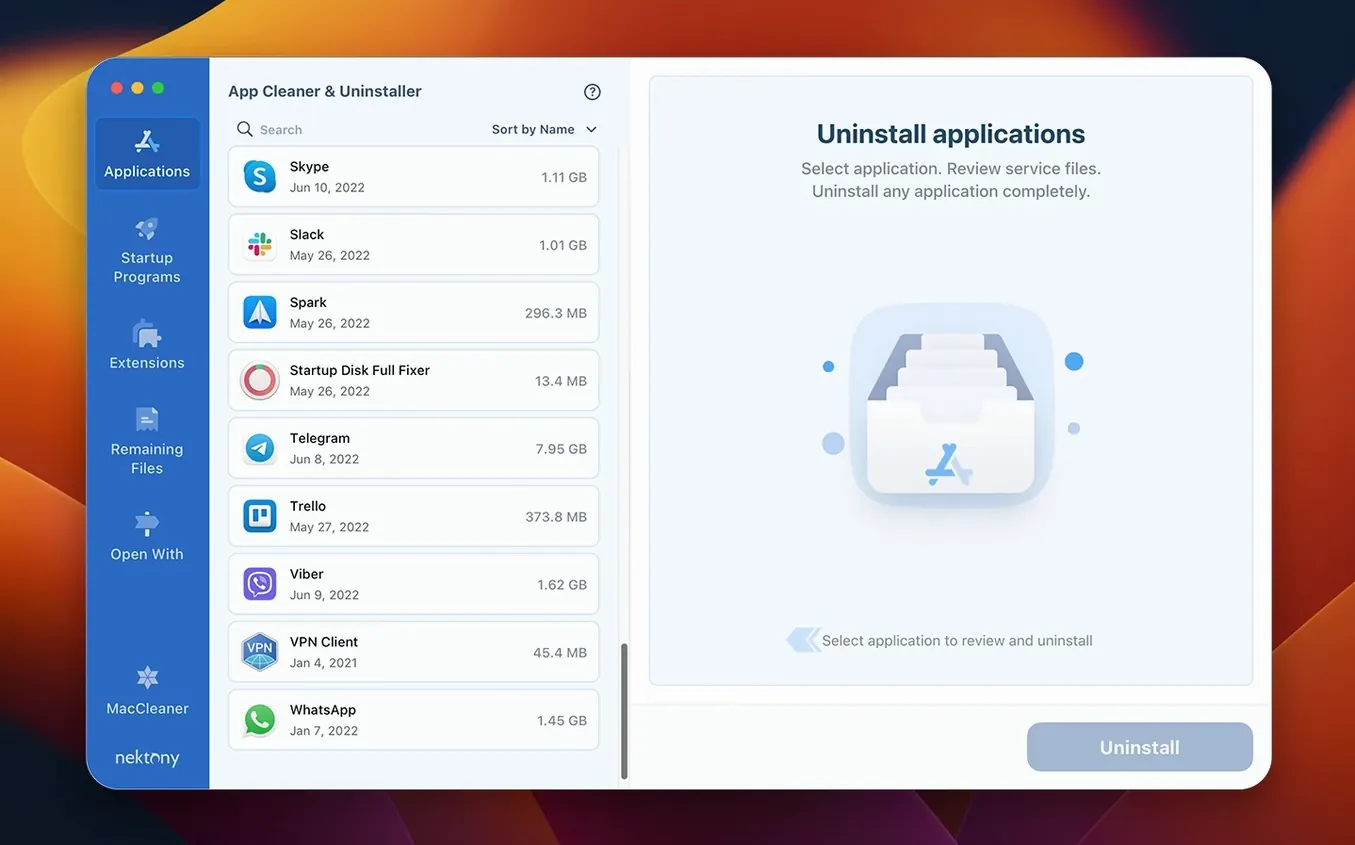
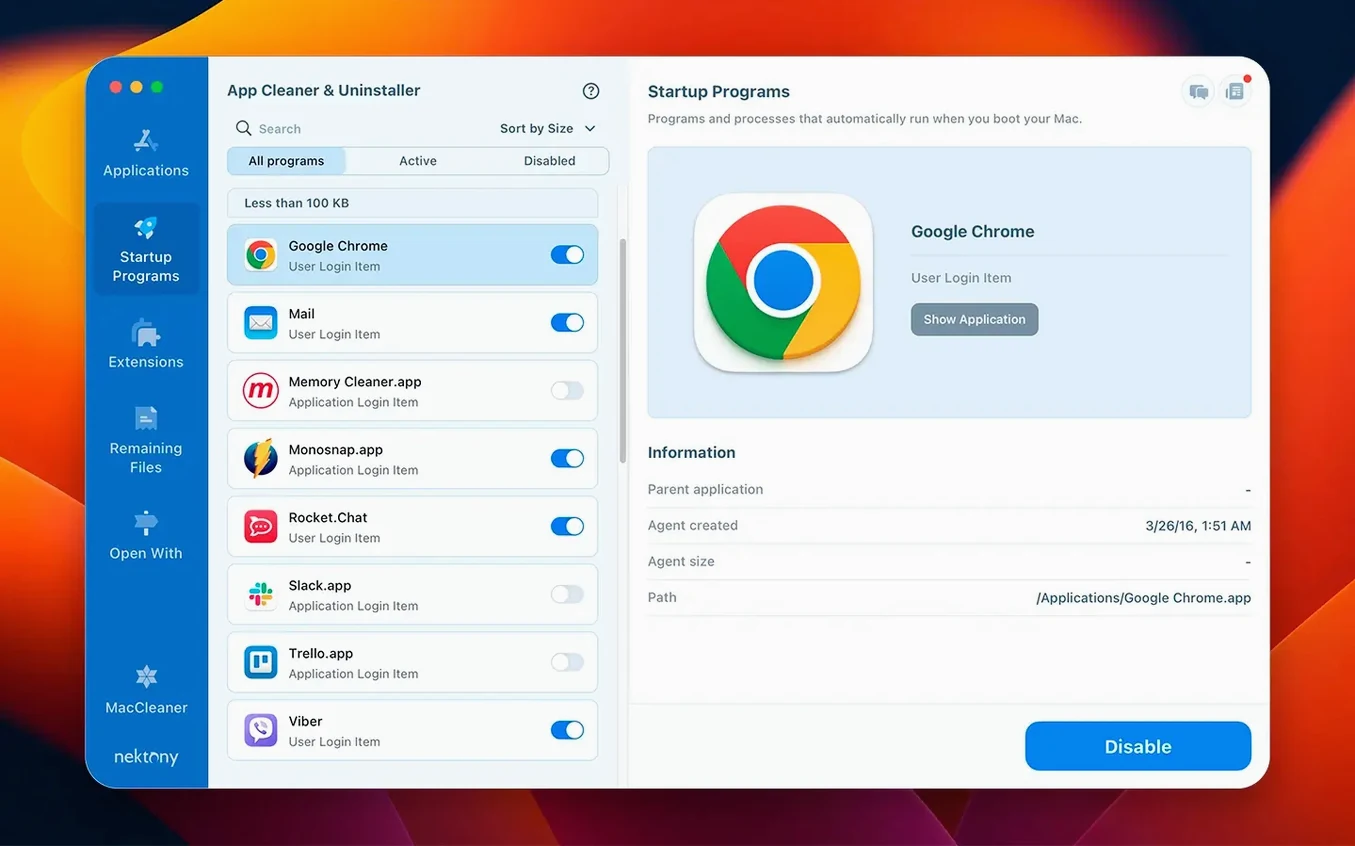
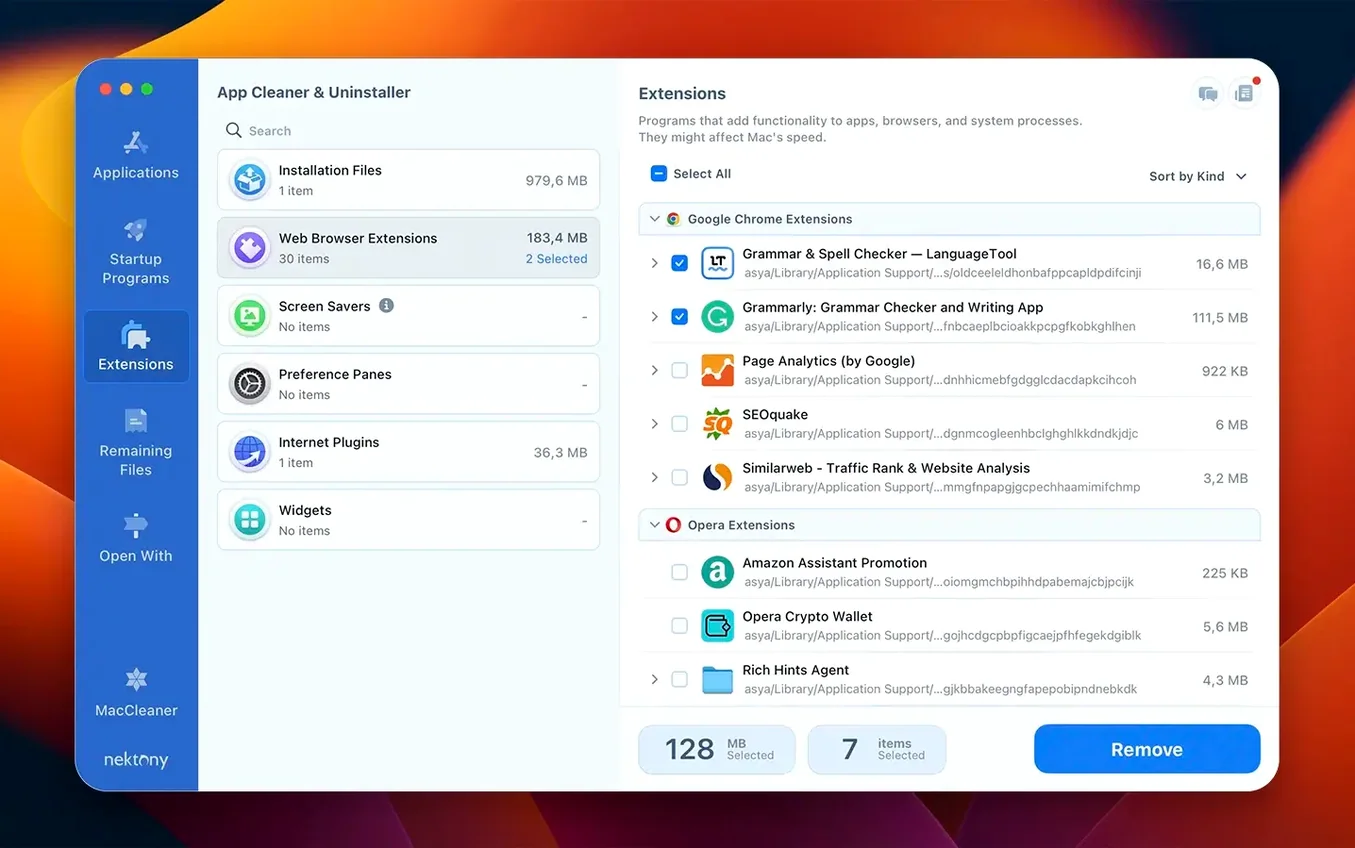
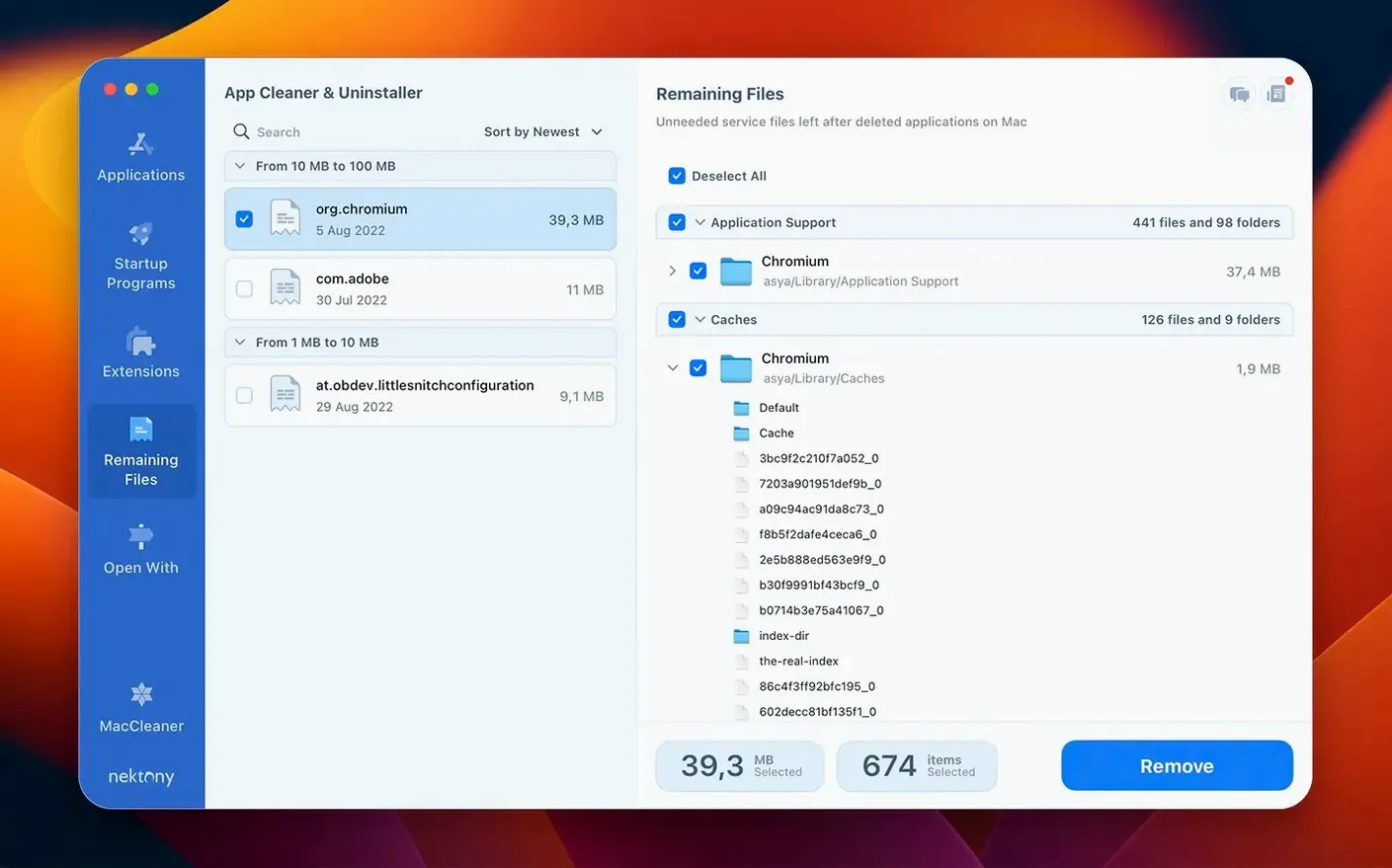
Scroll the row, it snaps to each screenshot. Click one to see it wider.
App Cleaner & Uninstaller Pro is a Mac utility that removes applications and their associated service files completely.
Deletes apps and their leftover files
It deletes the app itself along with leftover files, so nothing lingers on your drive. It also manages startup items and extensions.
For frequent installers and uninstallers
Anyone who installs and uninstalls Mac apps regularly, or who wants to keep their system tidy without hunting down orphaned files by hand.
What else does it track?
The official overview says it tracks updates for installed apps, and includes AI Summary, Privacy Audit, and Security Check features.
What's new in version 10.0?
Version 10.0 adds a network access tab, a redesigned menu bar app with network traffic control, an expanded updates database (Safari extensions and Homebrew tools), and an incompatible applications filter.
Turn on Move to Trash as a safety net
Before you start uninstalling, open Preferences and look at a few items. Turn on Move to Trash instead of permanent delete — it gives you a safety net in case you remove something you need. Enable Scan for leftovers after every uninstall so the tool automatically finds orphaned files. If you manage multiple machines or accounts, set the Language to match your locale early; the app supports Russian, English, German, Spanish, Italian, Chinese, Ukrainian, French, and Japanese.
Under the Startup section, review what launches when your Mac boots. Disable anything you don't recognize or haven't used in months. This alone can shave a few seconds off your boot time without uninstalling a thing.
Start by removing the biggest apps
- Start with the biggest offenders. Sort your installed apps by size and remove the ones you haven't opened in six months. The leftover scan after removal is usually where you recover the most space.
- Use the Incompatible Applications filter. Version 10.0 added this. Run it once to see what apps may not work well on your current macOS version. Remove anything flagged that you no longer need.
- Check the Extensions tab. Browser extensions and system extensions pile up fast. Disable or delete extensions you don't use, especially Safari extensions — the updates database now covers Safari and Homebrew tools.
- Run a Privacy Audit. The AI Summary and Privacy Audit features give you a readable report of what the app found. Skim it for unexpected items like old log files or leftover configs.
- Turn off notifications for apps you track. The app monitors updates for your installed software. If you prefer to check manually, mute the alerts in Preferences so they don't distract you.
Real-world scenario: a clinical IT manager
You run a small chain of dental clinics in Columbus, Ohio. Each clinic has a mix of Macs — some Intel, some Apple Silicon — running imaging software, practice management suites, and patient-communication tools. New apps arrive every quarter for X-ray viewers or scheduling modules, and old ones get decommissioned. Without a centralized uninstaller, leftover files from retired dental imaging apps accumulate on the clinic Macs, eating up storage and occasionally causing conflicts when you deploy updates.
You install App Cleaner & Uninstaller Pro on each machine. You set the default language to English, enable Move to Trash, and configure a weekly leftover scan. When you uninstall an outdated imaging suite, the tool catches its associated drivers, cache files, and config folders in one pass. You also use the Startup manager to disable a forgotten patient-communication agent that was launching on every boot, reclaiming a bit of performance on the front-desk iMacs. Over a quarter, you recover roughly 4-6 GB per machine (based on your internal estimates) and cut down on support tickets about "slow computers" that were really just bloated with dead app data.
For a team that rotates between clinics, the multi-language support also helps: you set the interface to Spanish for the Columbus clinic where half the staff prefers it, and keep English for the others.
One tip from that setup: when you first deploy the app, run the Incompatible Applications filter on each Mac. You'll catch a few outdated utilities that the previous IT vendor left behind, and you can remove them before they cause compatibility issues with the next macOS update.
- Added a network access tab.
- Redesigned the menu bar app, now with network traffic control.
- Expanded the updates database to include Safari extensions and Homebrew command-line tools.
- Added an incompatible applications filter.
- macOS 12 or later
- Apple Silicon or Intel
Questions I get about this line
Yes, it completely removes applications and their associated service files.
The install order
- Open the downloaded disk image.
- Drag the app into the Applications folder.
- Launch the app from Launchpad after copying finishes.