- Home
- Mac Cleaners
- Magic Disk Cleaner
Free download (7 MB) Previous versions
- Version
- 6.0.0 [MAS]
- Developer
- Sascha Simon
- Languages
- Russian, English, German, Spanish, Italian, Chinese (Simplified), Portuguese, Finnish, French, Japanese
- License type
- K'ed by TNT team
| macOS range | macOS 15.6 or later |
|---|---|
| Chip | Apple Silicon, Intel 64-bit |
| Download | 7 MB |
| Previous versions | 6 on file |
Screenshots
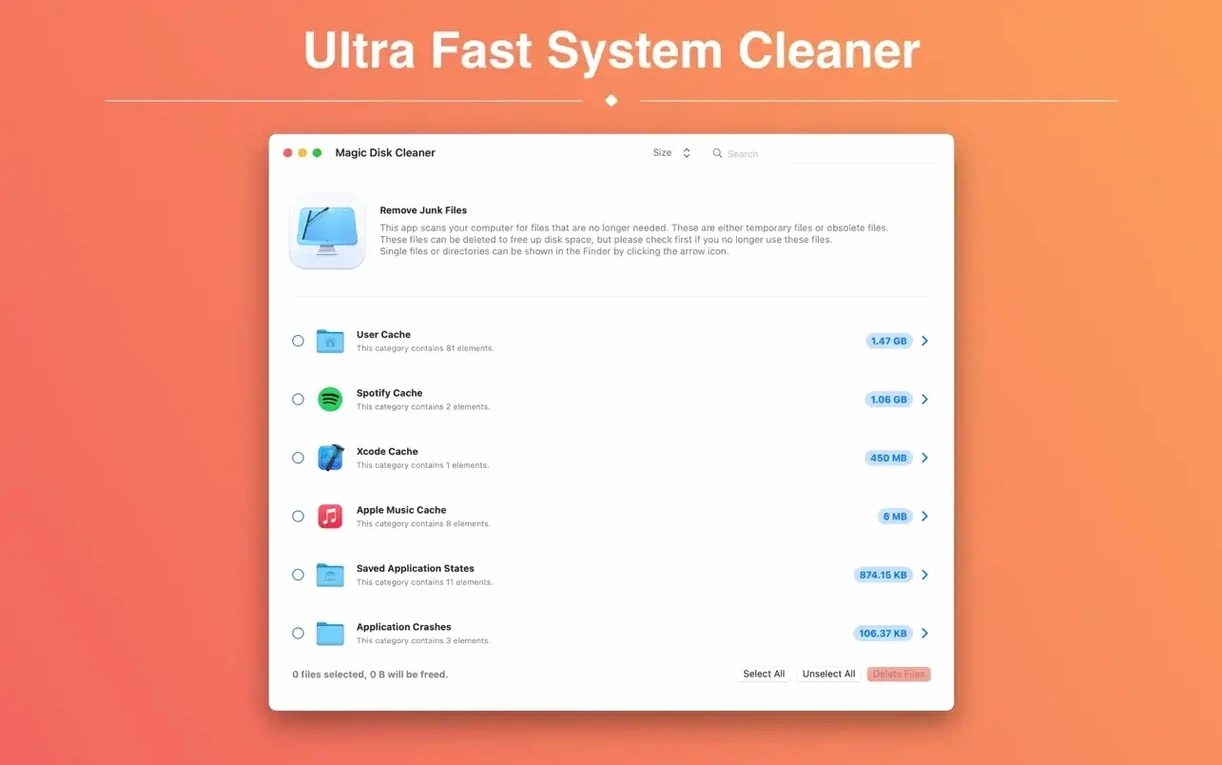
Scroll the row, it snaps to each screenshot. Click one to see it wider.
You open a Mac cleaning utility to reclaim space, not to second-guess every file. Magic Disk Cleaner finds temporary files as soon as it launches, but it never deletes anything without your OK. Here is what a newcomer should try first:
- Run the initial scan — the app starts searching the moment you open it.
- Review results by category: system caches, user caches, logs, and more.
- Select individual items or entire groups before hitting delete.
- Use the built-in preview to see file sizes and locations before removing anything.
- Check the Trash later — the app moves deletions there by default, so you can undo if needed.
No internet connection needed
Does it need an internet connection? No. Magic Disk Cleaner scans local drives only. It never phones home to check file lists or report results.
Will it touch my documents, photos, or music? It only targets temporary files: caches, logs, and similar data that apps leave behind. Your personal folders stay untouched. The preview window lets you verify before any deletion.
Can I undo a deletion? Yes — deletions go to the Trash by default. That gives you a safety net for a few days until you empty it manually.
Does it run on Intel Macs and Apple Silicon Macs? The current build supports both. Whether you have an older Intel machine or a newer M-series Mac, the app scans and cleans the same way.
Run scan first, delete selectively
Run the scan once right after installing. You will see what the app considers temporary and how much space those files occupy. Do not delete everything at once — look through the categories first. Some caches belong to apps you use daily, and rebuilding them takes time.
Set a weekly reminder to run a scan. Temporary files accumulate gradually, and a regular pass keeps disk space predictable.
Check the Trash after each cleaning session. If you deleted a cache that an app needs, you can restore it from there before the Trash empties.
10-language interface & category grouping
- Language selection — the interface supports English, German, Spanish, Italian, French, Portuguese, Russian, Finnish, Simplified Chinese, and Japanese. You can switch without reinstalling.
- Category grouping — scan results are sorted into clear groups like system caches and user caches. You can expand a group, see individual file sizes, and pick only the items you want gone.
- One-click deletion after review — once you have checked the preview, a single delete action clears your selection. No multi-step confirmations.
What happens the first time I delete files
After you confirm a deletion, the files move to the Trash. You will see the available disk space increase in Finder immediately, but the Trash still holds the data until you empty it. If an app acts oddly after you clean its caches, restart the app — it will rebuild the cache on its own. That is normal behavior, not a sign that something broke.
Some users worry about deleting something critical. The app limits its search to known temporary file locations. It does not touch system frameworks, your user library preferences, or anything outside the cache and log directories. If you stick to the default categories and avoid manually selecting files in unfamiliar folders, you stay in safe territory.
First-week tips to get the most out of it
Run the scan once a day for the first three days. That gives you a sense of how quickly temporary files build up on your machine. After day three, you will know whether weekly or monthly scans are enough for your workflow.
Leave the "Move to Trash" setting on by default. Turning it off removes files permanently and removes the undo option. Keep the safety net until you are comfortable with what gets cleaned.
Look at the log files category specifically. Some apps log aggressively, and those logs can eat several gigabytes over a few months. The first scan often finds the biggest surprise there.
If you clean before a macOS update, you may save a few minutes of install time. Updates check disk space and cache sizes; less clutter means fewer warnings.
That is it. A few minutes of scanning and a few clicks later, you have cleared temporary files without surprises.
- macOS 15.6 or later
- Intel or Apple Silicon
Questions I get about this line
No. It searches for temporary files and lets you choose which ones to remove. Nothing is deleted without your consent.
The install order
- Mount the disk image and run the Open Gatekeeper friendly command.
- Press Enter in Terminal to bypass Gatekeeper.
- Drag the app to the Applications folder.
- Launch the app when installation is complete.