Free download (124 MB) Previous versions
- Version
- 3.5.2 fix
- Developer
- Literature & Latte Ltd
- Languages
- English
- License type
- K'ed by TNT team
| macOS range | macOS 10.13 or later |
|---|---|
| Chip | Apple Silicon, Intel 64-bit |
| Download | 124 MB |
| Previous versions | 1 on file |
Screenshots
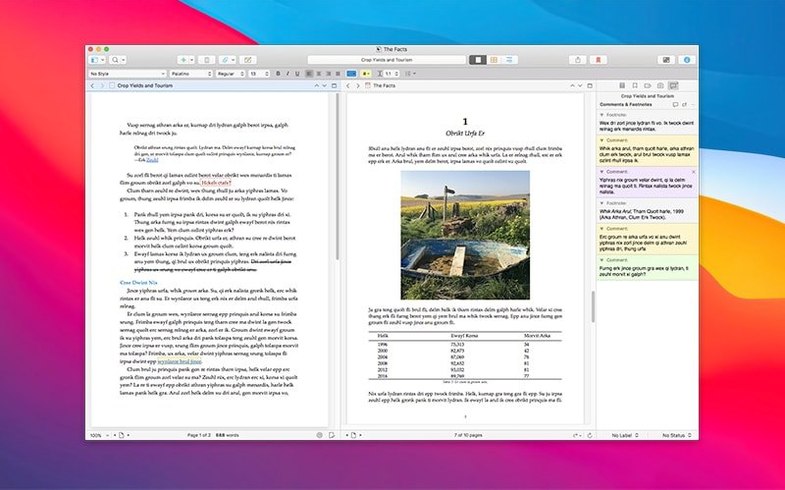
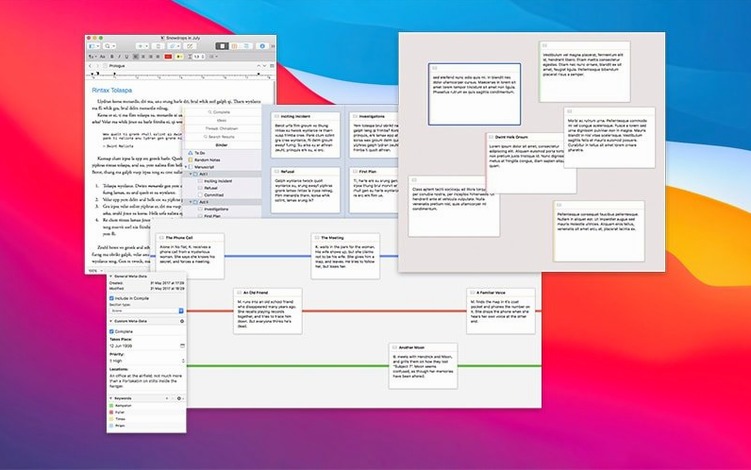
Scroll the row, it snaps to each screenshot. Click one to see it wider.
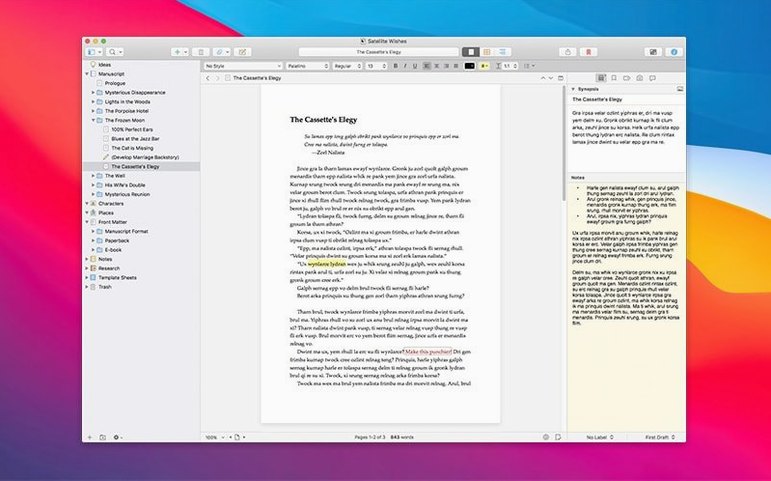
Scrivener 3.5.2 handles projects with tens of thousands of words. Its Research folder stores text notes, PDFs, audio, and images, so everything for a manuscript lives in one place. Snapshots cover an entire note or just selected fragments — useful before a big rewrite. Automatic saving means no lost work when you close the lid on a MacBook.
Tools for experienced writers
- Research folder with mixed media support
- Snapshots for whole notes or fragments
- Automatic saving built in
- Works from macOS 10.13 onward, Intel or Apple Silicon
Mac-specific workflow
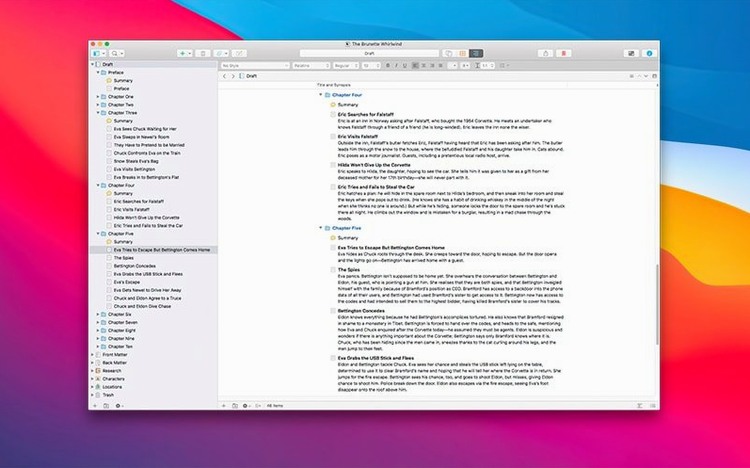
The Mac version integrates with the system’s file handling and window management. You can drag PDFs or audio into the Research folder and keep them alongside your draft. For long projects, the binder lets you reorganize chapters without cutting and pasting. Scrivener macOS stays focused on writing, not formatting — you export when the text is done.
A typical session: from research to draft
You open Scrivener and see the binder on the left. Your project has a Manuscript folder with a few chapter placeholders and a Research folder with notes you imported last week. You click a chapter title in the binder, and the editor opens with the last page you were on. The research pane is pinned to the side, so you can reference a PDF article while you write.
You write for an hour. Scrivener auto-saves every few minutes. You spot a section you want to revise heavily, so you take a snapshot of that note — just the fragment you selected. Now you can rewrite freely and restore the original if the new direction doesn't work. When you finish a chapter, you drag it into a different position in the binder. The whole project updates instantly.
Later, you need to add a reference image. You locate the file in Finder and drag it into the Research folder inside Scrivener. No import dialog, no format conversion. It stays linked to the project. You close the app and close the MacBook lid. The next session opens exactly where you left off.
Binder item not opening or Research folder blank
- Binder item doesn't open. Click another item, then click back. If it still doesn't respond, restart Scrivener. The project auto-saves, so nothing is lost.
- Research folder items won't display. Scrivener reads standard formats: text, PDF, common image and audio files. If you dragged in a proprietary format, convert it to PDF or plain text first.
- Snapshot not saving. Make sure you selected text before taking the snapshot. A snapshot of an empty selection won't appear in the version list.
- Gatekeeper blocks the app after install. After mounting the disk image, run the Terminal command as described in the install steps. Then drag Scrivener to Applications. Open it once — Gatekeeper won't prompt again for this build.
- Export doesn't match what you see. Scrivener separates writing from formatting. Check your compile settings — they control fonts, margins, and output format. The editor view is a distraction-free surface, not a preview of the exported file.
Real-world scenario: a journalist's project book
A freelance journalist starts a project for a long feature. She creates one Scrivener project and adds interview notes as text files in the Research folder. A few audio recordings from the interviews go next to them. She collects links and PDFs from public records and drops them in too. The manuscript itself starts as a single document in the Draft folder.
As the story takes shape, she splits the draft into sections. Each section becomes a binder item. She reorders them by dragging. When a source sends a correction, she opens the relevant interview note, selects the changed paragraph, and takes a snapshot. The old version stays accessible if the correction raises new questions. By the time she exports the final text, the project file contains everything she used — no separate folders, no lost files. That project file is a single portable entity she can archive or send to an editor.
- Bug-fix release.
- macOS 10.13 or later
- Intel or Apple Silicon
- English interface
The install order
- Mount the disk image and run Open Gatekeeper friendly.
- Press Enter in Terminal to bypass Gatekeeper.
- Drag the app to the Applications folder.
- Open the app after installation is complete.