Free download (15 MB) Previous versions
- Version
- 1.14.15
- Developer
- appmakes
- Languages
- Russian, English, German, Arabic, Hungarian, Vietnamese, Galician, Greek, Danish, Hebrew, Indonesian, Spanish, Italian, Catalan, Chinese (Traditional), Chinese (Simplified), Korean, Malay, Dutch, Persian, Polish, Portuguese, Romanian, Slovak, Turkish, Ukrainian, French, Croatian, Czech, Swedish, Japanese
- License type
- K'ed by TNT team
| macOS range | macOS 10.13.6 or later |
|---|---|
| Chip | Apple Silicon, Intel 64-bit |
| Download | 15 MB |
| Previous versions | 6 on file |
Screenshots
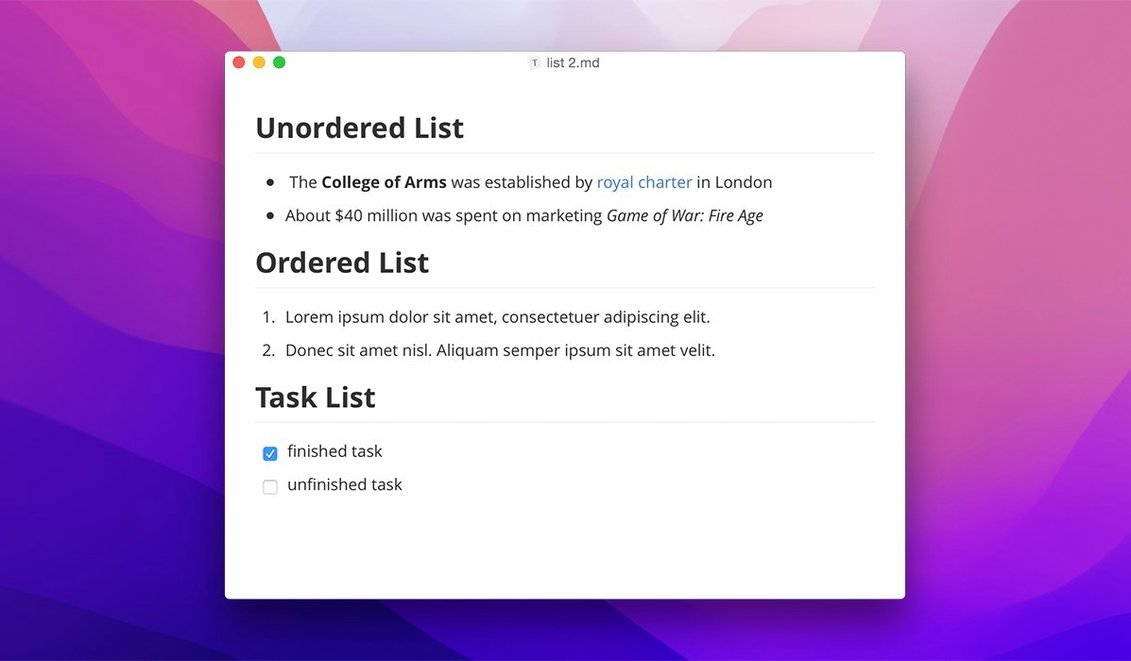
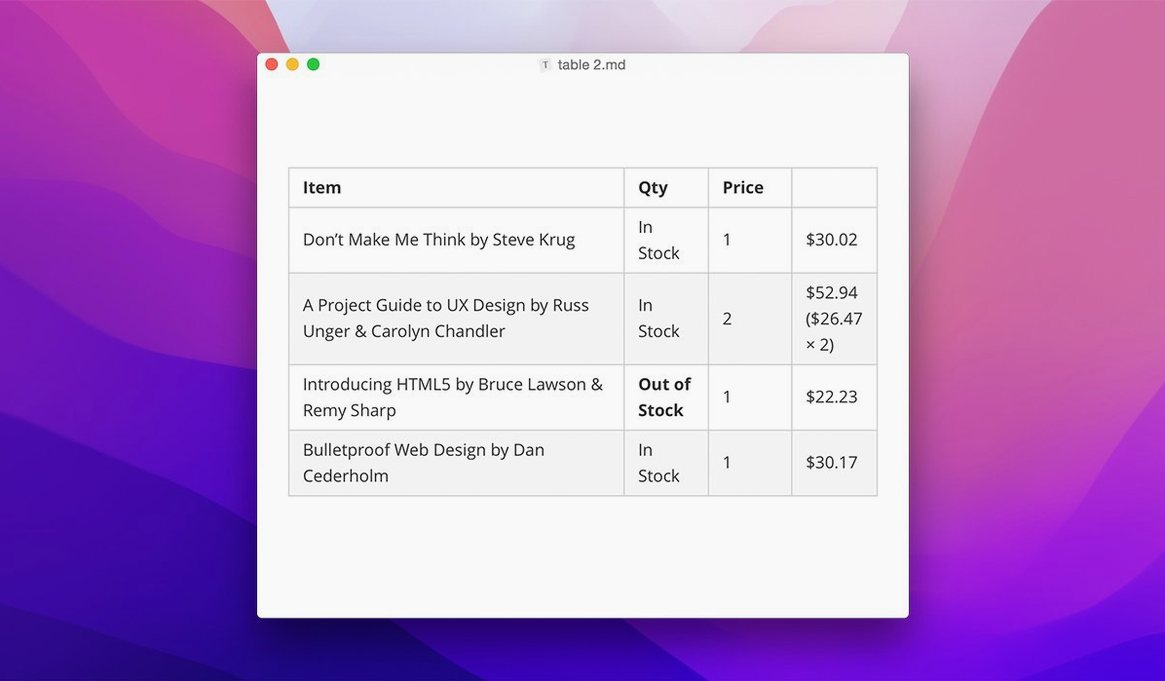
Scroll the row, it snaps to each screenshot. Click one to see it wider.
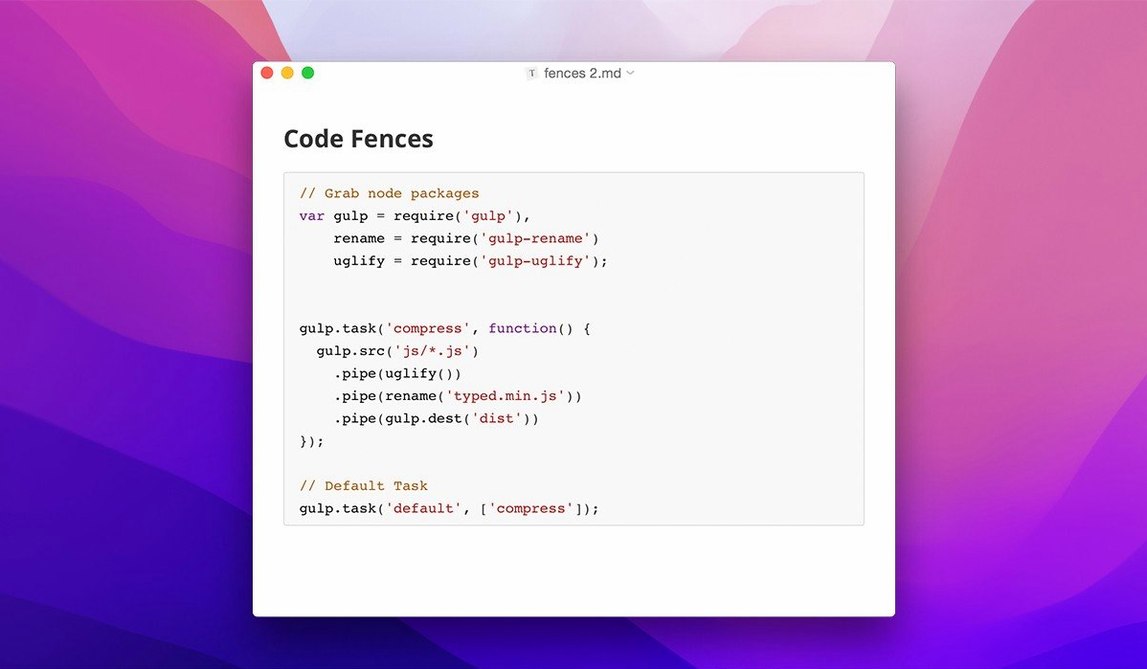
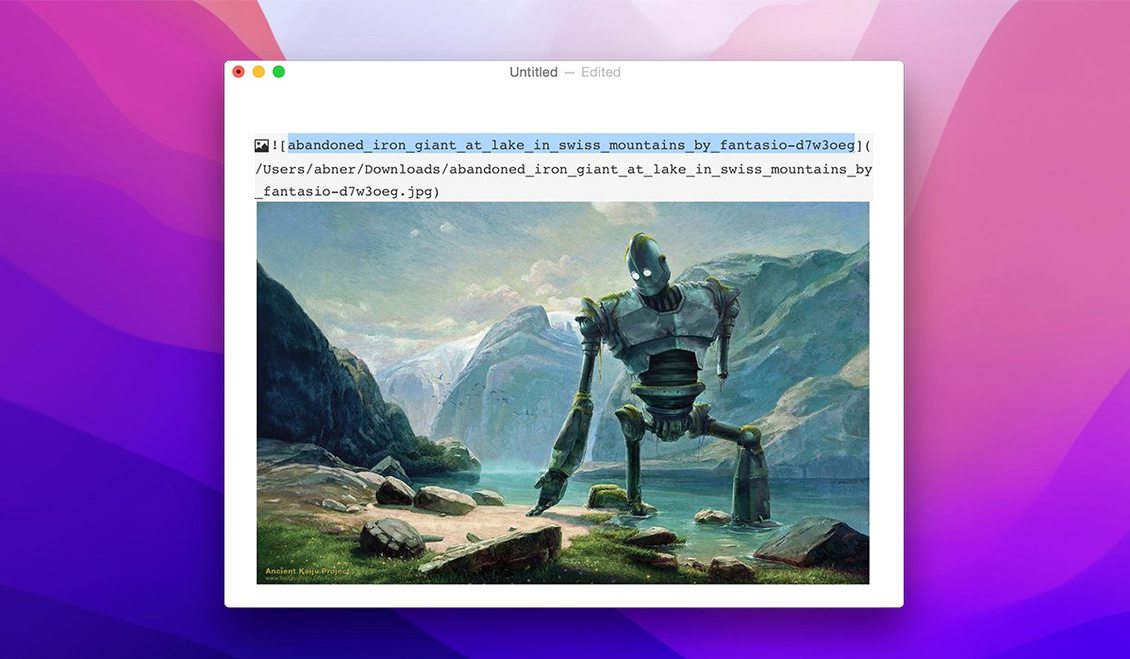
You need a clean document, not a screen split between raw markup and a preview pane. Typora replaces that two-window setup with a single editing surface where bold text looks bold, headings look like headings, and the Markdown symbols stay hidden until you need them.
Write and See the Result at Once
Typora's live preview removes the mode switcher and the source syntax symbols. You type Markdown and the output appears inline. No guessing how the final document will render.
Navigate Files Without Leaving the Keyboard
Version 1.14 adds keyboard navigation in the file tree. You move through folders and open documents without reaching for the trackpad. The same update lets you show non-Markdown files in the sidebar.
Floating Toolbar Default You Can Turn Off
After the app is on your Mac, head to Preferences. A few defaults are worth adjusting before you start writing. The floating editor toolbar, new in 1.14, appears when you select text. If it gets in your way, turn it off under General settings. The file tree in the sidebar can show hidden files and non-Markdown files — both options are off by default. Toggle them on if you keep supporting files alongside your documents. The context-menu style on macOS was also updated in 1.14. Check that the right-click behavior matches what you expect from other Mac apps. Set your default export format while you are there, and pick a theme from the custom CSS themes list if the default white-on-white is not your style.
Native macOS Build for Apple Silicon and Intel
Typora runs on macOS 10.13.6 and later. It supports both ARM and 64-bit Intel Macs, so it works on Apple Silicon machines and older Intel models alike. The app is a native macOS build, not a wrapped web app. It does not require a preview window because the rendering is inline. The interface is available in over thirty languages, including English, German, French, Spanish, Japanese, and both Simplified and Traditional Chinese. The latest stable release is 1.14.10, which patches the welcome panel clipping and the pandoc export bug. No other version numbers matter for this build.
Raw Markdown Symbols That Stay Hidden
Let the App Format for You
New users sometimes type raw Markdown symbols and expect the preview to stay hidden. Typora hides the syntax by default, but you can still see it if you position the cursor near it. Let the app format for you. Write normally and use the toolbar or keyboard shortcuts for bold and italics.
Ignoring the Sidebar
The file tree in the sidebar is your main navigation tool for multi-file projects. Beginners often open files from Finder instead. That works, but you lose the table of contents and the file tree. Use the sidebar. It shows headings and lets you jump between sections.
Forgetting Export Settings
Lightweight export seems simple, but the default output may not match your needs. Check the export settings before you send a document. The pandoc export fix in 1.14.10 means that route works again, but only if you set it up right the first time.
Lightweight export handles common formats. The 1.14.10 fix ensures pandoc export works correctly from source mode, so your workflow stays uninterrupted.
- Fix content clipped in the welcome panel
- Fix pandoc export from source mode
- macOS 10.13.6 or later
- Intel or Apple Silicon processor
Questions I get about this line
Yes. Typora runs on both Intel and Apple Silicon Macs, requiring macOS 10.13.6 or later.
The install order
- Mount the disk image and run Open Gatekeeper friendly.
- Press Enter to bypass Gatekeeper in Terminal.
- Drag the app to the Applications folder.
- The app is ready to use.