
Free download (100 MB) Previous versions
- Version
- 4.11.0
- Developer
- The Omni Group
- Languages
- Russian, English, German, Spanish, Italian, Chinese (Simplified), Korean, Dutch, Portuguese, French, Japanese
- License type
- K'ed by TNT team
| macOS range | macOS 11 or later |
|---|---|
| Chip | Apple Silicon, Intel 64-bit |
| Download | 100 MB |
| Previous versions | 2 on file |
Screenshots
Scroll the row, it snaps to each screenshot. Click one to see it wider.
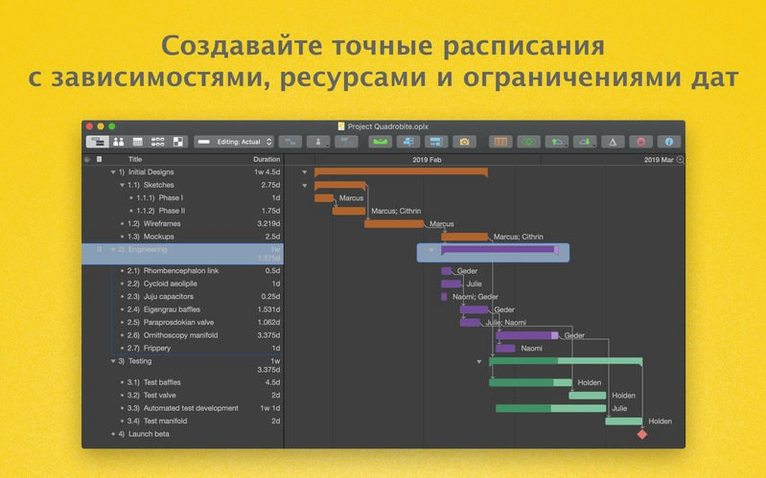
Projects fall apart when you can't see how tasks, people, and deadlines interact. OmniPlan Pro for Mac gives you that visibility. You split work into tasks, assign resources, and the app shows you the critical path — the sequence that drives your finish date. Adjust one dependency and you see the ripple effect instantly.
Planning and Tracking
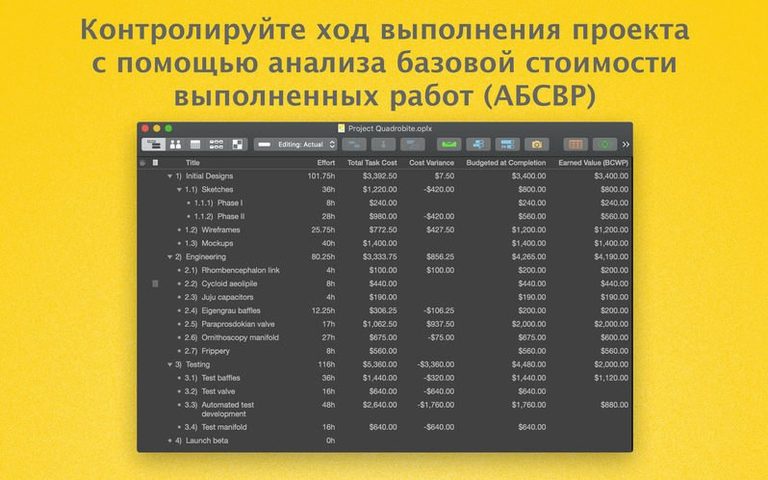
The app combines available time and resources into a schedule that actually holds up. Milestones mark the big checkpoints, and cost controls keep budgets in view. When things drift, the tracking tools show where you are versus where you planned to be. For teams that need to swap files, OmniPlan reads and writes Microsoft Project documents, so you're not locked into one ecosystem.
Pro-Level Modeling
The Pro tier adds two features that separate it from the standard version. Monte Carlo simulation runs thousands of schedule scenarios to show you the range of possible outcomes — useful when you need to defend a date. Automatic effort estimation takes the guesswork out of how long a task will take, based on your history and assumptions. Neither is a gimmick; both change how you plan.
Integration with Other Apps
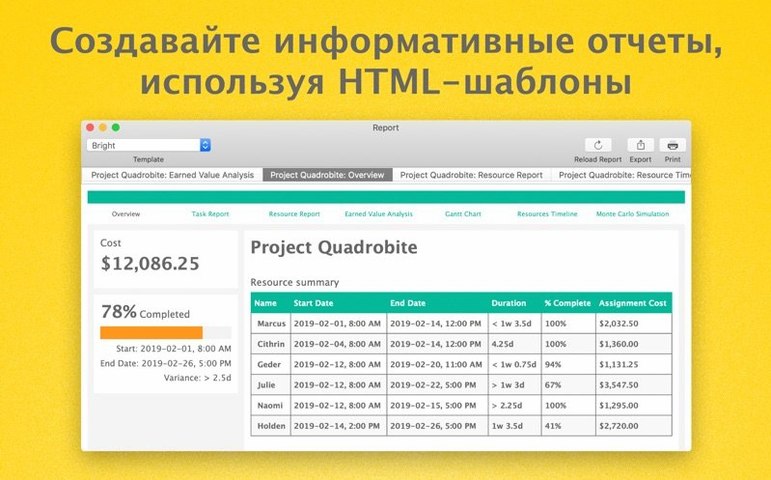
OmniPlan Pro has a few export paths that matter in a real workflow. You can send a project to PDF for a clean read-only view, or to CSV if you need to pull numbers into a spreadsheet. The ICS export gives you calendar entries for milestones or task dates — useful when you want a deadline to show up in Apple Calendar or elsewhere. For people in the Omni ecosystem, export to OmniOutliner and OmniGraffle lets you turn a project into an outline or a visual diagram without re-entering data.
The change tracking in the Pro version works well if you share projects through Omni Sync Server or WebDAV. You see what changed, and you can accept or reject edits individually or all at once. No confusion about who moved a task.
Add Team Absences First
Before you dig into a real project, open the calendar settings and add days of absence for your team. Absences shift the schedule automatically, so you don't manually pad dates. Set up your resource pool next — combine their available hours and hourly rates. The cost control numbers only make sense if those rates are correct.
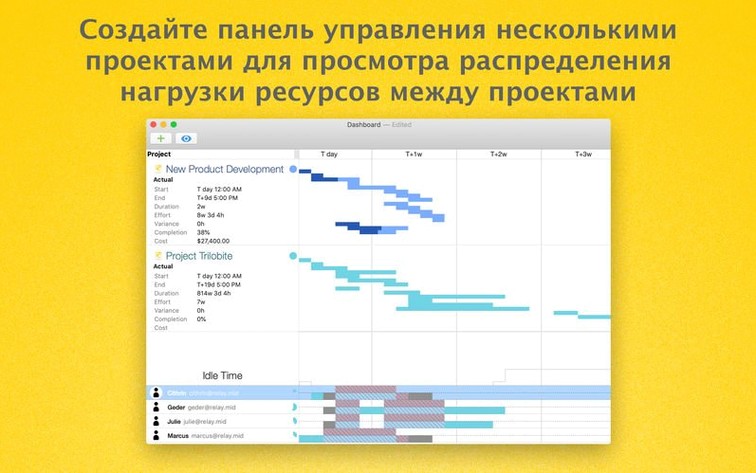
If you work with Gantt charts, adjust the display to show the critical path by default. It saves a click every time you open a project. For the dashboard, set it to show the projects you actively track. The multi-project dashboard is a Pro feature; don't fill it with data you don't need to watch.
Switch Between Gantt and Network Views
The app supports network diagrams alongside Gantt charts. If you prefer a dependency view, switch layouts — both show the same data. Summaries and milestones work in either view.
For language, it ships with eleven translations including English, German, Spanish, French, Japanese, and Simplified Chinese. Change it in the app preferences if the default isn't yours. The AppleScript support in the Pro version lets you automate repetitive actions, though you'll need to write the scripts yourself.
- Improved compatibility with newer versions of macOS.
- Better performance when editing a task with many assigned resources.
- macOS 12 or later
- Intel or Apple Silicon
- Interface languages: Russian, English, German, Spanish, Italian, Simplified Chinese, Korean, Dutch, Portuguese, French, Japanese
Questions I get about this line
OmniPlan 4.11 requires macOS 12 or later. It runs on both Intel and Apple Silicon Macs.
The install order
- Mount the disk image and open Gatekeeper-friendly.
- Press Enter in the Terminal window to bypass Gatekeeper.
- Drag the app into the Applications folder.
- Launch the app after installation.