Free download (28 MB) Previous versions
- Version
- 3.2.2
- Developer
- Catforce Studio
- Languages
- English, German
- License type
- K'ed by TNT team
| macOS range | macOS 10.15 or later |
|---|---|
| Chip | Apple Silicon, Intel 64-bit |
| Download | 28 MB |
| Previous versions | 1 on file |
Screenshots
Click a screenshot to see it wider.
Stopping and starting a timer every time you switch tasks is a waste of attention. Timemator handles it automatically.
Automatic tracking — records time as you work, based on app or document activity.
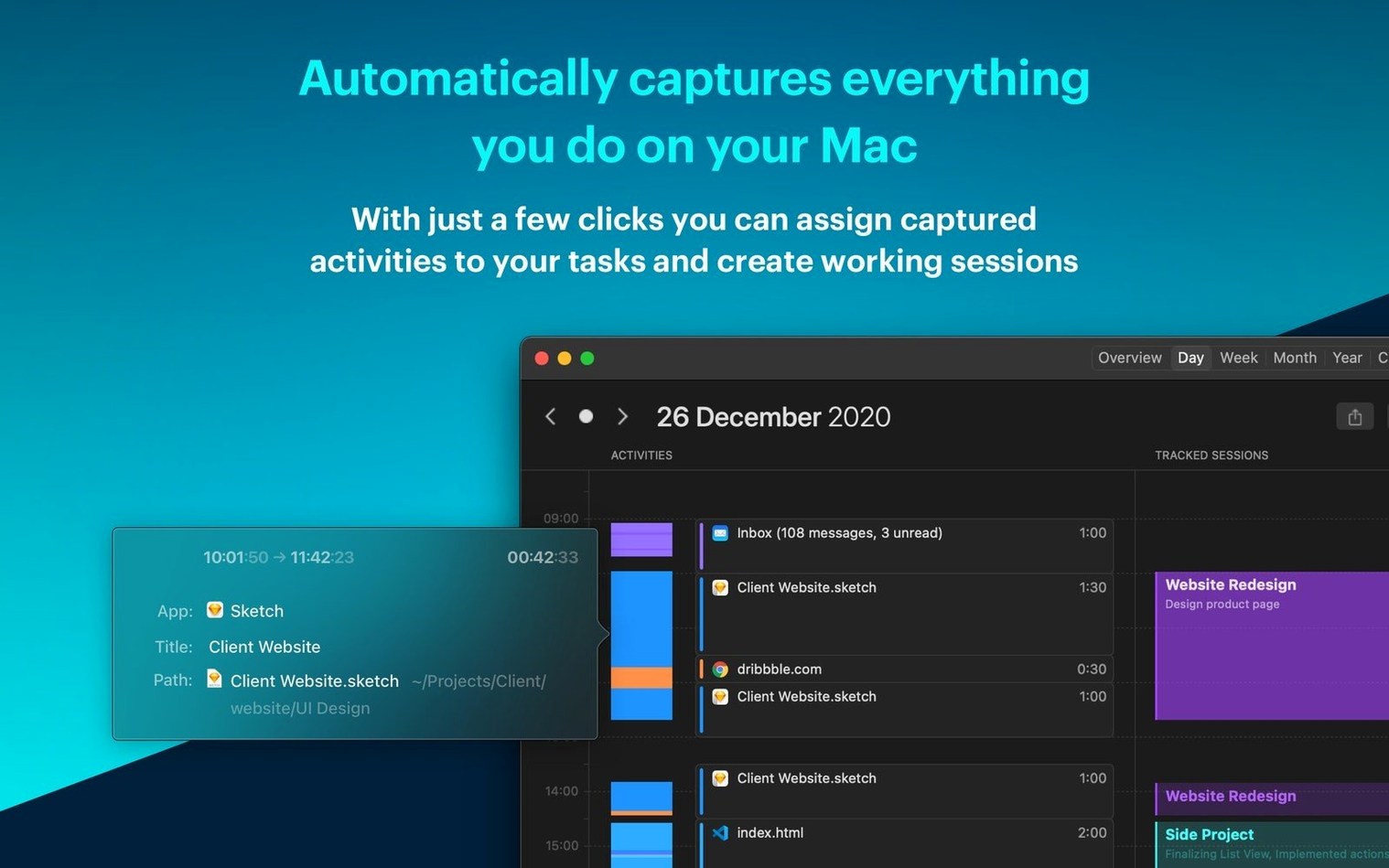
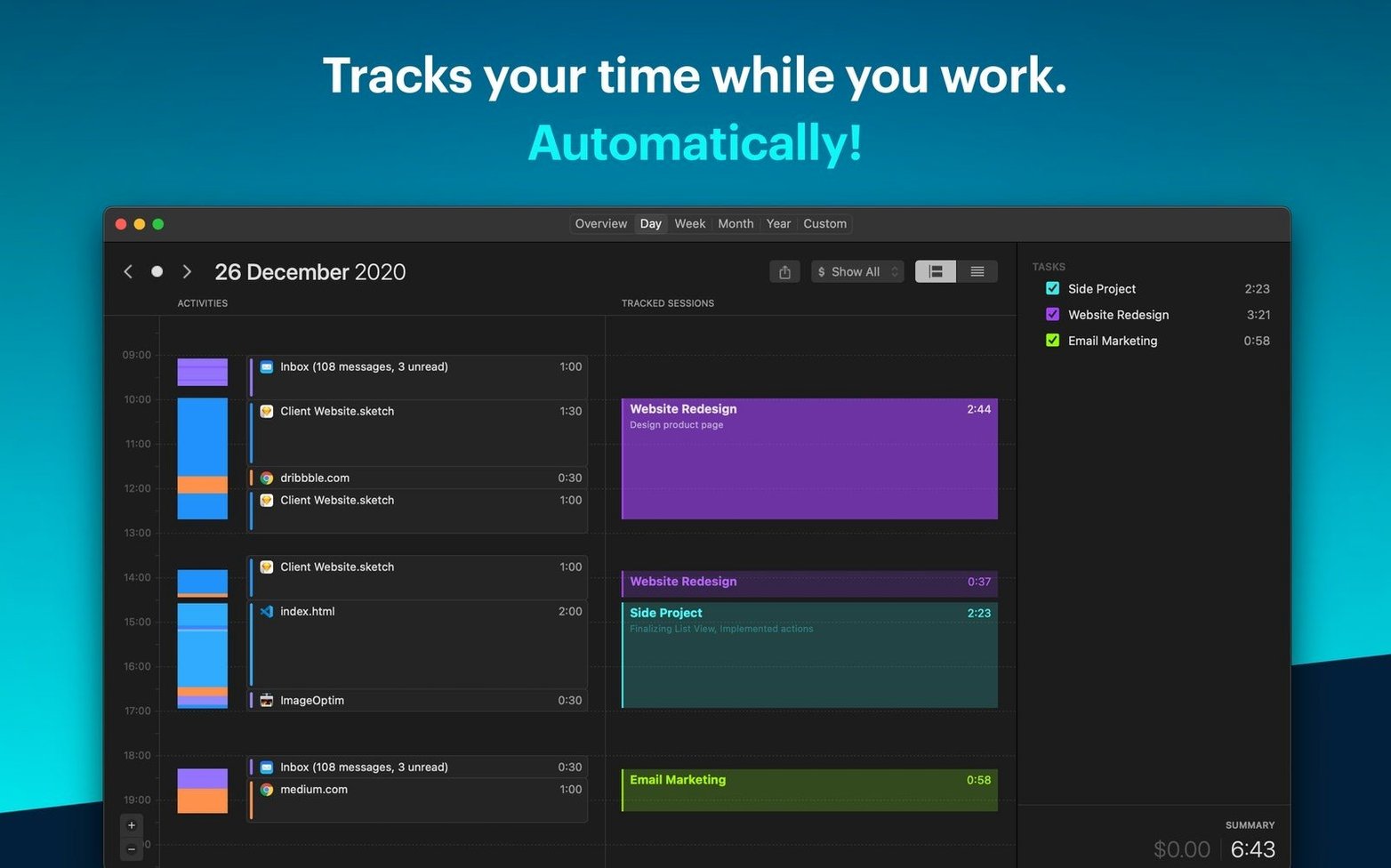
Activity timeline — a Mac-only view that shows exactly what you did, when.
macOS-native — runs on macOS 10.15 and later, works on both Apple Silicon and Intel 64-bit Macs.
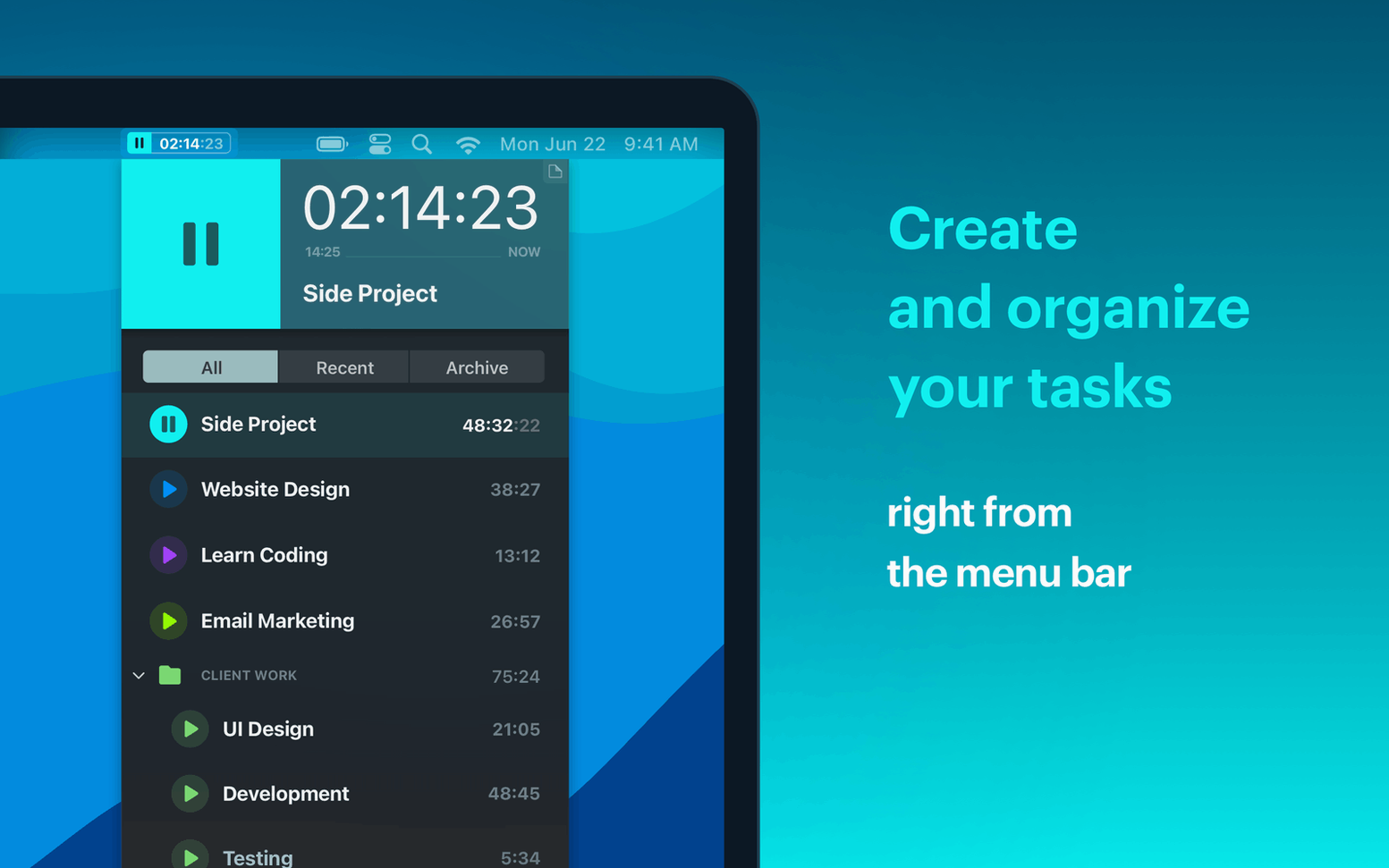
It sits quietly in the menu bar, logs everything, and doesn't get in the way — the kind of tool that fits into an existing setup without friction.
Automatic Tracking with Project Rules
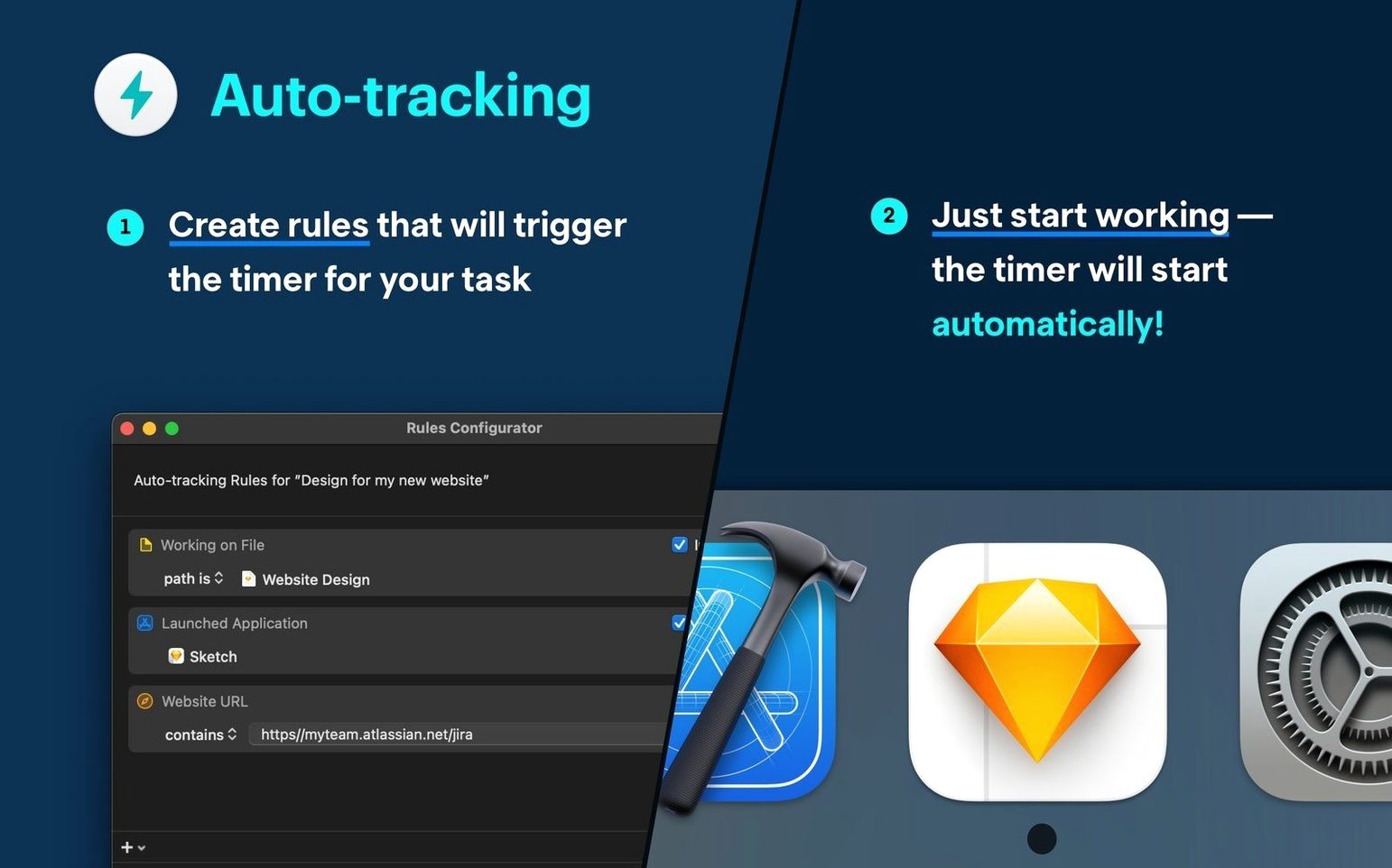
Most people want to know if it catches everything without them having to remember to start it. Yes — that is the whole point. You set rules per project: "when I have Safari and a specific folder open, count it toward Web Work." The app watches app and file activity and logs it to the right project automatically. You do not need to touch the timer.
Another common question is whether it slows down the machine. It does not run a heavy background process. You see a small icon in the menu bar, and the timeline view opens when you need it. No constant indexing or disk writes that would affect everyday use.
People also ask about the iPhone companion app. That is a separate app in the same product line. It does sync with the Mac version, but the Mac app works fully on its own if you do not use iOS. No phone required.
One more: how does it handle days you forget to start it? It does not require you to "start" anything. If you have auto-tracking rules active, it records the moment you open a matching app or file. If you work without rules, the activity timeline still shows everything you did — you can assign it to a project later.
Setting Up Auto-Tracking Rules in Preferences
After install, open Preferences and set up your auto-tracking rules. That is the main configuration step. Define a few projects and add the app names or file paths that belong to each one. The app learns fast, so you can start with two or three rules and add more as you go.
Check the menu bar icon and decide whether you want the timer to appear there always or only when tracking. Many people prefer it visible so they can glance at it without opening the app.
Set your hourly rate per project if billing is part of your workflow. That lets the reports calculate earnings automatically. Not needed if you track for personal time management only.
Turn on day view by default if you like seeing everything in one timeline. The timeline view is the main way to review your day — worth keeping open in the background.
Silent Logging Versus Timely’s Confirmation Prompts
Compared to Timely, Timemator is more hands-off. Timely uses calendar and email data to suggest entries but still asks you to confirm them. Timemator logs everything silently and lets you assign it later. The Mac-only timeline view in Timemator is also more detailed than what Timely shows on desktop.
Versus Toggl Track, Timemator is built around auto-tracking first. Toggl is manual timer start-stop by design — you punch in and out. Timemator does offer manual controls if you want them, but the core workflow is automatic. Toggl also requires a web connection for some features; Timemator works entirely on the Mac for local tracking.
Clockify is another alternative. Like Toggl, it focuses on manual time entry and team reporting. Timemator is for solo users who want to forget the timer exists. No web dashboards, no team invitations — just a log of what you did and a per-project earnings calculator.
For someone who just wants the Mac to track time without asking questions, Timemator is the simplest of the group.
- macOS 10.15 or later
- Apple Silicon or Intel 64-bit
Questions I get about this line
No. Timemator tracks time locally on your Mac and does not need an internet connection for core tracking.
Yes. Version 3.2.2 supports both Apple Silicon and Intel 64-bit Macs.
Timemator requires macOS 10.15 or later.
The install order
- Mount the disk image and run the Open Gatekeeper friendly step.
- Press Enter in the Terminal window to bypass Gatekeeper.
- Drag the app to Applications.
- Open the app when installation is complete.