
Free download (12 MB) Previous versions
- Version
- 1.1.1
- Developer
- Apptorium
- Languages
- English
- License type
- K'ed by TNT team
| macOS range | macOS 10.12 or later |
|---|---|
| Chip | Apple Silicon, Intel 64-bit |
| Download | 12 MB |
| Previous versions | 1 on file |
Screenshots
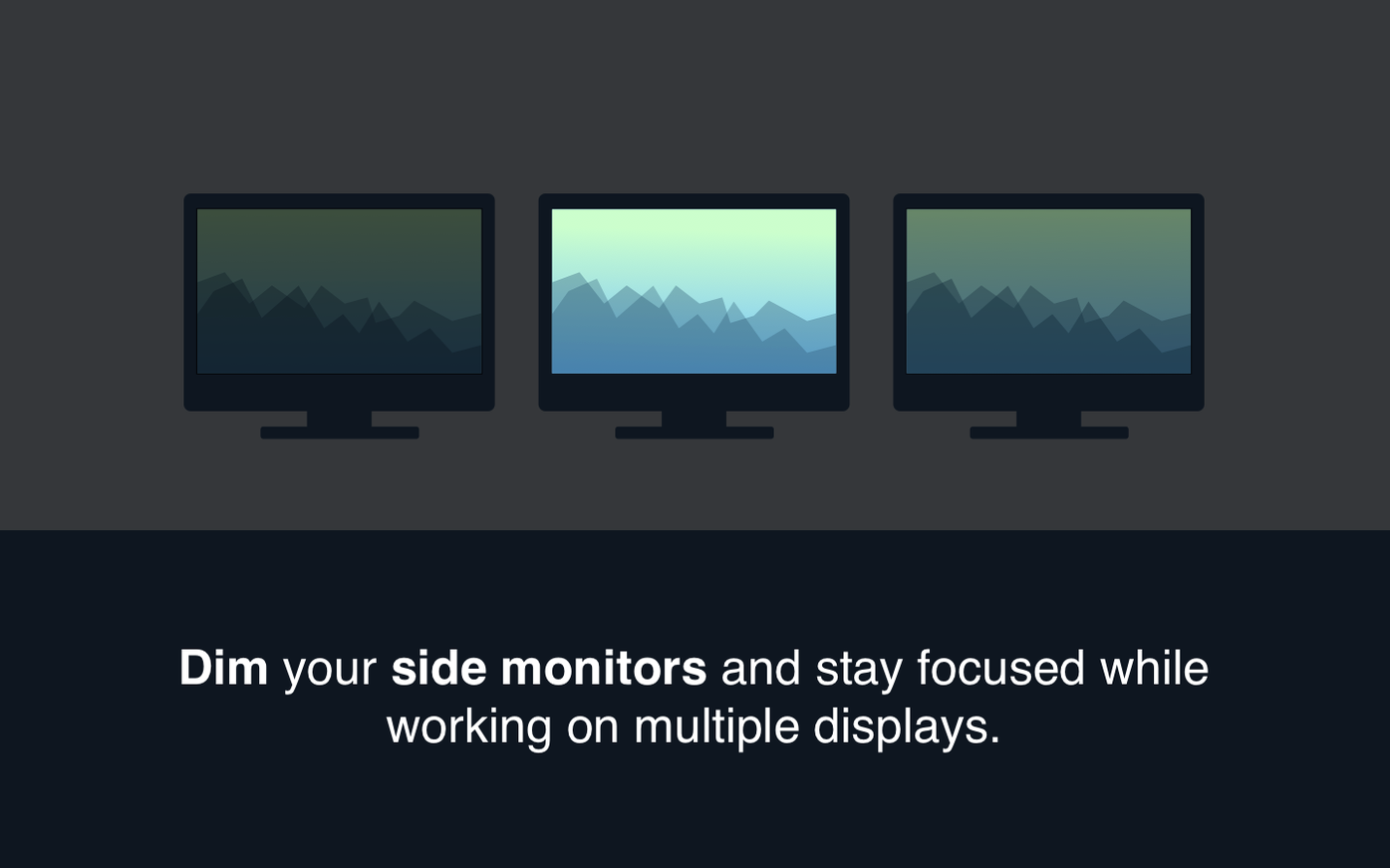
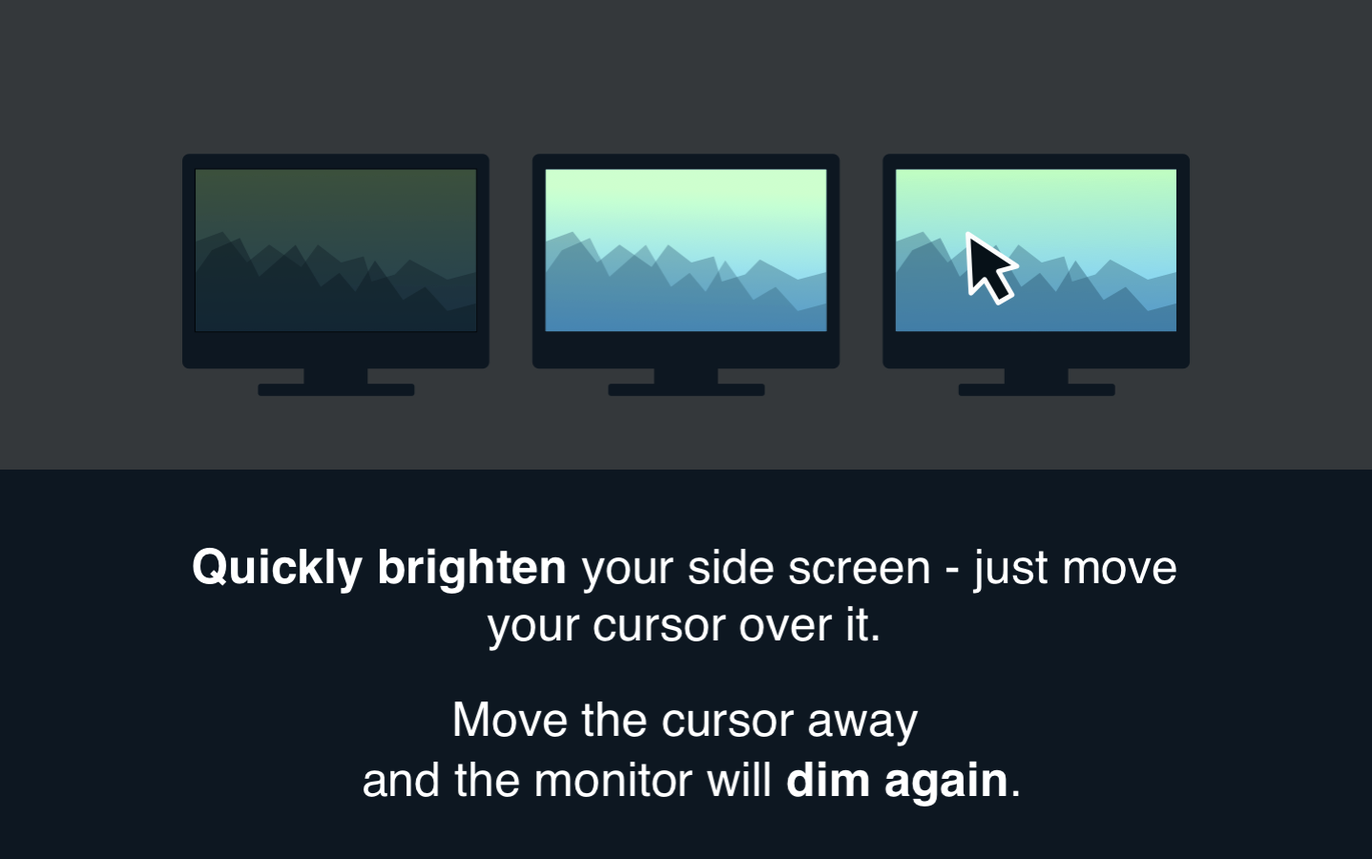
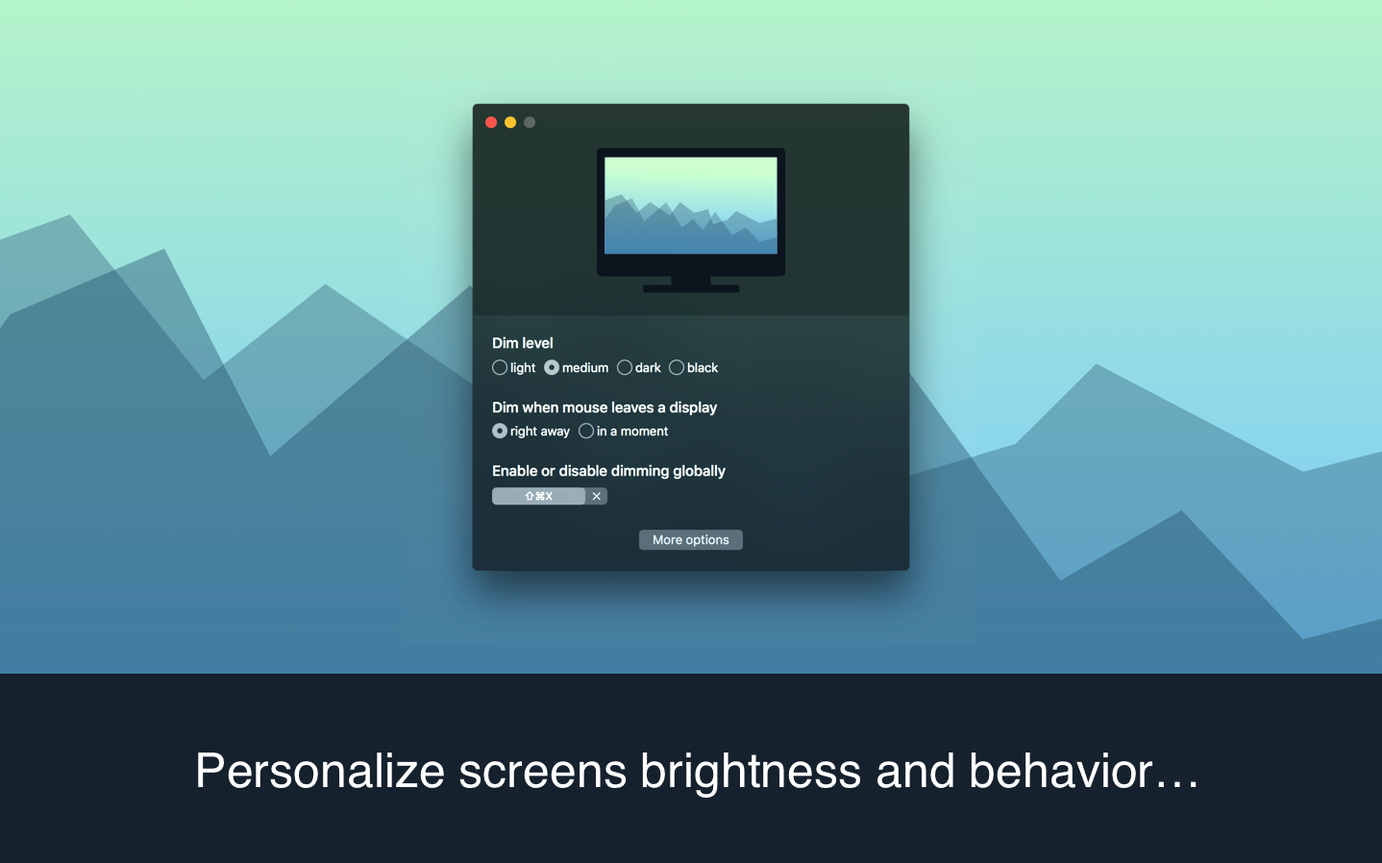
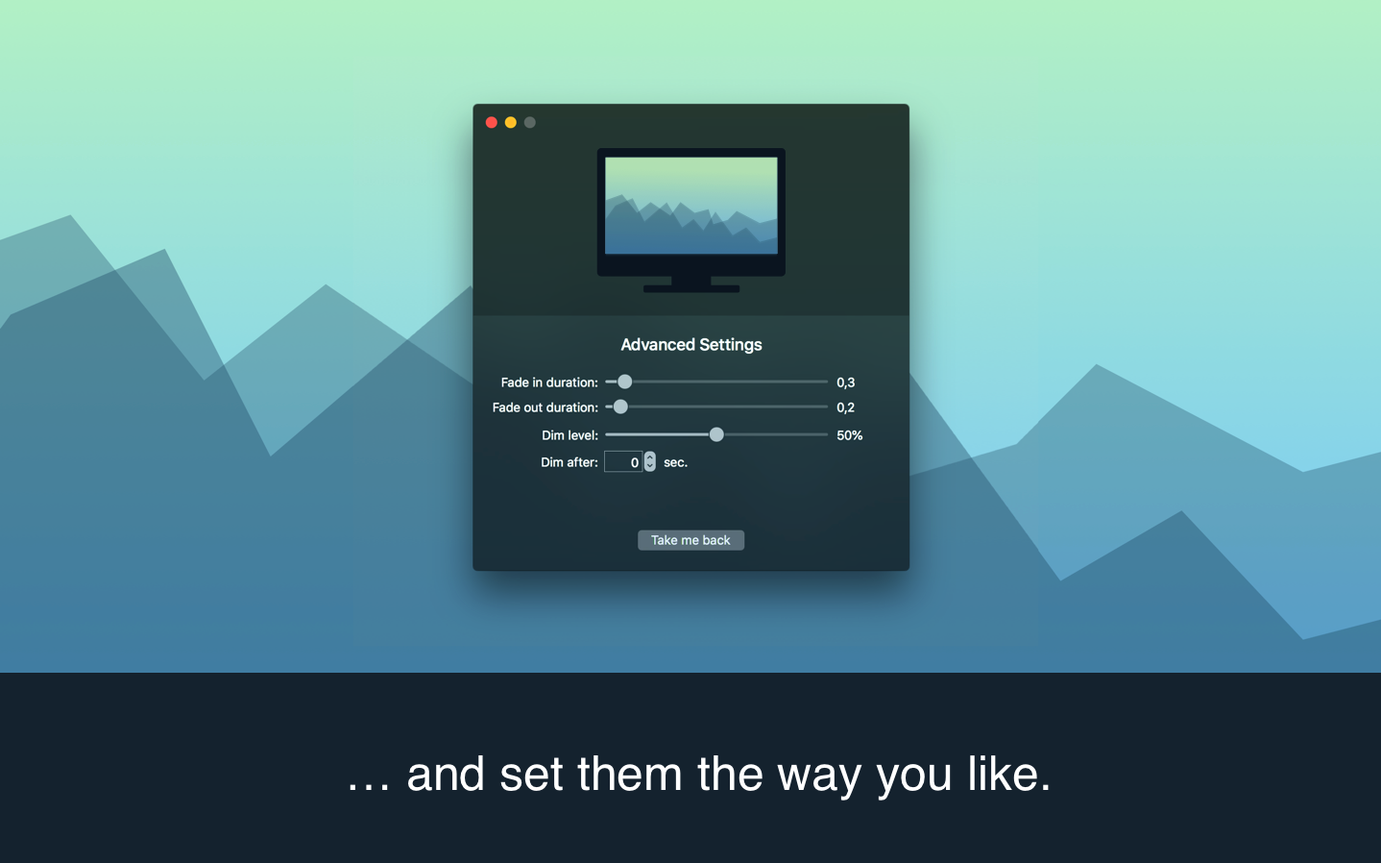
Click a screenshot to see it wider.
If you've used Apptorium's other tools, you know they build small utilities that do one thing well. ScreenFocus is that kind of app: a menu bar utility that dims your external or side monitors when you're not using them, then brings them back to full brightness the moment your cursor crosses over.
The core job is simple, but the details matter. You can set how long the app waits before dimming, how quickly the fade happens, and how dark the dim level goes. Each monitor can be individually set to dim or stay on, which helps when you have a reference display you always want visible.
It also handles the little things. The screen dims again after the cursor leaves, so you don't have to toggle anything manually. The interface is in English and runs on both Intel and Apple Silicon Macs.
Dim level left too subtle
Most first-time users install ScreenFocus and leave the default settings alone. That works, but a few common mistakes cut into how useful the app really is.
- Not adjusting the dim level. The default dim is subtle. On a dark desk setup, you might barely notice the difference. Crank the dim level up until the inactive screen is clearly darker. That's when the focus benefit kicks in.
- Forgetting the delay setting. If you switch monitors often for quick glances, a long dim delay means the screen stays bright when you don't need it. Shorten the delay. If you leave a monitor idle for reference, lengthen it.
- Not checking per-monitor settings. Beginners dim everything. But if you have a chat window or a dashboard you check constantly, set that monitor to never dim. You avoid the flicker of the screen brightening every time your cursor passes over.
- Ignoring the Spaces bug fix. The 1.1.1 update fixed a black screen showing while switching between Spaces. If you use multiple desktops, make sure you're on the latest version. The older builds had that issue.
Stronger dim for a clear background
Open the app menu and go through these adjustments before you start working. They take thirty seconds.
- A stronger dim makes the active monitor pop. Tweak it until the dimmed screen looks clearly in the background without effort.
- Set the dim delay to 1-2 seconds. That's enough time to mouse over a screen briefly without triggering the dim cycle. Any longer and you're waiting for the fade every time you move back.
- A quick fade feels responsive.
- Decide which monitors stay bright. In the app menu, click each monitor name and choose not to dim it if you need constant visibility. Good for reference docs, system monitors, or video calls.
Mistakes beginners make with ScreenFocus
Beyond the obvious settings, a few habits trip people up when they first use the app.
- Not checking the fade duration. A long fade looks smooth but feels slow. If the screen takes more than a second to reach full brightness, you'll notice the lag every time you move between monitors. Set it shorter.
- Using it with mirrored displays. ScreenFocus works best with extended desktops. If your monitors are mirrored, the app doesn't have separate screens to manage, so it won't do anything useful.
- Expecting it to work on the built-in display. By design, ScreenFocus dims side monitors only. The main display stays full brightness unless you manually change per-monitor settings. Don't look for a way to dim your primary screen by default.
- Leaving the app running when you don't need it. If you're doing quick tasks that don't require focus, just quit the app from the menu bar. It saves a click of re-enabling dimming later.
Settings worth changing first
Before you settle into a workflow, adjust these two things. They make the biggest difference in how the app feels day to day.
- Dim delay. Set it to 0.5 or 1 second. The default is often longer, and you want the dim to kick in quickly so you don't get distracted by a bright side screen while working on the main one.
- Most beginners leave it too light. A darker inactive screen makes the active monitor stand out without effort.
- Fixed a black screen that appeared while switching between Spaces.
- macOS 10.12 or later
- Intel or Apple Silicon
- English interface
Questions I get about this line
No, the dim level is global, but you can turn dimming off for a specific monitor using the app menu.
Yes, version 1.1.1 fixed a black screen issue that occurred when switching between Spaces.
The install order
- Mount the disk image and run Open Gatekeeper friendly.
- Press Enter in Terminal to bypass Gatekeeper.
- Drag the app to the Applications folder.
- Open the app to use it.