- Version
- 2.4.6 fix
- Developer
- Zui Mei Jia Technology
- Languages
- English, Chinese (Traditional), Chinese (Simplified), Dutch, Slovak, French
- License type
- Included
| macOS range | macOS 12 or later |
|---|---|
| Chip | Apple Silicon, Intel 64-bit |
| Download | 23 MB |
Screenshots
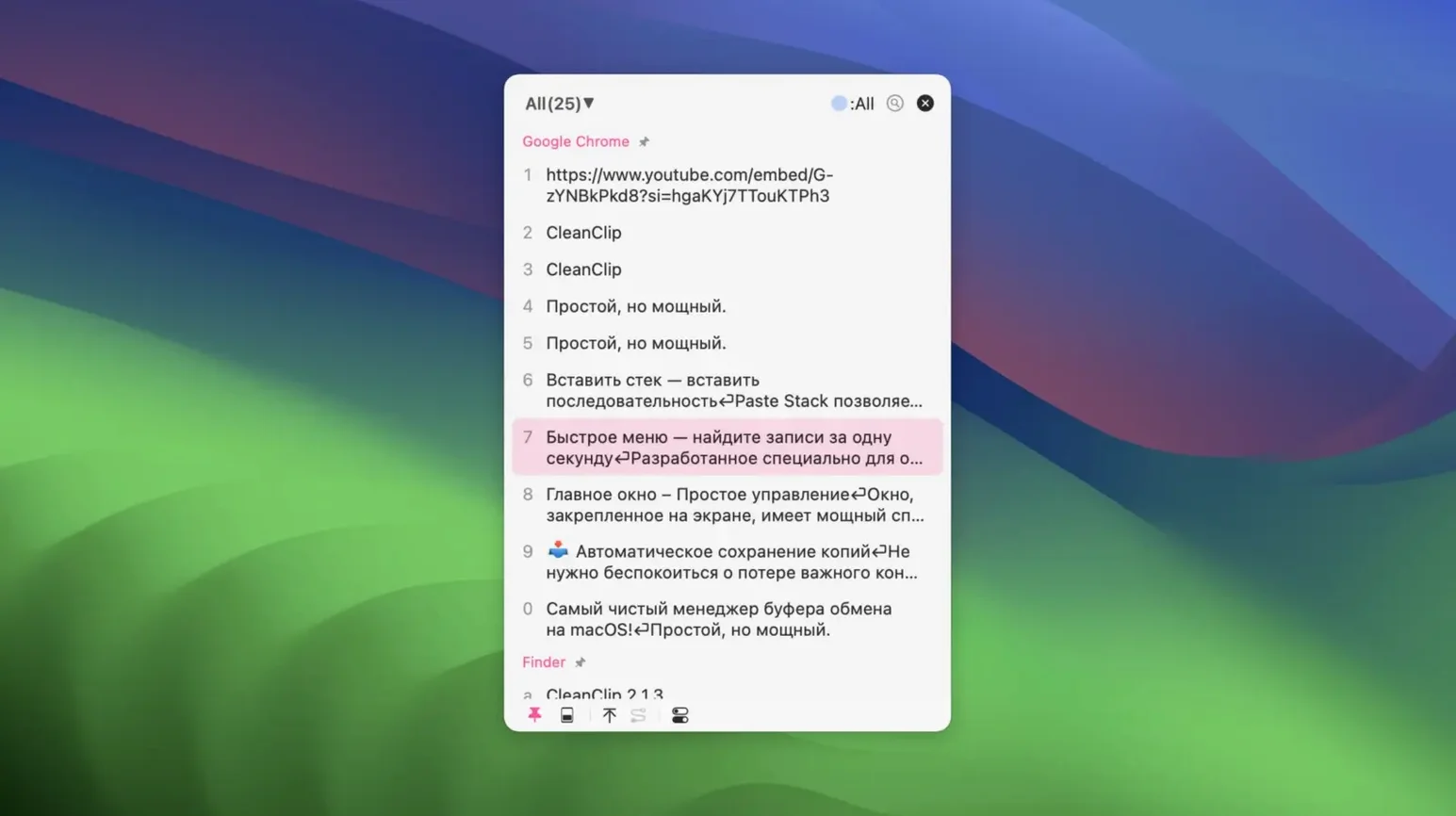
Clipboard history in macOS is a blank slate — copy something, copy something else, and the first item is gone. CleanClip replaces that with a proper manager that keeps track of everything you copy, so you can pull up an old snippet without re-copying it.
Version 2.4.6 keeps the core workflow intact: a paste stack for inserting items in order, quick paste formats opened by holding a content index number, and the option to show copied content from the current frontmost app automatically. For form filling, you can split copied multiple lines into separate paste-stack items with Command-Shift-C, then paste them in sequence. The current version also adds preset paste formats for repetitive tasks.
What changed in this release is polish and compatibility. UI styling in PinnedView is unified, previews for alias tags and image items display better, and animation issues in QuickMenu expansion are fixed. More importantly, CleanClip now runs on macOS 26 with fixes for both general compatibility and paste stack behavior on that system. iCloud sync support is listed in the changelog as well, which helps keep your clipboard history consistent across Macs.
CleanClip supports English, Traditional Chinese, Simplified Chinese, Dutch, Slovak, and French, and runs on both Apple Silicon and Intel 64-bit Macs. If you’re tired of losing copied text, this utility gives you a straightforward way to keep it around.
No System Slowdown or macOS Conflict
Does CleanClip slow down the system? No. It runs as a lightweight background process that only activates when you copy or paste. You will not notice it until you need it.
Will it interfere with macOS built-in clipboard? No conflict. macOS still handles the standard copy and paste. CleanClip just logs what passes through, so you can go back to earlier items.
What happens to saved data after a reboot? CleanClip preserves your clipboard history and bookmark lists across restarts. The same snippets are available when you log back in.
Can I exclude certain apps from being tracked? The app includes filtering options through its preset paste formats and smart lists, letting you control what gets recorded.
Quick Menu and Paste Stack First Steps
Start with the quick menu. After copying a few items, open CleanClip's menu near your text input position to see what is stored. Get used to selecting old snippets instead of re-copying them.
Try the paste stack right away. Copy three different bits of text, then paste them in order using the stack. This alone saves time on repetitive data entry.
Set up one smart list for your most-used replies or addresses. Bookmark those items so they stay on top regardless of what else you copy. After a few days, you will naturally reach for CleanClip instead of switching windows to re-copy.
- Unified UI styling in PinnedView.
- Improved preview display for alias tags and image items.
- Fixed animation issues in QuickMenu expansion.
- Added macOS 26 compatibility fixes.
- Fixed Paste Stack issues on macOS 26.
- macOS 12 or later
- Apple Silicon or Intel 64-bit
Questions I get about this line
Yes, version 2.4.6 includes compatibility fixes for macOS 26, addressing both general issues and paste stack behavior.
Yes, you can split copied multiple lines into separate paste-stack items with Command-Shift-C, then paste them in sequence.
The install order
- Open the downloaded disk image.
- Drag the app into the Applications folder alias.
- Launch the app from Launchpad after copying finishes.
- Restart the app if the settings panel does not open on first launch.