Free download (68 MB) Previous versions
- Version
- 4.18
- Developer
- Eltima Software
- Languages
- Russian, English, German, Spanish, Italian, Chinese (Simplified), Korean, Portuguese, French, Czech, Japanese
- License type
- K'ed by TNT team
| macOS range | macOS 10.14 or later |
|---|---|
| Chip | Intel 64-bit |
| Download | 68 MB |
| Previous versions | 2 on file |
Screenshots
Scroll the row, it snaps to each screenshot. Click one to see it wider.
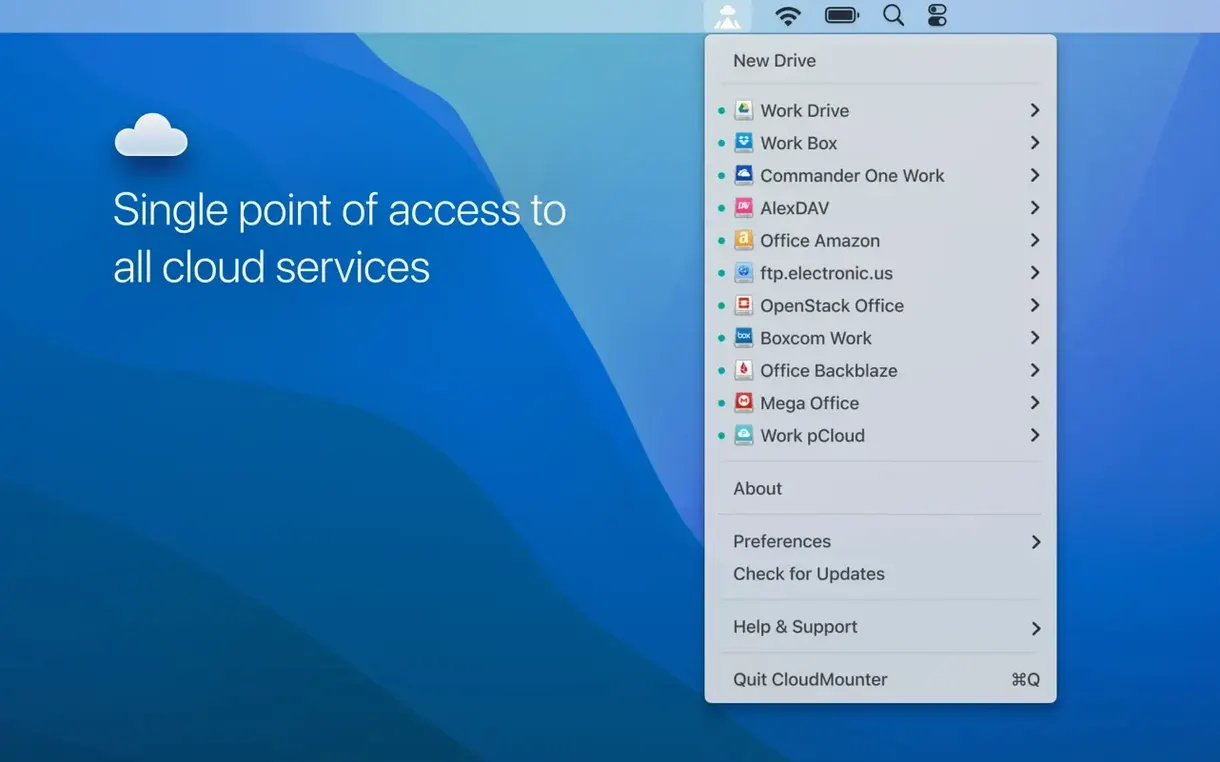
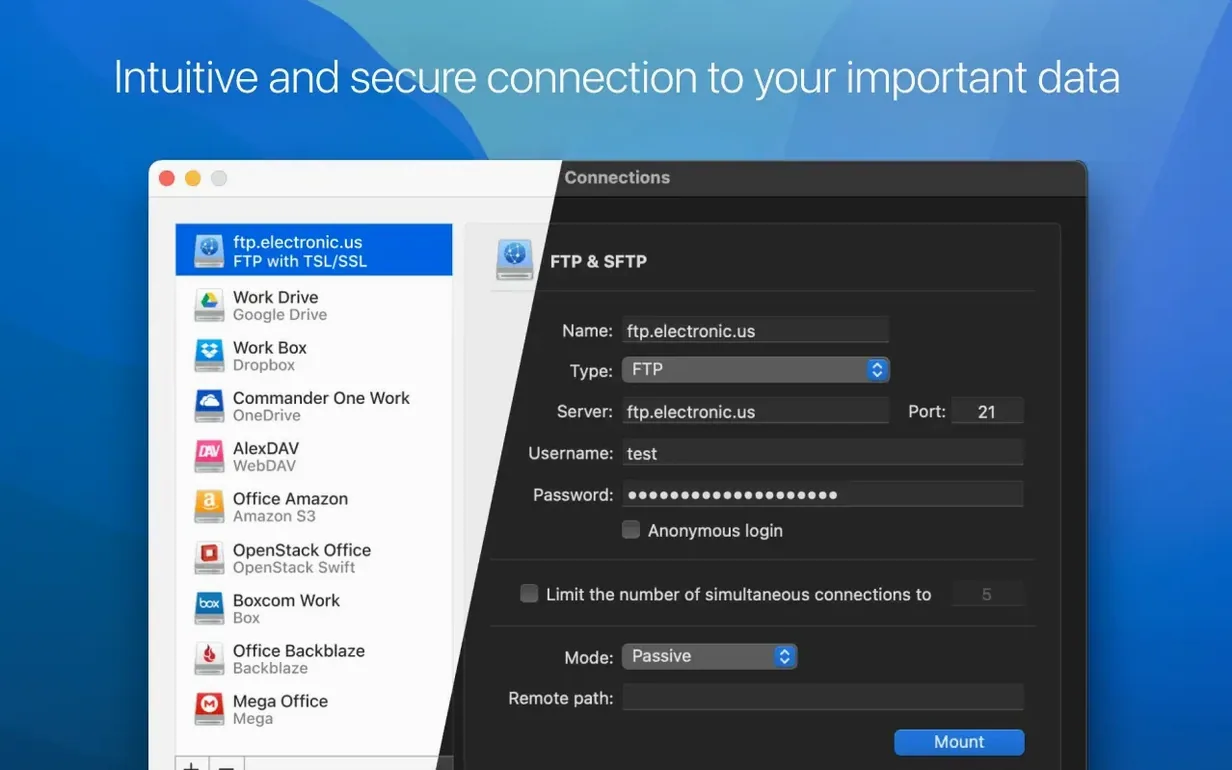
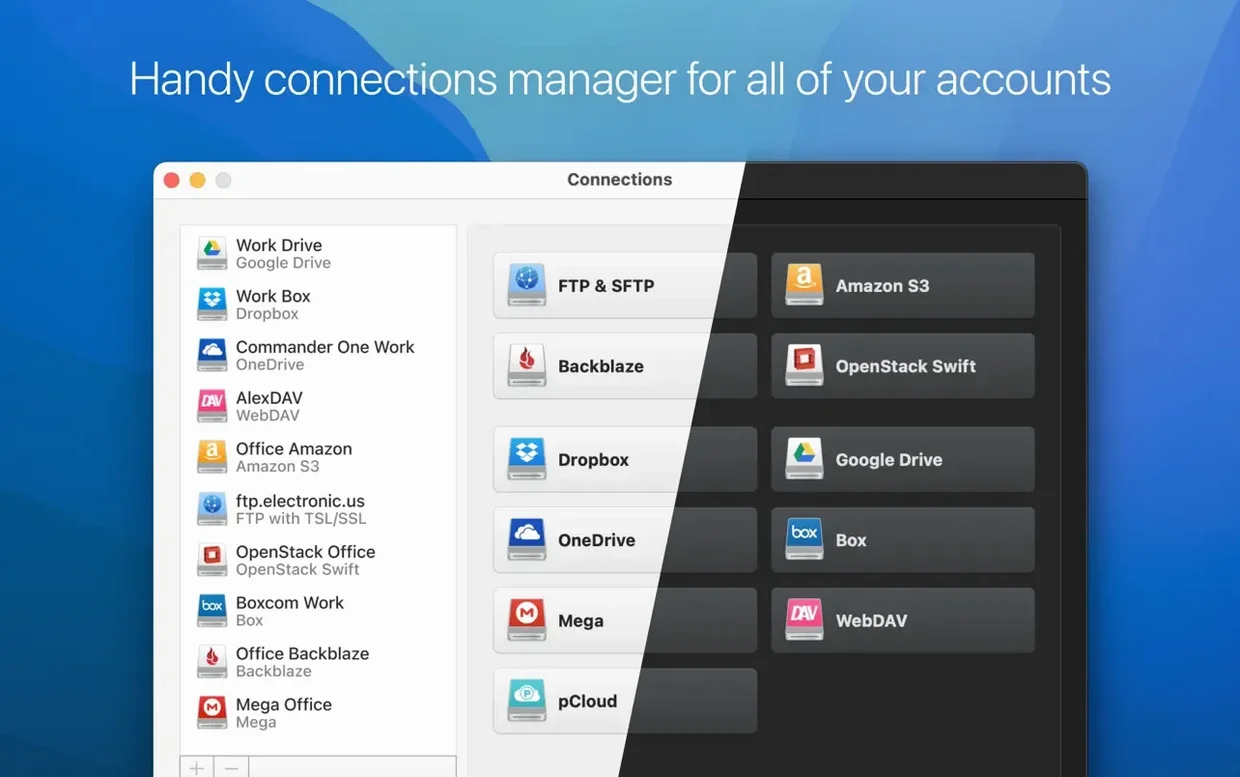
You need to edit a file stored in Google Drive, but you don't want to sync the whole folder to your Mac. CloudMounter mounts that cloud account as a local drive in Finder, so you can open, save, and manage files directly without waiting for a full sync. It handles Google Drive, Dropbox, OneDrive, Amazon S3, FTP, SFTP, WebDAV, and more.
Saves Space by Skipping Local Sync
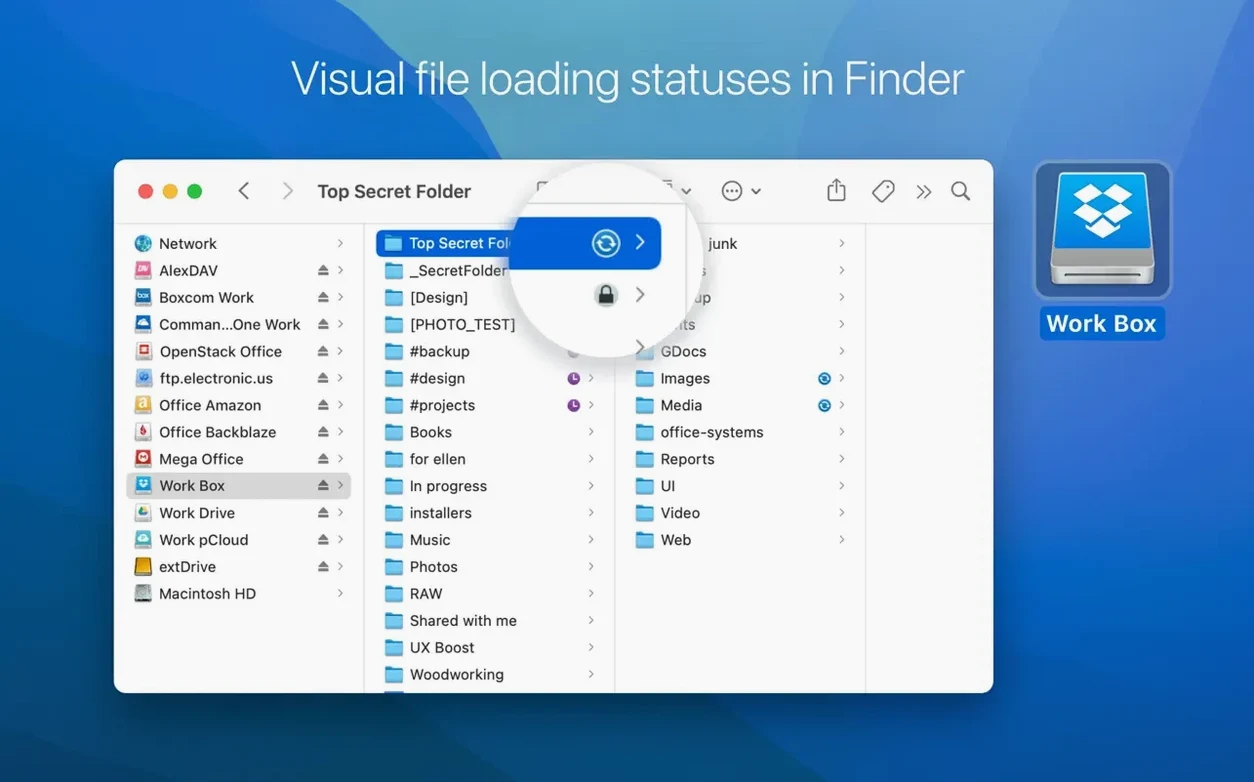
CloudMounter doesn't automatically sync files to your local disk. That saves space and keeps your Mac lean. You see transfer and update progress with status icons right in Finder, so you know what's happening without switching apps.
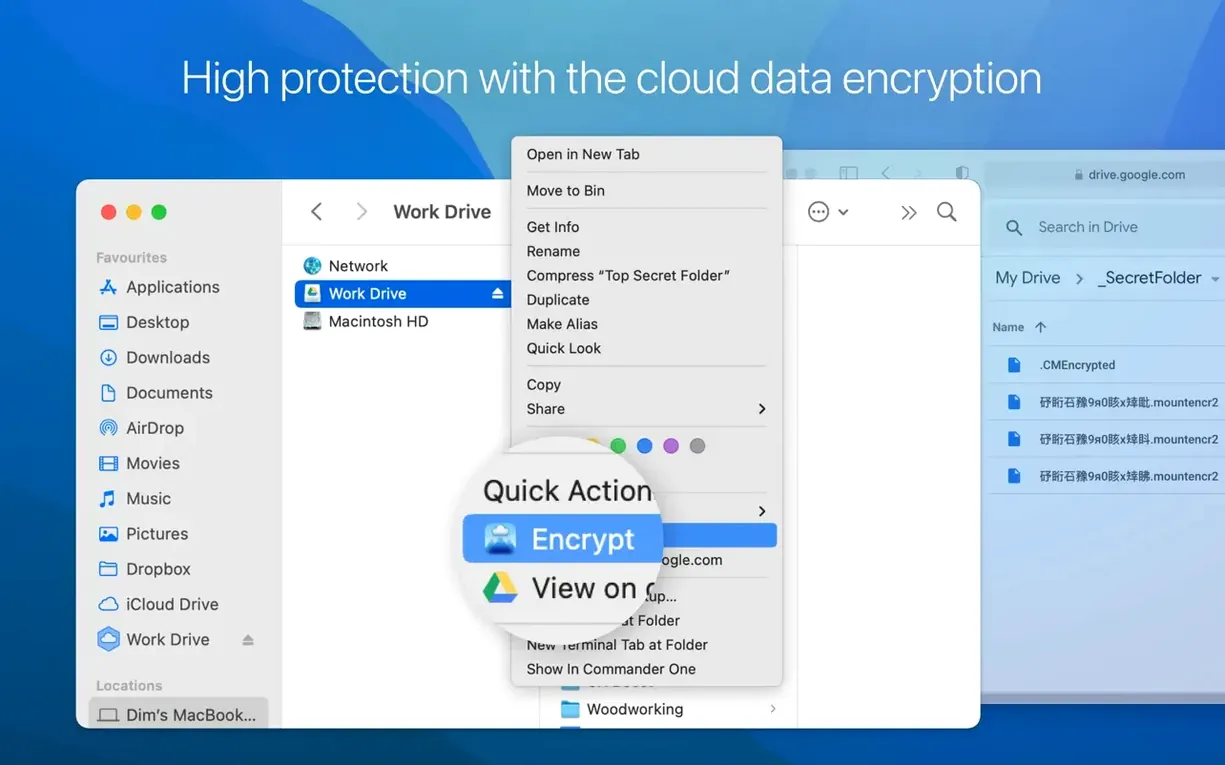
Security is a real concern when you're working with remote files. CloudMounter can encrypt your cloud data with AES-256, which is useful if you're storing sensitive client records or financial documents.
Integration and Interface
The app integrates directly with Finder, so it feels like a native extension. There's no separate file manager to learn. The interface is clean and available in English, German, Spanish, Russian, and several other languages.
Migrating Files Between Cloud Services
Moving a large batch of project assets from Dropbox to OneDrive is simpler when both are mounted as local drives.
- Mount your Dropbox and OneDrive accounts through CloudMounter.
- Open two Finder windows: one for each mounted drive.
- Select the files or folders you want to transfer and drag them between the windows.
- CloudMounter shows progress icons next to each file during the transfer, so you can see when each item finishes.
The key is that the data moves directly between cloud services, not through your local disk, and since CloudMounter doesn't auto-sync locally, you don't have to wait for local folder downloads to complete.
Mount Multiple Accounts for the Same Service
CloudMounter supports multiple accounts for the same service. That means you can mount a personal Google Drive and a work Google Drive at the same time, each as a separate drive.
Status icons in Finder are not just for transfers. They also show upload, move, and update progress. You can glance at a folder and know whether everything finished.
The app supports WebDAV and OpenStack Swift in addition to the usual suspects. If a client hands you a Backblaze B2 or Box share, you don't need yet another client app — just mount it and go.
Mounted MEGA Drive Appears in Seconds
I start the day by opening CloudMounter and checking one of my remote projects. The MEGA connection is already set up from last week. I click to mount it, and within a moment the drive appears in Finder — no waiting for an entire folder structure to sync.
I need to update a PHP config file. I open it in my editor directly from the mounted drive, make the change, and save. The file uploads back to MEGA. The progress icon next to the file confirms it finished.
I mount the SFTP connection, drag the archive to my Desktop, and CloudMounter handles the download. The status icon stays visible until it's done. No need to open a separate FTP client or remember commands.
For sensitive project notes, I enable AES-256 encryption on that particular cloud folder at the start of the session. CloudMounter handles it in the background. I don't think about it again.
End of day, I unmount the drives. Nothing is left synced on my local disk. Clean and simple.
- Improved uploading of large files.
- Better handling of MEGA connections.
- Fixed download cancellation for SFTP files.
- Fixed downloads when the cache volume changes.
- Fixed storage usage display for online connections.
- macOS 10.14 or later
- Intel architecture
Questions I get about this line
No. CloudMounter mounts cloud storage as local drives and does not automatically sync files to your local disk.
The install order
- Mount the disk image and run the Open Gatekeeper friendly command.
- Press Enter in the Terminal window to bypass Gatekeeper.
- Drag the app into the Applications folder.
- Launch the app when installation is complete.