Free download (43 MB) Previous versions
- Version
- 5.0.1
- Developer
- MakeTheWeb
- Languages
- English
- License type
- Included
| macOS range | macOS 11 or later |
|---|---|
| Chip | Apple Silicon, Intel 64-bit |
| Download | 43 MB |
| Previous versions | 23 on file |
Screenshots
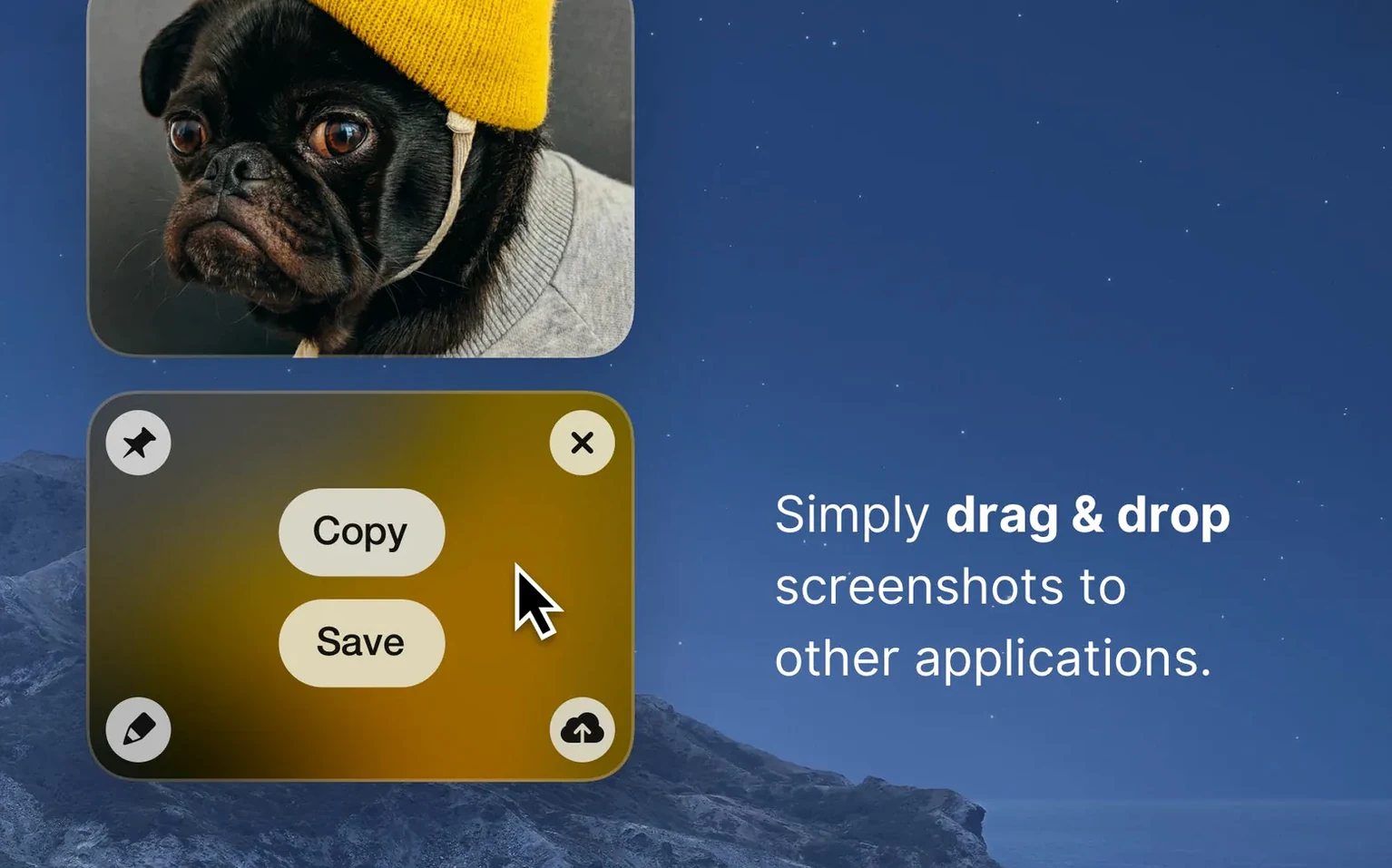
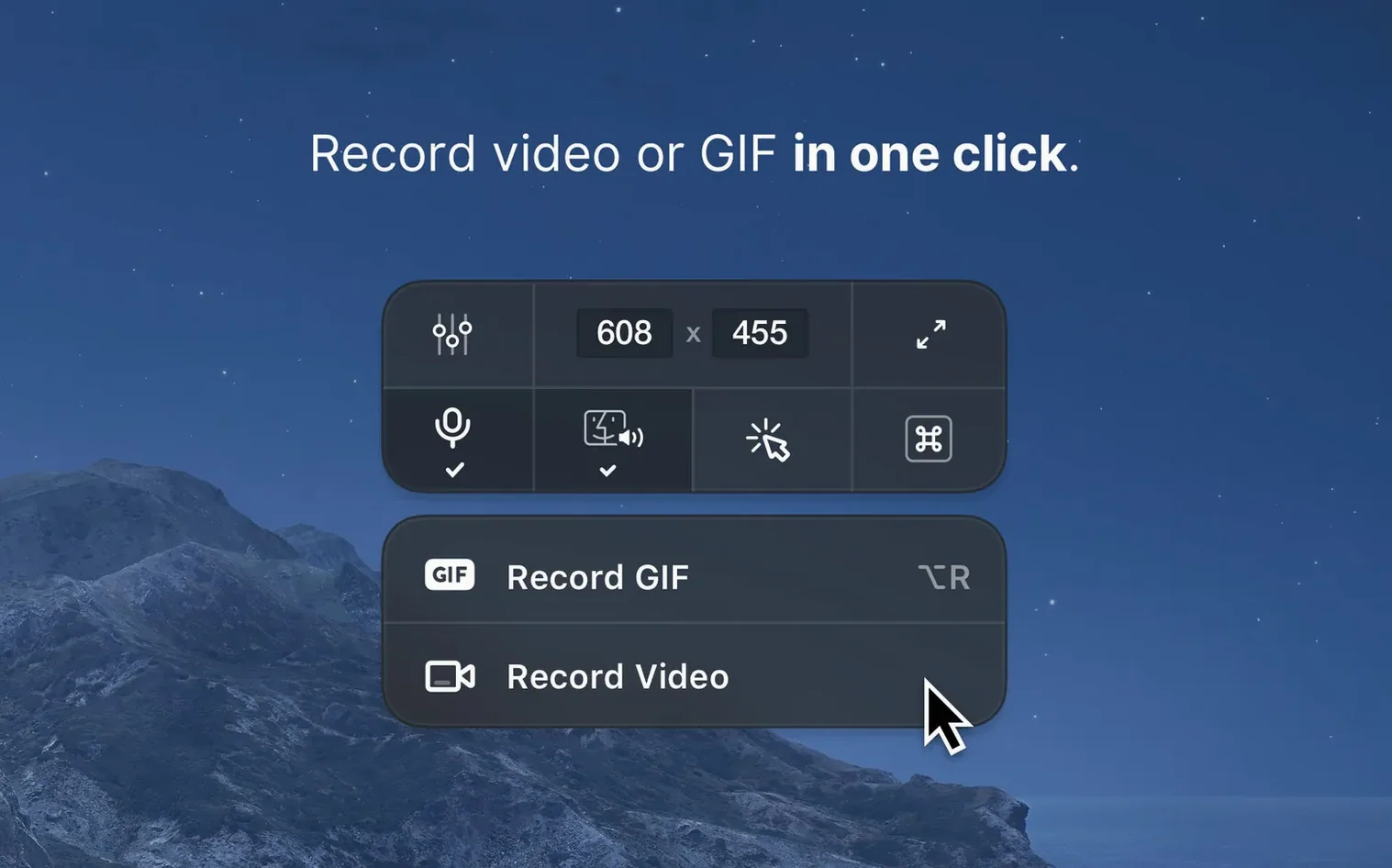
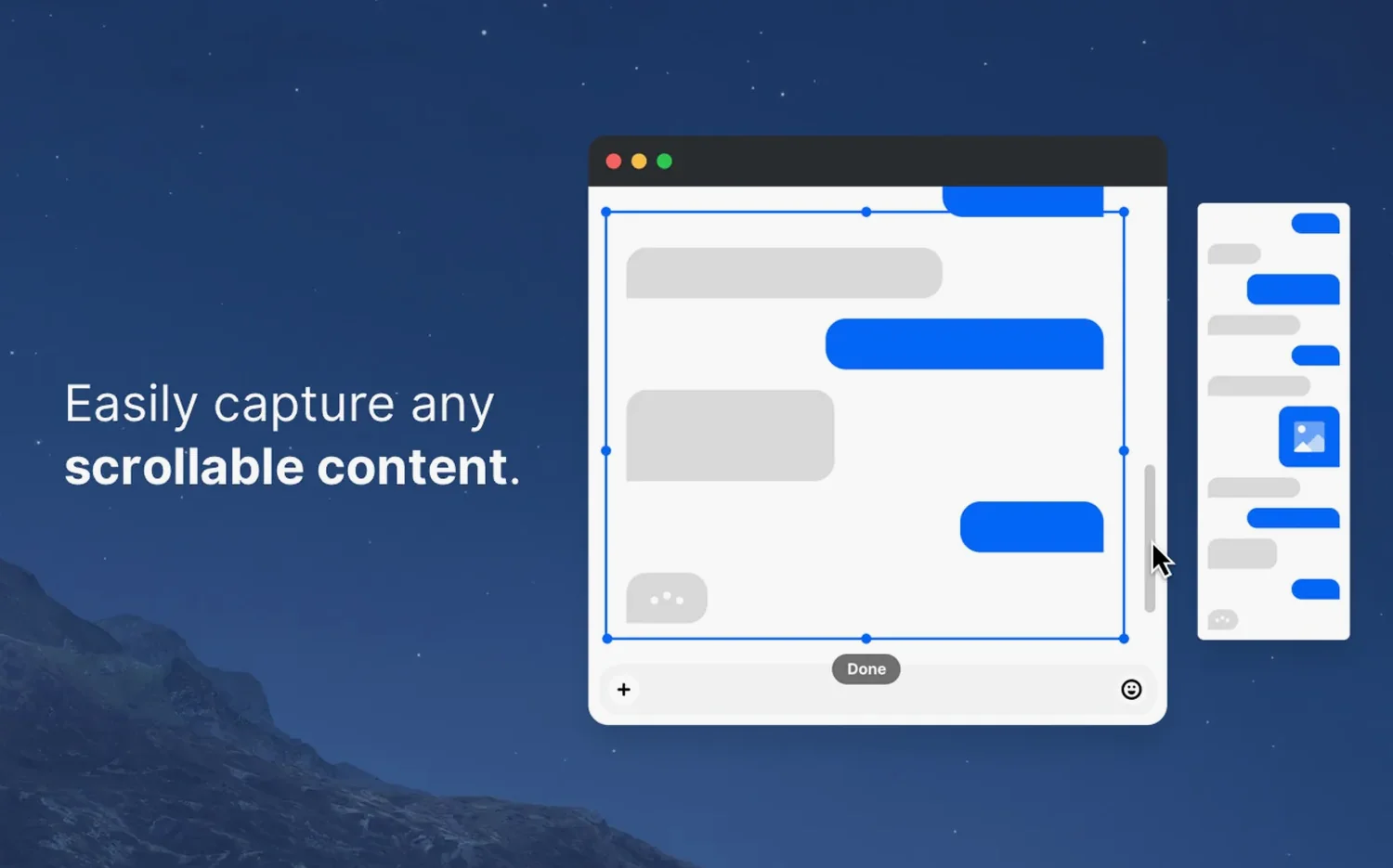
Scroll the row, it snaps to each screenshot. Click one to see it wider.
CleanShot X is for anyone who lives in screenshots — IT folks documenting issues, support staff building guides, or designers sharing quick feedback. It bundles screen capture, recording, and a built-in editor into one Mac-native app.
Captures in Retina or standard resolution with pinned overlays
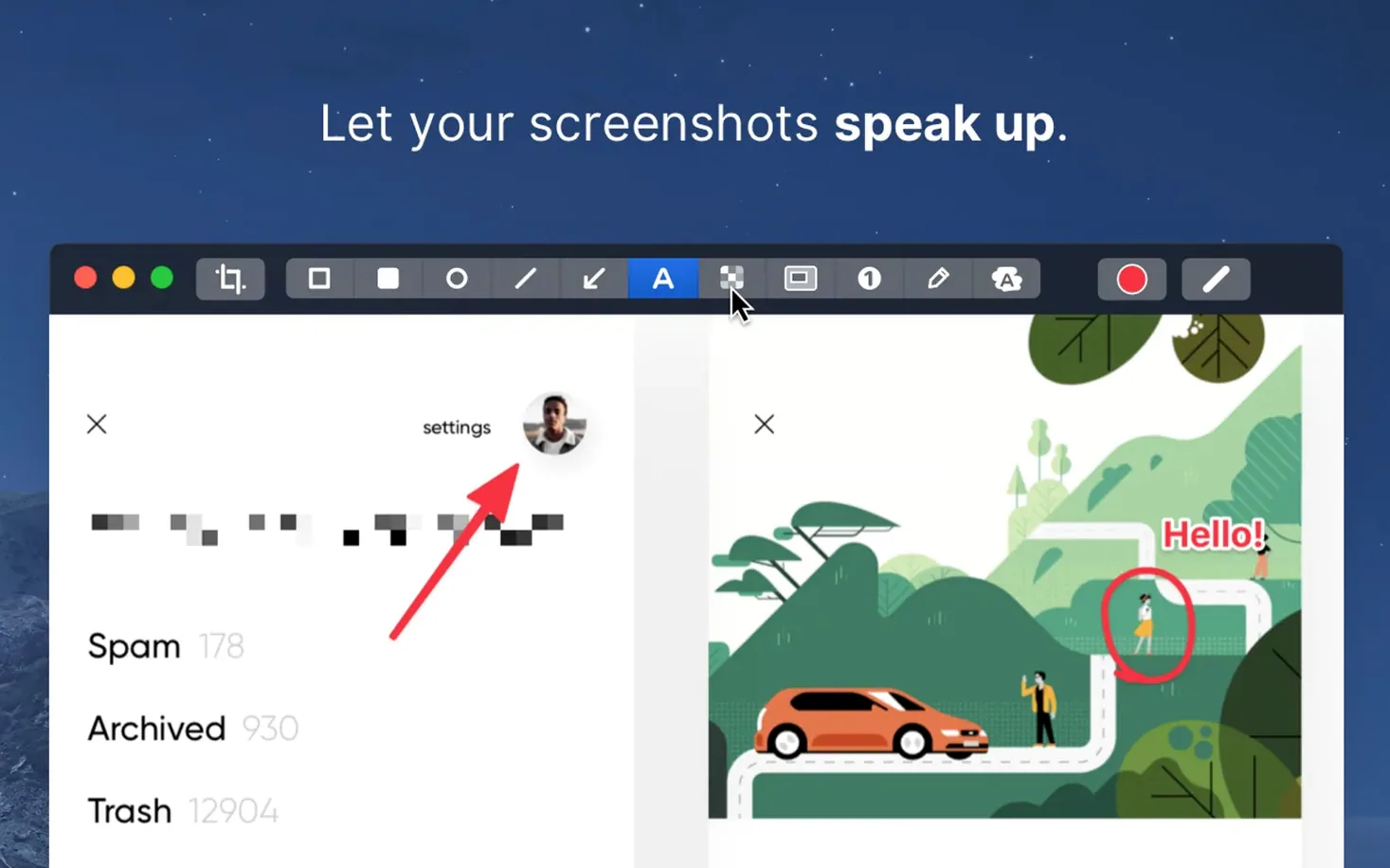
You can capture in Retina or standard resolution, pin a shot so it stays on top of other windows, and hide desktop notifications while recording. The editor lets you highlight, hide, or comment on what you captured.
Who is it aimed at?
People who need a clean, all-in-one tool without juggling separate capture and video apps. It covers both stills and screen recordings in one place.
Replaces the built-in macOS screenshot tool from the menu bar
Does it replace the built-in macOS screenshot tool? It can. CleanShot X sits in the menu bar and captures any area, window, or full screen with a keyboard shortcut or click. You still keep the native tool if you prefer it.
Does it work with multiple monitors? Yes. It captures the monitor you select, or the entire combined desktop. The editor handles whatever resolution you send it.
Will it interfere with screen recording apps like OBS or QuickTime? Not normally. CleanShot X records its own captures and doesn't grab audio channels or system-level hooks that conflict with other recording software. If you run two recorders at once, only one gets the final file.
Can you export to formats besides PNG and MP4? The editor exports stills as PNG and recordings as MP4 or GIF. That covers most workflow needs.
Open preferences before capturing to silence notifications or set a timer
New users often skip the preferences panel. CleanShot X has sensible defaults, but a few settings make a big difference: turning off desktop notifications during recording, enabling the timer, or setting a background color for screenshots. Open preferences before your first serious session.
Another common error: forgetting to switch to Retina resolution when capturing for print or high-DPI displays. The default is standard resolution, which looks fine on screen but soft when embedded in a document. Toggle it in the capture menu.
Some people pin a screenshot but don't realize it stays on top of every window until they close it. The pin feature is useful for reference images, but if you pin and forget, it covers your work. Close pinned shots when you're done with them.
Finally, new users sometimes record a long session as a single file without trimming. The built-in editor handles basic trimming, but it's not a full video editor. Keep recordings short and deliberate.
Right-click in Applications to bypass macOS security block
The app won't launch after install. This usually means macOS blocked it because it wasn't opened via the standard security check. Right-click the app in Applications and choose Open. macOS will ask for confirmation once. After that, it launches normally.
Scrolling capture stops mid-page. Some web pages use infinite scroll or lazy loading that breaks the capture. Try pausing the page before starting the scroll capture, or capture in sections and stitch them in the editor.
Desktop icons show up in a clean screen capture. You hid them via the CleanShot X menu, but the setting didn't apply. Check that you used the Hide Desktop Icons option in the capture menu, not the macOS desktop settings. CleanShot X hides icons only during its own capture, not system-wide.
Recorded GIF is larger than expected. GIFs with lots of motion or high resolution balloon in file size. Lower the capture resolution or trim the length.
Support tech documenting a bug in the clinic's patient portal
It's Tuesday morning. You're a support tech documenting a bug in the clinic's patient portal. The client reports that the "Add Appointment" button doesn't respond after a certain sequence of clicks.
You open CleanShot X from the menu bar. First, you hide desktop icons and disable notifications — you'll be capturing a browser window, and you want it clean. You set a 3-second timer so you can click the app and get your cursor in the right spot before the capture fires.
You open the portal, reproduce the bug steps, and trigger the capture. The app snaps the full browser window at standard resolution. You drag the screenshot into the built-in editor.
In the editor, you draw a red box around the unresponsive button and add an arrow pointing to the error message in the status bar. You add a text comment: "Button does not respond after third click." You export the annotated image as a PNG and paste it into the ticket.
Later that day, you need to show a login flow to a new hire. You record a 40-second screen capture of the login process, including the multi-factor prompt. You export it as an MP4 and send it through Slack.
Final task: you capture a long settings page for the knowledge base. You use the scrolling capture, which grabs the entire page in one take. You annotate each section with a label. The whole job takes maybe four minutes, start to finish.
Version 5.0.1, a maintenance release with minor bug fixes and improvements. It runs on macOS 11 and later, on both Intel and Apple Silicon.
- Minor bug fixes and improvements.
- macOS 11 or later
- Intel or Apple Silicon
The install order
- Open the downloaded disk image.
- Drag the app into the Applications folder shortcut.
- Launch the app from Launchpad once copying finishes.