- Version
- 23.1.1
- Developer
- Movavi
- Languages
- English
- License type
- K'ed by TNT team
| macOS range | macOS 10.13 or later |
|---|---|
| Chip | Intel 64-bit |
| Download | 110 MB |
Screenshots
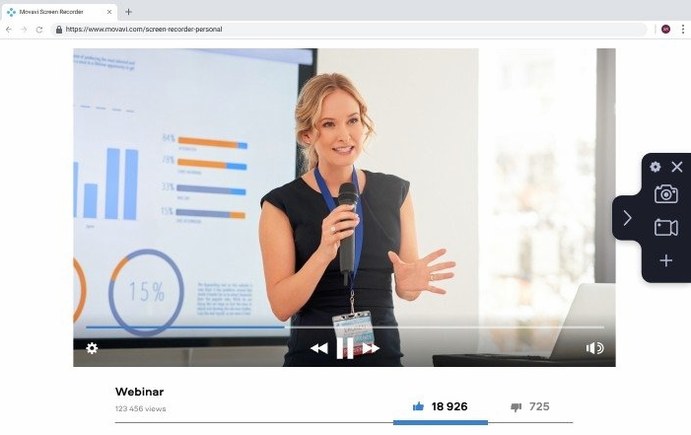
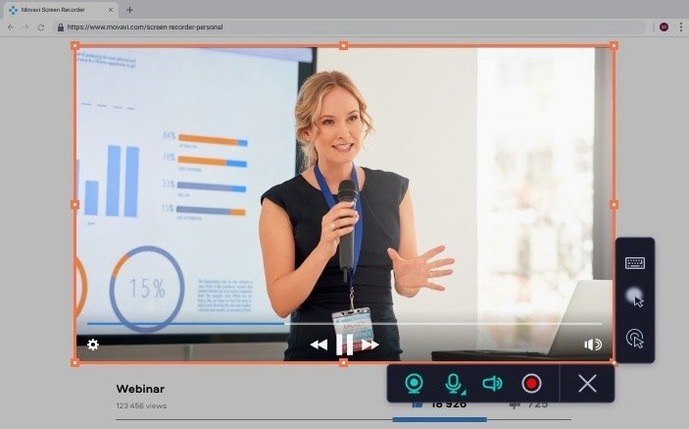
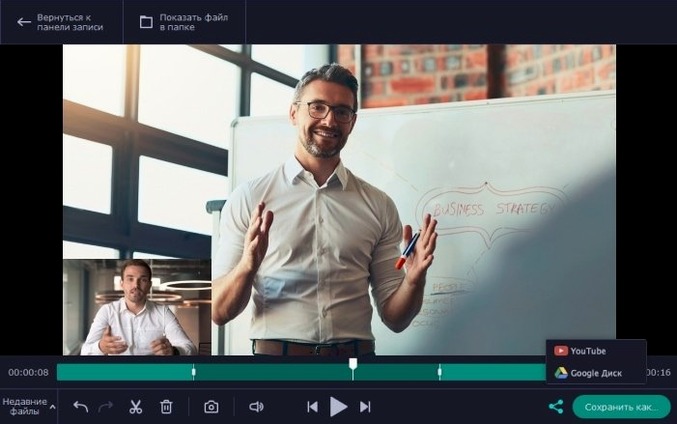
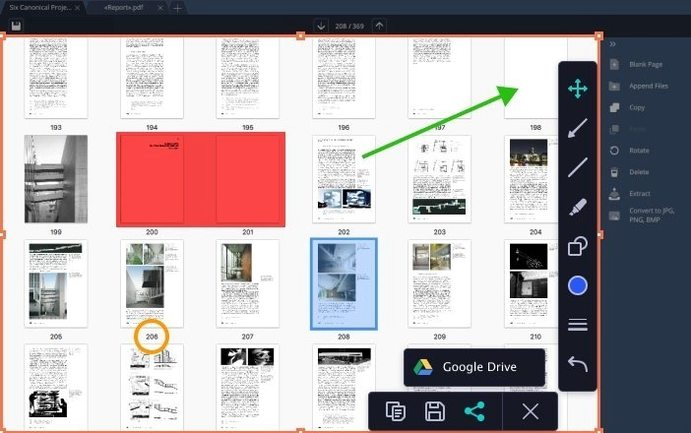
Scroll the row, it snaps to each screenshot. Click one to see it wider.
You need to capture a quick software demo for a colleague, or record a webinar with your own narration. Movavi Screen Recorder handles that on a Mac. It records video and audio, including system sound, and can save output as a standard video file or an animated GIF.
Recording tutorials, webcam presentations, and GIFs
- Recording desktop activity and app windows for tutorials or support tickets.
- Capturing webcam footage alongside the screen for presentations.
- Creating screenshots and GIFs for documentation or quick sharing.
- Automating recordings with the date-and-time scheduler.
- Adding cursor click effects so viewers follow your actions.
Customizable hotkeys and Movavi's macOS recorder
- It's the macOS screen recorder in Movavi's product line.
- Hotkeys are customizable to fit your workflow.
- Current version 23.1.1 includes minor improvements and bug fixes.
Fewer interruptions and reliable Google Drive export
The release notes for version 23.1.1 list minor improvements and bug fixes. In practice, that means fewer interruptions during scheduled recordings and more reliable export to Google Drive or YouTube. The webcam overlay syncs correctly with screen capture, so your face doesn't drift out of frame toward the end of a 20-minute tutorial. Cursor click effects and keyboard press displays also behave better when recording high-resolution displays — no delayed pop-ups or missing keystrokes.
Easy-to-miss features
- The screenshot editor opens before you save — you can crop, add arrows, or draw on a captured frame without opening a separate image tool.
- Recording duration limiter stops a capture automatically. Set it when you need a hard cutoff for a short demo or a social media clip.
- Multiple video streams capture both your webcam and your main monitor at once. Useful for walkthroughs where you want a small inset of yourself talking.
- The scheduler works with date and time selection. You can set it to start a recording at 2 PM tomorrow while you're away from the desk.
Workflow: Record a software demo with webcam and upload to YouTube
- Open Movavi Screen Recorder. Select the recording area — a specific app window or the full desktop.
- Enable the webcam from the settings panel. Position the webcam frame so it doesn't cover important parts of the screen.
- Turn on system sound if your demo includes audio from the app. Turn on microphone if you're narrating.
- Enable cursor click effects and keyboard press display so viewers see each action.
- Click the record button. Perform the steps in your demo.
- Stop the recording. The editor lets you trim the start and end before export.
- Choose "Upload to YouTube" from the save menu. Sign in to your Google account when prompted.
- Add a title and description in the upload dialog. The video uploads directly from the app.
If you need a GIF instead of a video, change the output format before recording. The same steps apply — the app saves an animated GIF at the end.
For the current build, compatibility covers macOS 10.13 and newer on Intel (x86, 64-bit) hardware. The English interface keeps setup straightforward, and the TNT team activation means you bypass Gatekeeper via the terminal once, then install normally.
- Minor improvements and bug fixes.
- macOS 10.13 or later
- Intel-based Mac
- Interface languages: English
Questions I get about this line
Yes, Movavi Screen Recorder lets you capture the screen and webcam simultaneously, which is useful for presentations or tutorials.
Yes, it supports recording system sound, so you can capture audio playing from your Mac in the recording.
The install order
- Mount the disk image and launch the installer. Open Gatekeeper friendly if prompted.
- In the Terminal window that appears, press Enter to bypass Gatekeeper.
- Follow the standard installation steps.
- The app is ready to use.