- Version
- 1.1.71 [MAS]
- Developer
- 裕涛 兰
- Languages
- Russian, English, German, Arabic, Vietnamese, Indonesian, Spanish, Italian, Chinese (Traditional), Korean, Portuguese, Thai, Turkish, French, Hindi, Japanese
- License type
- Not required
| macOS range | macOS 13 or later |
|---|---|
| Chip | Apple Silicon, Intel 64-bit |
| Download | 7 MB |
Screenshots
Scroll the row, it snaps to each screenshot. Click one to see it wider.
NotchBox is for the person who already knows the notch is there and wants to put it to work. This is not a gimmick app. It is a drop target, a music controller, and a status panel rolled into one menu bar-adjacent space.
| Detail | Value |
|---|---|
| Version | 1.1.71 |
| Developer | 裕涛 兰 |
| macOS | 13 or later |
| Architecture | Intel and Apple Silicon |
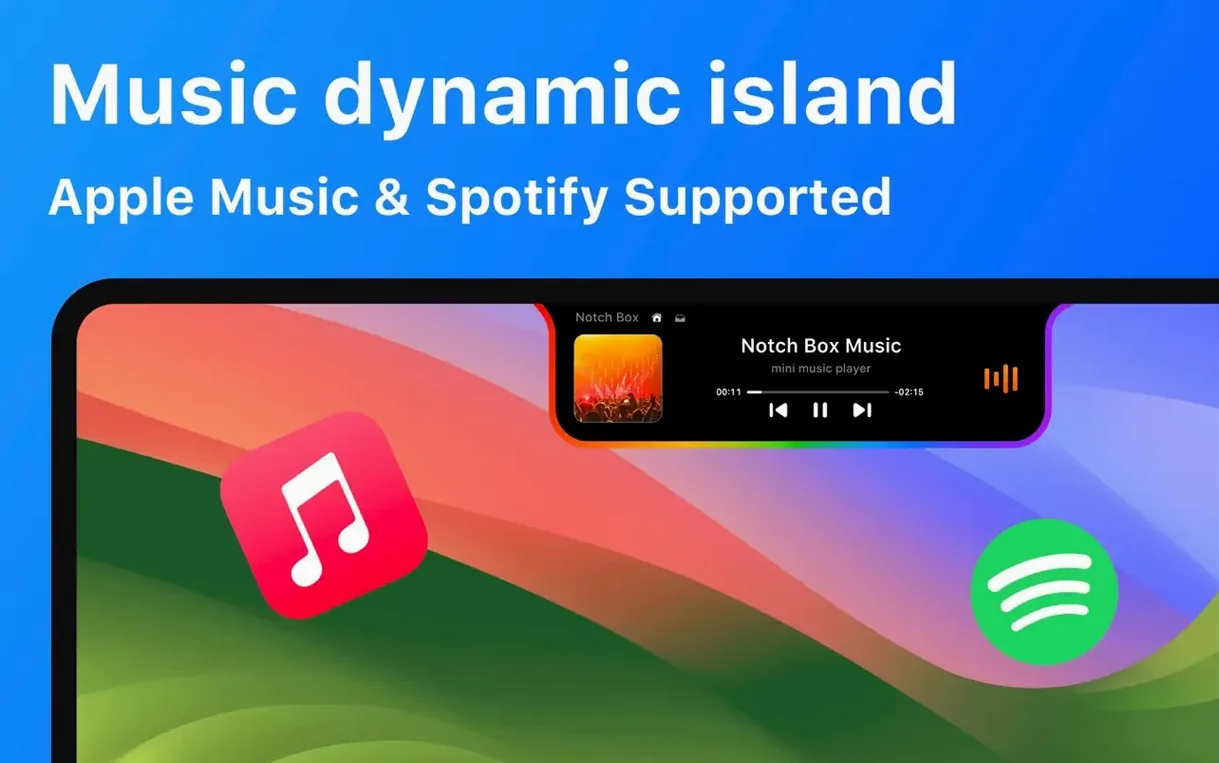
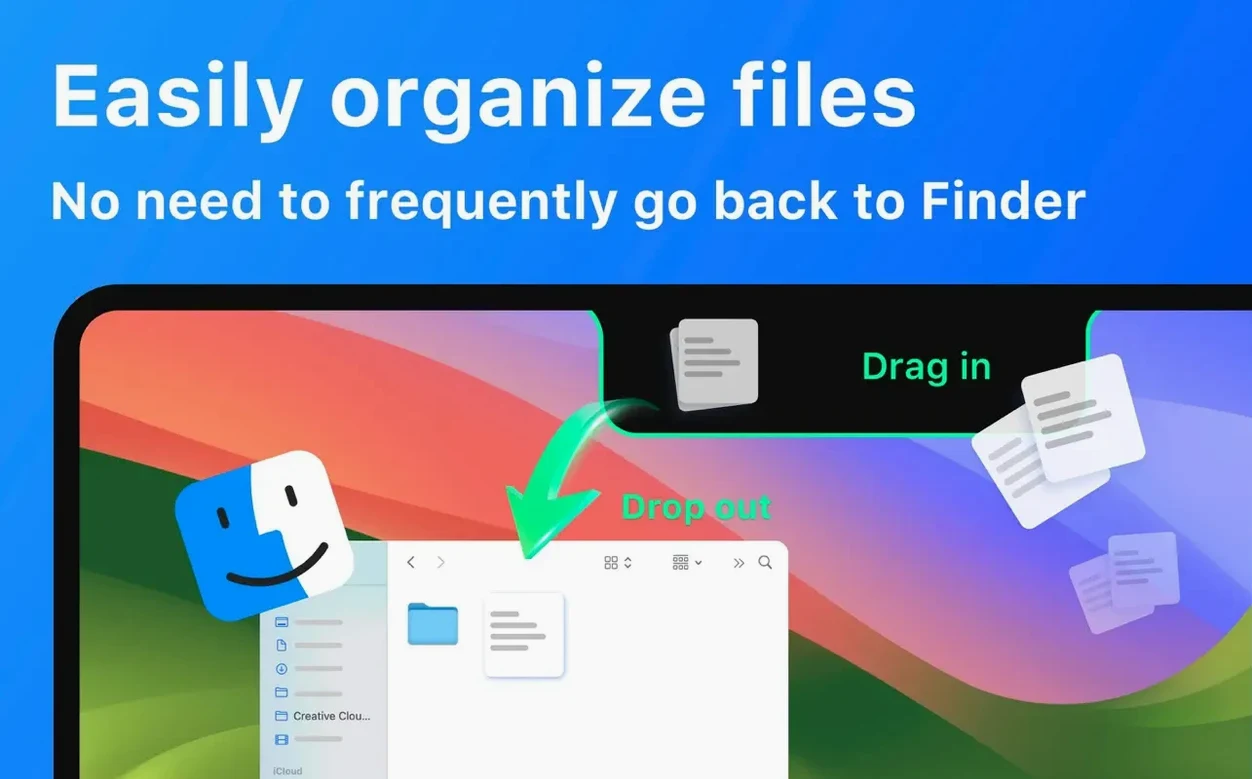
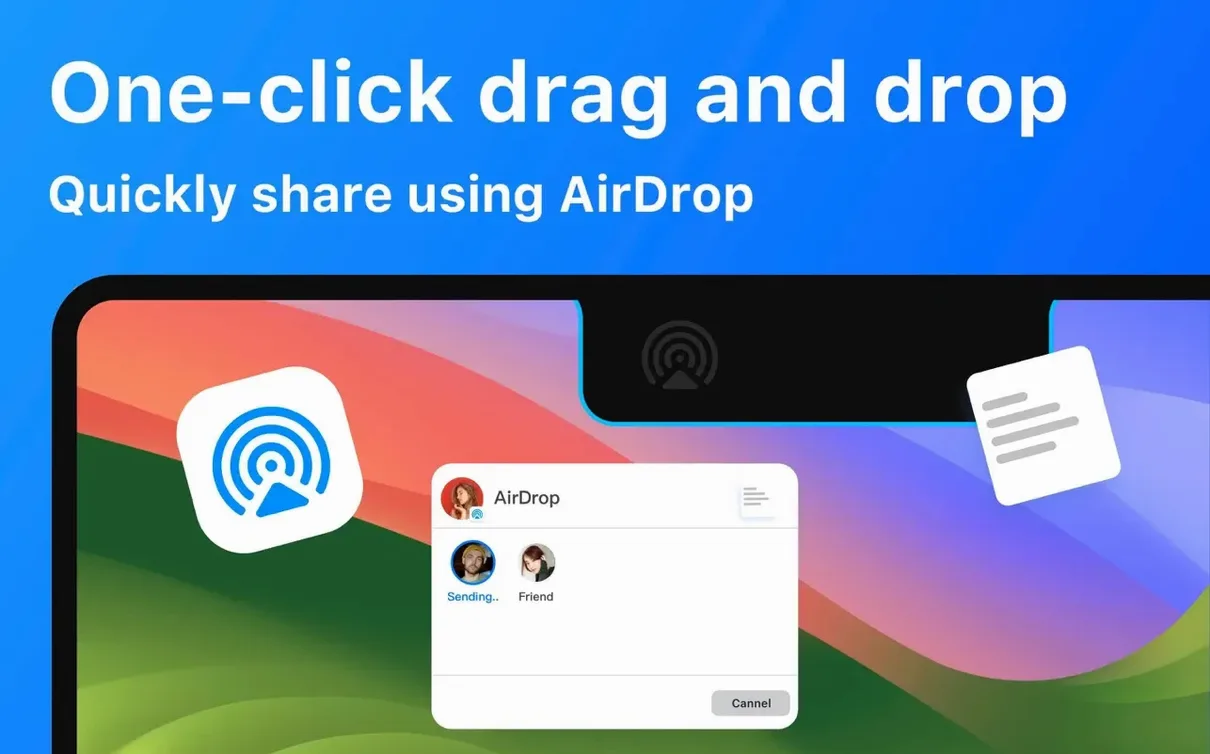
The deeper tools matter here. Drag a file into the notch and it holds there as temporary storage until you need it. Apple Music controls sit in the same space, so you can skip tracks without switching apps. The camera mirror view and countdown timer are practical additions, and AirDrop works by drag and drop straight from the notch. The date and time display is the baseline; the rest is what makes notchbox worth keeping in the menu bar.
What the Mac Requirements Mean Day to Day
macOS 13 is the floor, and both ARM and Intel chips are covered. That covers the range from a 2022 iMac through a 2023 M2 Pro machine or a 2021 Intel MacBook Pro. There is no special hardware to buy, no extra driver to install. The notch has to be present, which means any Mac with a notch display. On older Macs that lack a notch, the utility still works from the menu bar, but the notch-based interactions (drag-and-drop storage, media controls in the notch area) are the draw.
Because the app sits in the menu bar and the notch area, it does not launch a full window on startup. Expect a small icon. The clipboard history, calendar feed, network status, and timer all live behind that icon or in the notch itself. No floating panels unless you call for them.
File Shufflers Who Drag into the Notch
Three groups will find the daily returns highest.
- People who shuffle files between folders. Drag a PDF, an image, or a zip into the notch instead of opening a second Finder window. The notch acts as a temporary holding area. Move several items at once, then drop them where they need to go. It saves a few trips to the desktop.
- Music listeners who work full-screen. Apple Music and Spotify controls live in the notch. Skip a track, pause playback, or see what is playing without cmd+tabbing out of your editor or design tool. The controls are two clicks away at most.
- Anyone who keeps an eye on calendar and network conditions. The calendar events view and Wi‑Fi signal display are always visible. No need to open Calendar or hold Option and click the Wi‑Fi icon. The same spot shows the date and time, so you can hide the system clock if you prefer a clean bar.
Language Setting on First Launch
Here is what to check early on, in no particular order.
- Set the language once. NotchBox ships in sixteen languages. If English is not your preference, switch it on first launch. That avoids relearning where things are later.
- Try the drag-and-drop notch storage with a real file. Grab a small document or a screenshot and drag it into the notch area. Confirm it appears as a temporary tile. Drag it back out to a folder. That gesture is the core of the app; if it works the way you expect, the rest follows.
- Connect Apple Music or Spotify. Open the music panel and authorise the service you use. Test skipping a track and pausing from the notch. If you use both services, switch between them to confirm each responds.
- Check the AirDrop drag-and-drop path. Drag a file into the notch, then use the AirDrop option from the notch menu. The file should appear in the standard AirDrop share sheet.
- Look at the calendar and clipboard panels. NotchBox reads calendar events from the system calendar. See if the view matches your morning schedule. The clipboard history stores recent copies; paste one back to confirm the workflow.
- Leave the countdown timer for a short task. Start a five-minute countdown and let it run in the background. When it finishes, note how the notification appears. This is a low-stakes way to learn the notification style.
- Check the camera mirror once. Open the mirror view to confirm your webcam feed shows correctly. Most users only need this for quick checks before calls.
After a couple of days, the notch becomes a natural drop zone. The file storage, media controls, and calendar view settle into a routine. There is no heavy configuration to revisit, just the small habits of dragging things into the notch and glancing at the network signal when the connection feels slow.
- macOS 13 or later
- Intel or Apple Silicon
Questions I get about this line
No. The notch is designed for temporary storage. Drag a file in when you need it nearby, then drag it out to the destination.
Yes. NotchBox includes Apple Music support, so you can control playback directly from the notch area.
The install order
- Open the downloaded disk image.
- Drag the app into the Applications folder.
- Once the copy finishes, launch NotchBox from Launchpad.