Free download (186 MB) Previous versions
- Version
- 27.0.3-58680
- Developer
- Parallels International GmbH
- Languages
- Russian, English, German, Spanish, Italian, Chinese (Simplified), French, Japanese
- License type
- K'ed by QiuChenly Crack Team
| macOS range | macOS 26 or later |
|---|---|
| Chip | Apple Silicon |
| Download | 186 MB |
| Previous versions | 98 on file |
Screenshots
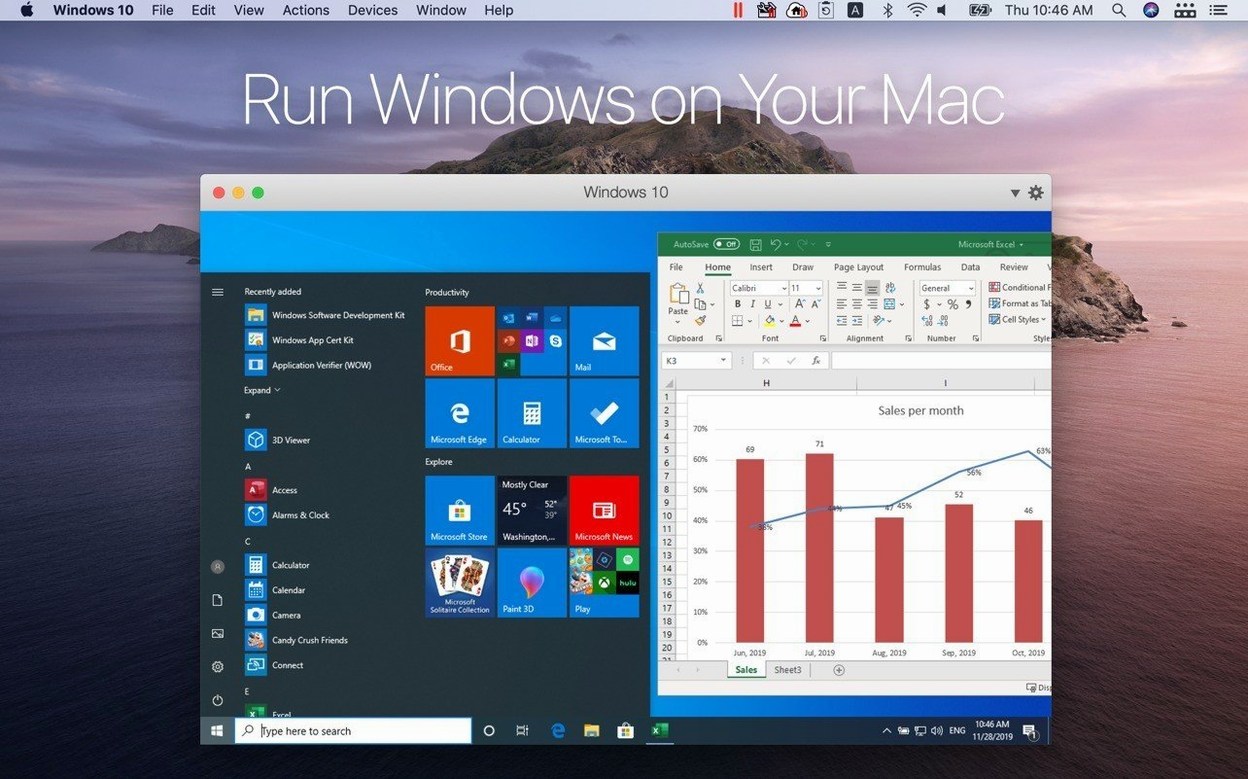
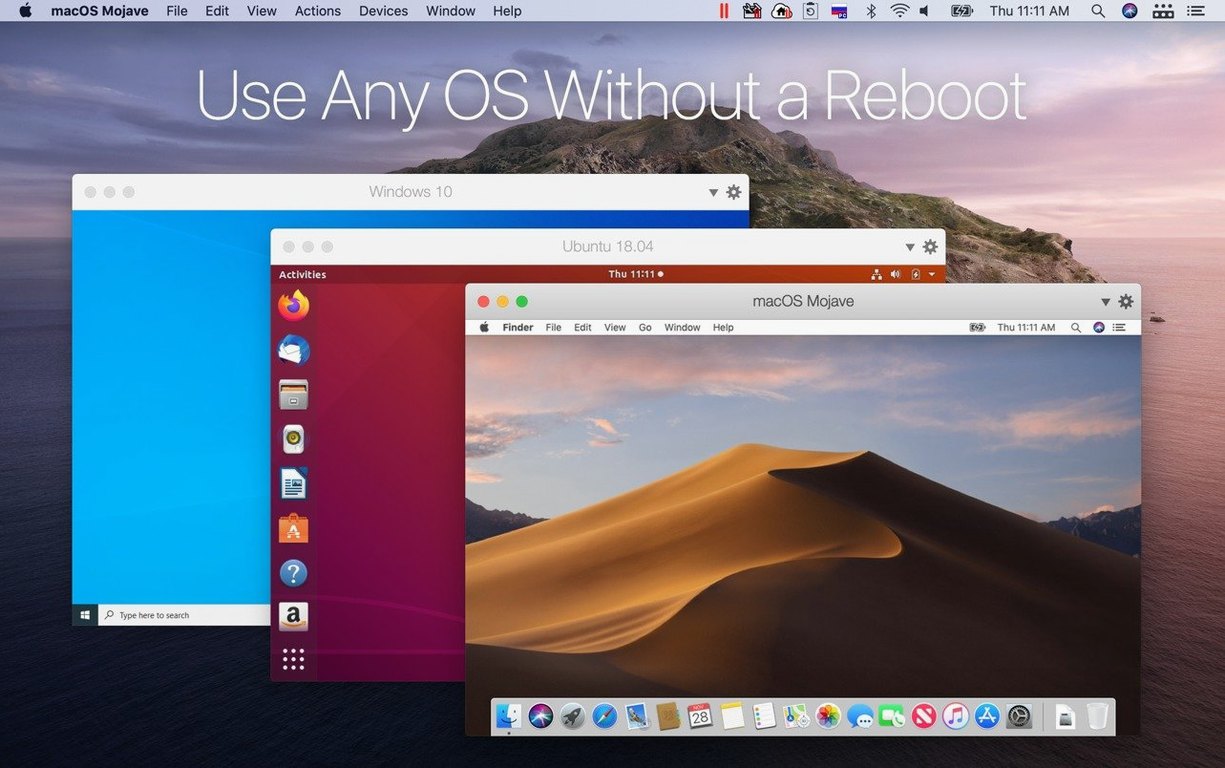
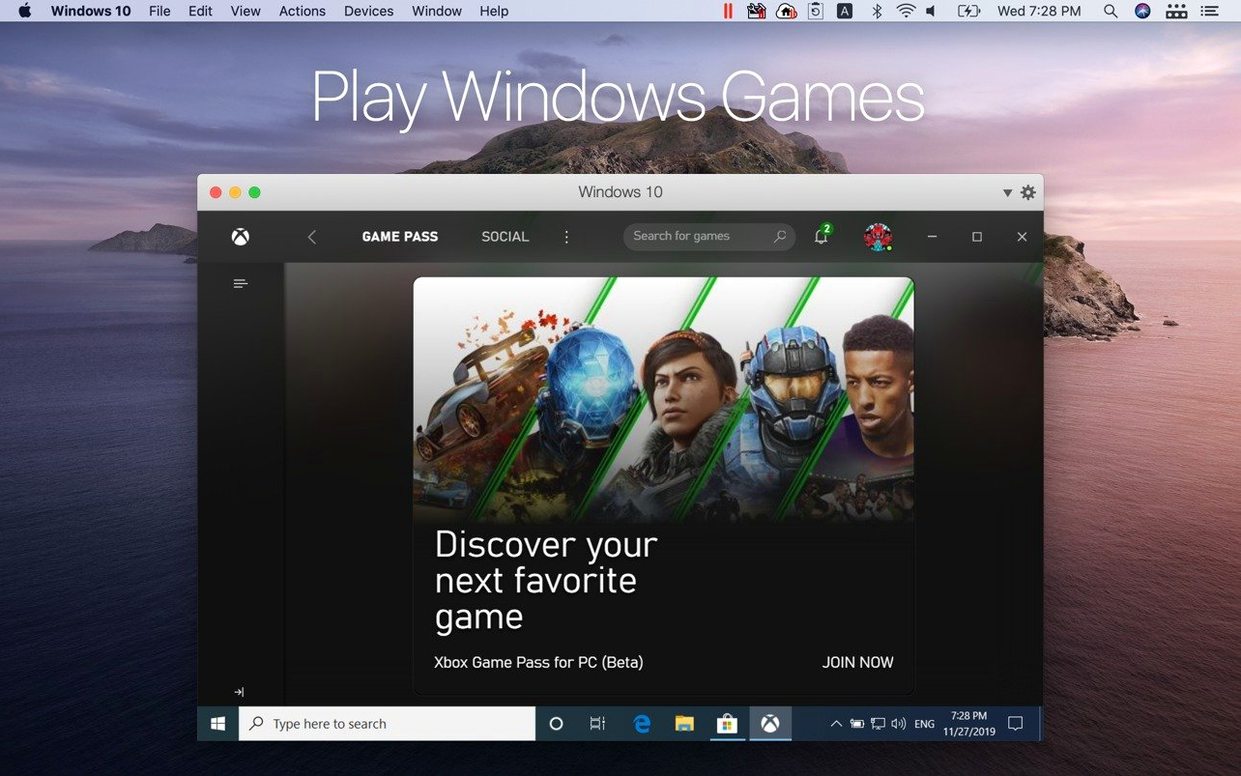
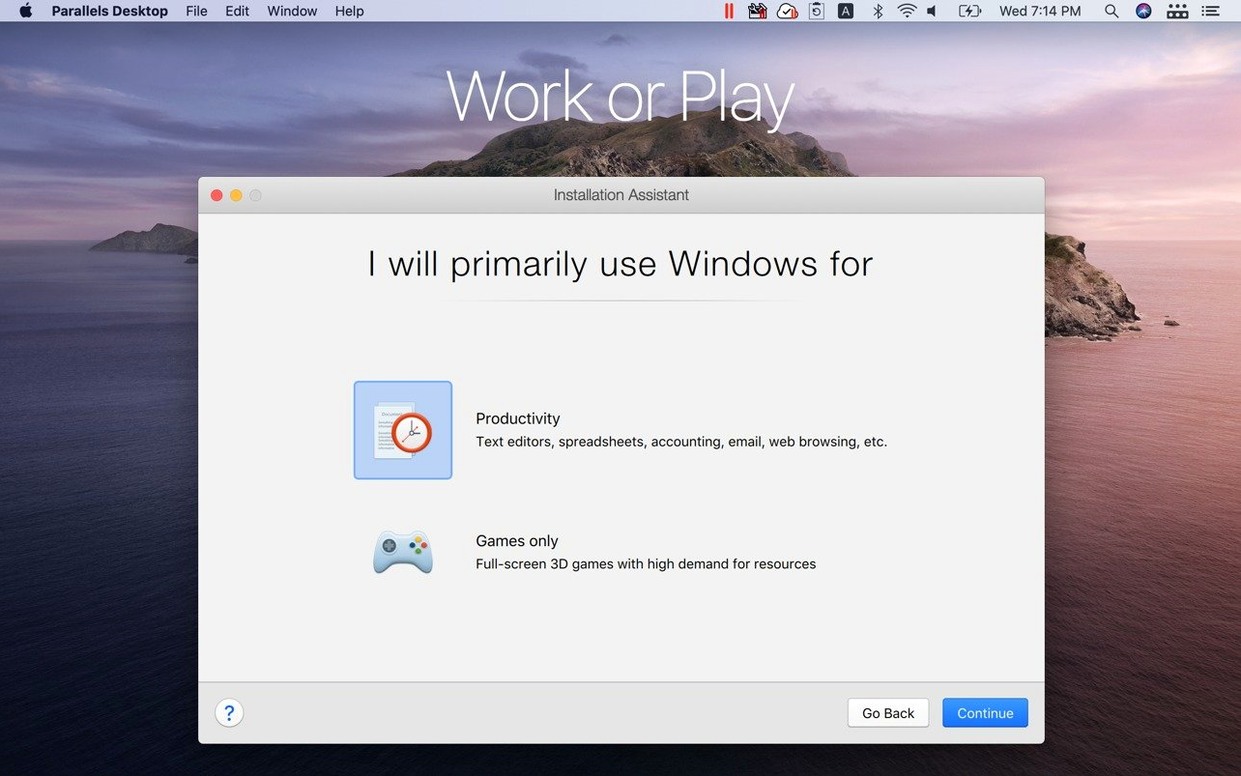
Scroll the row, it snaps to each screenshot. Click one to see it wider.
Version 27.0.2 (58673) handles seven new Linux distros out of the box, including Ubuntu 26.04 LTS, Fedora 44, and Kali Linux 2026.2. This update also patches stability and security gaps.
- Coherence mode hides the Windows desktop entirely. You launch Windows apps from the Mac Dock and work in them as if they were native.
- Copy and paste moves text and images between Mac and Windows without extra steps. Drag files straight from a Windows app into a Mac folder.
- Apple Silicon ready — Parallels is the first Microsoft-authorized solution for running Windows on Apple silicon Macs. It is also certified as ARM SystemReady SR 3.1 (VE band).
- Boot Camp removal — support for Boot Camp was dropped in version 27, so this release is Intel-free and focused entirely on Apple Silicon.
- Guest OS library expands regularly: Ubuntu 26.04 LTS x86_64 emulation, Debian 13.6, Kali 2026.2, Fedora 44 — all work without manual tweaks.
Shared Folder Setup Saves Time Later
Get the basics set before you need them. These steps save time later.
- Create a shared folder — set one up between macOS and your Windows VM. Use it for installer files, documents, and anything you move between systems regularly.
- Install Parallels Tools inside the guest system. The installer usually runs automatically after first boot. If it does not, check the Parallels menu and select Actions > Install Parallels Tools. This enables Coherence mode, drag-and-drop, and proper screen resizing.
- Adjust memory and CPU after the guest finishes its initial setup. Give Windows at least 4 GB of RAM and two processor cores. Leave enough for macOS to keep running smoothly during normal work.
- Set up a backup snapshot right after installing the guest OS and any core drivers. If something breaks later, roll back to that clean state in one click.
- Test Coherence mode early. Switch to Coherence from the View menu and pin a couple Windows apps to the Mac Dock. See how they behave next to native apps before relying on it daily.
- Configure auto-start if you use one VM every day. Open Parallels Desktop preferences and set the primary VM to start when you log into macOS.
Quick Fixes for Most Common Parallels Issues
Most problems have simple solutions. Here is what people run into with version 27 and how to sort them out.
Windows VM Fails to Boot After Install
Happens most often with Windows 11 ARM builds. Open the VM settings and check that the virtual machine is set to use UEFI firmware, not Legacy BIOS. Then confirm the ISO is a valid ARM installer — Intel x86 ISOs do not work on Apple Silicon machines.
Drag-and-Drop Stops Working
Restart Parallels Tools from the guest. Inside Windows, open the Parallels Tools control panel and click Restore Defaults. If that does not fix it, reinstall Parallels Tools from the Actions menu in macOS.
Coherence Mode Shows Artifacts or Gaps
Update the display driver inside the guest. Parallels Tools includes a proper driver — if it is out of date, reinstall it. Also check that macOS itself is on version 26 or later; older macOS builds can cause rendering quirks.
VM Network Drops Randomly
Open the VM settings, go to Network, and change the adapter type from Shared to Bridged and back. If the issue persists, reboot the Mac. The macOS network stack sometimes needs a clean restart after suspending the laptop.
Ubuntu 26.04 LTS Guest Shows No Sound
This distro uses a newer audio backend. In the guest, run sudo apt install --reinstall pulseaudio and then reboot the VM. Parallels 27.0.2 includes updated audio support for Ubuntu 26.04, but the package sometimes does not install fully on first boot.
Version 27 Drops Intel Mac and Boot Camp Support
Version 27.0.2 focuses on stability and new guest support rather than interface overhauls. Here is what the update actually changes in daily work.
- No more Intel Macs or Boot Camp — if you upgraded from version 26, those options are gone. The app is Apple Silicon only now. Any old Boot Camp VMs must be converted to a standard VM file before they work.
- New Linux distros boot without tweaks — Ubuntu 26.04 LTS, Fedora 44, Debian 13.6, and Kali Linux 2026.2 all install from their official ISOs with no manual configuration. The x86_64 emulation for Ubuntu 26.04 LTS is new and works for legacy 64-bit x86 apps inside that VM.
- ARM SystemReady SR 3.1 certification means the VM firmware meets the ARM industry standard for booting and running certified operating systems. For typical users this means fewer boot failures and better compatibility with ARM versions of Windows and Linux.
- Security patches — the changelog lists security fixes without specifics. In practice the VM sandbox feels tighter. No more occasional host-guest boundary warnings that appeared in earlier builds.
How Parallels Desktop 27 Stacks Up Against Three Rivals
Three other virtualization tools cover similar ground. Here is how they stack up against Parallels Desktop 27.
VMware Fusion (for Apple Silicon)
VMware Fusion Player is free for personal use and supports ARM guests. It handles Linux VMs well but has narrower Windows on ARM support than Parallels. Coherence mode does not exist in Fusion — you get a standard windowed desktop. Fusion also lacks the one-click Windows installer that Parallels provides. If you only need Linux guests and want zero cost, Fusion works. If you rely on Windows apps in Coherence mode, Parallels is the better fit.
UTM
UTM is open-source and built on QEMU. It runs x86 and ARM operating systems through emulation, which means slower performance than native virtualization. UTM supports a huge range of guest OS types, including older Windows versions and obscure Linux distros. The trade-off is speed — full x86 emulation on Apple Silicon is noticeably sluggish for everyday tasks. For development testing and quick experiments, UTM is fine. For running Windows Office or line-of-business apps daily, Parallels is faster and more polished.
QEMU via Command Line
QEMU is the engine under UTM and many other tools. Running it directly gives you total control over every VM parameter. The catch is the learning curve — no GUI, no shared clipboard, no drag-and-drop out of the box. Developers and CI pipelines use it. General IT staff and clinic managers at my level will find Parallels far more practical for getting work done without scripting every detail.
Parallels Desktop 27 is the only one of these that is Microsoft-authorized for Windows on Apple Silicon. That certification means Windows licensing and updates work without workarounds. For a small-chain IT setup where Windows-based dental software has to just run, that matters more than any single feature.
- Addresses overall stability and security issues.
- Adds out-of-the-box support for Ubuntu 26.04 LTS, Ubuntu 26.04 LTS x86_64 emulation, Fedora 44, Debian 13.6, and Kali Linux 2026.2.
- Certified as ARM SystemReady SR 3.1 (VE band).
- macOS 26
- Apple Silicon
Questions I get about this line
No. Boot Camp support was removed starting with Parallels Desktop 27.
Russian, English, German, Spanish, Italian, Simplified Chinese, French, and Japanese.
The install order
- Mount the downloaded disk image.
- Run the standard installation procedure.