Free download (38 MB) Previous versions
- Version
- 4.1.4
- Developer
- CharlesSoft
- Languages
- English
- License type
- K'ed by TNT team
| macOS range | macOS 10.14.6 or later |
|---|---|
| Chip | Intel 64-bit |
| Download | 38 MB |
| Previous versions | 1 on file |
Screenshots
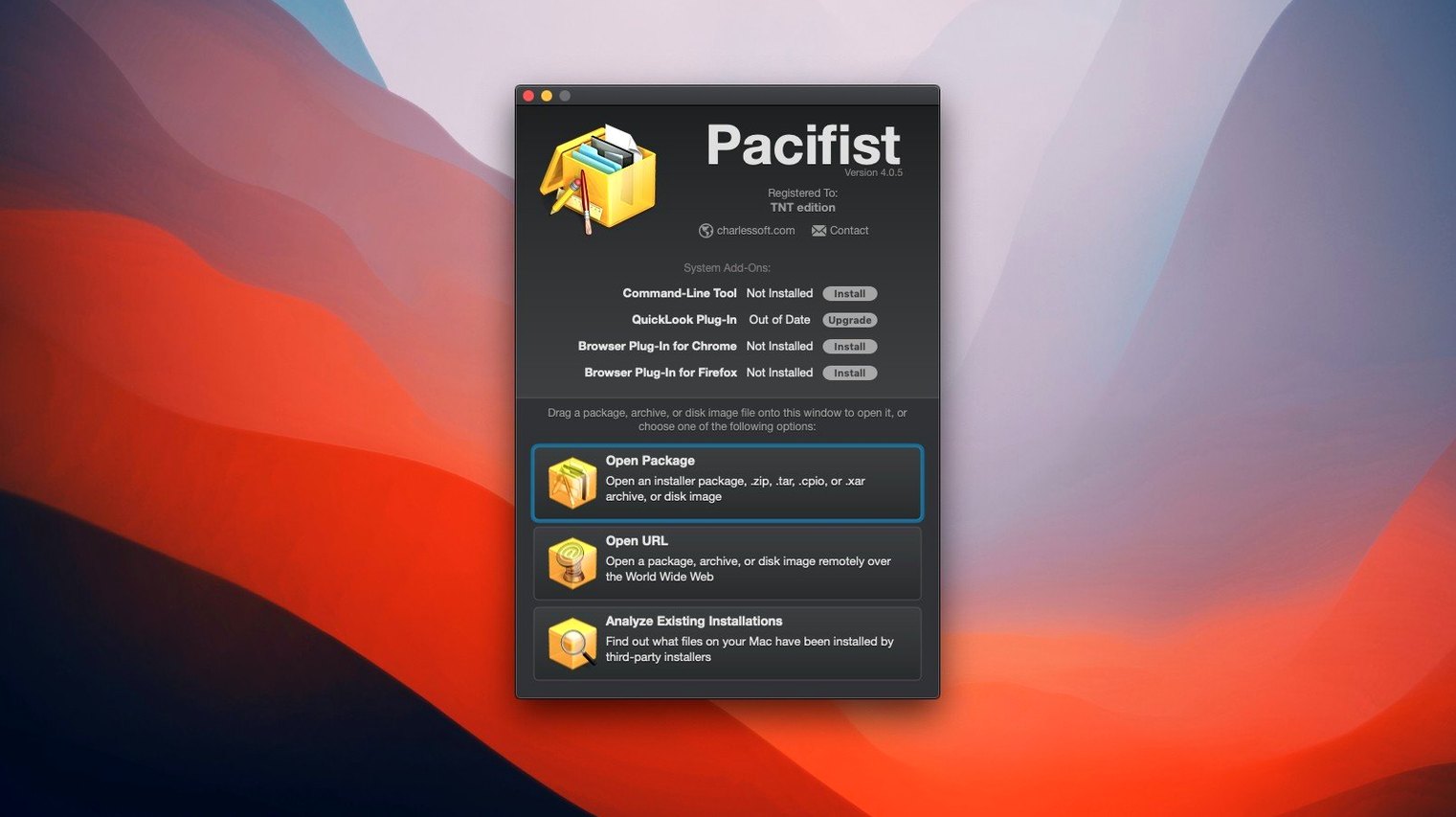
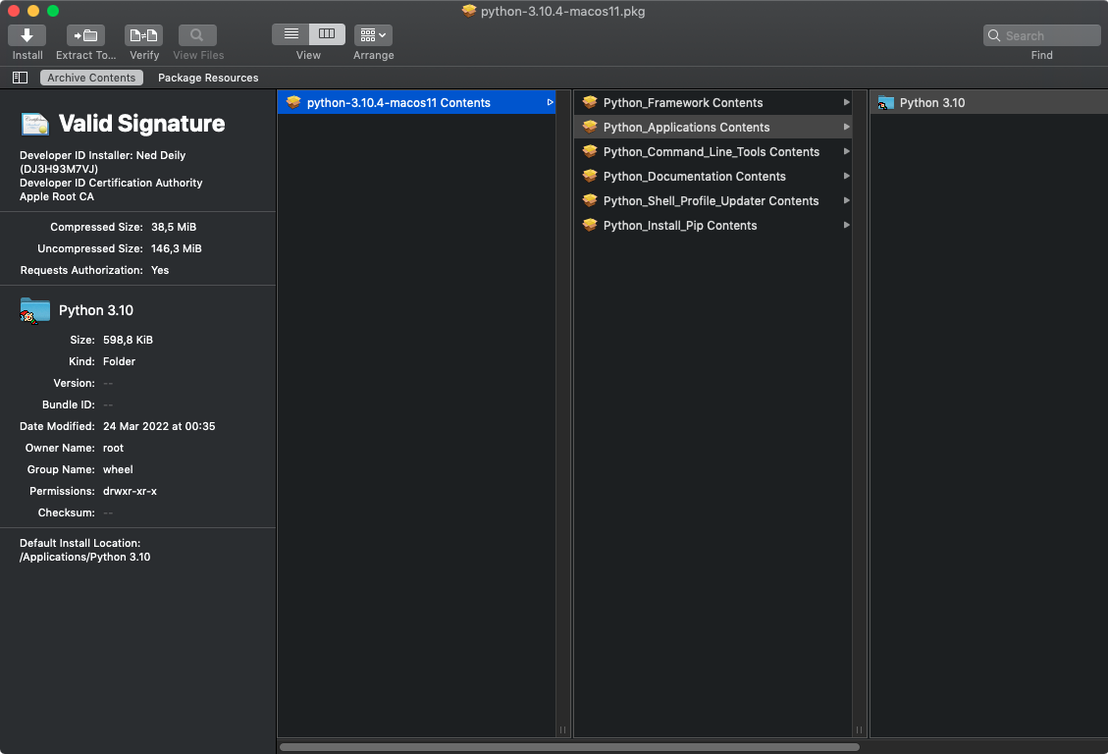
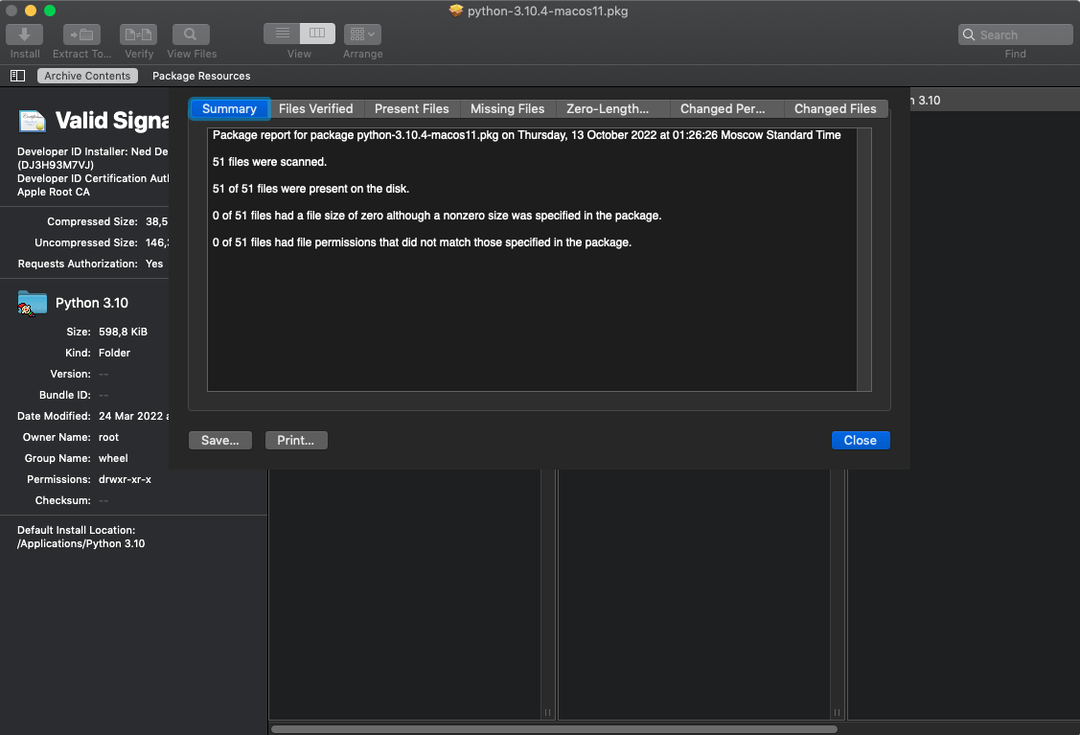
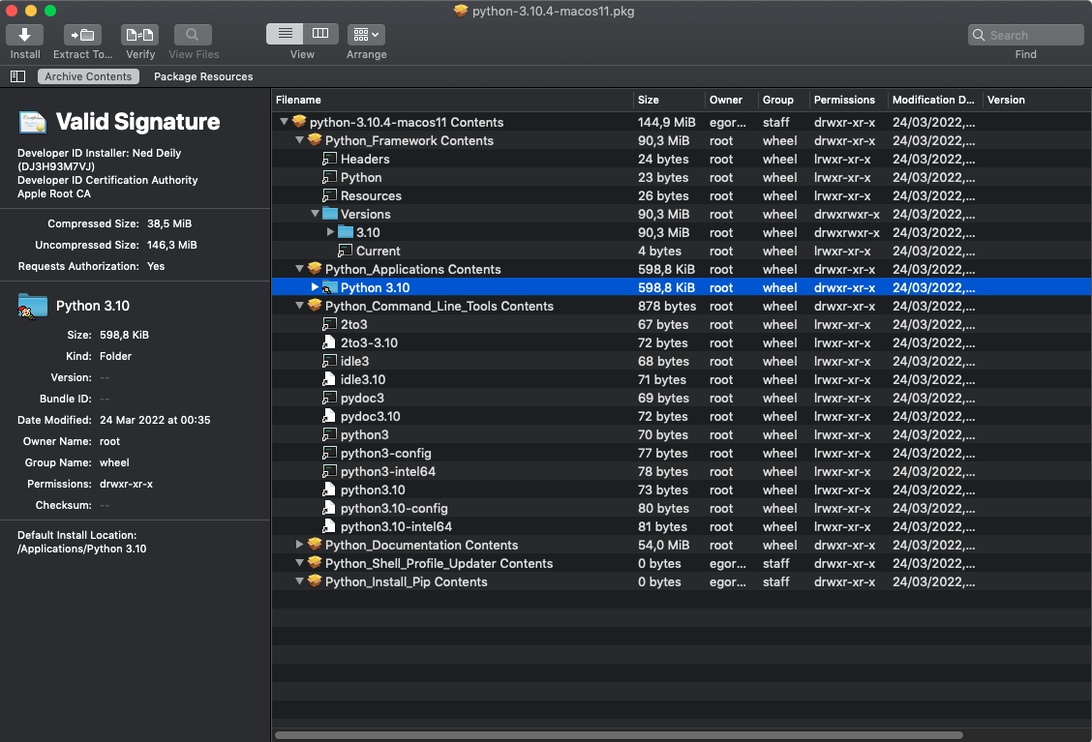
Scroll the row, it snaps to each screenshot. Click one to see it wider.
You have a .pkg installer that keeps failing, or a .dmg that won't mount. Pacifist opens it anyway, letting you pull out the files you need without running the installer.
Open Packages and Archives
Pacifist handles .pkg, .dmg, and common archives like .zip, .tar, .tar.gz, .tar.bz2, and .xar. For some archive types, you can grab a single file over HTTP without downloading the whole thing.
Check Installed Apps
Use Pacifist to compare an installed application against its original package. It spots missing or outdated files, which helps when an app misbehaves after a partial update.
Drag a .pkg File and It Won't Install
New users often drag a .pkg file onto the Pacifist window and expect it to install. That is not what it does. Pacifist extracts files from packages, it does not run them. Use the installer from the developer if you need to install software.
Another common error is forgetting about SIP. Pacifist 4.1.4 requires SIP disabled before installation. If the app does not launch or throws a permission error, check whether SIP is still on. Reboot into recovery mode and disable it with csrutil disable in Terminal.
Some people try to extract an entire .dmg by selecting every file at once. That works technically, but for disk images with hundreds of items it is faster to search for the specific file you need. Pacifist does not index file names instantly — you navigate the folder tree.
Beginners also assume every file inside a .pkg is extractable. Some components are signed or linked to other install routines. If extraction fails on a handful of items, skip them; the rest of the package is still usable.
Open a .pkg File and Extract a Readme
Open a .pkg file you already have on disk. Browse its contents to get familiar with the layout. Try extracting one small file, like a readme or a config file, to confirm the workflow.
Check an installed application next. Point Pacifist at the original .pkg for an app you know works. Compare the installed files to the package and see what Pacifist reports for missing or outdated items. This gives you a baseline for later troubleshooting.
Test the single-file HTTP download if you ever fetch remote archives. Find a publicly listed .tar.gz on a known server and pull one file from it. It saves time when you only need a specific document or script.
Keep the license file from the Extra folder safe. You need it after dragging the app into Applications. Launch Pacifist, open the license file, and activation completes.
System Admins Inspect Packages Before Deployment
System administrators dealing with macOS package files benefit most. You manage dozens of .pkg and .dmg files across machines. Pacifist lets you inspect a package before deployment, extract just the installer scripts, or pull files from a disk image without mounting it.
Developers who bundle software for macOS also gain a lot. You can verify that your .pkg contains the right files and correct folder structure. Checking a third-party package for missing assets becomes straightforward.
Users restoring a single lost file from a backup .dmg or .tar.gz skip the full extraction. Open the archive, locate the file, export it. No need to decompress everything to disk first.
Anyone with an older Mac running macOS 10.14.6 or later and an Intel processor can run Pacifist. It does not require a recent machine or a fast GPU. For those with many archived installers or disk images, it replaces guesswork with direct access to contents.
No need to mount or run anything. Just open the file in Pacifist, browse the contents, and extract the specific items you want.
- Updated for macOS Tahoe.
- Improved accuracy when parsing and extracting images from asset catalogs.
- Includes miscellaneous bug fixes.
- macOS 10.14.6 or later
- Intel processor
- English interface
The install order
- Mount the disk image and run Open Gatekeeper friendly.
- Press Enter in Terminal to bypass Gatekeeper.
- Drag the app to the Applications folder.
- Launch the app and use the License.pacifist-license file from the Extra folder for activation.
- Disable SIP before installing.