
Free download (26 MB) Previous versions
- Version
- 26.1.10
- Developer
- COCOATECH
- Languages
- Russian, English, German, Danish, Spanish, Italian, Chinese (Traditional), Chinese (Simplified), Korean, Dutch, Norwegian, Polish, Portuguese, Slovak, Finnish, French, Czech, Swedish, Japanese
- License type
- K'ed by TNT team
| macOS range | macOS 13 or later |
|---|---|
| Chip | Apple Silicon, Intel 64-bit |
| Download | 26 MB |
| Previous versions | 2 on file |
Screenshots
Scroll the row, it snaps to each screenshot. Click one to see it wider.
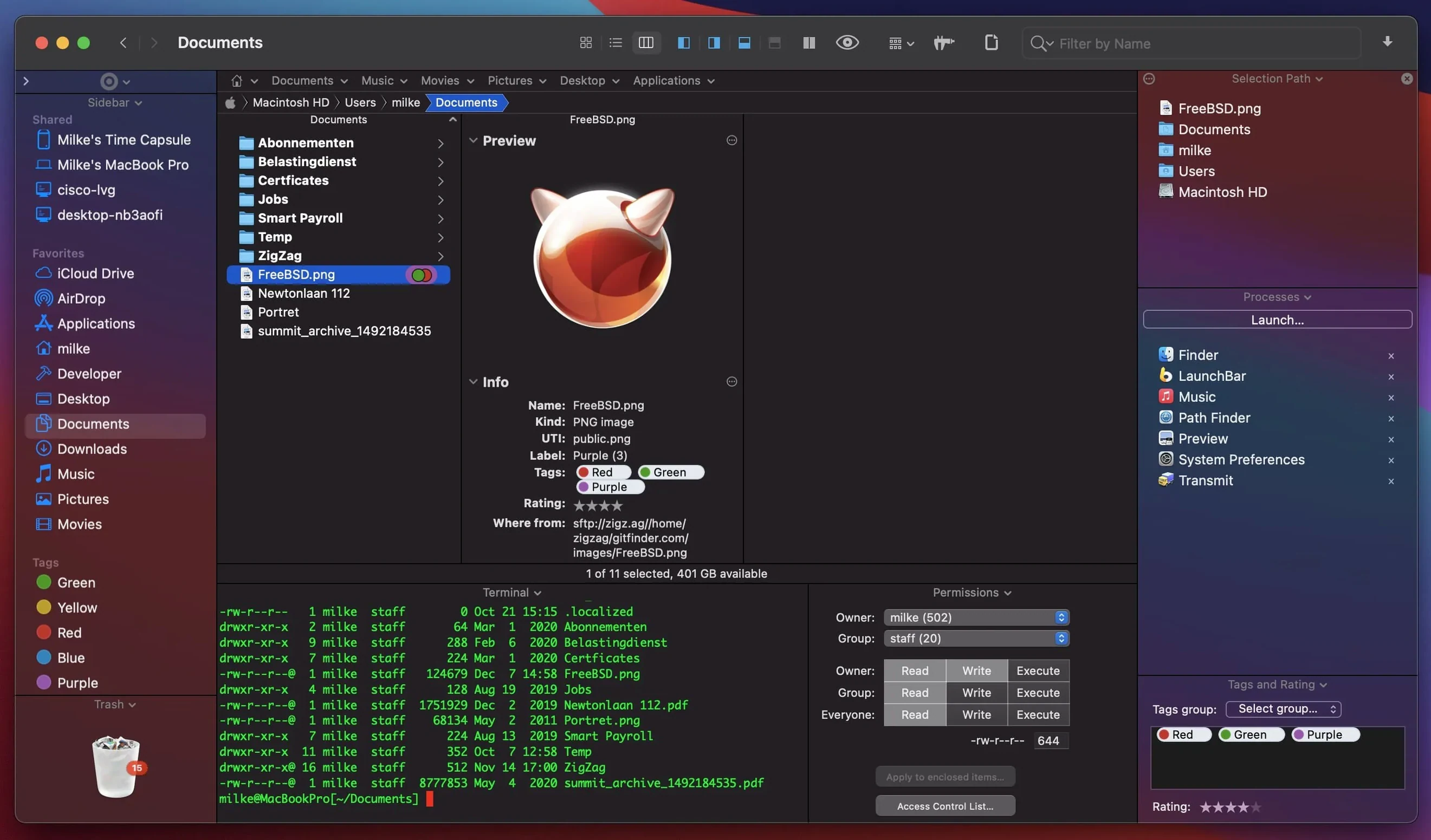
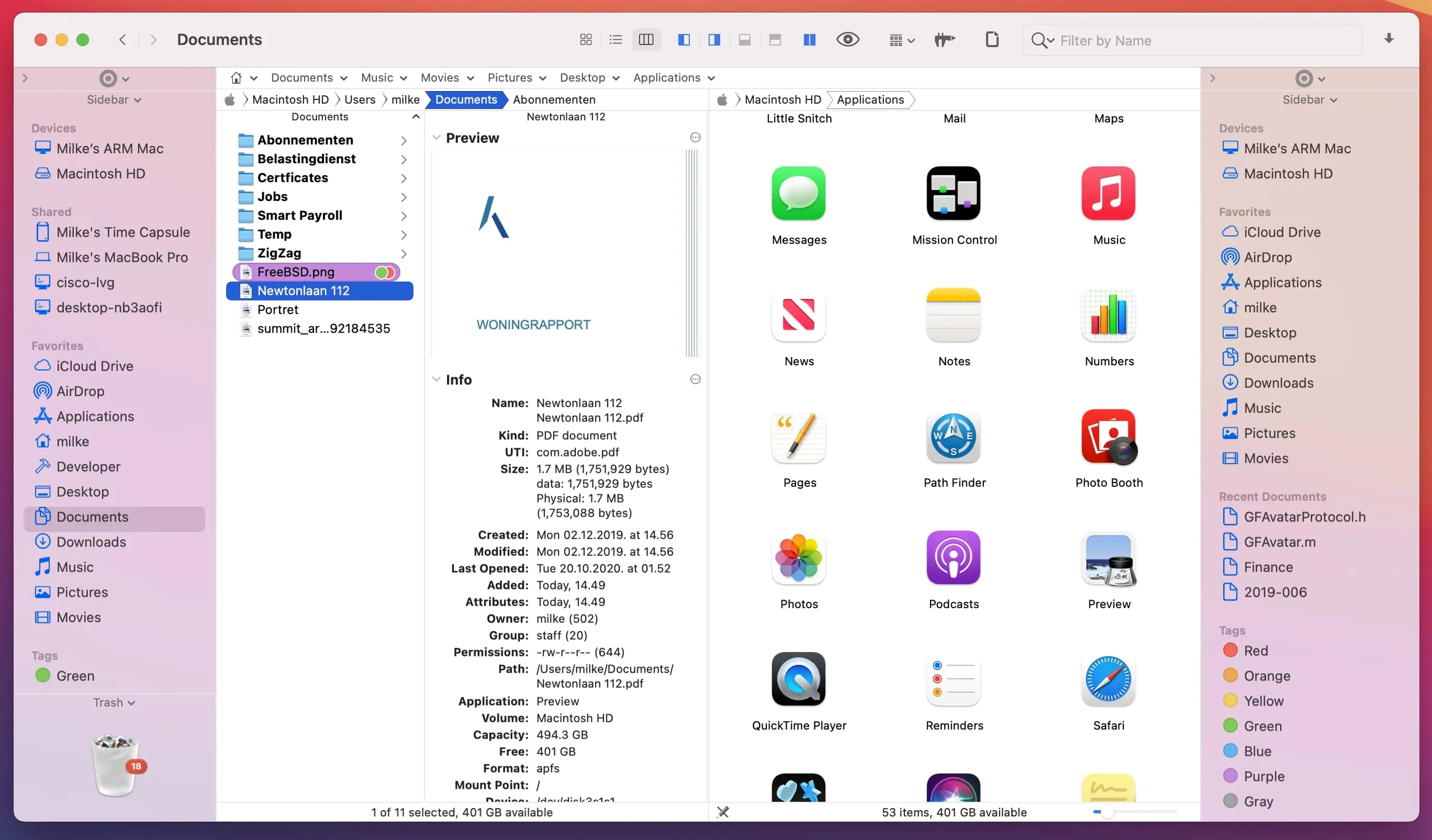
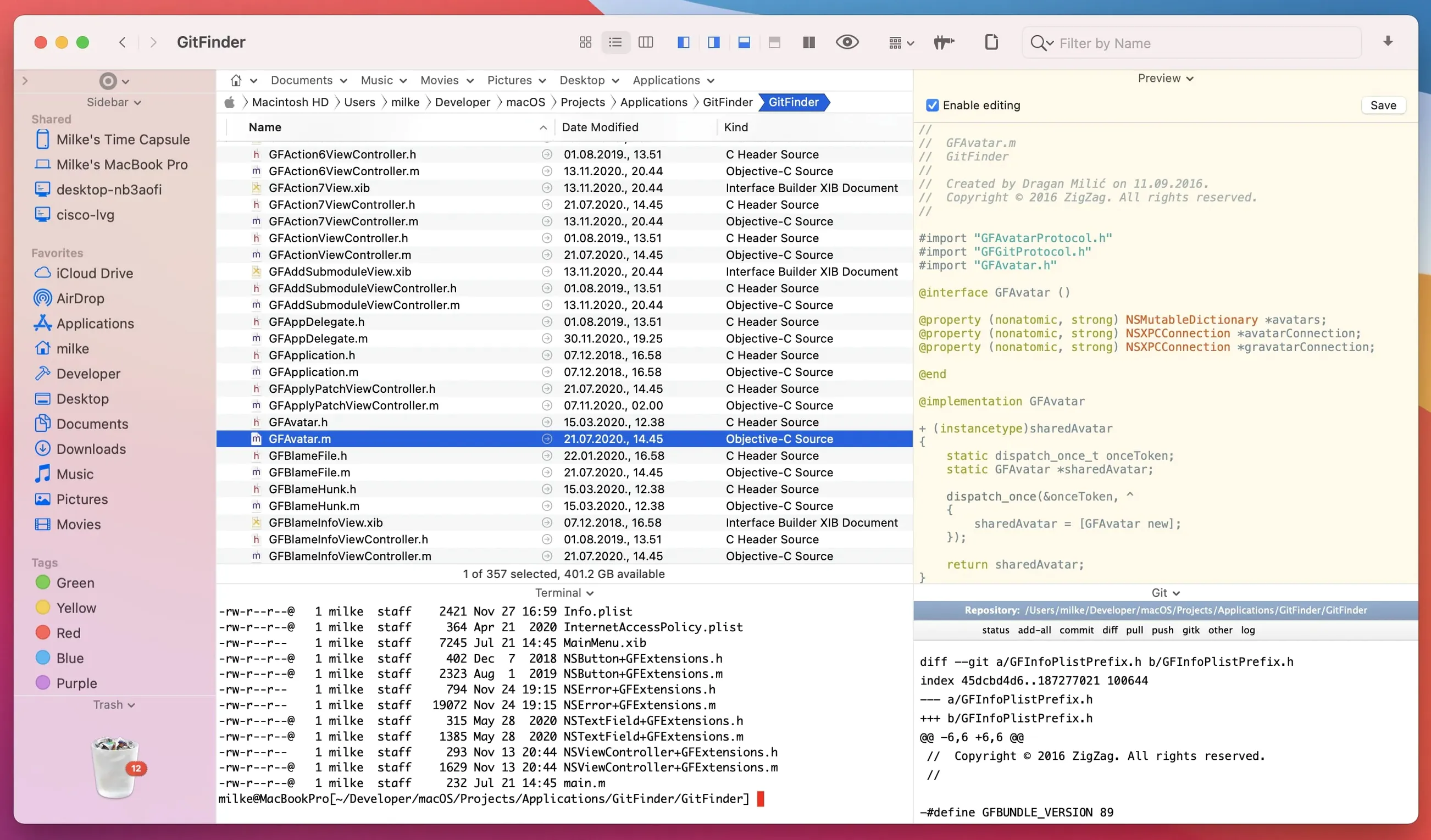
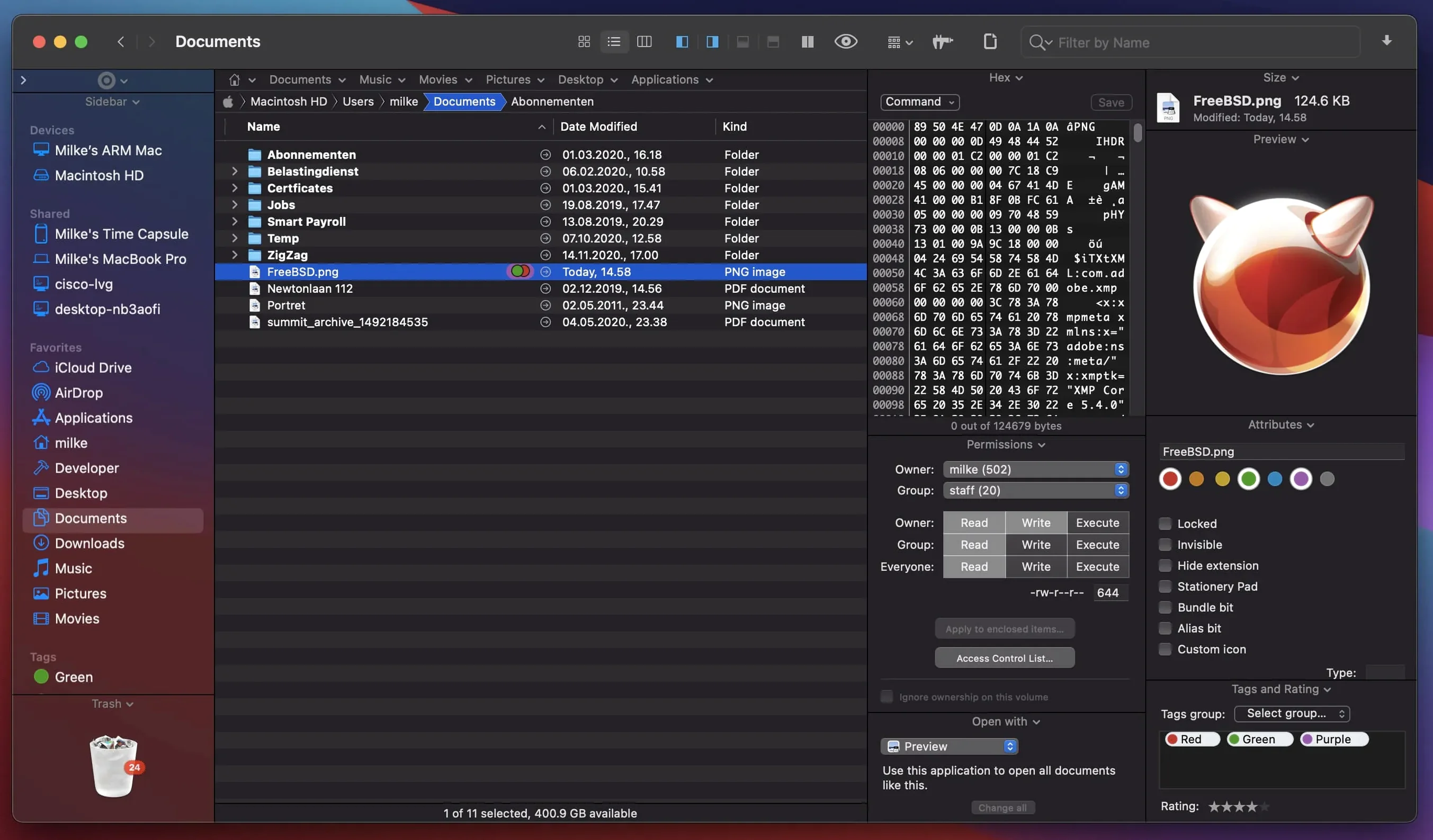
Path Finder 26.1.9 runs on any Mac with macOS 13 Ventura or later, supporting both Intel and Apple Silicon. It’s built for people who outgrow the standard Finder—dual-pane browsing, keyboard-driven file navigation, and a full set of modules (text editor, image editor, app launcher, archive handler) live inside one app. The built-in FTP client handles remote transfers; the process manager and system hotkey editor let you tune the system without launching separate utilities.
Batch rename, archive handling, keyboard browsing & FTP client
The real time-savers are under the surface. Batch rename handles dozens of files at once. Archive handling works without a third-party tool. Keyboard browsing means you can navigate directories without touching the trackpad. The internal FTP client avoids switching to FileZilla or Transmit for quick uploads. If you manage multiple servers or organize large media libraries, the dual-pane layout and per-pane preview panel cut down on window clutter.
Compatibility and polish
This release fixes several List View bugs—double-click behavior, batch rename limits, and selection drawing. It also corrects label/tag badges and iCloud status icons across all view types. Drag-and-drop cancellation animations now work correctly. Menus and UI elements are cleaned up for macOS 27 Golden Gate. Interface languages cover 17 locales, including English, German, French, Japanese, and Chinese.
A typical work session
Morning shift starts with a dual-pane view. Left pane holds the clinic’s shared drive; right pane shows the local Downloads folder. Drag patient photos from the shared drive into a local batch folder without opening a second window. Tabs keep four directories open—one for each dentist’s chart export, one for the insurance forms folder. The keyboard arrow keys move between items; Space toggles selection without the cursor.
Midday: need to rename 24 scanned consent forms. Select all, hit the batch rename module, add the date prefix and sequential numbers. Preview the new names before committing—catches the typo before it hits the server. After lunch, mount a disc image for the accounting backup. The archive tool handles the conversion without launching Disk Utility.
End of day: open the FTP panel, connect to the off-site backup server, and mirror this week’s X-ray exports. The internal client remembers credentials so I don’t type them twice a week. Close the session with a quick process manager check—kill the stale preview process that’s using half a gig of swap.
Preview panel per pane and app launcher module
- Preview panel per pane — select a PDF in the left pane, an MP3 in the right pane, and both preview at once. No extra windows.
- App launcher module — assign a hotkey to launch QuickBooks or the clinic’s scheduling app. No need to dig through the dock.
- CD/DVD/Blu-ray image conversion — ISO to DMG, DMG to BIN, whatever format the old backup uses. Handy when restoring archives from 2016.
- System hotkey editor — change Finder-level shortcuts from inside Path Finder itself. Remap the “move to trash” key without hunting through System Settings.
- Archive handling inside the file list — open a ZIP or RAR like a folder. Drag files out without unpacking the whole archive first.
Dual-pane view and 31-file rename limit
Dual-pane view shows the same directory twice. Click the second pane’s address bar and navigate to the target folder manually. The panes don’t auto-link on startup—that’s by design.
Batch rename stops at 31 files. Version 26.1.9 fixed this limitation. If the rename fields still gray out, select fewer files and run the operation in two passes.
Drag-and-drop cancels mid-move. The slide-back animation only plays when you release the file outside a valid drop zone. Keep the drag inside the file list or the pane’s sidebar.
FTP connection times out. Some clinic networks block non-standard ports. Set the FTP panel to passive mode and leave the default port 21. If that still fails, try SFTP instead of plain FTP—the internal client handles both.
Label/tag color badges don’t appear. Check the View menu and make sure badges are enabled for the current view type (Icons, List, or Columns). The fix in 26.1.9 restored them for all three, but toggling the view off and back on reinitializes the render.
- Fixed double-click behavior when clicking an icon in List View.
- Fixed a batch rename limitation affecting 31 renamed files.
- Fixed multiple-item selection in List View.
- Fixed label/tag color badges and iCloud status/download icons in Icons, List, and Columns views.
- Fixed drag-and-drop selection drawing in Icons View.
- Fixed drag-and-drop cancellation slide-back animation in all view types.
- Fixed menu item icons on macOS 27 Golden Gate.
- Fixed minor UI and compatibility issues on macOS 27 Golden Gate.
- macOS 13 Ventura or later
- Intel or Apple Silicon (Universal binary)
- Interface languages: 17 languages including English, German, French, Japanese, Chinese
Questions I get about this line
Yes, it’s designed as a Finder replacement. You can set it as the default file manager and access all your files, folders, and volumes through its dual-pane interface.
Yes. It includes a built-in FTP client, so you can connect to remote servers without launching a separate app.
The install order
- Mount the disk image and open it.
- Open Gatekeeper-friendly mode: press Enter in Terminal to bypass Gatekeeper.
- Drag Path Finder to the Applications folder.
- Open the app once the copy finishes.