
- Version
- 1.6.2
- Developer
- Slidepad
- Languages
- English
- License type
- K'ed by TNT team
| macOS range | macOS 11 or later |
|---|---|
| Chip | Apple Silicon, Intel 64-bit |
| Download | 10 MB |
Screenshots
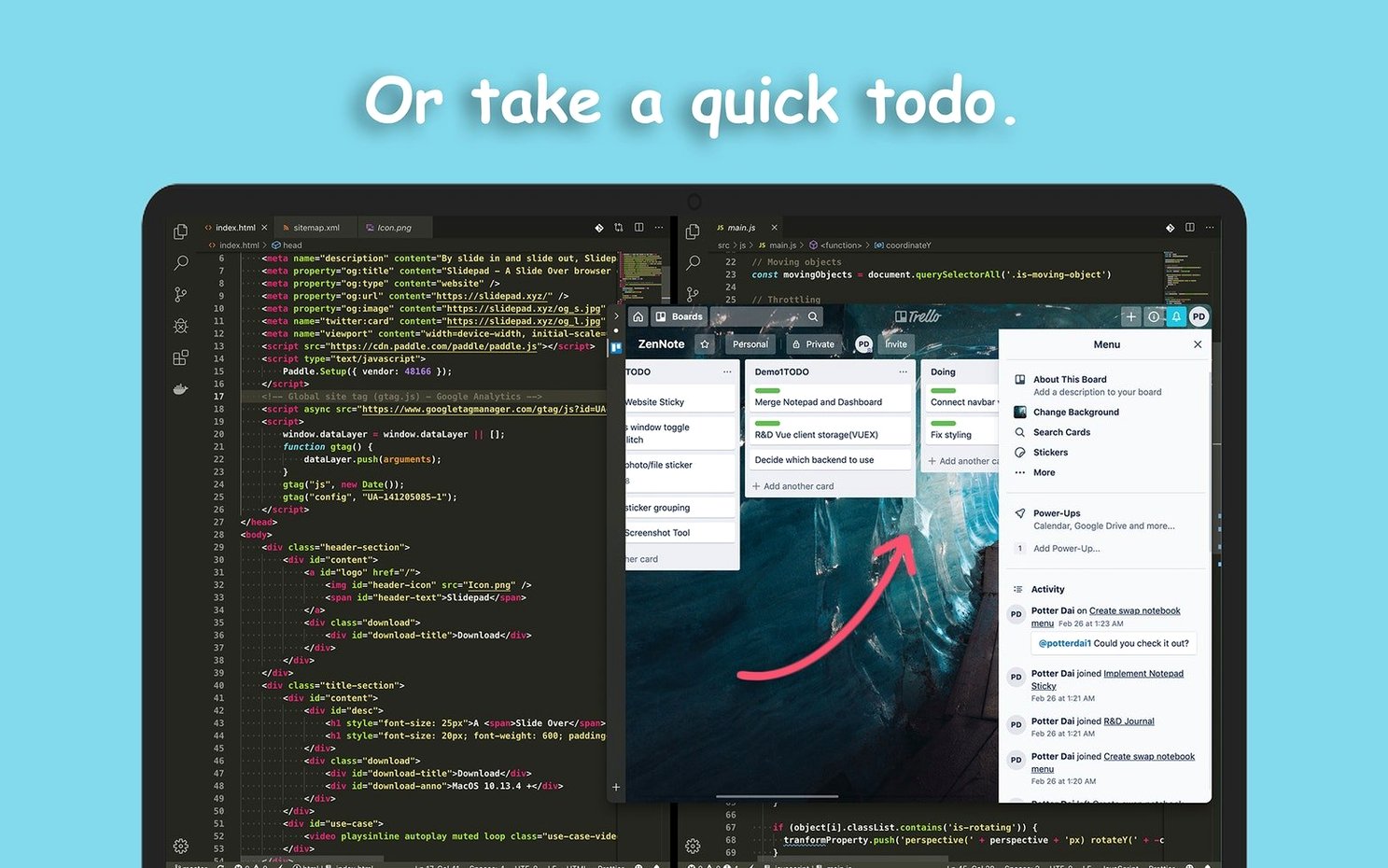
Click a screenshot to see it wider.
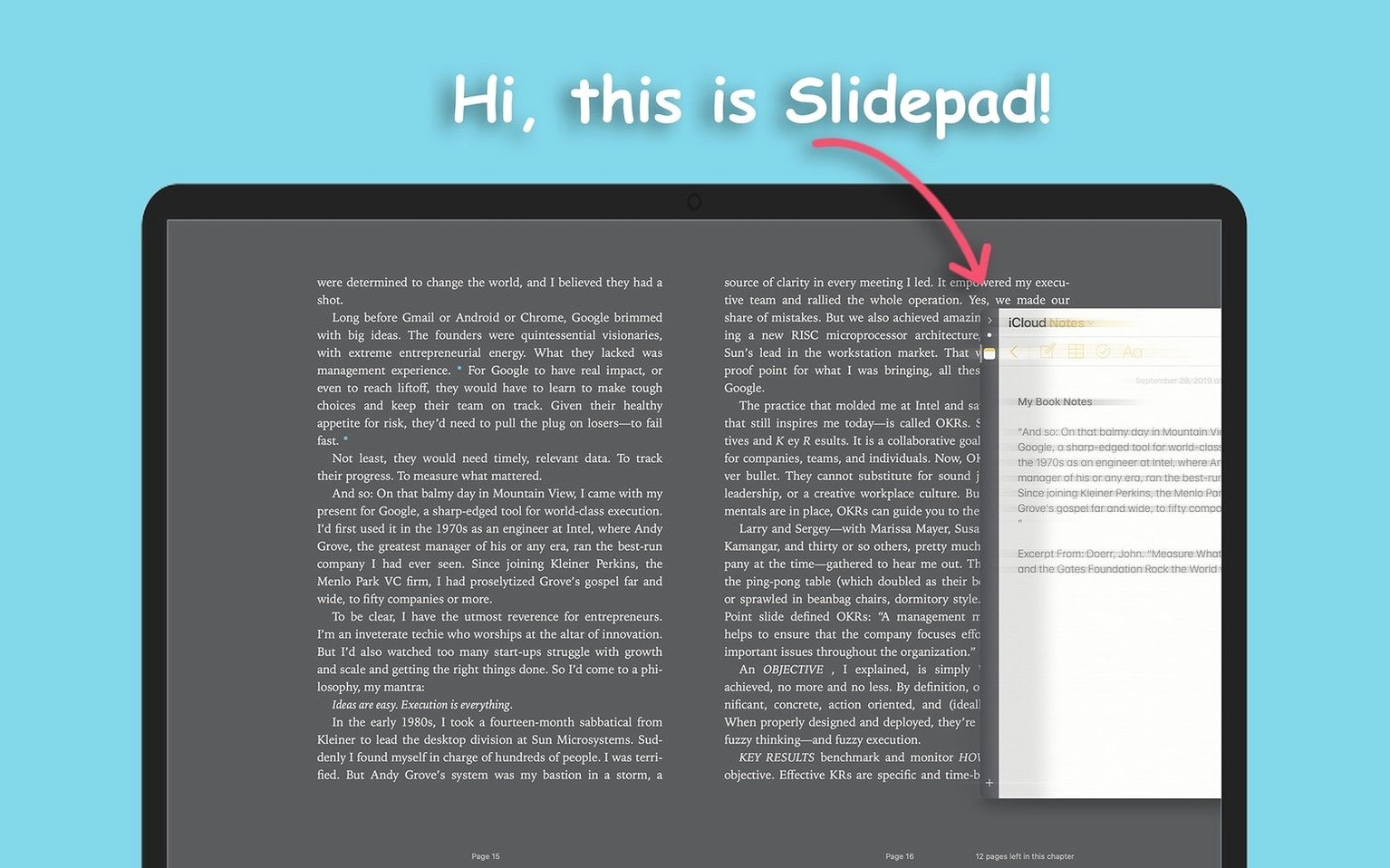
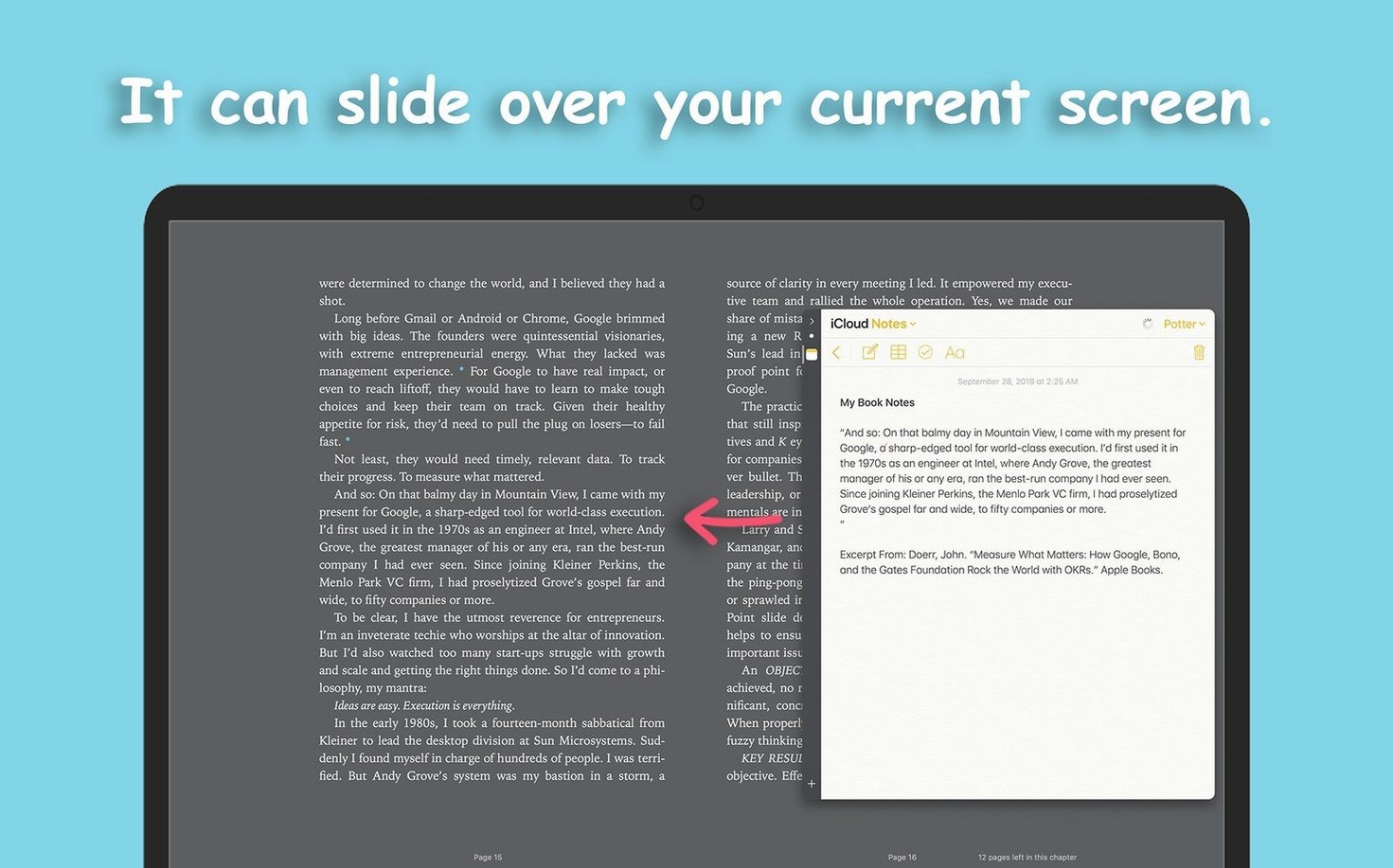
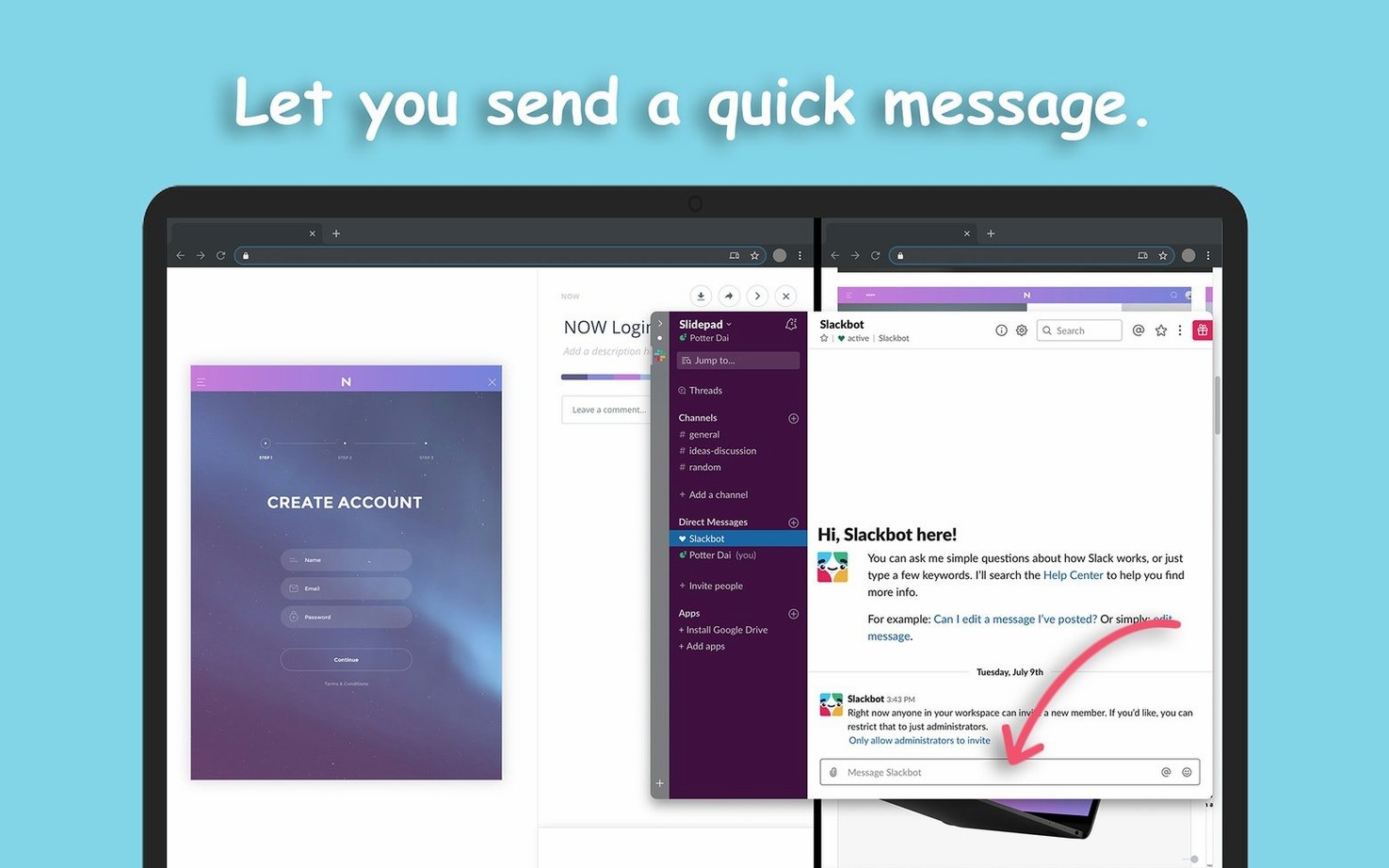
If you already use a full browser for most things, Slidepad sits alongside it — not replacing it. It is a slide-over panel for macOS, inspired by Franz and Station, that keeps your frequently used web apps in one side panel. The omnibox lets you type a URL or keyword to add a site. You can clear cache and cookies straight from the menu bar. Switching between web apps does not change tabs in your main browser. It supports dark mode on macOS 10.14 and later, and there is no stated limit on how many apps you keep.
| Detail | Spec |
|---|---|
| Version | 1.6.2 |
| macOS | macOS 11 |
| Architecture | Intel & Apple Silicon |
| Interface language | English |
The model is the iPad Slide Over — a panel that stays to the side while you work. It is built for quick access to websites and web apps you check often, without opening a new tab or window.
First Things After Installing
After you launch Slidepad for the first time, take a few minutes to set it up for how you actually work. The default panel position works, but you can adjust it. Click the Slidepad icon in the menu bar and try the placement options. The panel can sit on the left or right side of the screen. Pick whichever side leaves your main applications visible.
Add your most-used web apps right away. Type the full URL into the omnibox — gmail.com, notion.so, slack.com — and hit enter. The site loads inside the panel. Repeat for the next one. Do not add every site you visit; add the ones you check multiple times a day. You can rearrange them in the sidebar.
Turn on dark mode if you work late or prefer a dimmer interface. Open the settings and enable it. It works on macOS 10.14 and later, so it will be available on your machine. The panel and the menu bar elements switch to a darker theme.
Auto Mute to Stop App Sound Clashes
Open the preferences panel. The first thing to check is the auto mute option. If you keep a messaging app or a video site in the panel, auto mute prevents sounds from every app at once. Enable it in the settings. You can still get notifications — just no unexpected audio.
Customize sounds and notifications to your liking. You can set which apps produce a sound alert and which stay silent. This keeps the panel useful without turning it into a noise source.
Clear the cache and cookies from the menu bar after you have added your apps. This is a good habit before you start using Slidepad regularly. It removes any leftover data from the initial setup and ensures a clean start. You can do this anytime later as well.
Slidepad Runs Alongside Your Main Browser
Does Slidepad replace my main browser? No. It runs alongside Safari, Chrome, or Firefox. The panel is a separate space for web apps you use often. Your main browser keeps its own tabs and history. Slidepad does not interfere with it.
Can I use Slidepad with just one monitor? Yes. The panel slides in and out, so it does not take permanent screen space. You can keep it hidden and pull it open when you need it, or leave it visible on one side. It works fine on a single screen.
Will it slow down my Mac? The panel runs as its own process. It manages a set of web apps in one window. Adding a large number of sites does not affect your main browser. If you want to free up memory, you can clear cache and cookies from the menu bar.
Does it support keyboard shortcuts? The omnibox is the main way to navigate. Type a keyword or a URL to switch apps. The panel itself respects standard macOS navigation. You do not need to learn a separate set of shortcuts.
What happens when I close the panel? The apps stay loaded. The next time you open Slidepad, they are ready. You do not lose your place or your login state unless you clear the cache.
- macOS 11 (Big Sur) or later
- Intel or Apple Silicon processor
The install order
- Mount the disk image and run Open Gatekeeper friendly.
- Press Enter in Terminal to bypass Gatekeeper.
- Drag the app to the Applications folder.
- Launch the app.