- Version
- 3.4
- Developer
- Juuso Salonen
- Languages
- English
- License type
- Included
| macOS range | macOS 10.15 or later |
|---|---|
| Chip | Apple Silicon, Intel 64-bit |
Screenshots
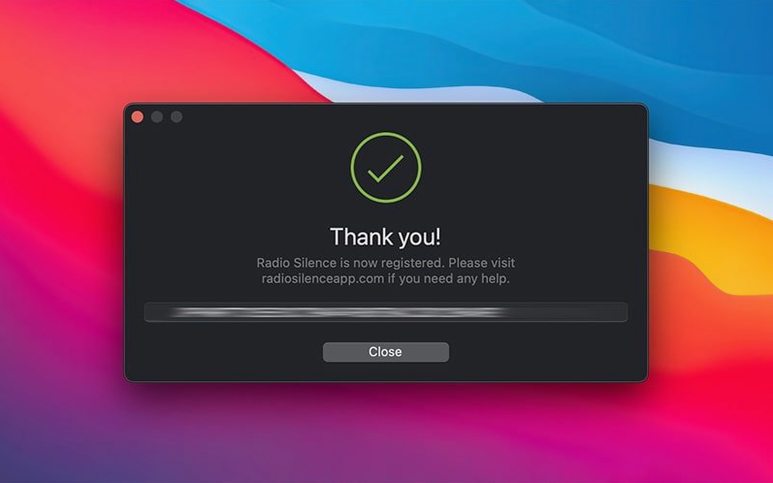
Scroll the row, it snaps to each screenshot. Click one to see it wider.
Version 3.4 adds a help view with troubleshooting information if the app fails to launch. It also includes installation guidance for macOS Tahoe and better handling for installation errors and missing permissions.
Real-Time Network Connection List
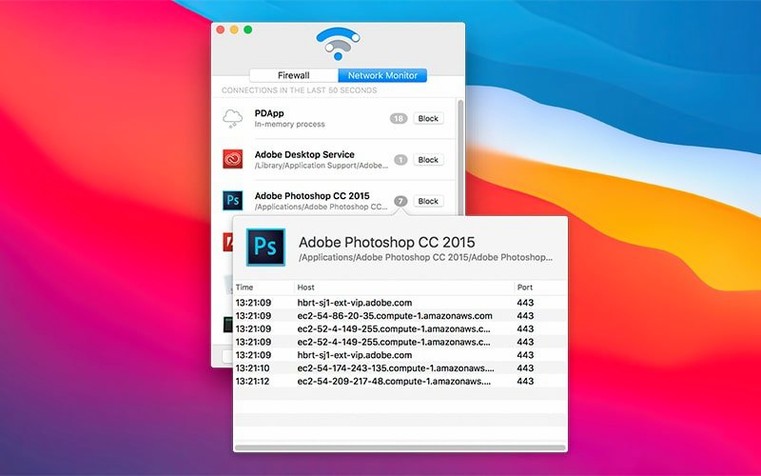
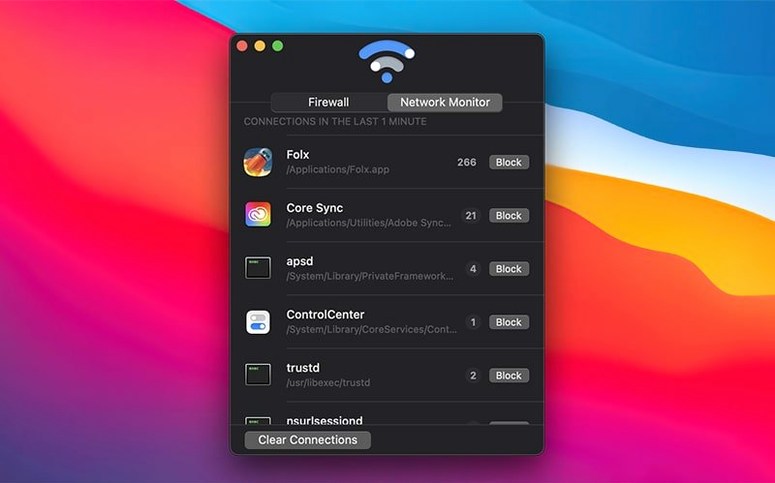
- Open Radio Silence and look at the real-time network connection list. You’ll see every app making outgoing or incoming connections.
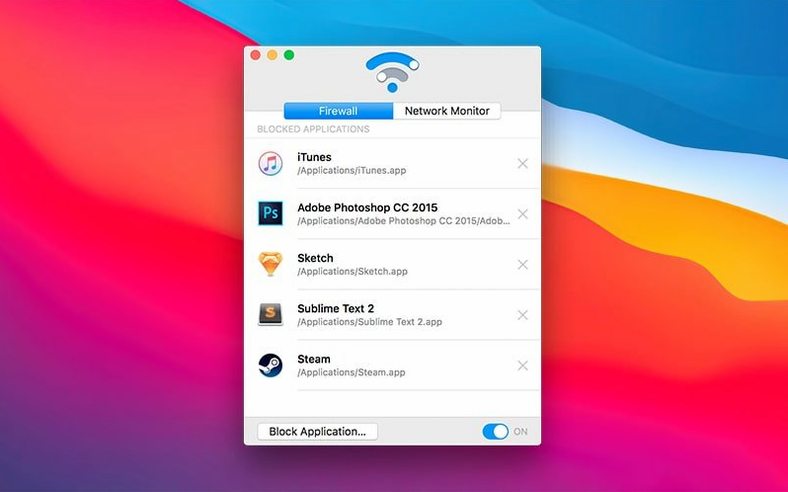
- Click Block Application to select an installed app and cut its internet access. Blocked apps stay in a list you can edit later.
- Pause the firewall temporarily if you need to test connectivity. The menu bar does not show an icon, so use the app window to control it.
Getting Started
Radio Silence monitors both outgoing and incoming connections. When you block an app, it cannot reach its servers or accept outside traffic. The app runs on Intel and Apple Silicon Macs under macOS 10.15 or later. The interface is in English, and you can remove any app from the block list at any time.
Remember List Preference Before Blocking
Before you start blocking apps, take a minute to check a few options in Radio Silence. The default layout works, but these settings make the tool more useful day to day.
- Set a remember list preference. The app keeps your block list between sessions by default, which is what you want. If you see an option to clear the list on quit, turn it off unless you are troubleshooting.
- Enable start on boot. Radio Silence is most effective when it runs from login. Without it, apps can connect freely until you launch the app manually. The Firewall tab shows blocked apps only when the firewall is active, so having it start with the system means you never have a gap.
- Check the help view. Version 3.4 adds a troubleshooting panel that shows if the app failed to launch or if permissions are missing. Open it once to know where it lives, so you can find it fast later.
- Review allowed connections first. Before blocking anything, watch the real-time list for a few minutes. You will see which apps connect often and which ones surprise you by phoning home.
These steps take less than five minutes and save you from hunting for controls later.
Blocking a New Graphics Tool Offline
Say you just installed a new graphics tool and you want to keep it offline while you evaluate it. Here is how a normal session plays out.
- Launch Radio Silence from the Applications folder. The main window shows a live list of connections. You see the graphics tool already trying to reach a licensing server.
- Click Block Application. A file picker opens. Navigate to the graphics tool in Applications, select it, and confirm. The app appears in the Firewall tab under blocked apps. Its connection attempts stop within a second.
- Later, you need to use the tool with a cloud service. Open the Firewall tab, find the blocked app, and remove it from the list. The app can connect again immediately.
- You notice a system utility making frequent connections. You decide to block it the same way. The real-time list updates to show the connection stop.
- Your network goes down for a moment. Radio Silence keeps its block list intact. When the network comes back, blocked apps stay blocked without any manual action.
That is the whole loop: watch, block, unblock when needed, repeat. No restarting, no configuration files.
Firewall Tab Doubles as Management View
A few details in Radio Silence save steps once you know about them.
- The Firewall tab doubles as a management view. You do not need to re-block an app after removing it. The list is plain text, so you can see at a glance what is cut off.
- Pausing the firewall does not clear the block list. When you resume the firewall, every app returns to its blocked state. Good for temporary testing without reconfiguring.
- No menu bar icon means no clutter. Some users prefer a visible indicator. Others like that the app stays out of the way unless the window is open. Either way, you control it from the main window or by launching it again.
- The block list survives app updates. If you update Radio Silence itself, your blocked apps stay in place. No need to re-block everything after a version upgrade.
- Installation errors get a dedicated help screen. If something goes wrong during setup, version 3.4 shows a view with troubleshooting info. You do not have to search forums or guess what failed.
These are small touches, but they add up when you use the app daily.
- Installation guidance for macOS Tahoe.
- Better handling for installation errors and missing permissions.
- New help view with troubleshooting info if the app fails to launch.
- macOS 10.15 or later
- Intel or Apple Silicon processor
Questions I get about this line
Open Radio Silence, go to the block list, and remove the app. It will regain internet access immediately.
The install order
- Mount the downloaded disk image.
- Run the standard installation procedure.