- Version
- 9.3.0
- Developer
- ByteDance
- Languages
- Russian, English, German, Hungarian, Vietnamese, Greek, Indonesian, Spanish, Italian, Chinese (Traditional), Chinese (Simplified), Korean, Malay, Dutch, Polish, Portuguese, Romanian, Thai, Turkish, Filipino, Finnish, French, Czech, Swedish, Japanese
- License type
- K'ed by caastle.cracker
| macOS range | macOS 10.14 or later |
|---|---|
| Chip | Apple Silicon, Intel 64-bit |
| Download | 1.1 GB |
Screenshots
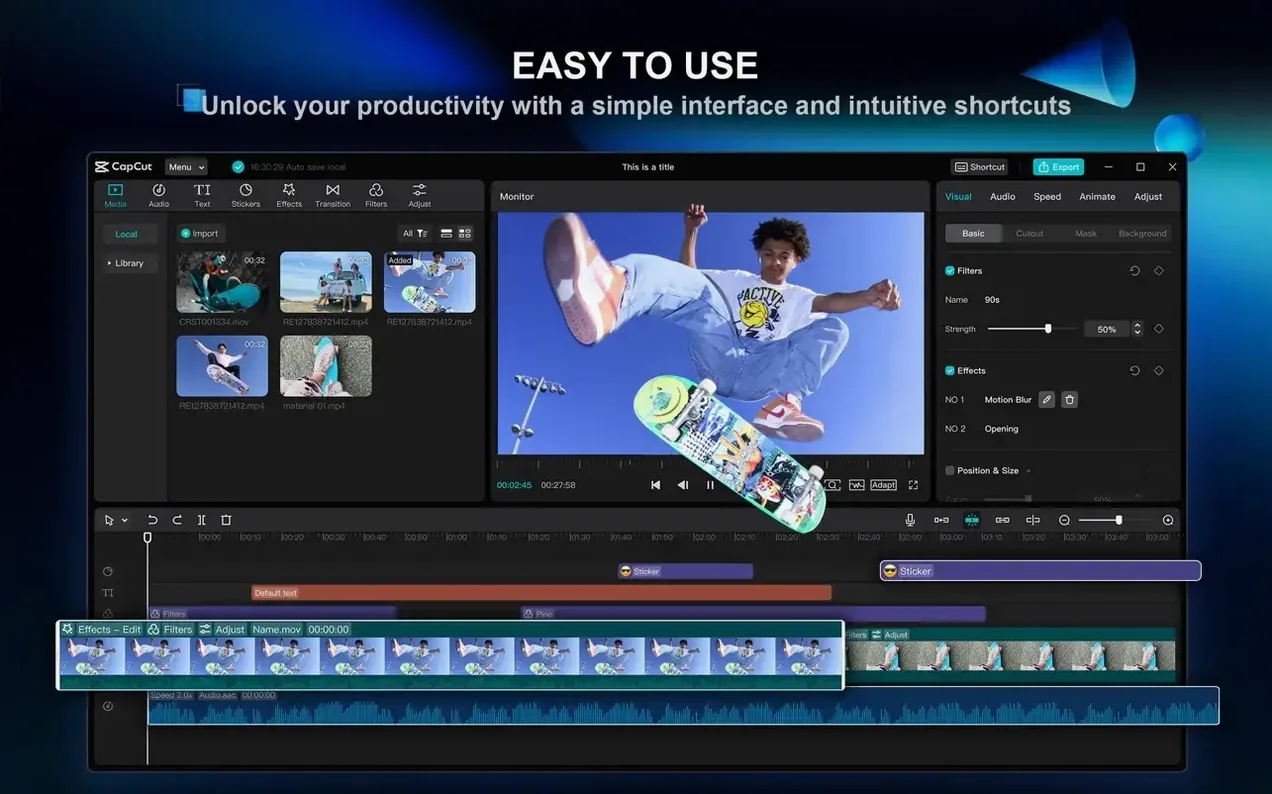
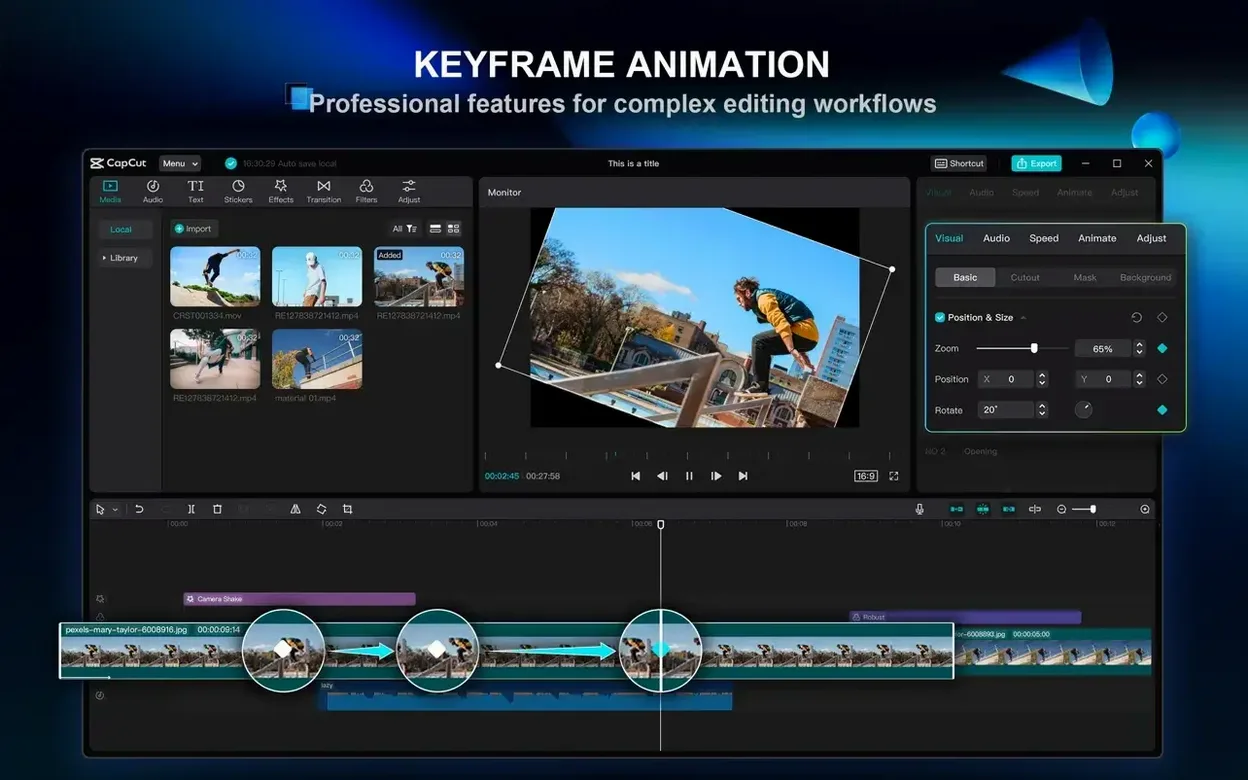
Scroll the row, it snaps to each screenshot. Click one to see it wider.
CapCut supports macOS 10.14 and later, on both Apple Silicon and Intel 64-bit Macs. That covers most machines from the last six years.
Confirm macOS Mojave or Newer
Before you torrent CapCut, confirm your Mac runs macOS Mojave or newer. The installer won't open on older systems, and there's no workaround.
Edit Clips
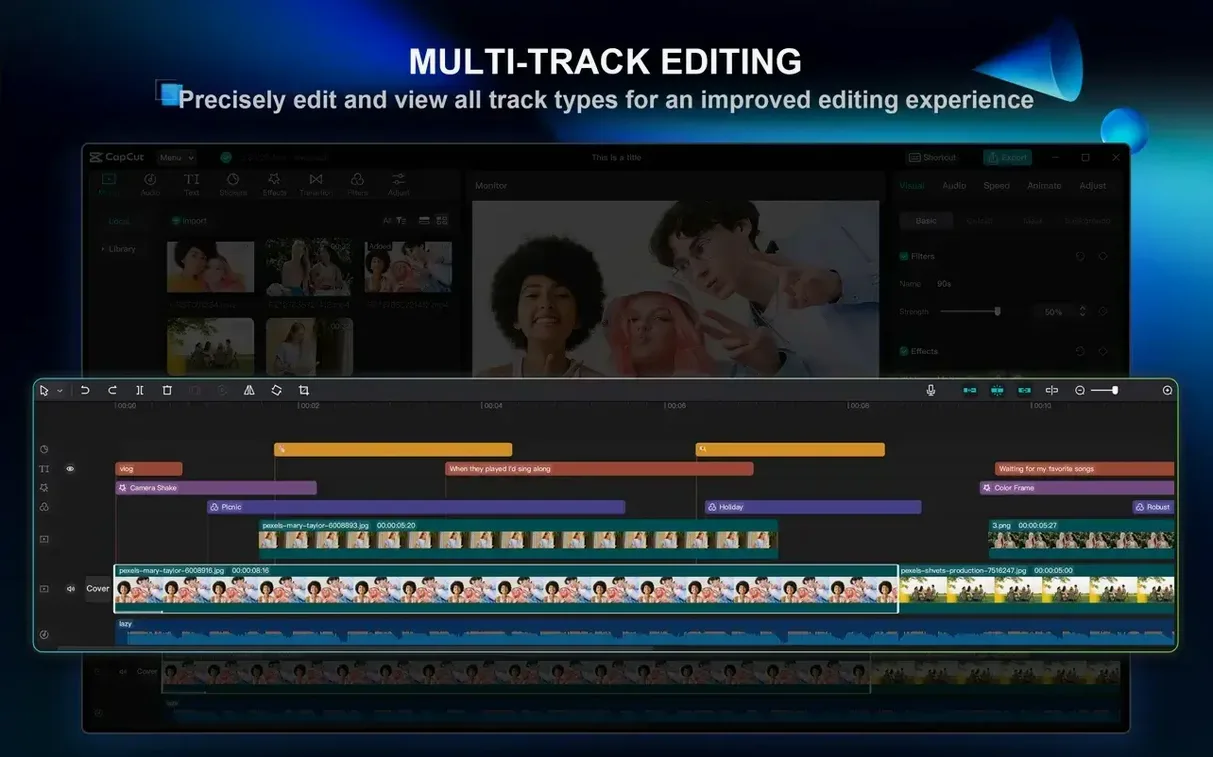
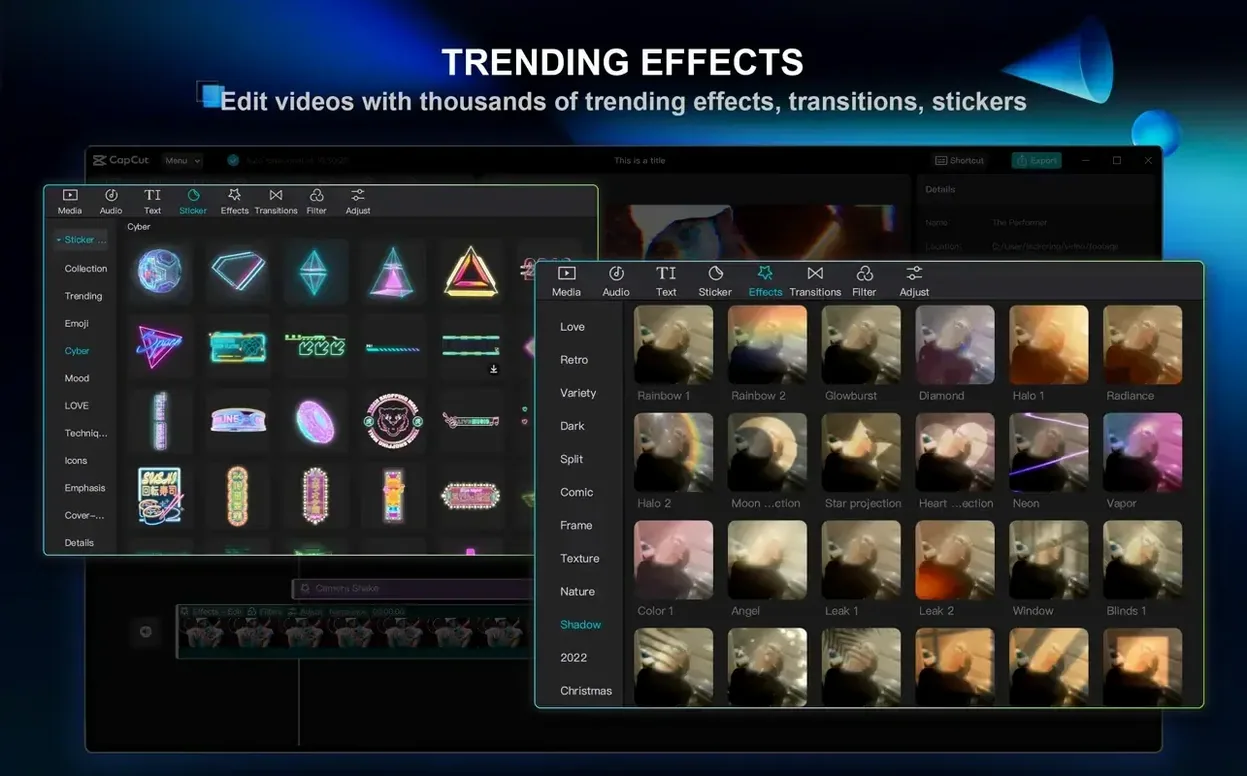
Cut, join, and split clips on a timeline. Add filters, transitions, and text styles. Stabilize shaky footage or remove a background by color with chroma key.
Use AI Tools
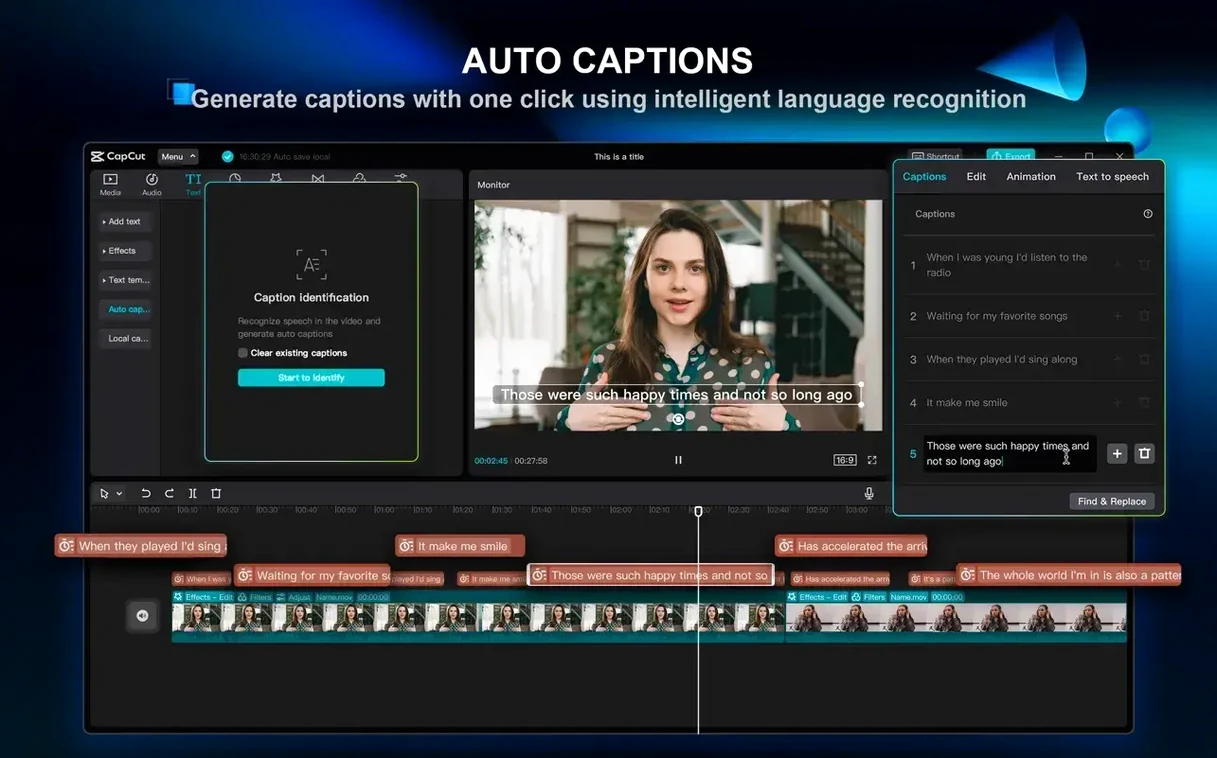
Generate subtitles from speech automatically. For podcasts, remove filler words and pauses in one click. Turn a script into a video, or convert text to speech with different voices.
Set Your Language in Preferences
After you drag CapCut into Applications, launch it from Launchpad. The app starts in the language your system uses, but you can switch it. Go into preferences and pick from the 24 interface languages if you need something else.
Give yourself an hour to click through the panels. The layout is straightforward: a media browser on the left, timeline at the bottom, preview window in the center. No hidden menus. Everything you need for a basic edit is visible without digging.
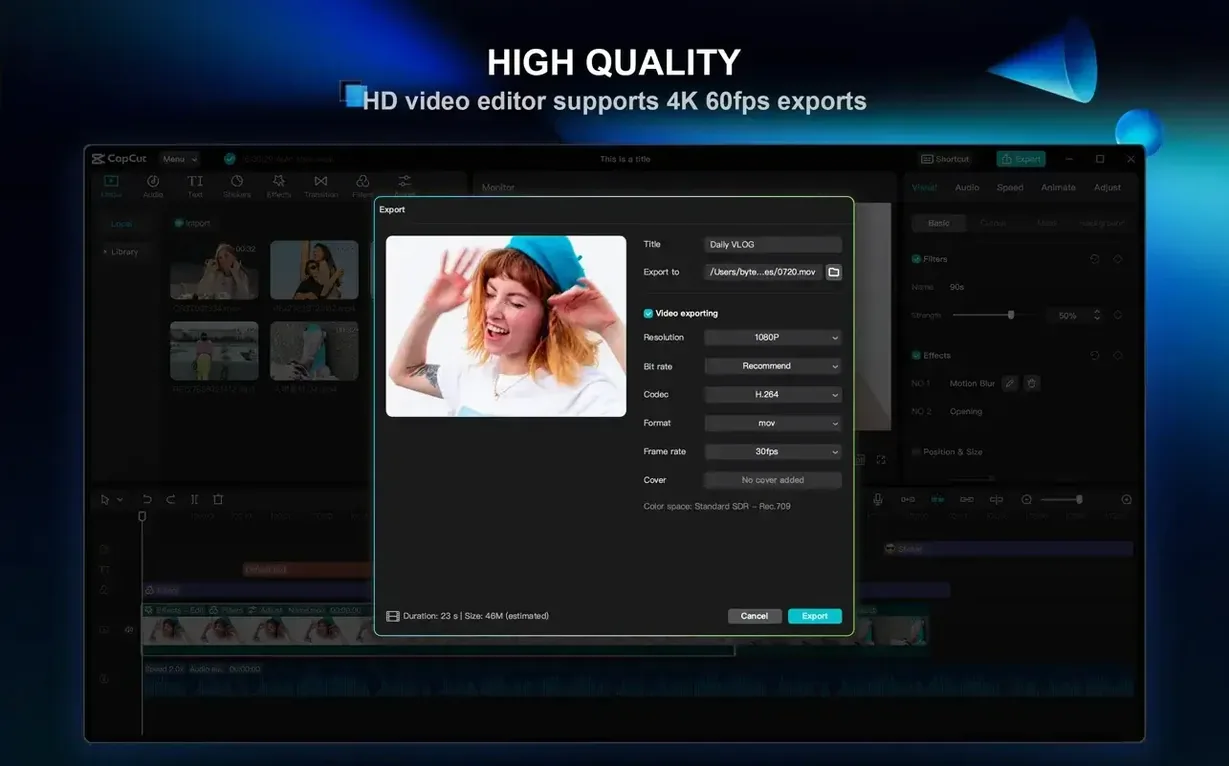
Set your export preferences early. The default export preset works, but 4K at 60 fps is available if your project needs it.
Keep at least 2 GB free on your startup drive. The installer needs that space. If you work with 4K footage, leave more room — the app uses the same disk for scratch files while you edit.
Practice Workflow: Clean a Talking-Head Video
This workflow covers a common task: turn a raw recording into a publishable short video. It uses CapCut's core tools and one AI feature. No add-ons needed.
Step 1 — Import and Trim
Drag your video file into the media browser. Drop it onto the timeline. Use the split tool to cut out mistakes at the beginning and end. Join the remaining segments together into one clean clip.
Step 2 — Clean the Audio
Select the clip on the timeline. Find the audio cleanup tool and run the "remove filler words and pauses" feature. It processes the vocal track in one click. Listen through once to make sure nothing important got cut.
Step 3 — Add Subtitles
Select the clip again. Open the auto-subtitle generator. Let it transcribe the speech. Review the text for proper nouns the speech recognition might have misheard. CapCut places each subtitle on the timeline at the correct moment. Adjust font and position if needed.
Step 4 — Stabilize and Grade
If the footage has camera shake, apply stabilization. CapCut analyzes the clip and smooths the movement. Add a filter or adjust the color grade to match your channel's look. Apply it to the whole timeline with one drag.
Step 5 — Export
Set the export resolution to 1080p or 4K, depending on your target platform. Choose 30 or 60 fps. Let CapCut render the file to your desktop. The whole process from raw file to export takes under twenty minutes once you know where the tools are.
For a capcut mac torrent download, the version 9.3.0 build works on any Mac with macOS 10.14 or later. A 2-core processor and 4 GB RAM get you through basic edits. 8 GB RAM or more makes multi-track timelines and AI processing noticeably more responsive. Either way, the app runs on both ARM and x86 hardware without extra configuration.
- macOS 10.14 or later
- Apple Silicon or Intel 64-bit
Questions I get about this line
Yes. CapCut supports both Apple Silicon and Intel 64-bit Macs, as long as you're on macOS 10.14 or later.
Earlier versions of macOS won't run the app.
The install order
- Open the downloaded disk image.
- Drag the app into the Applications folder alias.
- After copying finishes, launch the app from Launchpad.