
Free download (7.9 GB) Previous versions
- Version
- 21.1.1
- Developer
- Blackmagic Design Inc.
- Languages
- Russian, English, Spanish, Chinese (Simplified), Portuguese, French, Japanese
- License type
- Included
| macOS range | macOS 15 or later |
|---|---|
| Chip | Apple Silicon, Intel 64-bit |
| Download | 7.9 GB |
| Previous versions | 60 on file |
Screenshots
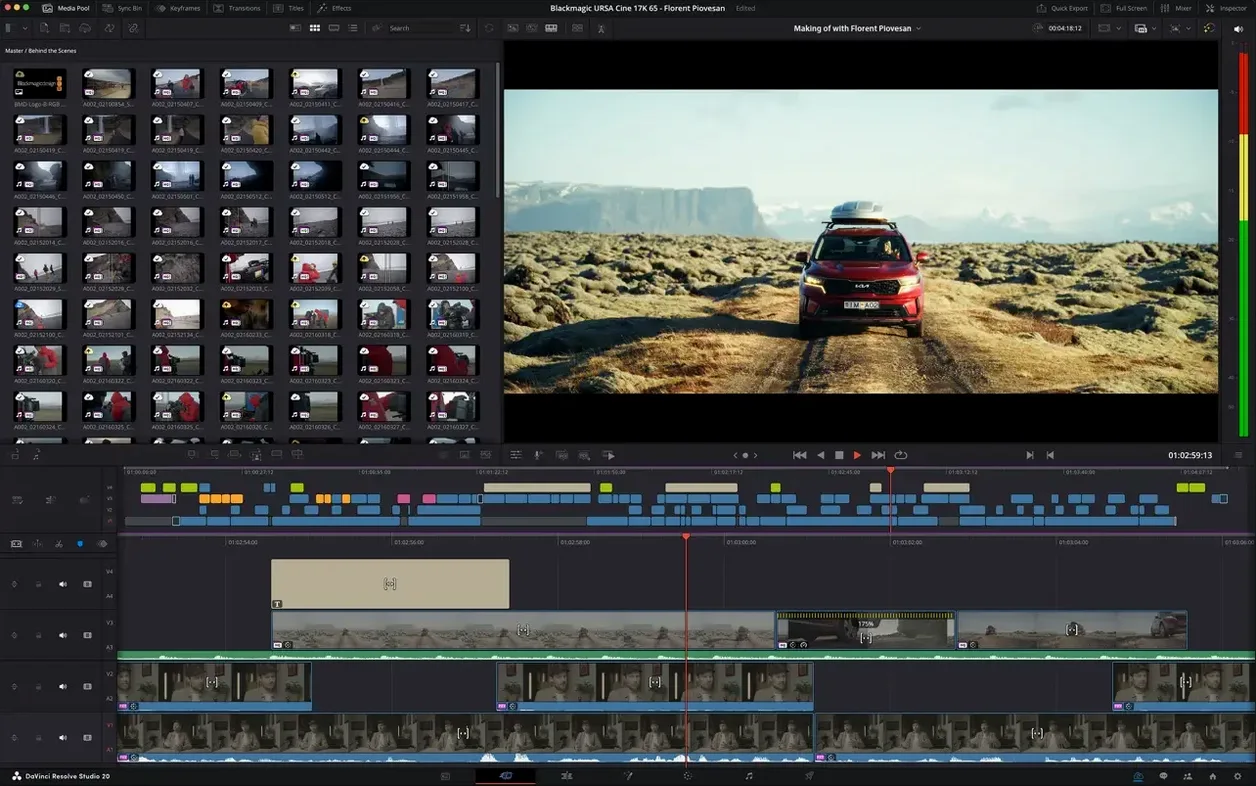
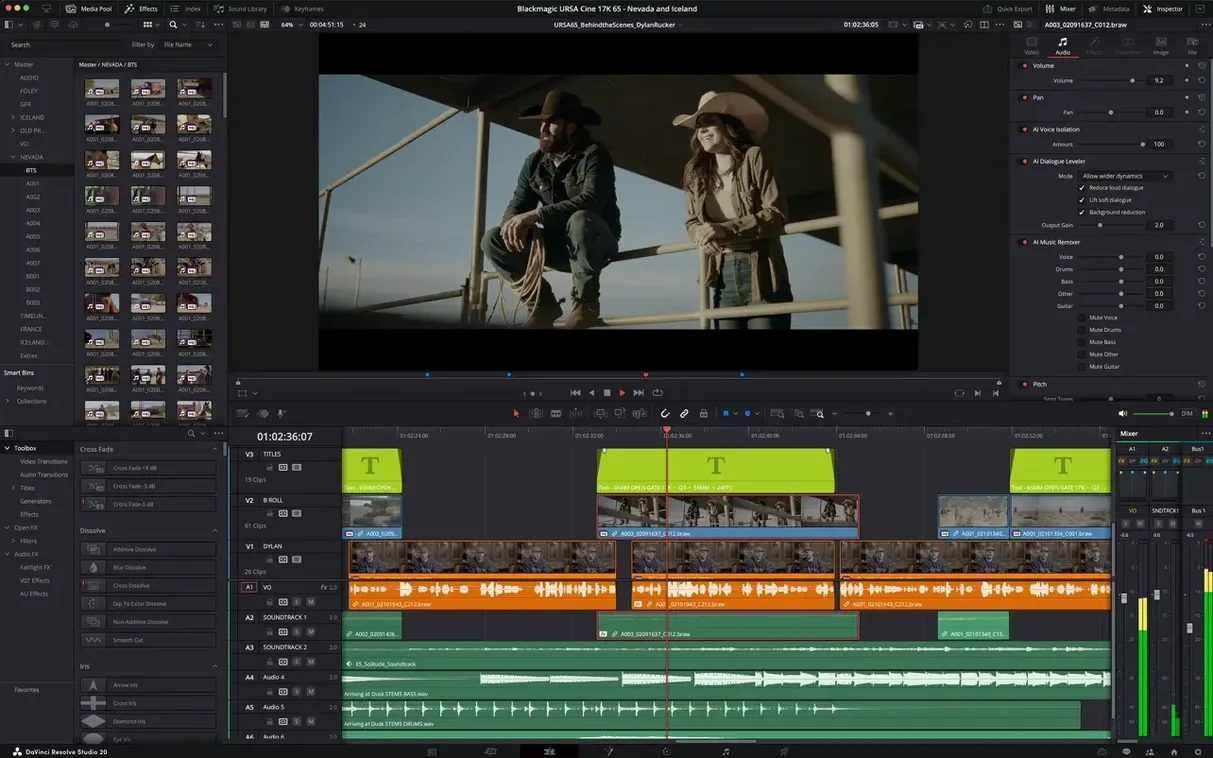
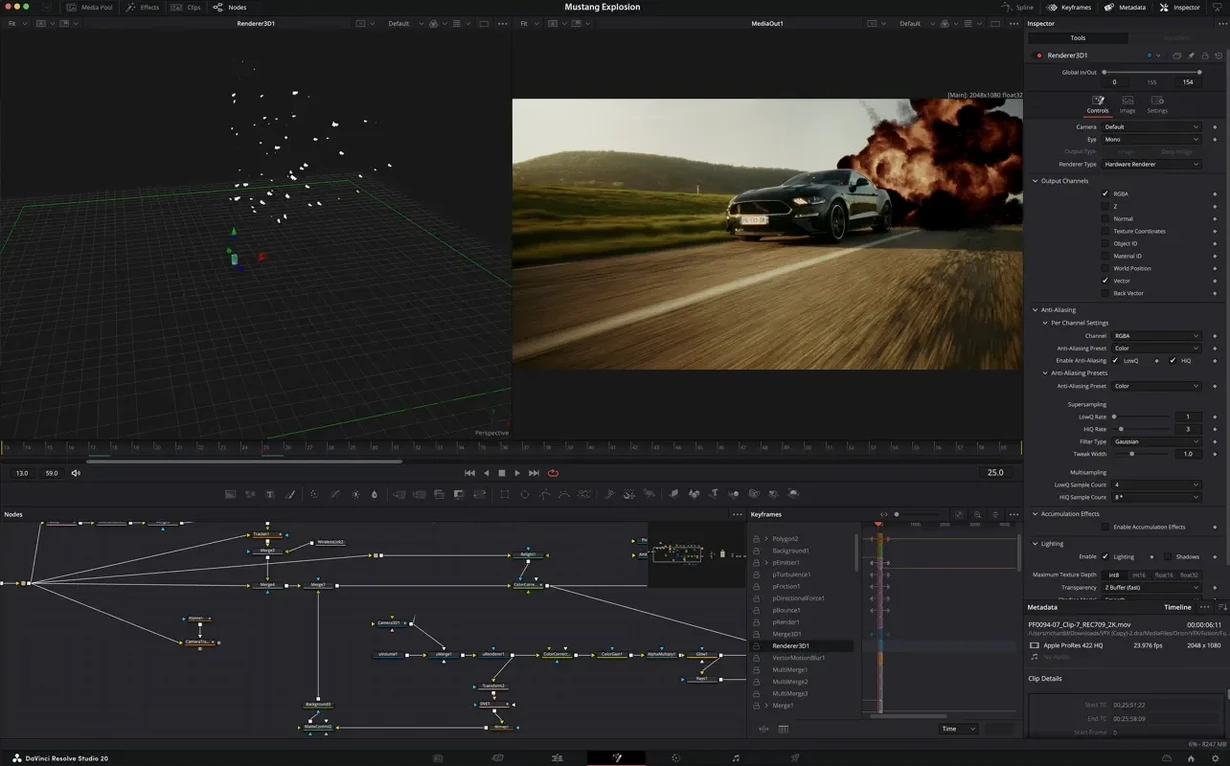
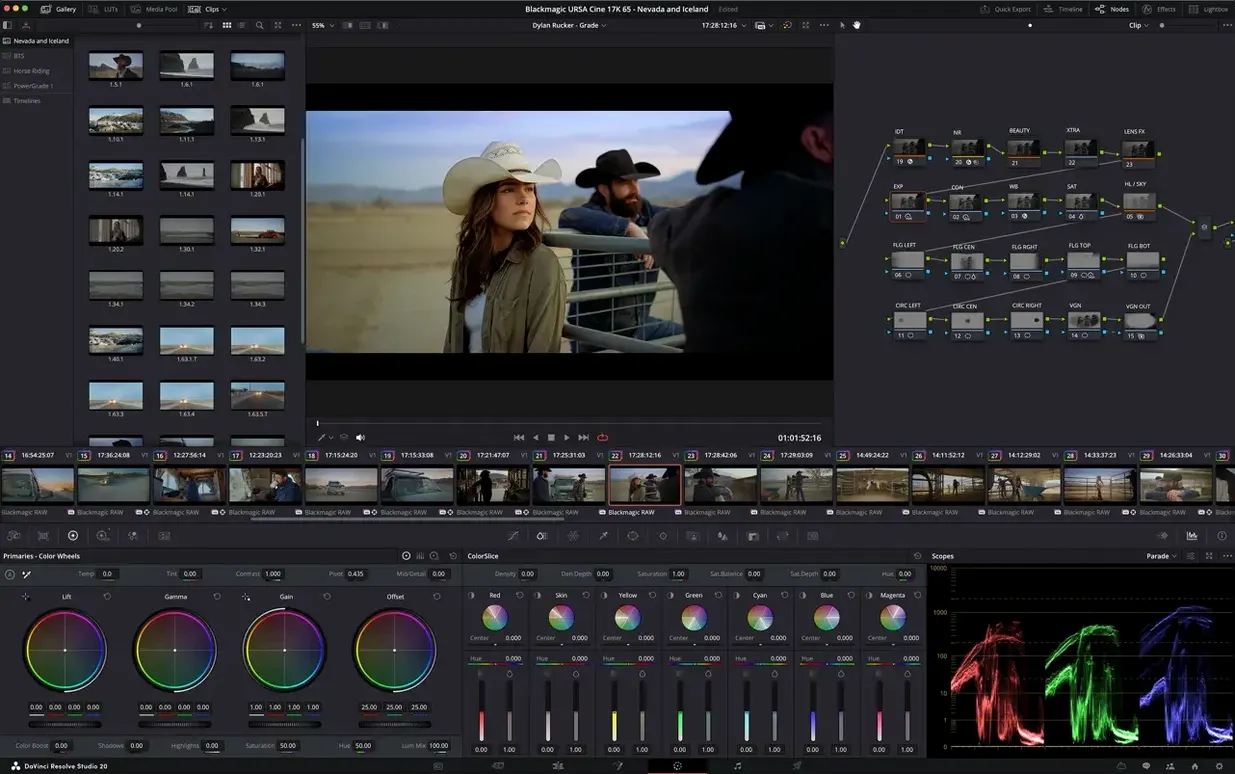
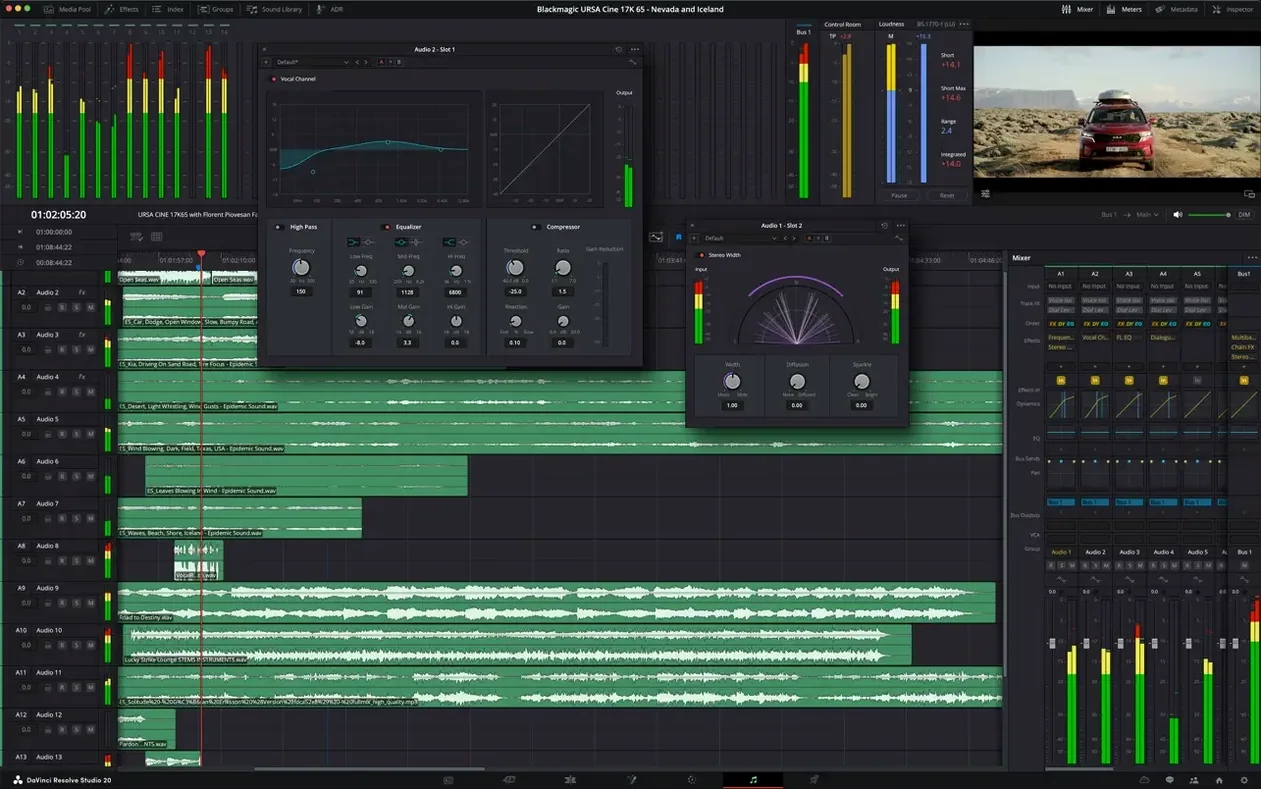
Scroll the row, it snaps to each screenshot. Click one to see it wider.
DaVinci Resolve Studio 21 runs on any Mac with macOS 15, whether it's Intel or Apple Silicon. That covers the bulk of Macs still getting OS updates, so compatibility is rarely the hurdle.
Which Macs are supported?
Any Mac that can run macOS 15. Both architectures are supported, so older Intel iMacs and MacBooks are fine alongside the M-series machines.
What does it actually do?
It's one app that handles editing, visual effects, motion graphics, color correction, and audio post-production. You don't juggle multiple tools for a finishing workflow. It also supports HDR formats and uses 32-bit floating-point YRGB color processing, which keeps the image clean through heavy grades.
Hardware-Accelerated HEIC and HTJ2K Decoding
The update brings hardware-accelerated HEIC decoding on Apple Silicon, GPU-accelerated HTJ2K decoding via Kakadu, expanded camera format support on the Photo page, 20 new scripting APIs, and over 25 new Krokodove graphics tools.
Project Setup Mistakes That Break Your Edit
New users often treat DaVinci Resolve Studio like a one-shot editor and skip the project setup. That leads to relinked media, wrong color spaces, and wasted time.
- Set these in Project Settings before importing anything.
- Ignoring the Media page. Beginners drag clips straight into the timeline from Finder. That bypasses the Media page, where you can organize bins, apply metadata, and check clip properties. Doing it right from the start keeps the project tidy.
- Mixing color management without reading the manual. HDR and YRGB color science give you flexibility, but turning on DaVinci Color Management without understanding the input/output profiles can produce washed-out or oversaturated footage. Start with a simple Rec.709 timeline until you know the pipeline.
- Relying solely on auto-grade tools. Version 21.1 adds AI assistant integration for media organization and batch rendering. It is not an auto-color-grader. Beginners who expect one click to fix exposure and white balance end up fighting the results.
- Neglecting to save regularly. The project file is your safety net. Resolve autosaves are less frequent than in consumer editors. Manual saves after big moves prevent losing hours of work.
Workflow: Color-grade a short clip from start to finish
This is a basic finishing run for a single 4K clip. Adjust the steps for longer projects.
- Create a new project.
- Go to the Media page. Import the source clip. Drag it into a new bin named "Source."
- Switch to the Edit page. Drag the clip onto the timeline. If the audio track is separate, hold Command while dragging to keep it synced. Trim the head and tail in the timeline viewer.
- Move to the Color page. Open the Color Wheels panel. Adjust the lift, gamma, and gain wheels to set black levels, midtones, and highlights. Use the waveform scope to keep exposure within legal limits.
- Add a node for secondary correction. Use the qualifier tool to select the sky or a subject. Adjust saturation and hue in the same node. Name the node "Sky fix" for clarity.
- Apply a LUT if needed. Right-click in the node area, choose "Add LUT," and select a Rec.709 conversion. Add a final node for a subtle film grain effect from the effects library.
- Switch to the Fairlight page. Reduce background noise with the built-in noise reduction plug-in, then normalize audio to -23 LUFS using the Loudness Meter.
- Return to the Edit page. Add end credits from the Titles panel. Render the timeline by going to Deliver, selecting H.264 Master, and choosing the output folder. Click "Add to Render Queue" and start the batch.
Exporting to Compressor and HandBrake
DaVinci Resolve Studio does not replace every tool in your stack. It integrates with adjacent software and macOS capabilities in ways that speed up real work.
- Export to Apple Compressor or HandBrake – When you need a format Resolve does not support directly, render a ProRes master from the Deliver page, then transcode externally. This keeps the master clean and lets you batch encode for different delivery specs.
- Use macOS Finder tagging for media management – Resolve reads file metadata. Tagging clips with keywords like "interview" or "B-roll" in Finder carries into the Media page search. That saves time when you have hundreds of takes.
- Fairlight and Logic Pro – Fairlight handles multitrack mixing and mastering for the timeline. For complex sound design or original score creation, export stems from Fairlight and finish in Logic Pro. The import/export via Broadcast WAV or AIF is straightforward.
- Apple Silicon HEIC and HTJ2K decoding – Version 21.1 pulls in hardware-accelerated HEIC decoding and GPU-accelerated HTJ2K decoding. On M-series Macs, this speeds up loading and scrubbing through high-resolution photos and JPEG 2000 files. No third-party codec pack needed.
- Scripting APIs with the macOS Terminal – The 20 new scripting APIs let you automate repetitive tasks. Write a Python script to batch-rename timeline tracks or auto-populate metadata from a CSV, then run it from the built-in console or a Terminal window. Power users can stitch Resolve into a larger pipeline with ffmpeg or other CLI tools.
- Added AI assistant integration for media organization and batch rendering.
- Added expanded camera format support on the Photo page.
- Added over 25 new Krokodove graphics tools.
- macOS 15
- Intel or Apple Silicon
Questions I get about this line
Yes, it supports both Intel and Apple Silicon Macs, provided the Mac runs macOS 15.
It combines editing, visual effects, motion graphics, color correction, and audio post-production in one application, so you can finish projects without switching tools.
The install order
- Open the package and run the installer.
- Follow the activation guide included in the package to complete setup.