
Free download (78 MB) Previous versions
- Version
- 2.1.22 [MAS]
- Developer
- 成浩 吴
- Languages
- English, German, Italian, Chinese (Traditional), Chinese (Simplified), French, Japanese
- License type
- K'ed by TNT team
| macOS range | macOS 11 or later |
|---|---|
| Chip | Intel 64-bit |
| Download | 78 MB |
| Previous versions | 2 on file |
Screenshots
Scroll the row, it snaps to each screenshot. Click one to see it wider.
OmniPlayer sits next to VLC and IINA in the macOS media player lineup, but it brings its own set of controls. Version 2.1.22 keeps the core job simple: play video, audio, subtitles, and playlists without hunting for codecs.
Plays local files and YouTube streams
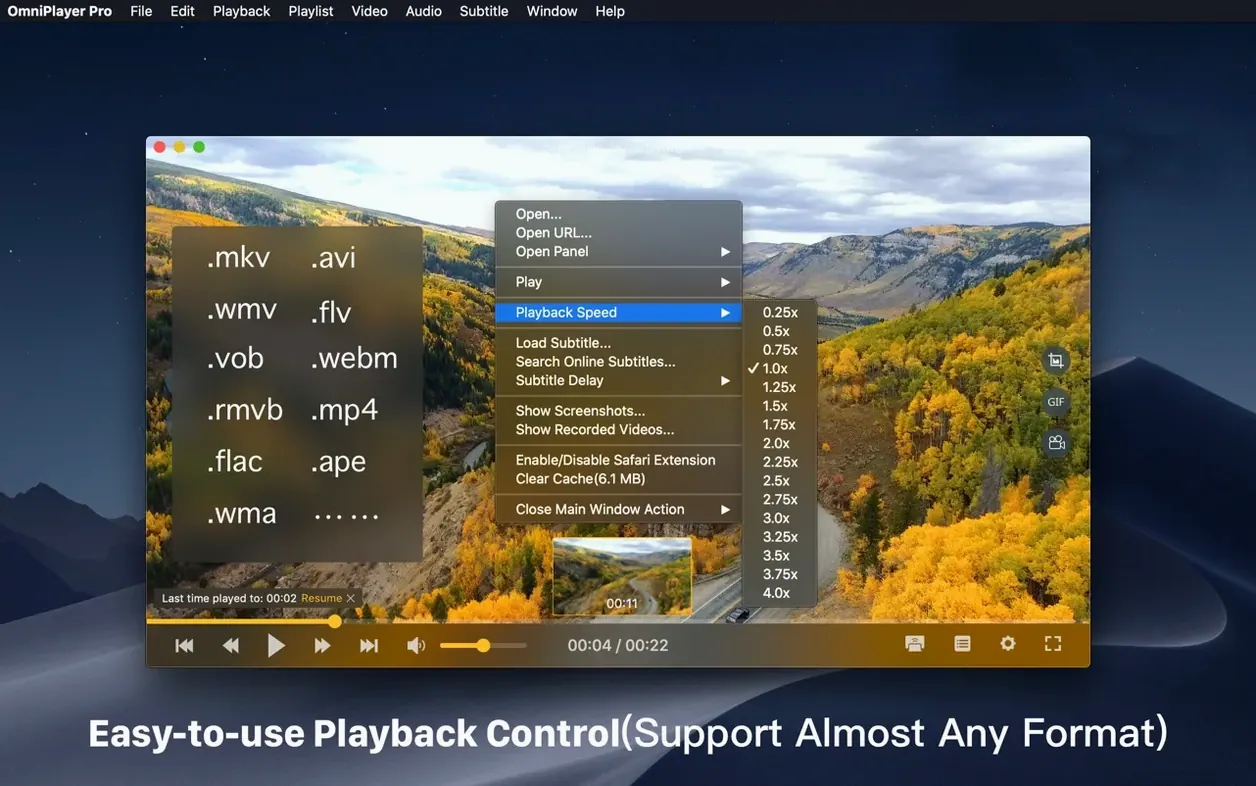
- Playing local files in most formats, plus streaming over HTTP and HTTPS.
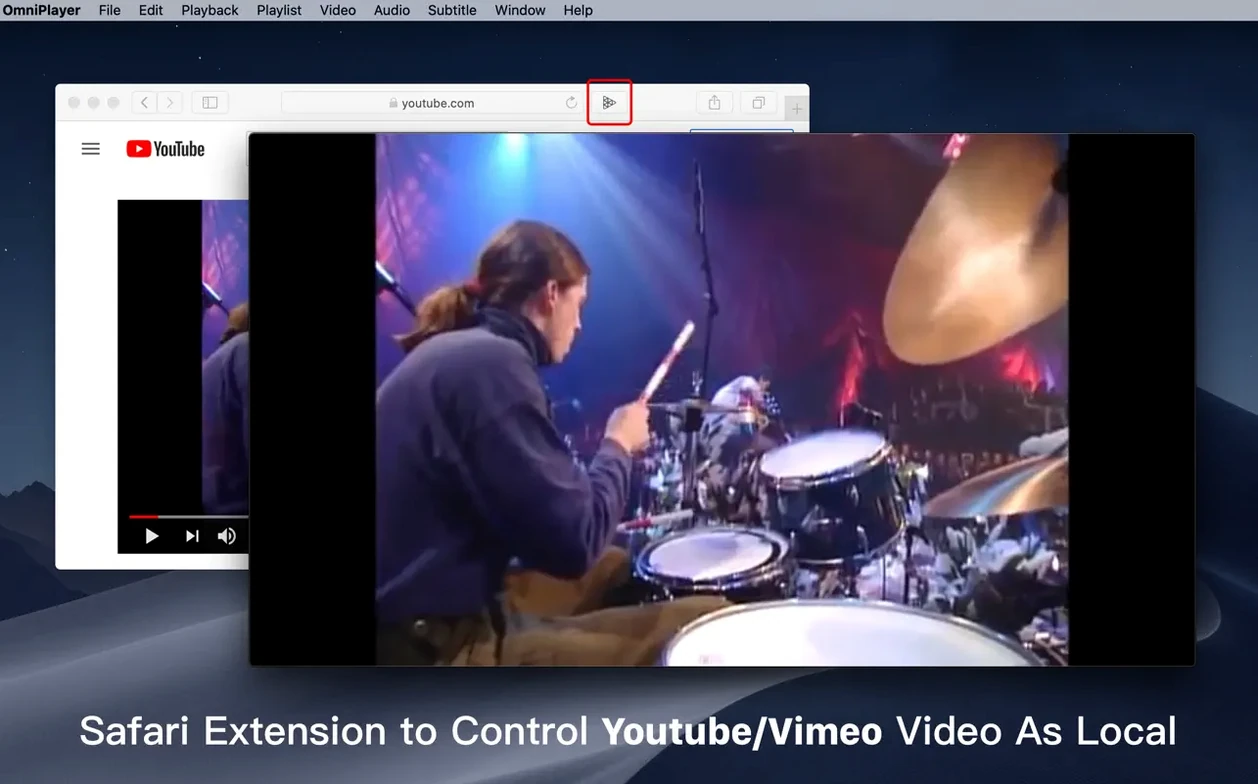
- Watching YouTube or Vimeo by pasting a web page URL.
- Adjusting brightness, contrast, and saturation during playback.
- Switching audio tracks on multi-track videos.
- Changing subtitle color and size in real time, or loading subtitles from local files.
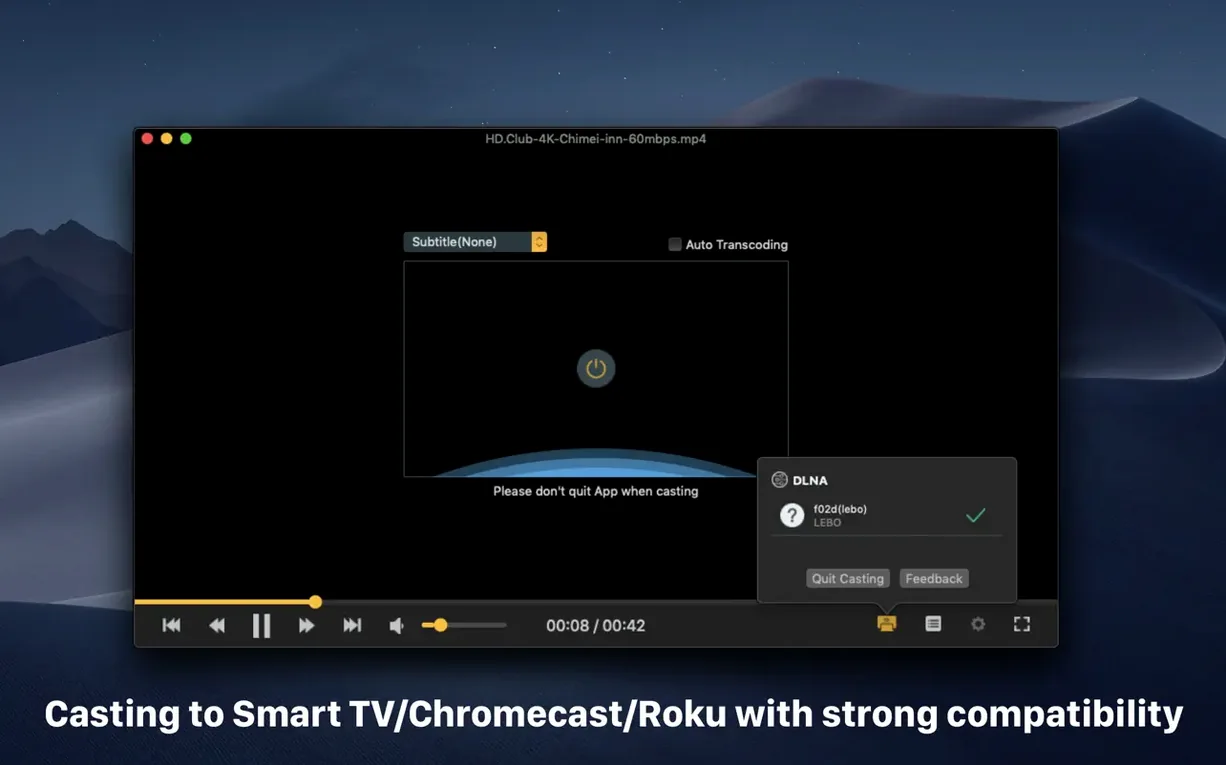
- Sending video to a TV via DLNA, Chromecast, or Roku.
- Speeding up or slowing down playback from 0.25x to 4x.
- Taking screenshots in different formats.
Intel-only with auto-hiding controls
- Runs on macOS 11 or later, Intel only.
- Audio and video controls auto-hide during playback.
- Current version fixes a bug when loading a 30GB MKV file.
Workflow: playing a multi-track MKV with remote subtitles
Open OmniPlayer and drag a multi-audio-track MKV onto the window. The file loads and begins playback. Click the audio track button to switch from the default track to an alternate language track. The change takes effect immediately.
Pause the video and open the subtitle menu. Choose "Load from file" and browse to an SRT file on your drive. The subtitle appears on screen. If the encoding looks wrong, open the subtitle encoding setting and cycle through options until the text displays correctly. Adjust the subtitle font size to your preference.
Resume playback. If the audio is out of sync with the video, adjust the audio delay slider by small increments until the sync feels natural. Continue watching or jump to a later timestamp using the progress bar preview thumbnails.
Paste a YouTube URL or open an MKV
Start OmniPlayer. The playlist is empty. Paste a YouTube URL into the open network stream dialog. The player fetches the video and begins streaming. You let it play for a minute, then decide to switch to a local MKV file from a SAMBA share.
Browse to the share via the file menu. OmniPlayer adds it to the playlist and starts playback. The progress bar shows preview thumbnails. You skip ahead to a scene, and the player displays the preview for that point.
You want to capture a short moment as a GIF. Pause the video at the start of the moment. Set the GIF length to 5 seconds. Click the GIF capture button. The player saves a looping GIF to your desktop. After the video ends, the playlist clears automatically. You close the player.
4K playback stutters on older Intel Macs
- Trying to play a 4K video on an older Intel Mac without checking CPU load. OmniPlayer works, but the system may stutter if the processor cannot keep up. Stick to 1080p or lower bitrate files if your model is several years old.
- Forgetting that the playlist auto-clears on exit. If you wanted to queue several files for later, you must save the playlist manually or keep the app open.
- Adjusting brightness and contrast too aggressively early in the video. These controls are global for the session. Reset them to zero before switching to a different video file.
- Not setting the correct subtitle encoding before loading an SRT file. The player defaults to UTF-8. If your subtitle file uses a different encoding, the text appears garbled. Change the encoding first, then load the file.
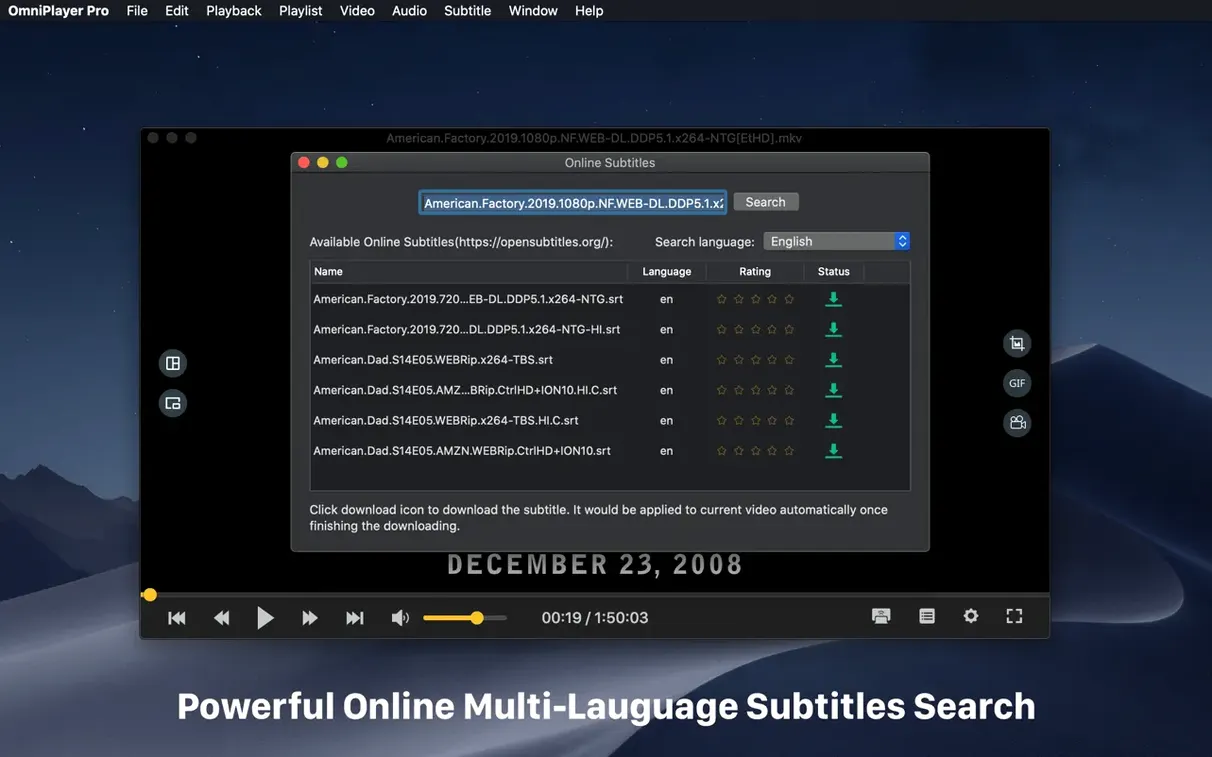
- Assuming the remote subtitle download will always match the correct language. The player searches by video title or hash. If your file is misnamed, the search may return subtitles in the wrong language. Manually load an SRT file to be certain.
- Fixed some bugs.
- Fixed a bug when loading a 30GB MKV file.
- macOS 11 or later
- Intel
Questions I get about this line
Yes. Version 2.1.22 includes a fix for a bug that occurred when loading a 30GB MKV file.
The install order
- Mount the disk image and run Open Gatekeeper friendly.
- Press Enter in Terminal to bypass Gatekeeper.
- Drag the app into the Applications folder.
- Launch the app.