
Free download (60 MB) Previous versions
- Version
- 2.21.0 fix
- Developer
- Chul Joo
- Languages
- Russian, English, Chinese (Simplified), Korean, Japanese
- License type
- Not required
| macOS range | macOS 11 or later |
|---|---|
| Chip | Apple Silicon, Intel 64-bit |
| Download | 60 MB |
| Previous versions | 1 on file |
Screenshots
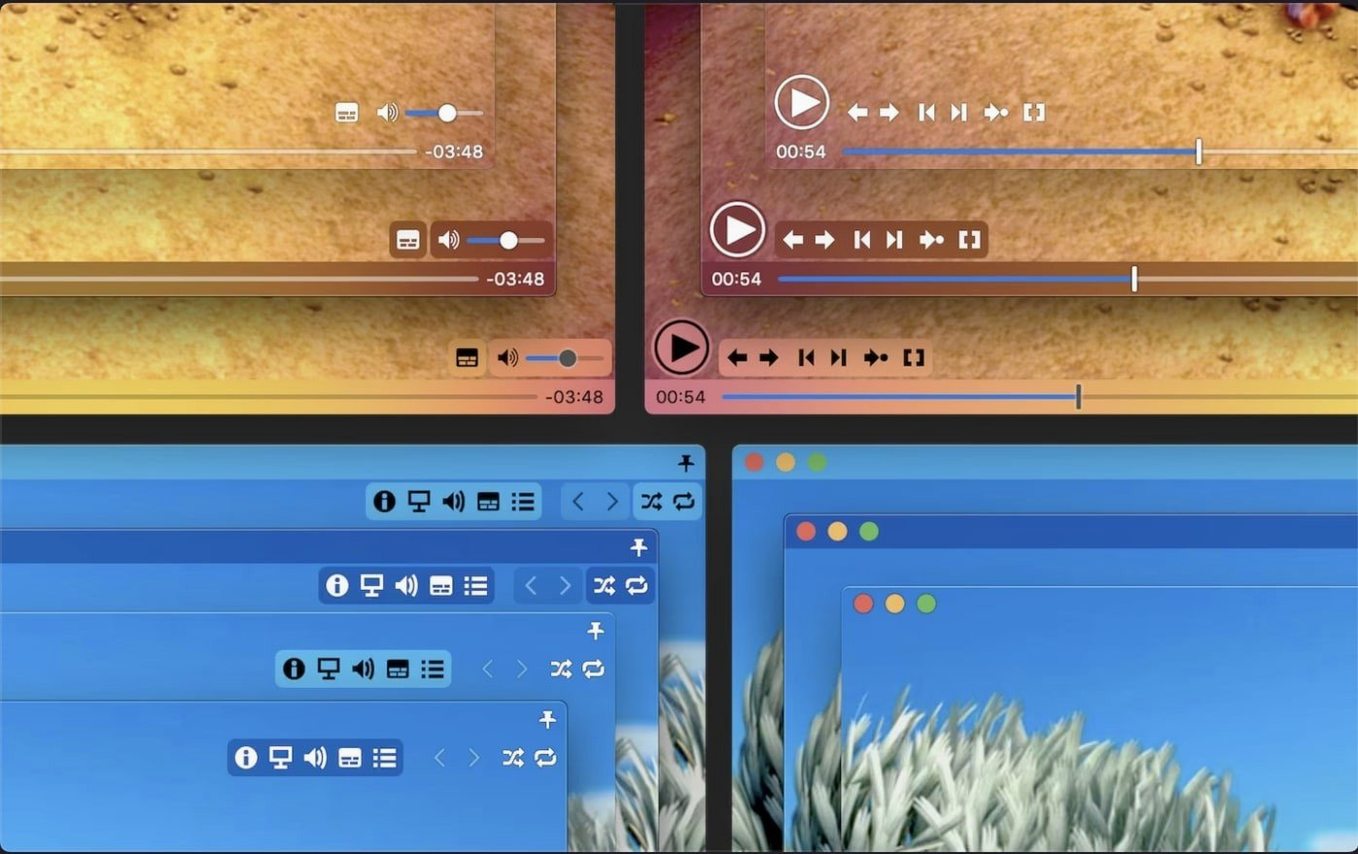
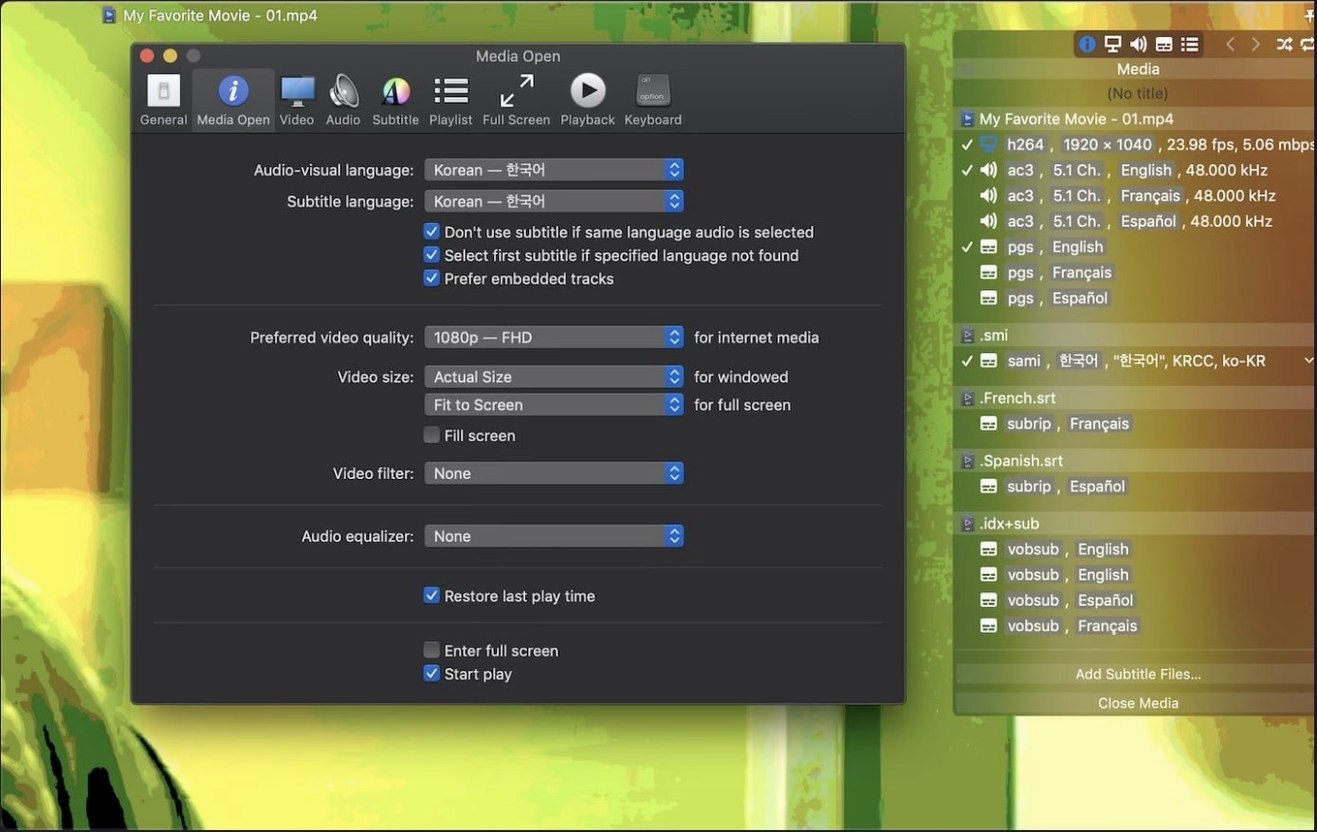
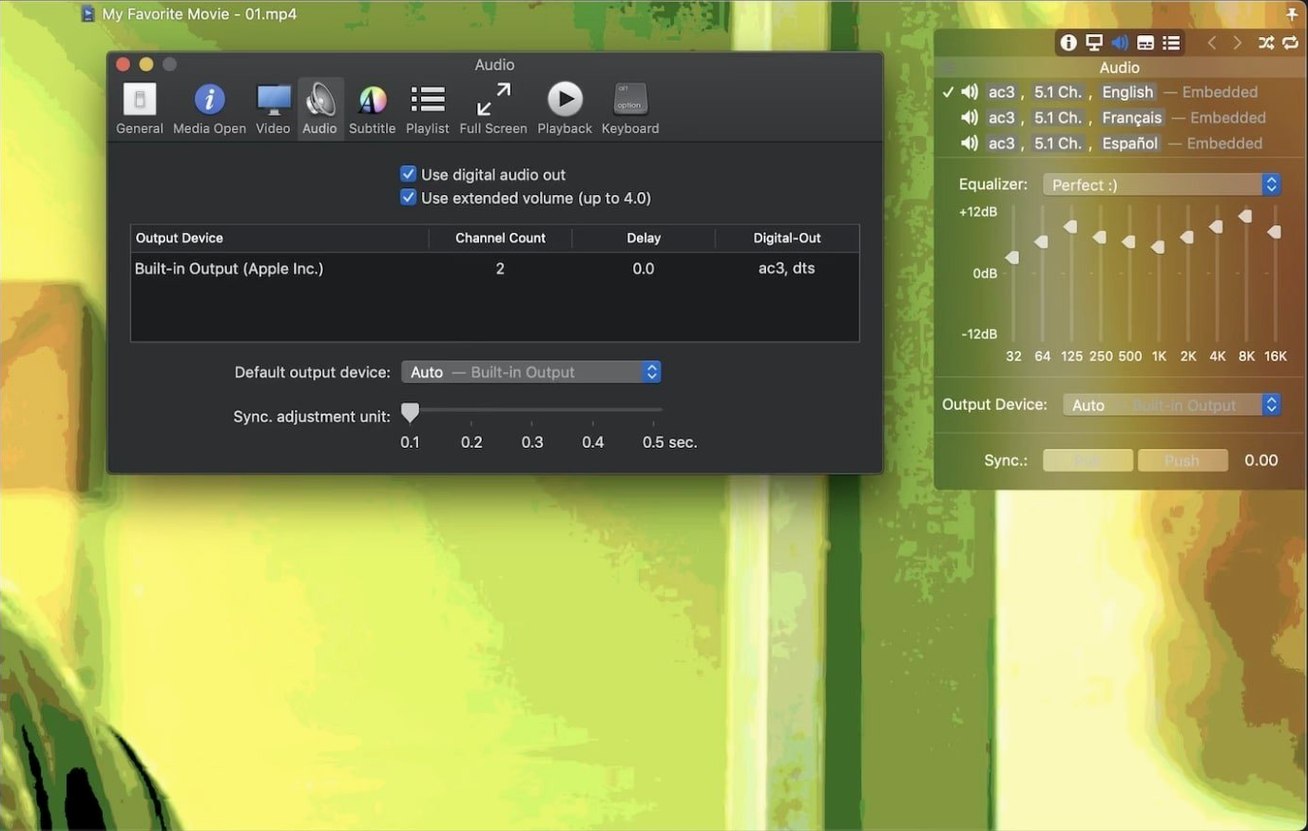
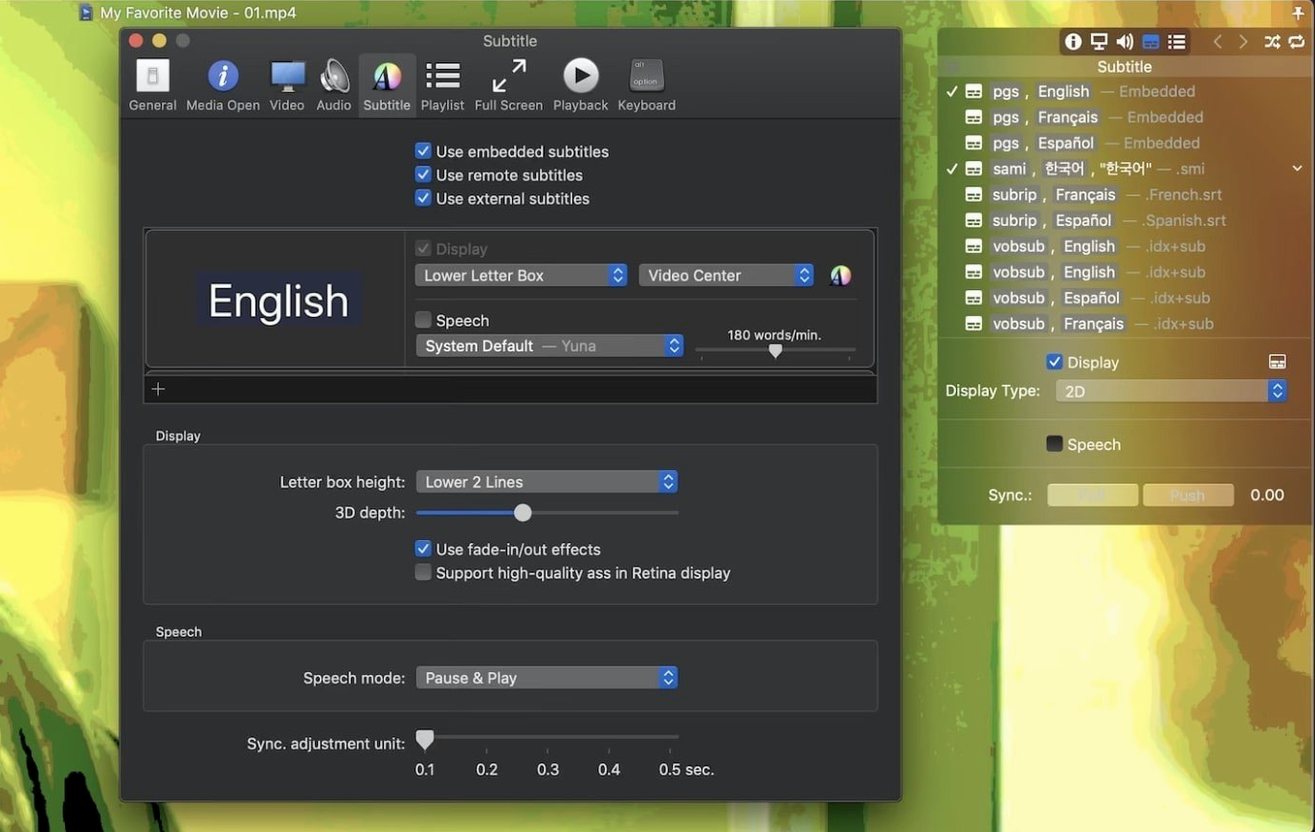
Scroll the row, it snaps to each screenshot. Click one to see it wider.
You just downloaded Movist Pro and opened a video file. The first thing you notice is the clean playback window. But the useful stuff is in the menus and preferences.
What a Newcomer Should Try First
- Subtitle handling. Movist Pro automatically detects text encoding, so most subtitles just work. Open a video with embedded subs and press the subtitle button to adjust size, position, and font.
- Playback speed. Use the speed control from the playback menu. It works smoothly for lectures or screencasts.
- Screenshot capture. Grab a frame with a keyboard shortcut. Handy for pulling stills from video.
- Window modes. Switch between single-window and multi-document modes to see which fits your workflow.
Under the Hood
Movist Pro is built on QuickTime and FFmpeg, so it handles a wide range of formats. Hardware acceleration for H.264 and H.265/HEVC decoding keeps playback smooth on both Intel and Apple Silicon Macs. Recent fixes address TS video playback and a crash when System Integrity Protection is disabled. That makes it a reliable daily player for mixed video collections.
Playlist Autocompletion for Large Local Libraries
People who keep large local video libraries get the most out of it. If you store TV series, movies, or lecture archives on an external drive, the playlist autocompletion feature saves time — it searches episode files and subtitles automatically. Media archivists and video collectors who dig through folders of MKV, MP4, and TS files will appreciate the reliable codec support.
Subtitles are a big differentiator. Movist Pro supports multiple subtitle formats, embedded subtitles, and compressed subtitles inside .zip and .rar files. It also handles 3D subtitles and Letter Box display. Anyone who watches foreign films or fan-subbed content will find the sync adjustment and unlimited simultaneous subtitles useful. That includes anime fans, international news watchers, and language learners.
Sandboxed App Mode and Retina Display Support
Movist Pro plays well with the Mac ecosystem. Its sandboxed app mode lets you run it in an isolated environment, which is useful when you want to keep the player separate from your main work setup. Retina display support means the interface and video output look sharp on modern MacBooks and iMacs.
It integrates with standard macOS file management. Drag a video file onto the player window and it opens immediately. It saves and loads playlists as plain files, so you can share playlists with other apps or keep them organized in folders. The screenshot capture outputs standard image formats you can paste into notes, emails, or editing tools.
For home theater setups, the S/PDIF digital audio output feeds directly into external DACs or receivers. That separates it from basic players that only handle stereo through the headphone jack.
QuickTime Engine and Stronger Subtitle Handling
VLC is the closest competitor. Both use FFmpeg for codec support. But Movist Pro adds QuickTime playback as an alternative engine, which can make a difference for legacy MOV files or QuickTime-specific content. Movist Pro also has stronger subtitle handling — VLC supports basic subtitles but not compressed archives or 3D subtitles natively.
MPV is another option for power users who want a minimal player with scriptable controls. It is lighter on system resources but lacks a polished interface. Movist Pro offers a more complete out-of-box experience with customizable subtitle display, window modes, and HDR tone mapping — all accessible from the menu without editing config files.
IINA is popular on macOS and has a modern interface. It also supports hardware acceleration and subtitles. Where Movist Pro pulls ahead is the subtitle depth: unlimited simultaneous subs, Letter Box display, and automatic encoding detection work without extra setup. IINA handles basic subs fine, but Movist Pro targets users who need more control over how subtitles appear on screen.
- Fixed an issue where some TS videos would not play.
- Fixed a crash that could occur when System Integrity Protection was disabled.
- macOS 10.13 or later
- Intel or Apple Silicon
Questions I get about this line
Yes, Movist Pro automatically detects subtitle text encoding and also supports embedded subtitles, so most subtitle files will display correctly without manual adjustment.
The install order
- Mount the disk image and run Open Gatekeeper friendly.
- Press Enter in Terminal to bypass Gatekeeper.
- Drag the app to the Applications folder.
- The app is ready to use.