Free download (2.3 GB) Previous versions
- Version
- 9.10.0
- Developer
- DxO Labs
- Languages
- English, German, Chinese (Simplified), French, Japanese
- License type
- K'ed by Antibiotics
| macOS range | macOS 14.7 or later |
|---|---|
| Chip | Apple Silicon, Intel 64-bit |
| Download | 2.3 GB |
| Previous versions | 5 on file |
Screenshots
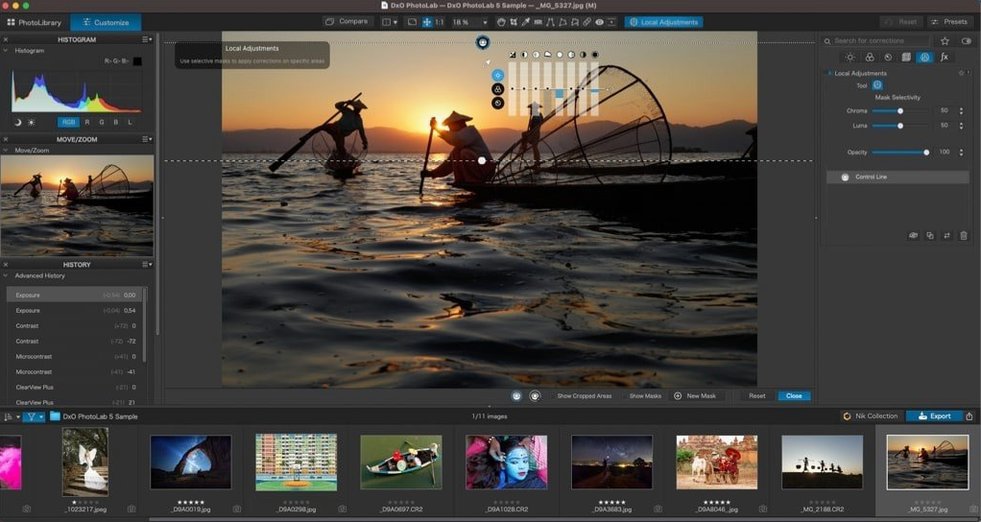
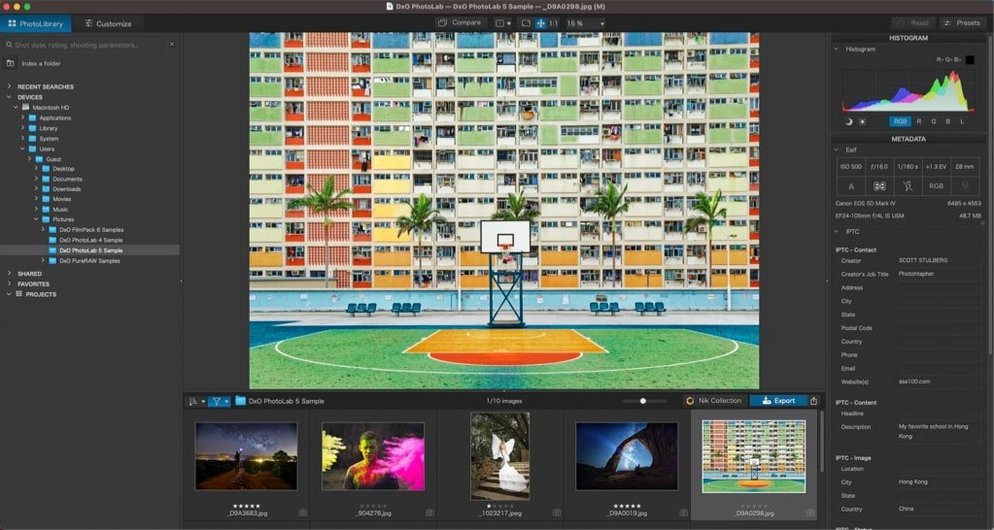
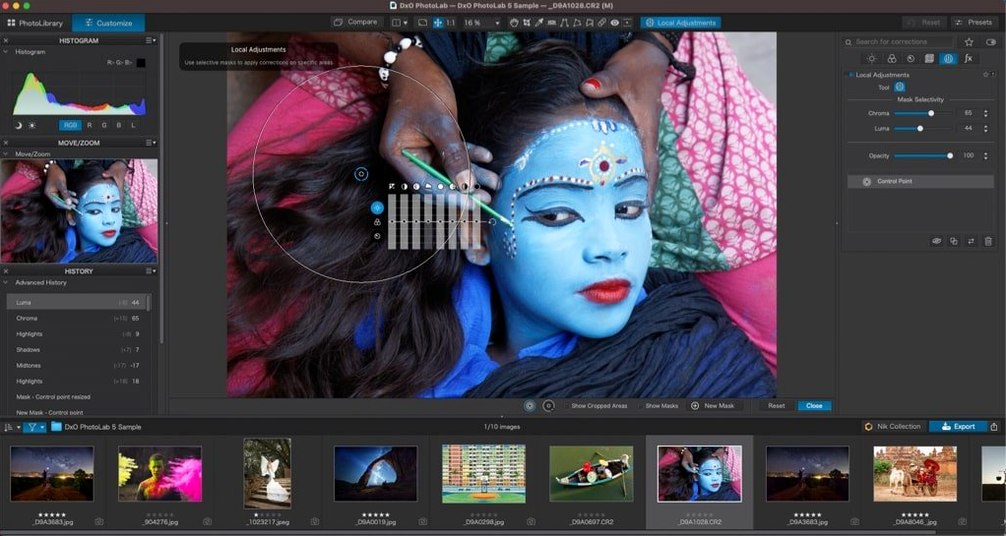
Scroll the row, it snaps to each screenshot. Click one to see it wider.
DxO PhotoLab 9.10.0 for macOS updates the RAW photo editor with refined automation and correction tools, fitting naturally into a Mac workflow alongside other creative apps.
Edit sync — Quick-select Subject Types to synchronize edits across multiple images.
Manual override — Take control of automated corrections when the scene demands it.
Optical corrections — DxO Modules apply lens and camera-specific measurements for distortion, vignetting, and chromatic aberration fixes.
AI Masks — Subjects like skies, people, backgrounds, and animals are detected and masked automatically.
DeepPRIME — Combines demosaicing and noise reduction for cleaner raw files at high ISOs.
ClearView — Reduces haze and atmospheric blur.
Smart Lighting — Adjusts exposure in shadows and highlights.
Setup issues and their fixes
People run into the same few issues when setting up or using DxO PhotoLab 9. Here is what usually happens and what to do about it.
DxO Modules not downloading
The app needs its optical correction modules to apply lens-specific fixes. If modules stall or fail to download, check your internet connection first. Some corporate or home firewalls block the module server. Temporarily disable any VPN or security software, restart the app, and try again. Modules download once and cache locally, so you only need a clear connection the first time for each camera-lens combination.
Slow previews with DeepPRIME XD3
DeepPRIME XD3 processing is computationally heavy. Previews may lag on older Macs or when editing high-megapixel files. Let PhotoLab finish its initial render before making further adjustments. You can also work in a lower-quality preview mode during editing and switch to final rendering only when you export. The app handles the full calculation on export regardless.
Copy-paste adjustments not applying
The copy-and-paste local adjustments feature works only between images that share the same camera and lens metadata. If you try to paste adjustments from a Sony file onto a Nikon file, the optical correction data may not match, and the paste fails silently. Stick to copying between images from the same body and lens pairing, or reset the optical corrections on the target image before pasting.
Where it stands vs. Lightroom, Capture One, and Apple Photos
PhotoLab 9 sits in a specific spot among Mac photo tools. Here is how it stacks up against three common alternatives.
Adobe Lightroom Classic — Lightroom has a broader ecosystem with cloud sync, print modules, and a huge community of presets. PhotoLab counters with DxO Modules for optical corrections that are often more accurate than Lightroom's automatic profiles, especially for older or less common lens combinations. PhotoLab also applies DeepPRIME noise reduction at the raw level rather than as a post-processing filter, which can recover more shadow detail.
Capture One Pro — Capture One is preferred by many studio and tethered-shooting photographers for its color grading tools and layer-based masking. PhotoLab's AI Masks cover similar ground for subject detection — skies, people, animals, backgrounds — but Capture One's layer system offers more manual compositing control. Capture One supports Fujifilm X-Trans files natively, as does PhotoLab with DeepPRIME XD3. Both run on Intel and Apple Silicon Macs.
ON1 Photo RAW — ON1 markets itself as a Lightroom alternative with a non-destructive workflow and built-in layering. Its noise reduction is effective but not equal to DeepPRIME for high-ISO raw files. ON1 includes a file browser and catalog system, while PhotoLab uses a simpler folder-based browser. Photographers who want direct optical corrections without adjusting camera profiles usually prefer PhotoLab's DxO Modules approach.
macOS version and hardware requirements
Will it work with my Mac? — PhotoLab 9.10.0 requires macOS 14.7 or later. It runs natively on both Intel and Apple Silicon (ARM) Macs. If you are still on macOS 13 or older, you need to update your operating system first.
Does it support my camera? — The app processes raw files from more than 600 digital cameras. DxO Labs maintains a compatibility list on their site. Most mainstream mirrorless and DSLR cameras from the last decade are covered. If you use an older or niche model, check the list before downloading.
Can I use it alongside Lightroom or Capture One? — Yes. PhotoLab can export DNG or TIFF files that open in any other editor. Many photographers use DxO for initial raw conversion and noise reduction, then finish color and retouching in their primary app. The two workflows do not conflict.
Is the interface in English only? — No. The software ships in English, German, Simplified Chinese, French, and Japanese. You can switch the language in the app preferences.
Do I need an internet connection to use it? — You need a connection for the initial DxO Modules download and for future module updates. After that, PhotoLab works fully offline.
Runs natively on Intel and Apple Silicon Macs under macOS 14.7 or later.
- macOS 14.7 or later
- Intel or Apple Silicon processor
Questions I get about this line
Yes, you can synchronize edits between images using quick-select Subject Types, and copy/paste local adjustments from one image to another.
It requires macOS 14.7 or later, and runs on both Intel and Apple Silicon Macs.
The install order
- Open the included installation package.
- Start the installer from inside the package.
- Click Next in the welcome dialog.
- Drag the app icon to the Applications folder.
- Launch the app from the Applications folder.
- Read and accept the license agreement to continue.