
Free download (60 MB) Previous versions
- Version
- 1.4.1
- Developer
- Monologue
- Languages
- English
- License type
- Not required
| macOS range | macOS 14 or later |
|---|---|
| Chip | Apple Silicon, Intel 64-bit |
| Download | 60 MB |
| Previous versions | 1 on file |
Screenshots
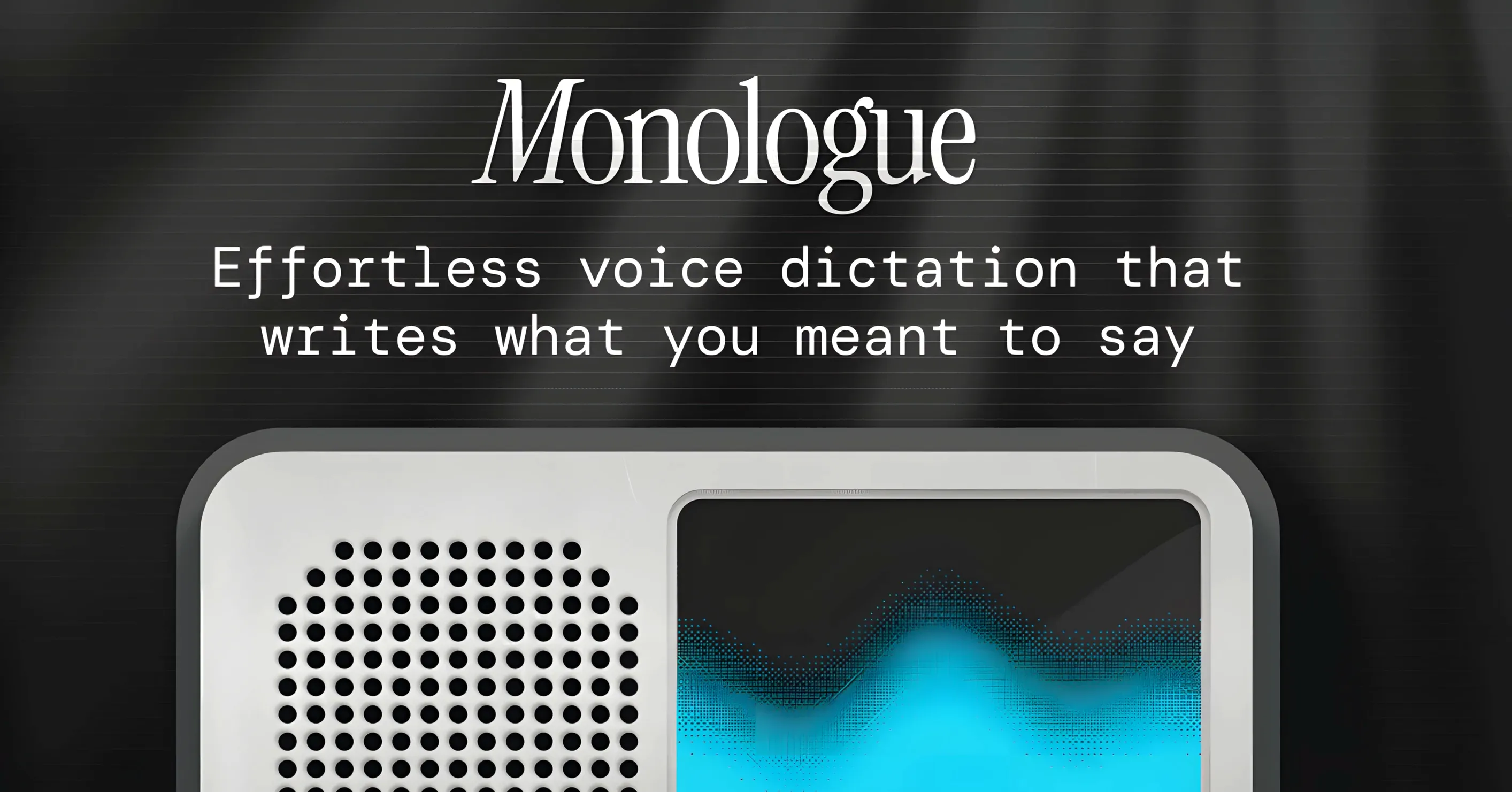
Monologue runs on any Mac with macOS 14 or later, and it works on both Intel and Apple silicon. Local transcription, though, is limited to Apple silicon Macs.
Dictate into other Mac apps — You can use Monologue to drop text into any application that accepts typing.
Voice Notes — Record quick thoughts and have them transcribed automatically.
History — Past transcriptions stay saved and searchable.
Personalization — The app adapts to your voice and vocabulary over time.
Language support — Over 100 languages are covered.
Setup involves moving the app to Applications, opening it, signing in, and following the in-app guide. If you want local transcription, you need an Apple silicon Mac.
Saves Drafts and Notes for Typists
Writers and journalists who type all day save time by dictating drafts into their word processor or email client. The history feature means they never lose a transcribed note.
Medical and legal professionals who need accurate, formatted text without typing can dictate directly into forms or documentation apps. The automatic formatting and error removal reduce cleanup.
Non-native English speakers get support for over 100 languages, though the interface and transcription default to English. The personalization adapts over time to catch unusual terms or names.
Anyone who prefers dictation over typing for accessibility reasons can replace keyboard input in most apps. Since it works locally on Apple silicon, there is no internet dependency for transcription.
Sample workflow: dictating an email
- Open your email client and place the cursor in the message body.
- Launch Monologue from the dock or Launchpad.
- Click the microphone button or use the configured start key to begin recording.
- Speak naturally. Say "new paragraph" or "comma" to control formatting.
- Stop recording when finished. Monologue inserts the transcribed, cleaned text directly into the email field.
- Review and send as usual.
Who benefits most
Students writing papers or taking notes in class get a clear advantage. Instead of typing during a lecture, they can record their own thoughts afterward and have Monologue drop the text into a notes app. The over-100-language support helps when mixing technical terms or foreign phrases.
Freelancers and remote workers who jump between Slack, email, and project management tools stay in one flow. Dictate a response in Monologue, and it lands in the active text field without pasting or dragging.
Bloggers and content creators drafting long-form posts can speak paragraphs faster than they type. The automatic formatting handles punctuation and paragraph breaks, so cleanup after dictation is minimal.
Mac administrators or IT staff testing dictation workflows across multiple machines benefit from the simple setup — drag to Applications, sign in, done. No driver installs or system extensions.
Workflow: transcribing a meeting recording into a document
- Open your notes or document app and create a new page.
- Launch Monologue and switch to Voice Notes mode if you want to record first, then transcribe.
- Play the meeting recording through your Mac speakers or headphones while Monologue listens. For longer recordings, pause and resume as needed.
- Monologue removes repeated words and errors on the fly, so the output text is cleaner than raw transcription.
- Stop capture when the meeting ends. The transcribed text appears in the document, already formatted with sentence breaks.
- Search History later if you need to pull up a specific quote or section from past sessions.
This approach works for journalists transcribing interviews, project managers documenting action items, or anyone who prefers local processing over cloud services. The whole process stays on your Mac.
The whole process takes seconds and keeps your hands on the desk. No switching windows or copying text.
- macOS 14 or later
- Intel or Apple silicon
- Apple silicon required for local transcription
Questions I get about this line
No, it runs on both Intel and Apple silicon Macs with macOS 14 or later. Local transcription, however, is only available on Apple silicon.
The install order
- Mount the downloaded disk image.
- Drag Monologue to the Applications folder alias.
- Open the app once copying finishes.
- Launch it from Launchpad.