- Version
- 2.3.3 [MAS]
- Developer
- XiuXia Yang
- Languages
- Russian, English, German, Spanish, Italian, Chinese (Traditional), Chinese (Simplified), French, Japanese
- License type
- K'ed by TNT team
| macOS range | OS X 10.10 or later |
|---|---|
| Chip | Apple Silicon, Intel 64-bit |
| Download | 8 MB |
Screenshots
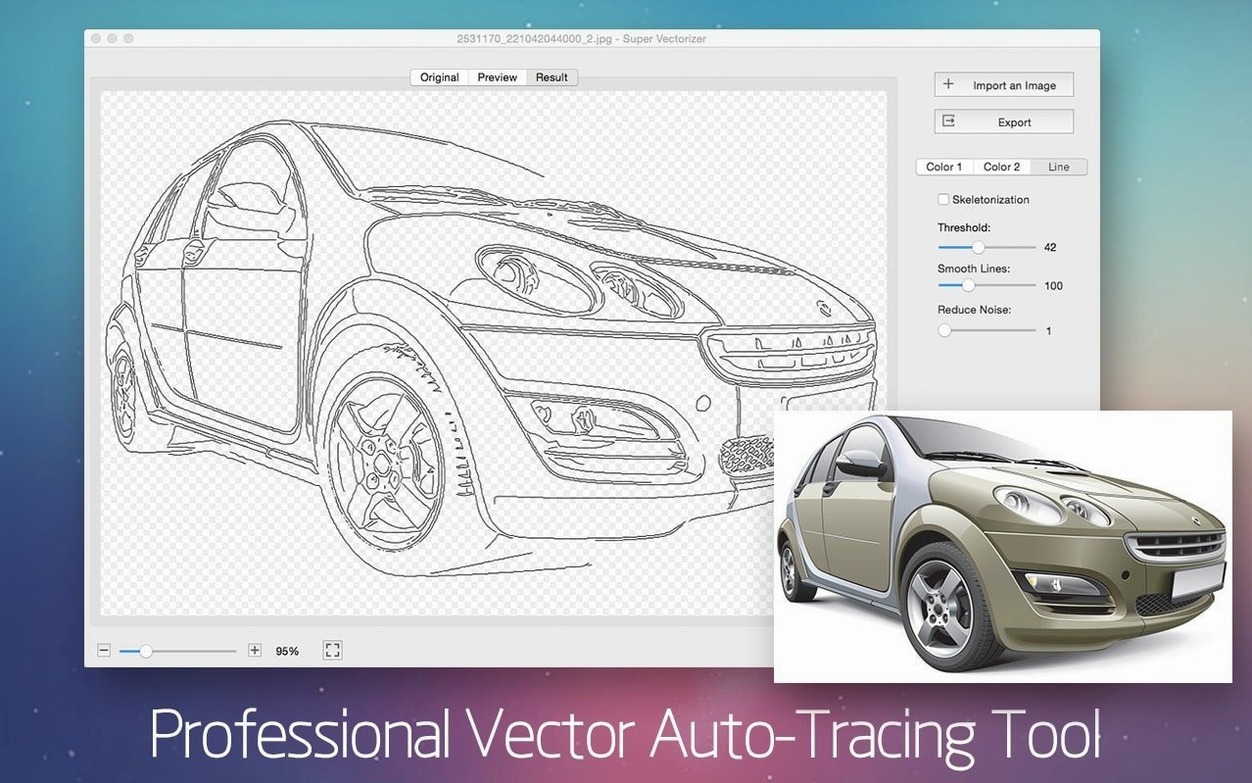
Scroll the row, it snaps to each screenshot. Click one to see it wider.
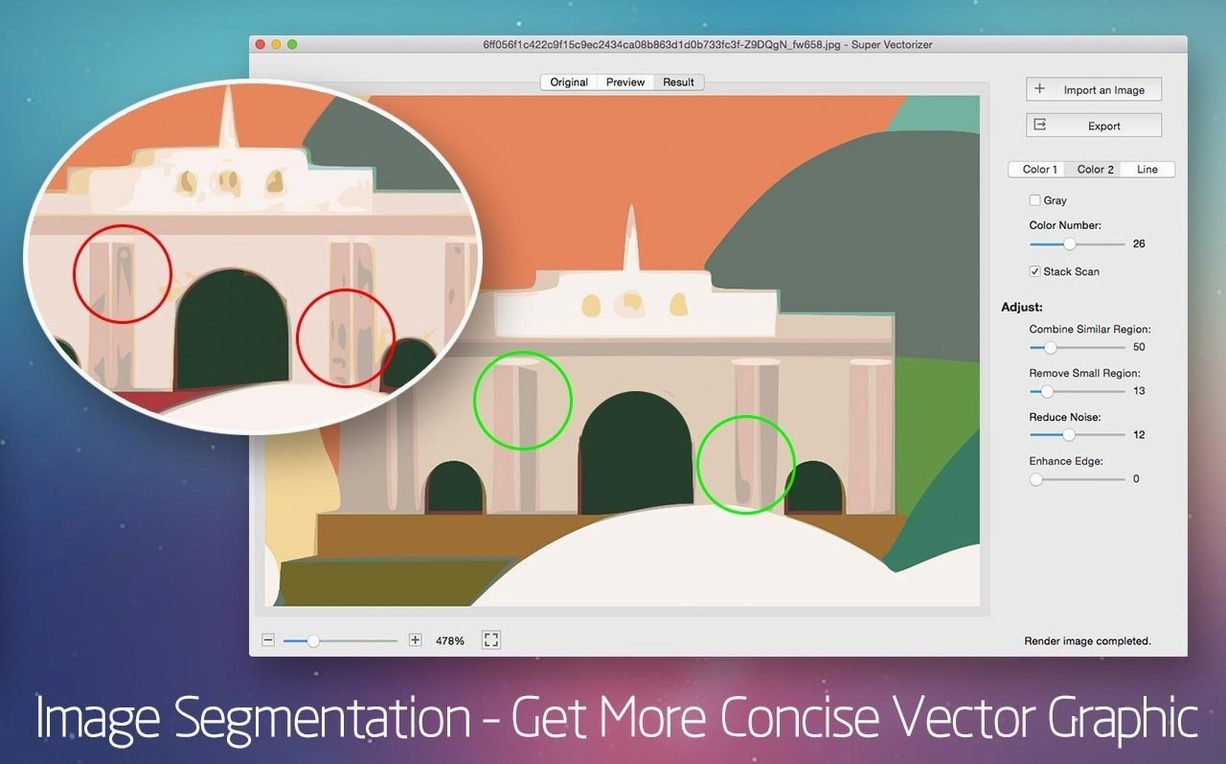
Super Vectorizer Pro accepts more than 70 input image formats, so your first test can be almost any PNG, JPG, or even a scanned sketch. The app shows the vectorization effect in real time, meaning you see the result as you adjust settings—no waiting for a preview render.
What should I vectorize first?
Start with a logo or a simple graphic with flat colors. The trace handles clean edges well, and you can limit the output to up to 64 colors, which keeps the vector clean and editable.
Lower Color Count and Use Skeletonization for Photos
Photos need more tweaking. Lower the color count and turn on skeletonization if you want line-like output. Real-time preview makes it easy to experiment until the shapes look right.
Can I use the output in Illustrator or Corel?
Yes. Exported files work with Illustrator, Corel, and other vector editors on Mac. You can open the result directly, or import it into a larger project.
What if the interface is not in English?
Super Vectorizer Pro supports English, plus Russian, German, Spanish, Italian, Traditional Chinese, Simplified Chinese, French, and Japanese. Change the language from the preferences and restart if needed.
Drag and Drop a Bitmap to Start Tracing
Open Super Vectorizer Pro and drag a bitmap file onto the window. The app reads it quickly and shows the preview. Start adjusting the color count slider—drag it down to 8 or 12 for a clean logo trace, or up to 64 if you need more detail from a complex image. The preview updates as you move the slider, so you can stop when the shapes look right.
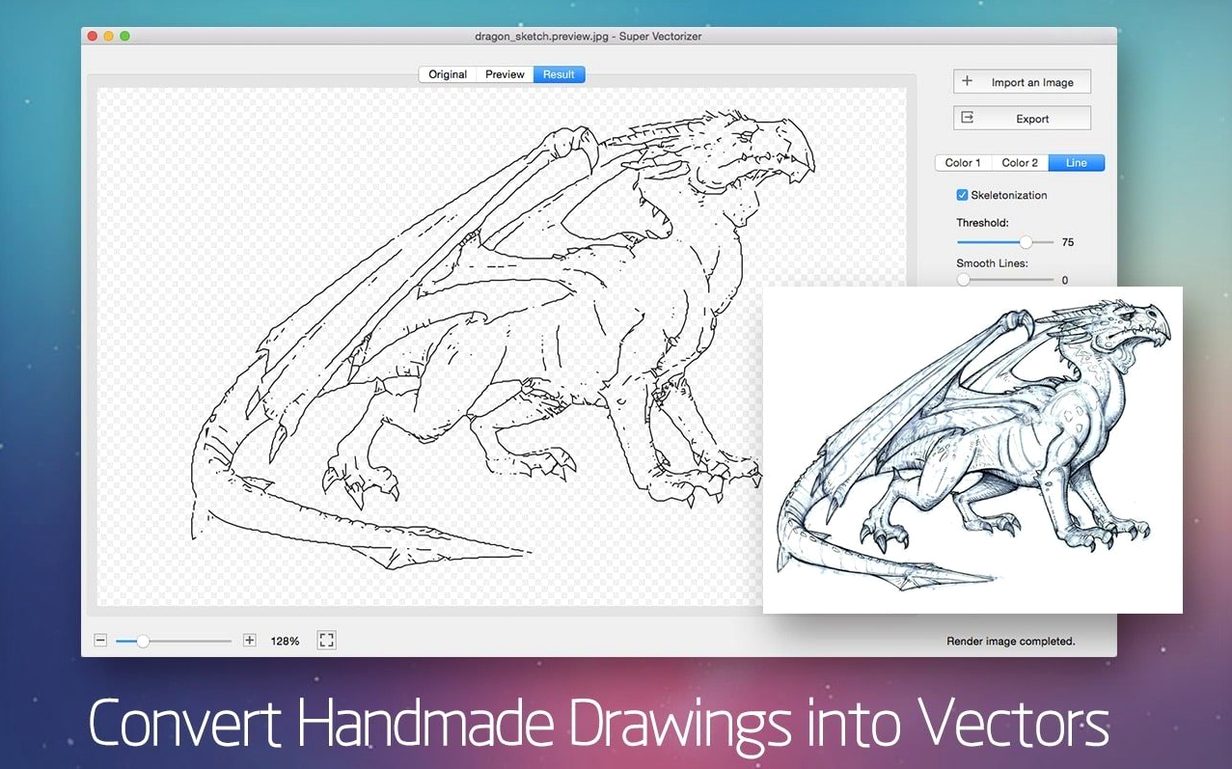
Enable the skeletonization function if you are tracing a pencil drawing or a line-based sketch. That setting keeps the output as thin strokes instead of filled shapes, which works better for hand-drawn art. Watch the preview to see the lines sharpen.
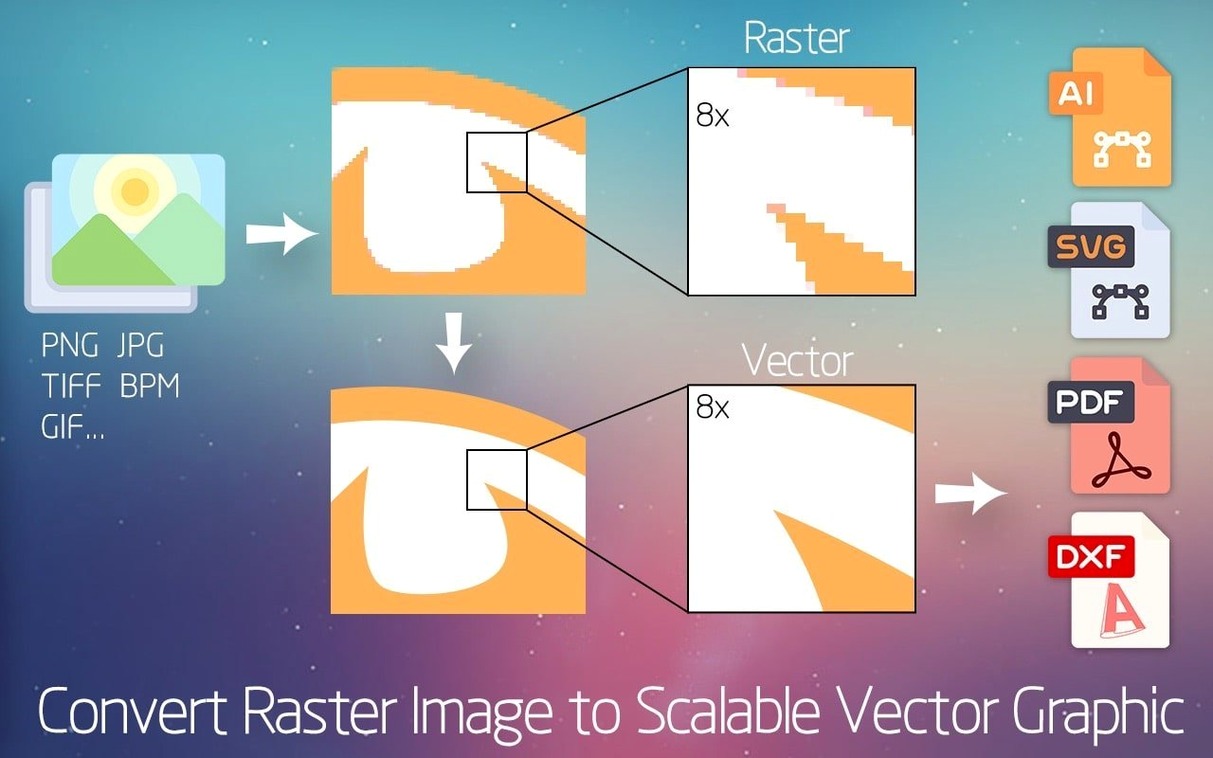
Once the result looks good, choose your export format. AI, SVG, DXF, and PDF are all available. Pick SVG if you need a web-ready file, or AI if you plan to open it in Illustrator. The app saves the file to disk, and you open it directly in your vector editor.
Runs on Intel and Apple Silicon Macs
Super Vectorizer Pro runs on OS X 10.10 or later. It supports both ARM and 64-bit x86 architectures, so the Intel Mac in the back office and the newer Apple Silicon machine in the design studio both work. The app itself is small—the disk image mounts quickly, and the install takes under a minute. No extra libraries or helper tools are required. You just drag the app into Applications and launch it.
Don't Leave Color Count at Maximum
The most common mistake is leaving the color count at maximum for every image. A photo vectorized with 64 colors produces a messy SVG with too many shapes. Start low, then increase only if the preview shows missing detail.
Another issue is skipping the skeletonization option for line art. Without it, a pencil sketch becomes a set of filled blobs instead of clean strokes. Toggle that setting on for any image that is mostly lines.
Some users forget to check the transparent background output. If your vector has a white box around it, re-export with transparency enabled. The setting is easy to miss if you are in a hurry. A quick glance at the export dialog before saving avoids rework.
Beginners also assume the real-time preview is final. It is accurate, but the preview resolution is lower than the exported file. Zoom in on the preview to verify small details before exporting. That extra check saves time later in your vector editor.
- macOS OS X 10.10 or later
- Intel or Apple Silicon
The install order
- Mount the disk image.
- Open Gatekeeper friendly.
- Press Enter in Terminal to bypass Gatekeeper.
- Drag the app into the Applications folder.
- Launch the app.