Free download (23 MB) Previous versions
- Version
- 4.5.1
- Developer
- Floor Steeg
- Languages
- English, German, Dutch, French, Czech, Japanese
- License type
- Not required
| macOS range | macOS 12 or later |
|---|---|
| Chip | Apple Silicon, Intel 64-bit |
| Download | 23 MB |
| Previous versions | 2 on file |
Screenshots
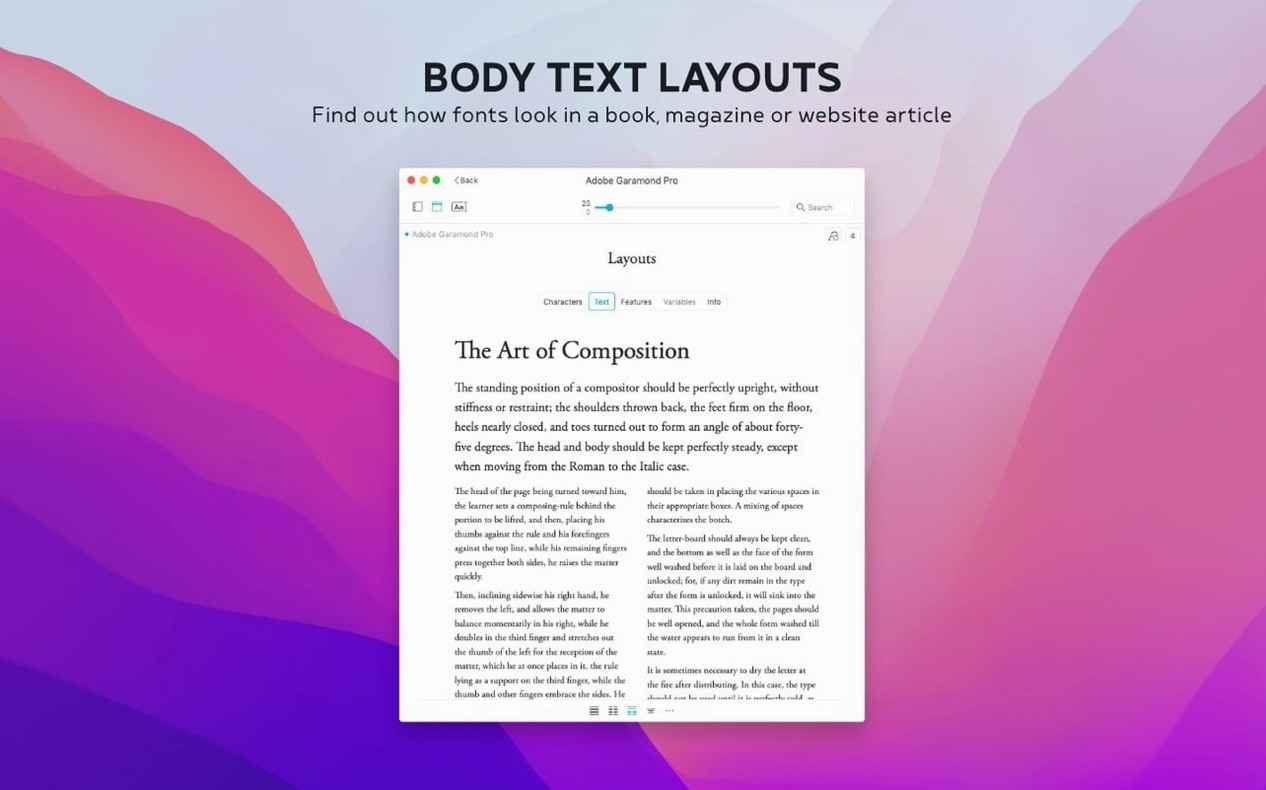
Scroll the row, it snaps to each screenshot. Click one to see it wider.
Version 4.5.0 of Typeface supports .otc font files, a format that bundles multiple OpenType fonts in one file.
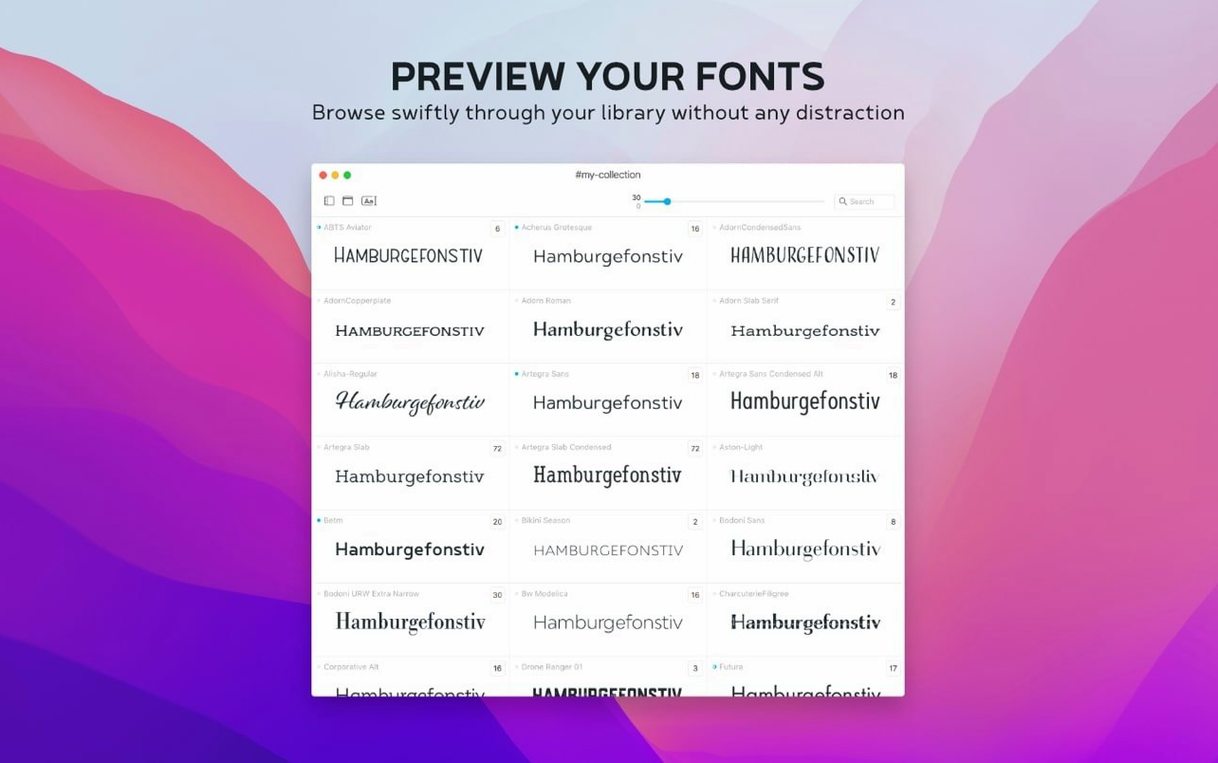
Preview — See any font in different sizes, sample texts, weights, and effects before you install it.
Compare — Put two or more fonts side by side to check which one fits the job.
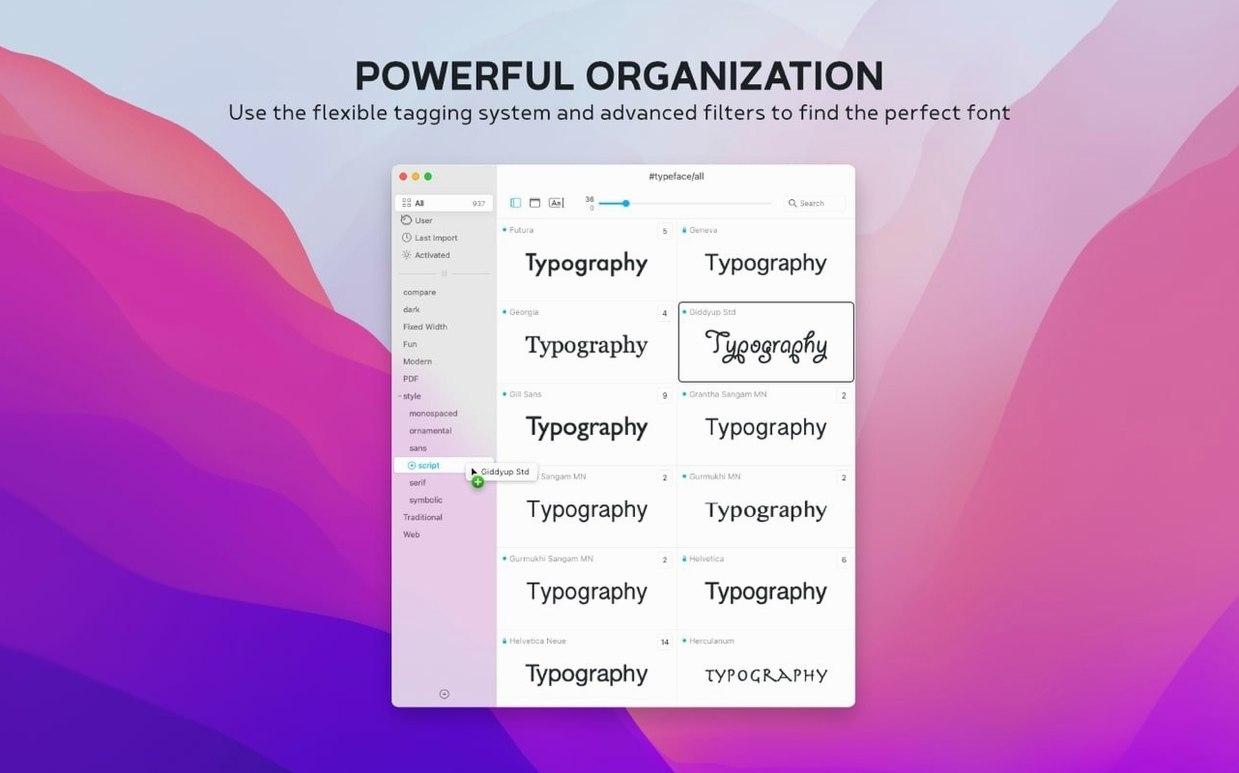
Groups and tags — Assign a font to more than one group using tags, so the same family can live under “Headings” and “Brand” at once.
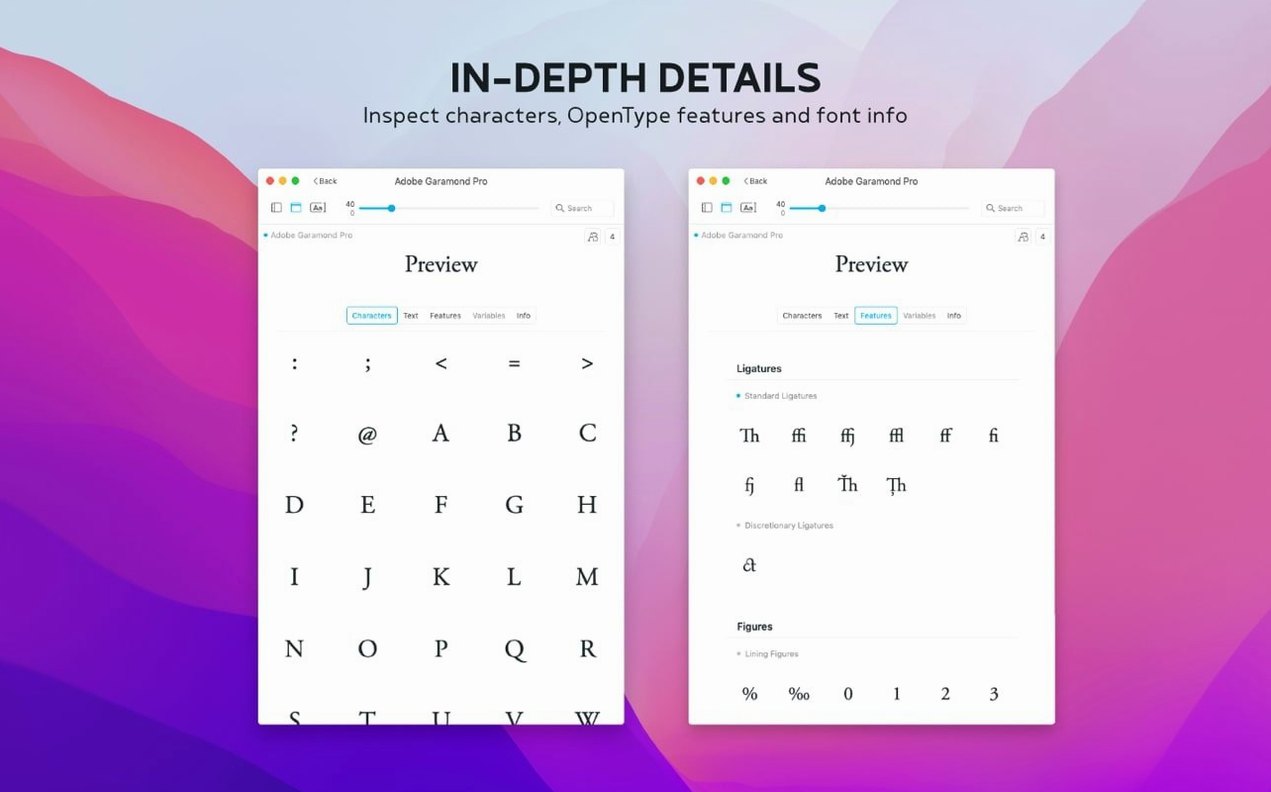
Notes — Add a note to any font in the Info tab, then search those notes from the overview. New in 4.5.
Last activated — Sort fonts by the date you last used them, so the ones you actually work with float to the top. New in 4.5.
Library view — Typeface shows every font installed on your Mac, including custom ones you added yourself.
First days with Typeface
Open Typeface and take a look at the Library view. It scans your installed fonts once, so nothing extra to configure. Start by adding notes to a few fonts you use often — a quick reminder of which project they were for or why you chose them. The Notes field is in the Info tab.
Try the search box after you have a handful of notes written. Searching across notes is one of the 4.5 additions and saves time when your font list grows long.
Create a couple of custom collections early. Drag a font into a collection rather than leaving everything in one big list. Tag a font that belongs to two purposes — it stays findable in both places without duplication.
Scenario: a designer with a backlog of typefaces
A freelance graphic designer has accumulated fonts from client projects over three years. Some are from free sources, some from typeface torrent downloads. The Library view shows everything, but the list is long. Using collections, the designer groups fonts by client. For a branding job, they tag a serif family as both “Client A” and “Headings”. The notes field holds the license note so they remember the usage terms later. The Last Activated column helps them see which fonts they actually opened recently — the rest can wait.
Drag-and-drop install, six-language UI
No background services or system modifications. The app runs from the Applications folder after you drag it there. It opens from Launchpad like any other Mac application. The interface responds in English, German, Dutch, French, Czech, or Japanese depending on your system language setting. Typeface works on macOS 12 or later regardless of whether your Mac uses Apple Silicon or an Intel processor.
Get the most out of notes and tags
Write notes in a way you will understand months later. Instead of "good font," write "Used for Client X brochure body text — paired with [other font]." The search box in 4.5 matches partial words, so a search for "brochure" will pull up that font even if the note is longer.
Tagging is worth doing right away. A single font can carry multiple tags: "Sans-serif," "Web," "Logos." When you need a web-safe sans-serif, one search catches everything without moving fonts between folders.
Scenario: a small design studio onboarding new hardware
A three-person studio swaps an older Intel iMac for a new Mac mini with Apple Silicon. They copy their font folders over manually. Opening Typeface on the new machine shows all the fonts immediately — no import process. Each designer creates their own collections for active client work. The Notes field holds version notes: "Updated to variable weight — do not use old static files." The Last Activated sort lets each designer see which fonts they touched this week without scrolling through the full library.
Interface languages: English, German, Dutch, French, Czech, and Japanese.
- Adds a Notes field for fonts in the Info tab.
- Adds search for notes in the overview.
- Adds a Last Activated column and sorting by last activated date.
- Adds support for .otc font files.
- macOS 12 or later
- Apple Silicon or Intel
The install order
- Open the downloaded disk image.
- Drag the app to the Applications folder.
- After copying finishes, launch the app from Launchpad.