Free download (372 MB) Previous versions
- Version
- 1.4.0
- Developer
- Topaz Labs
- Languages
- English
- License type
- Included
| macOS range | macOS 13 or later |
|---|---|
| Chip | Apple Silicon, Intel 64-bit |
| Download | 372 MB |
| Previous versions | 39 on file |
Screenshots
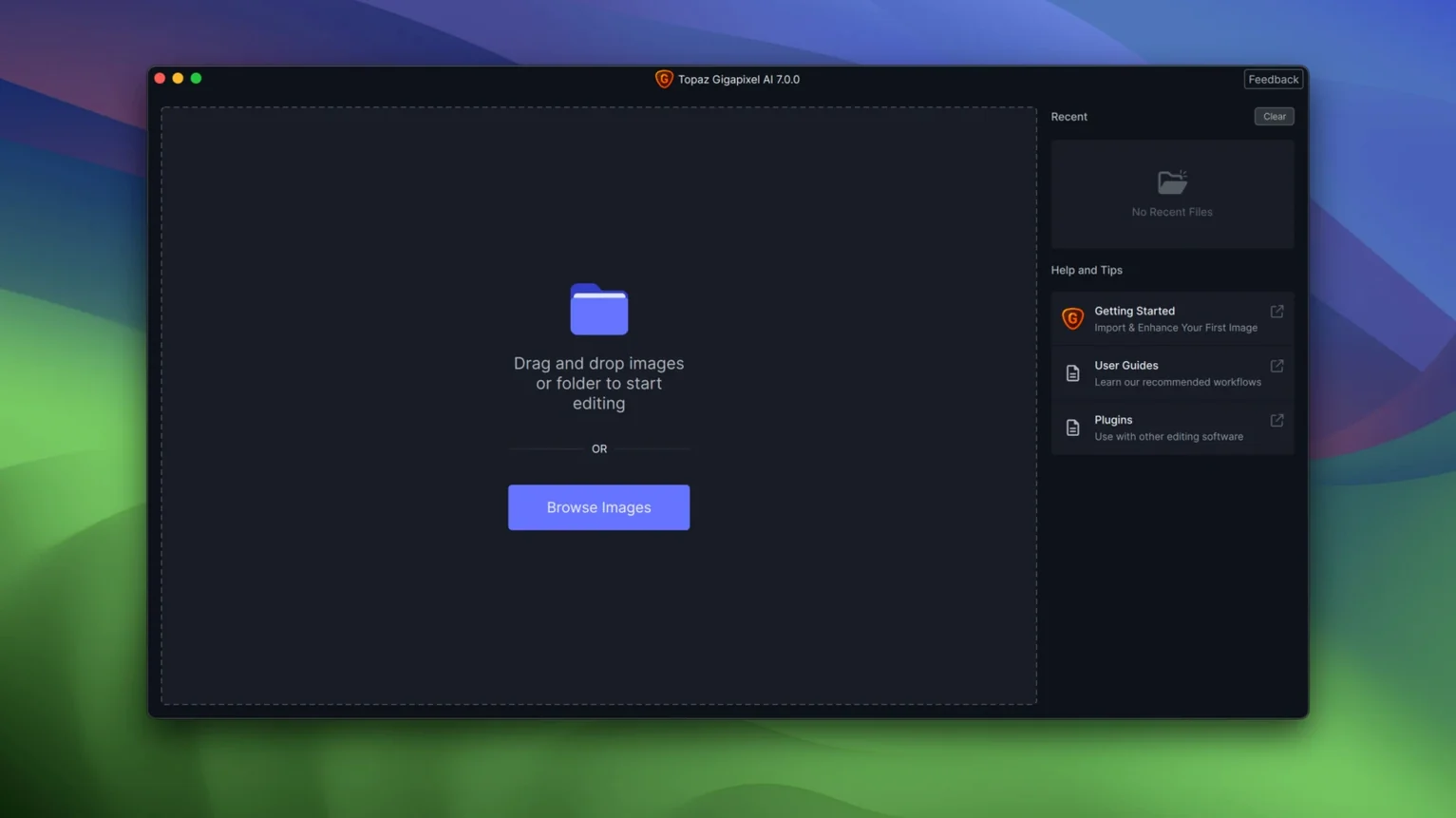
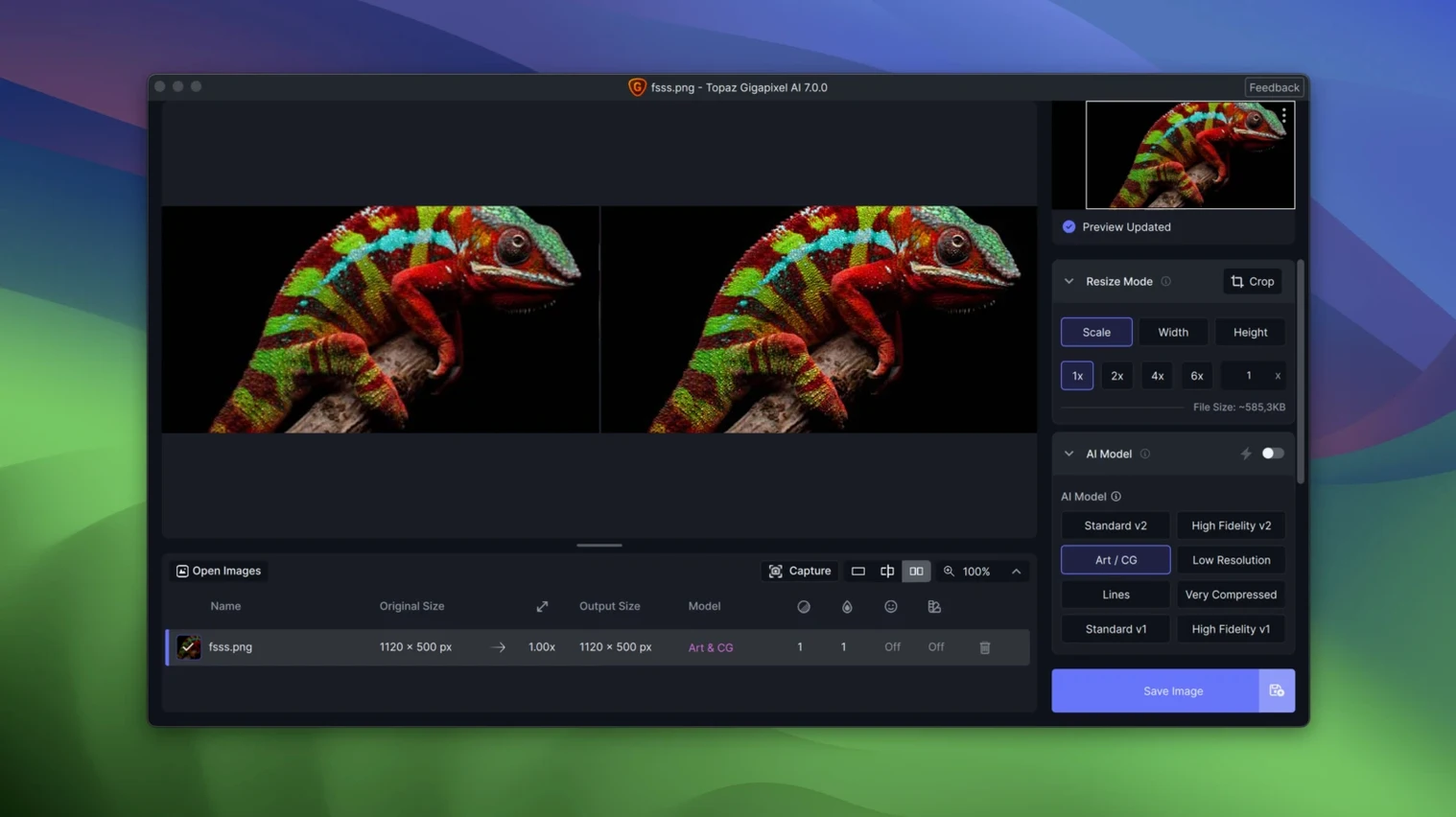
Scroll the row, it snaps to each screenshot. Click one to see it wider.
Version 1.3.5 of Topaz Gigapixel AI arrives with the same core mission: take a small, blurry image and make it larger without turning it into a pixelated mess. The AI models analyze the content and fill in detail that wasn't there before. That's the whole job, and it does it well.
Restoring Faces and Old Photos
Low-resolution portraits are a common pain point. Gigapixel AI's face recovery model reconstructs facial features so a grainy headshot becomes usable for prints or larger displays. Old family photos get the same treatment — the tool clears up softness and brings back detail that age and scanning have worn away.
Cleaning Line Art and PNGs
For designers and illustrators, there's a separate mode aimed at low-quality line art and PNG files. It smooths jagged edges and removes compression artifacts, which makes it a decent option for cleaning up scanned sketches or web-sourced graphics before you reuse them.
Workflow: Upscaling a Low-Res Portrait for Print
Here is how I walk through a typical job with a tiny, compressed portrait — the kind you grab from a website or an old email signature.
- Open Topaz Gigapixel AI 1.3.5 and drag the source JPEG or PNG onto the main window. The preview pane loads immediately.
- Select the face recovery model from the model dropdown. The app highlights faces in the preview with a box.
- Set the output size. For a 150x200 px headshot that needs to print at 5x7 inches, I set the scale factor to 4x. The preview updates in a second or two.
- Check the "Remove Artifacts" toggle if the source has visible blocky compression. This cleans up JPEG noise before the upscale runs.
- Click Process. Gigapixel sends the job to batch. I queue several portraits at once — the batch processing handles them in order without holding up other work.
- Export as TIFF for print or PNG for reuse. The app lands all outputs in a single folder with a name tag I set beforehand.
That is the whole routine. No intermediate saves, no manual masking.
E-commerce and Product Photographers Rebuilding Small Source Images
Photographers repairing client headshots are the obvious fit. But three other groups benefit more than most.
- E-commerce and product photographers — they pull small source images from vendors or old shoots and need them to look clean on large product pages. Gigapixel AI rescues those 800-pixel catalogue photos.
- Graphic designers pulling art from the web — low-res PNGs scraped from blog posts or stock archives can be upscaled without looking fuzzy. The line-art mode is especially helpful when a client hands you a 72-dpi logo.
- Archivists and family historians — old photos scanned at 300 dpi but stored at small dimensions can be enlarged for framing. The face recovery model keeps grandparents looking like themselves.
Real-World Scenario: The Nonprofit Event Poster
A friend runs a small Columbus nonprofit. The printer needed it at 300 dpi for a 16x20 poster.
She sent me the file. I dropped it into Gigapixel AI 1.3.5, selected the standard model (not face recovery — too many faces crammed together in the background), set scale to 5x, and toggled artifact removal on. The preview looked clean. After processing, the 5,000-pixel-wide TIFF went straight to the designer. The poster printed without complaints. She has used the same workflow for two posters since.
That is the kind of gig where Gigapixel AI saves the day — or at least saves a rush trip to find a higher-res source.
- macOS 12 or newer
- Works on both Apple Silicon and Intel Macs
The install order
- Install the package that matches your Mac's architecture (ARM or Intel): TopazGigapixel.pkg.
- Run Patch.command and enter your Mac password when prompted.