- Version
- 1.3.0
- Developer
- MIT
- Languages
- English
- License type
- Included
| macOS range | macOS 13 or later |
|---|---|
| Chip | Apple Silicon, Intel 64-bit |
| Download | 49 MB |
Screenshots
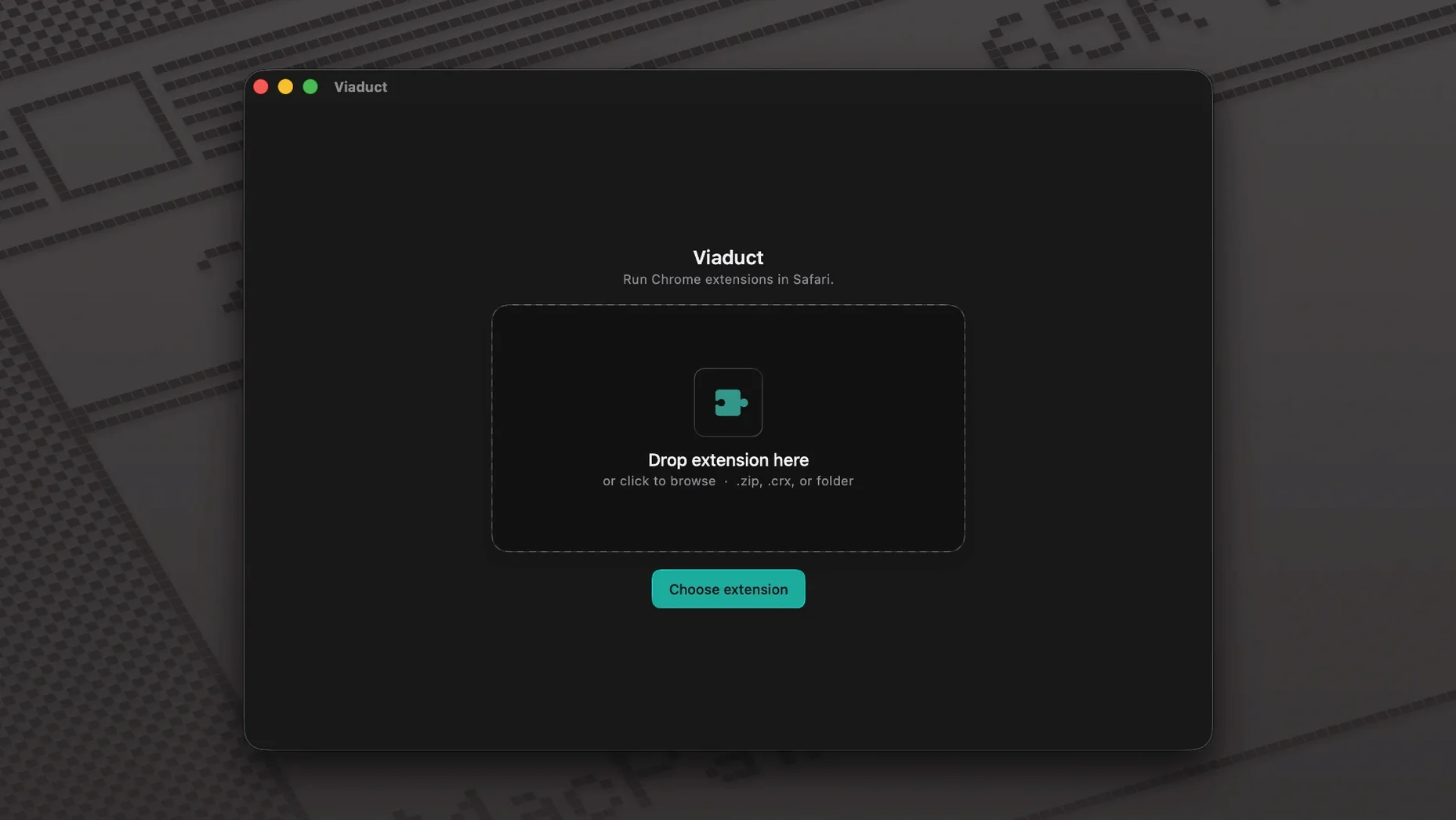
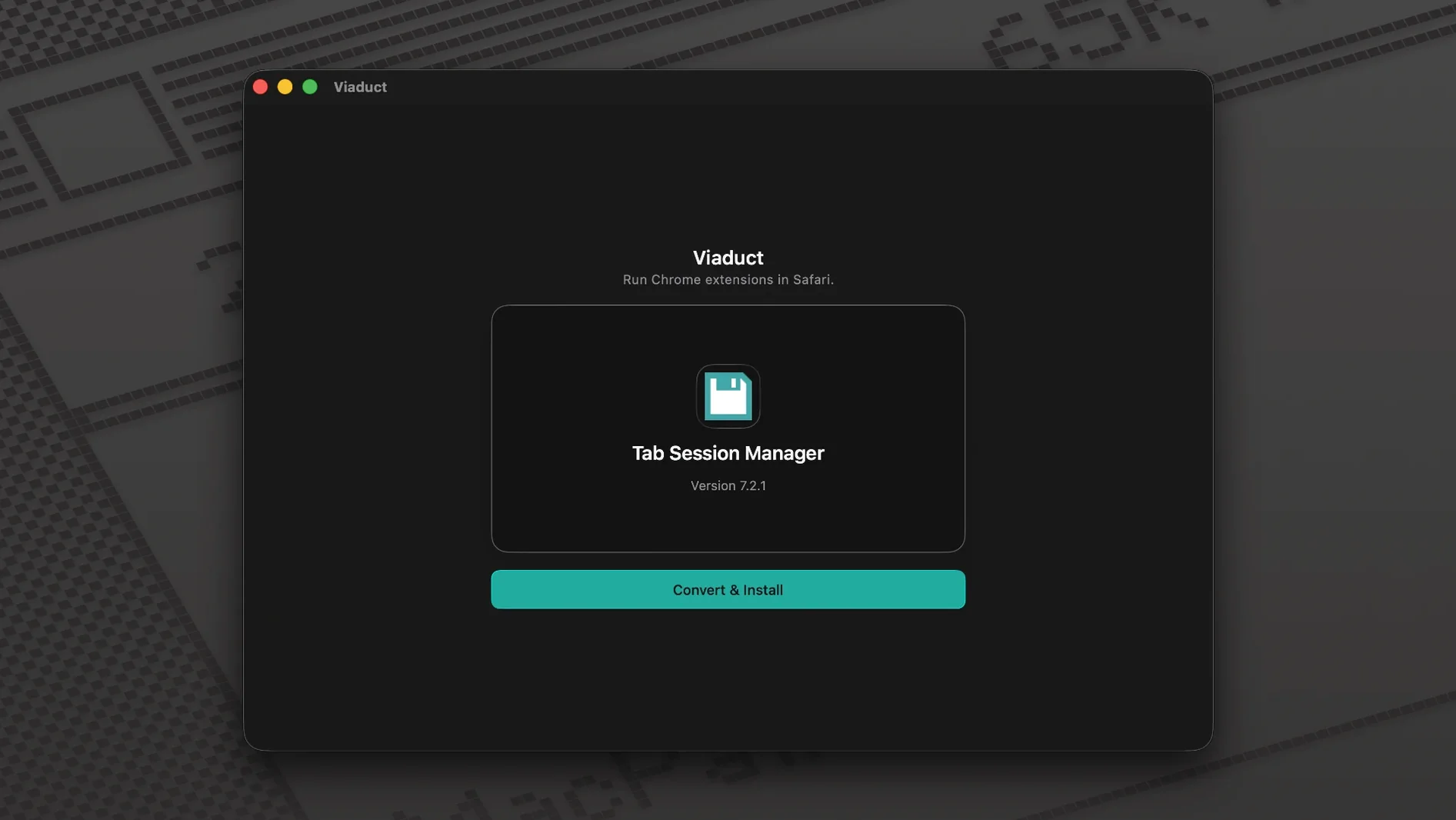
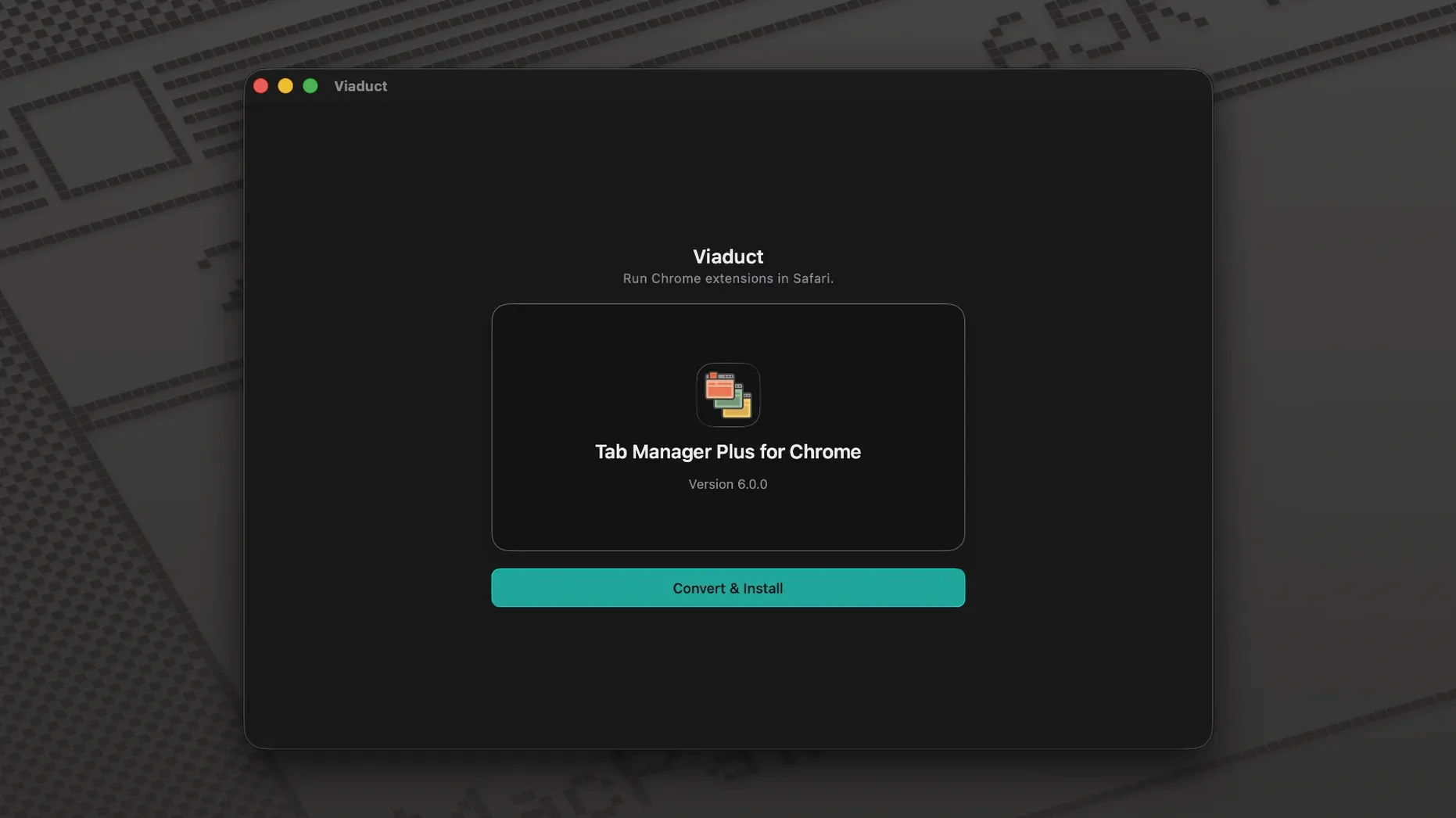
Click a screenshot to see it wider.
Viaduct 1.3.0 keeps the conversion engine humming. The open-source core still does the heavy lifting, and the app now re-signs extensions before their signing expires, so your converted tools stay usable. For a newcomer, start here:
- Convert something simple – pick a small Chrome extension with few permissions to see the process end to end.
- Let it install automatically – Viaduct places the new Safari extension for you, no manual dragging.
- Check the re-signing notice – watch for a prompt that the signing was refreshed; that’s the new safeguard.
- Test in Safari immediately – open a site the extension affects and confirm it behaves like the Chrome original.
- Review the generated code – if you’re curious, the engine’s output is readable and worth a peek.
Set a default output folder
Open Viaduct's preferences before you convert anything heavy. A few defaults are fine for one-offs but cost time on repeat conversions.
- Set a default output folder – Viaduct saves converted extensions to a temp spot by default. Pick a dedicated folder so you can find, test and delete builds without hunting through system directories.
- Turn on auto-signing – the re-signing feature is new in 1.3.0 and it's off until you enable it. Flick it on if you plan to keep converted extensions installed for more than a week. The app handles the expiry on its own after that.
- Disable the post-conversion summary – the info panel after each conversion is helpful the first three times. After that it's a click you don't need. Turn it off in the settings panel.
Fix permissions, extension complexity and signing timing
Most problems come from three things: permissions, extension complexity and signing timing. Here is what to check when something does not land right.
Extension fails to install
Safari may reject the new extension if it uses APIs that Safari does not support. The conversion engine logs which calls it could not map. Open the log file, search for "unsupported" and look at the list. Strip those features from the Chrome extension before converting again.
Signing expires early
If a converted extension suddenly stops working a few days after install, the re-signing job probably did not run. Make sure Viaduct is allowed to run in the background (check your macOS startup items) and that the app has network access. The re-signing daemon needs both to refresh the certificate.
Drag-and-drop does nothing
This is almost always a permissions issue. The Chrome extension file must be a .crx or a folder extracted from one. If Viaduct does not react, drop the file onto the app window instead of the dock icon. That bypasses the drag handler on macOS's side.
Viaduct turns Chrome extensions into native Safari extensions without a browser switcheroo or a rewrite. Good for a quick win or a permanent workflow.
- macOS 13 or later
- Apple Silicon or Intel
Questions I get about this line
Yes, the app creates the Safari extension and installs it for you.
It handles the actual conversion of Chrome extension code into a native Safari extension format.
The install order
- Open the downloaded disk image.
- Drag Viaduct into the Applications folder alias.
- After the copy finishes, launch the app from Launchpad.