Free download (661 MB) Previous versions
- Version
- 6.2.30
- Developer
- Steinberg
- Languages
- Russian, English, German, Spanish, Italian, Chinese (Simplified), Portuguese, French, Japanese
- License type
- K'ed by iamdumb
| macOS range | macOS 12 or later |
|---|---|
| Chip | Apple Silicon, Intel 64-bit |
| Download | 661 MB |
| Previous versions | 12 on file |
Screenshots
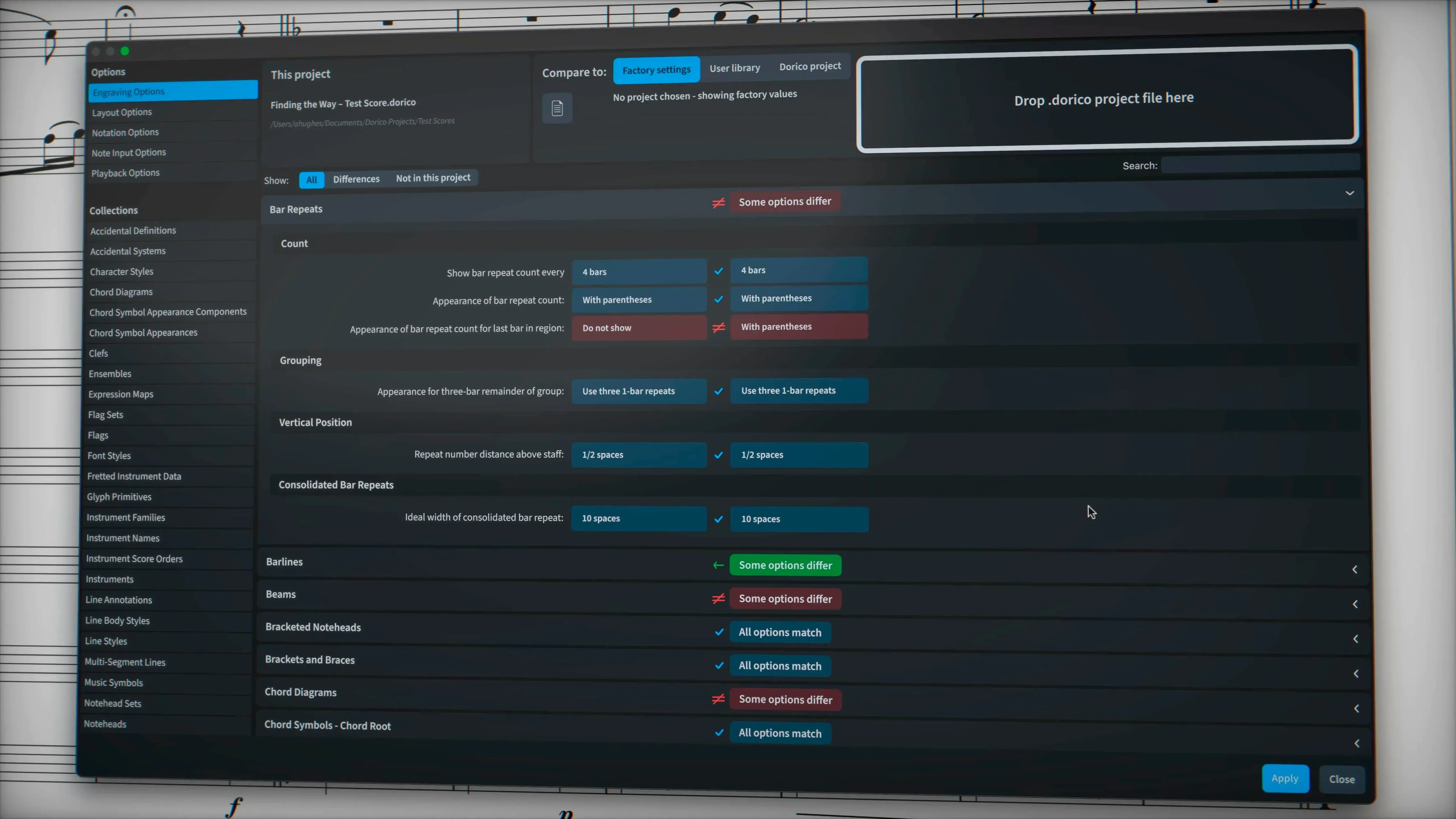
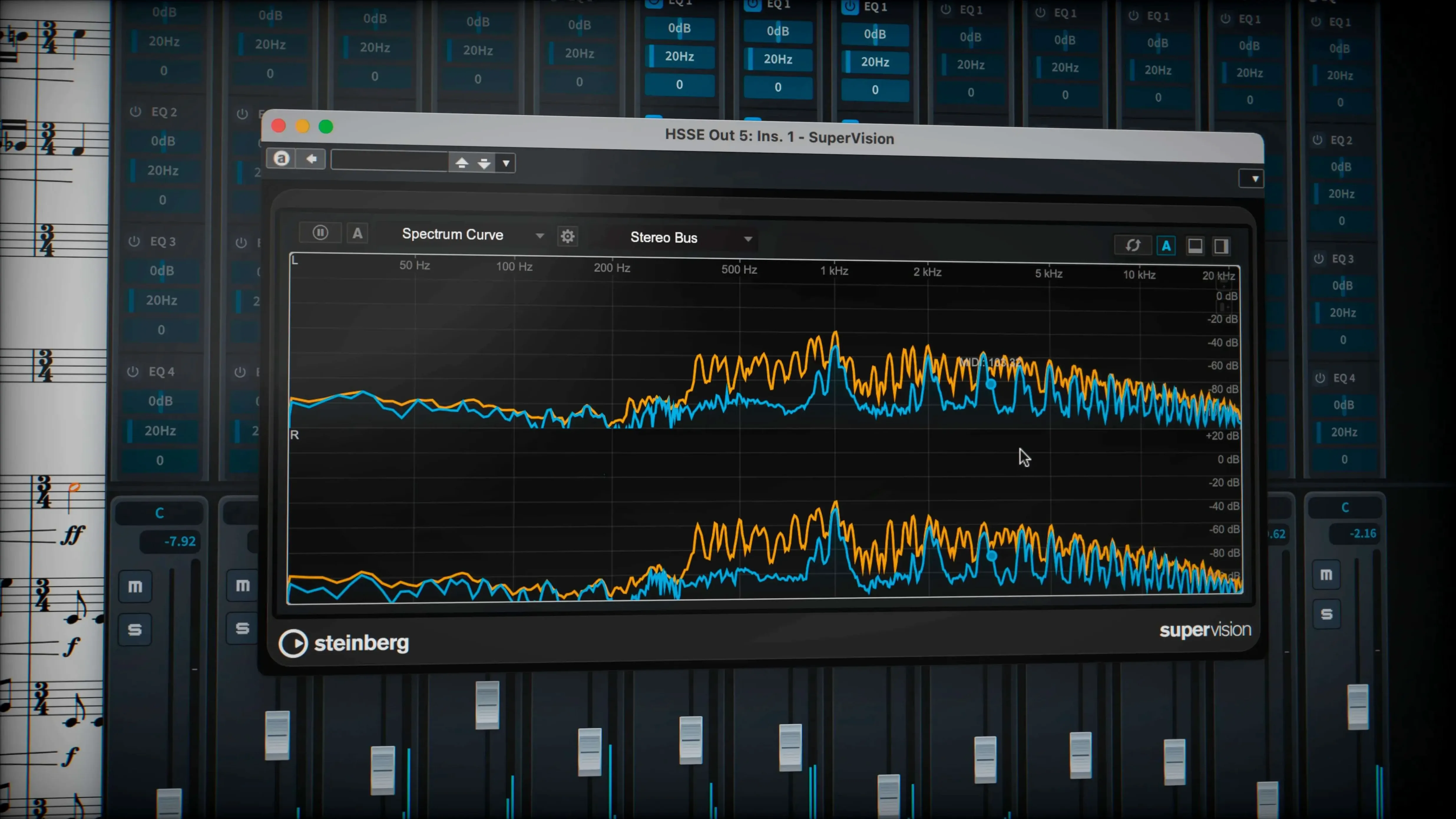
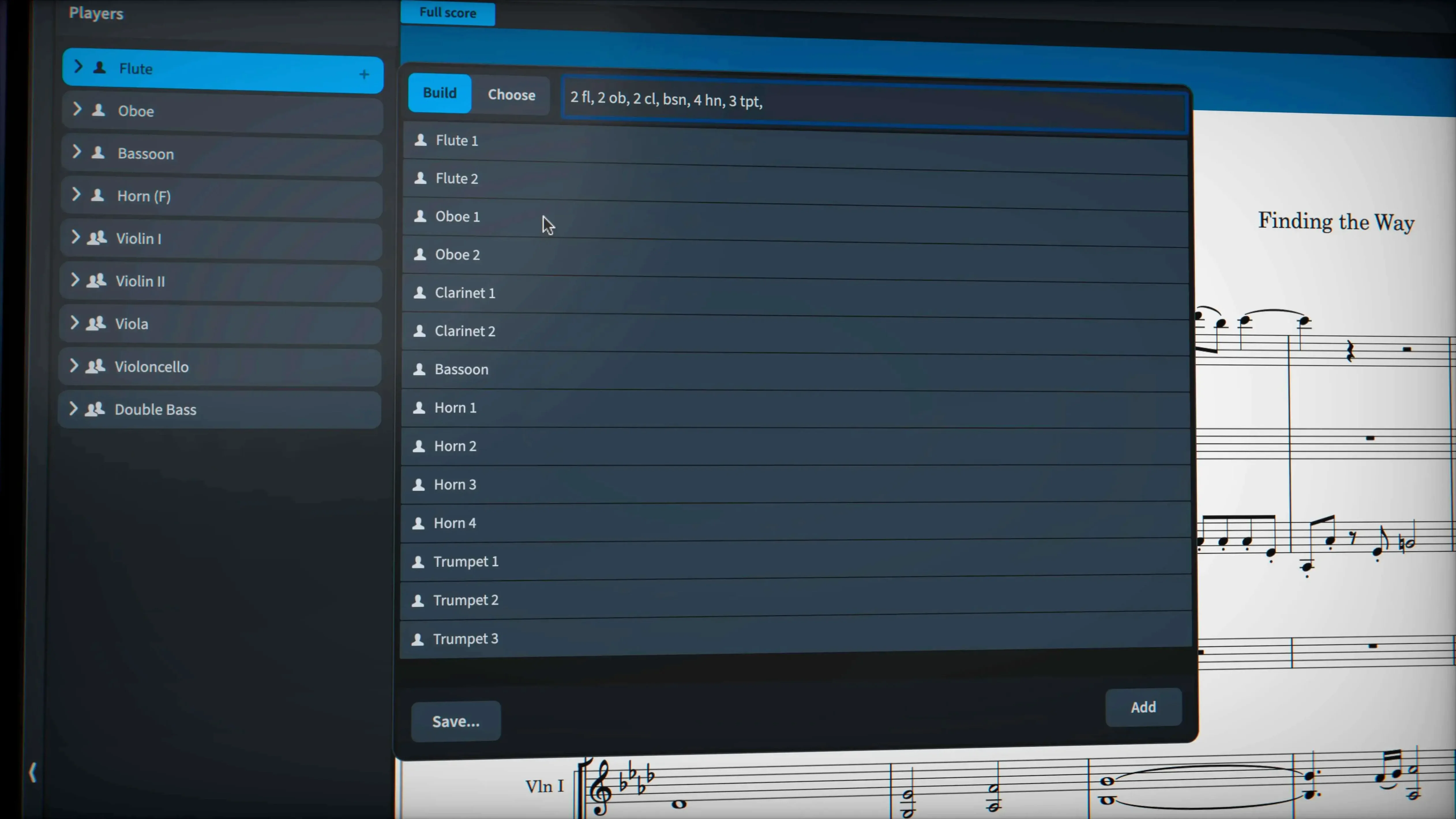
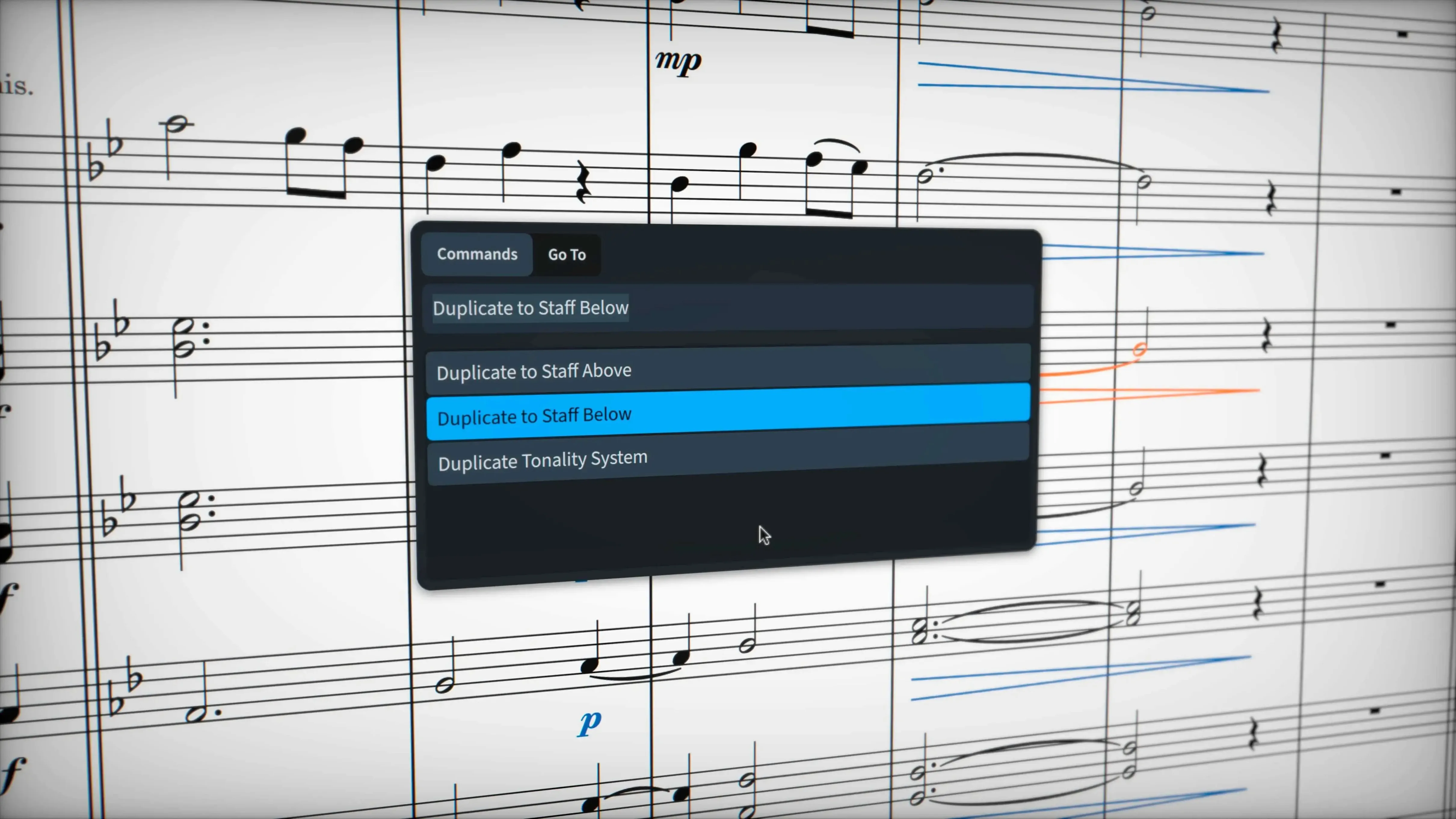
Scroll the row, it snaps to each screenshot. Click one to see it wider.
Writing music notation on a Mac usually means juggling separate tools for input, engraving, and playback. Dorico Pro pulls those into one workflow, and the 6.2.30 update keeps it current for modern macOS systems.
Runs on macOS 12 and later with Apple Silicon and Intel support
Dorico for Mac runs on macOS 12 and later, and it supports both Apple Silicon and Intel Macs, so it works on older Intel models as well as the latest M-series hardware. The installer includes an activation guide, and the interface is available in English, German, Spanish, French, Italian, Portuguese, Russian, Japanese, and Simplified Chinese. If your Mac runs a recent macOS version, Dorico 6.2.30 should install and run without surprises.
Includes 1,500 built-in sounds and pedal-line export
Beyond the core notation and engraving tools, Dorico Pro includes nearly 1,500 built-in sounds, a sequencer-style MIDI editor with piano-roll view, and support for VST 3 instruments and effects. The latest update adds export of sustain and sostenuto pedal lines, fixes glissando line overrides, and corrects tuplet bracket export. It also brings more than 40 bug fixes and enhancements, and it can exchange projects via MusicXML, MIDI, and PDF. For composing, arranging, or preparing parts, it handles the full job on one Mac.
Auto-save every five minutes prevents project loss
Dorico opens with sensible defaults, but a few changes save clicks later. Head to the Preferences dialog and adjust these:
- Auto-save interval – set it to every five minutes. Dorico handles large projects without issues, and auto-save prevents losing complex edits.
- Default project template – pick a template that matches your instrument setup. Custom templates save even more time if you work with the same ensemble regularly.
- Playback engine – if you use external VST 3 instruments, route them in Play mode before writing a single note. This avoids re-routing after you have a full score.
- Key commands – Dorico lets you reassign shortcuts for common actions like note input, tuplets, and dynamic markings. Map them to keys you reach without looking.
These tweaks take under a minute and make the first session smoother.
Workflow: input a short orchestral sketch
Start from scratch and write a four-bar phrase for strings and woodwinds.
- Create a new project and choose the orchestra template. Dorico sets up staves for strings, woodwinds, brass, and percussion automatically.
- In Write mode, set the time signature to 4/4 and key to C major. The bar lines and meter guides appear instantly.
- Enable Note Input (press N). Click on the first violin staff and begin entering notes by typing pitch names (C, D, E, etc.) and durations (4 for quarter, 8 for eighth). Dorico aligns rhythms against the beat grid.
- Switch to the second violin staff and enter a counter-line. Use the same note input method – no need to change modes.
- Add dynamics: select a note and press Shift+D to place a forte mark. Dorico positions it automatically and avoids collisions with other markings.
- Go to Play mode and click Play. The built-in sounds render the sketch. Adjust tempo in the transport bar if the phrase feels slow.
- Export to PDF for a clean rehearsal sheet, or export as MusicXML for sharing with another notation program.
The whole sequence stays inside Dorico. No external editors or sound libraries needed for a rough draft.
Write mode for notes, Engrave mode for layout fixes
New users often misunderstand how Dorico handles input flow. Here are the common ones:
- Staying in Write mode for everything – Write mode is for note entry and basic positioning. Engrave mode handles final layout and collision fixes. Beginners who never switch to Engrave mode end up with uneven spacing and overlapping markings.
- Ignoring the note input caret – The blue caret shows where the next note will land. Beginners who click on the staff without the caret active end up placing notes on the wrong beat or measure.
- Forgetting to disable note input before editing – Leaving note input on while trying to select existing notes or rests leads to accidental overwrites. Tap N to toggle input off before making changes.
- Over-editing playback instead of notation – Dorico separates playback settings from notation. Changing velocities or controller data in the MIDI editor does not affect the printed score. Beginners sometimes adjust playback parameters expecting the notation to update, then wonder why the PDF looks different.
- Not saving a custom template after the first project – Once you have your preferred staff layout, instrument list, and playback routing set, save it as a template. Otherwise you redo the same setup every new project.
These habits are easy to fix after one or two sessions. Dorico rewards a deliberate approach to its modes and input tools, especially when you are learning the layout for the first time.
- macOS 12 or later
- Apple Silicon or Intel processor
Questions I get about this line
Yes. Dorico supports both Apple Silicon and Intel Macs as long as you're running macOS 12 or later.
The install order
- Download the Dorico Pro package and open it.
- Follow the included installation and activation guide to set up the software.