- Home
- Mac Cleaners
- Remove-It

Free download (47 MB) Previous versions
- Version
- 2.0.0.3.300
- Developer
- OSXBytes
- Languages
- English
- License type
- Included
| macOS range | macOS 10.15 or later |
|---|---|
| Chip | Apple Silicon, Intel 64-bit |
| Download | 47 MB |
| Previous versions | 1 on file |
Screenshots
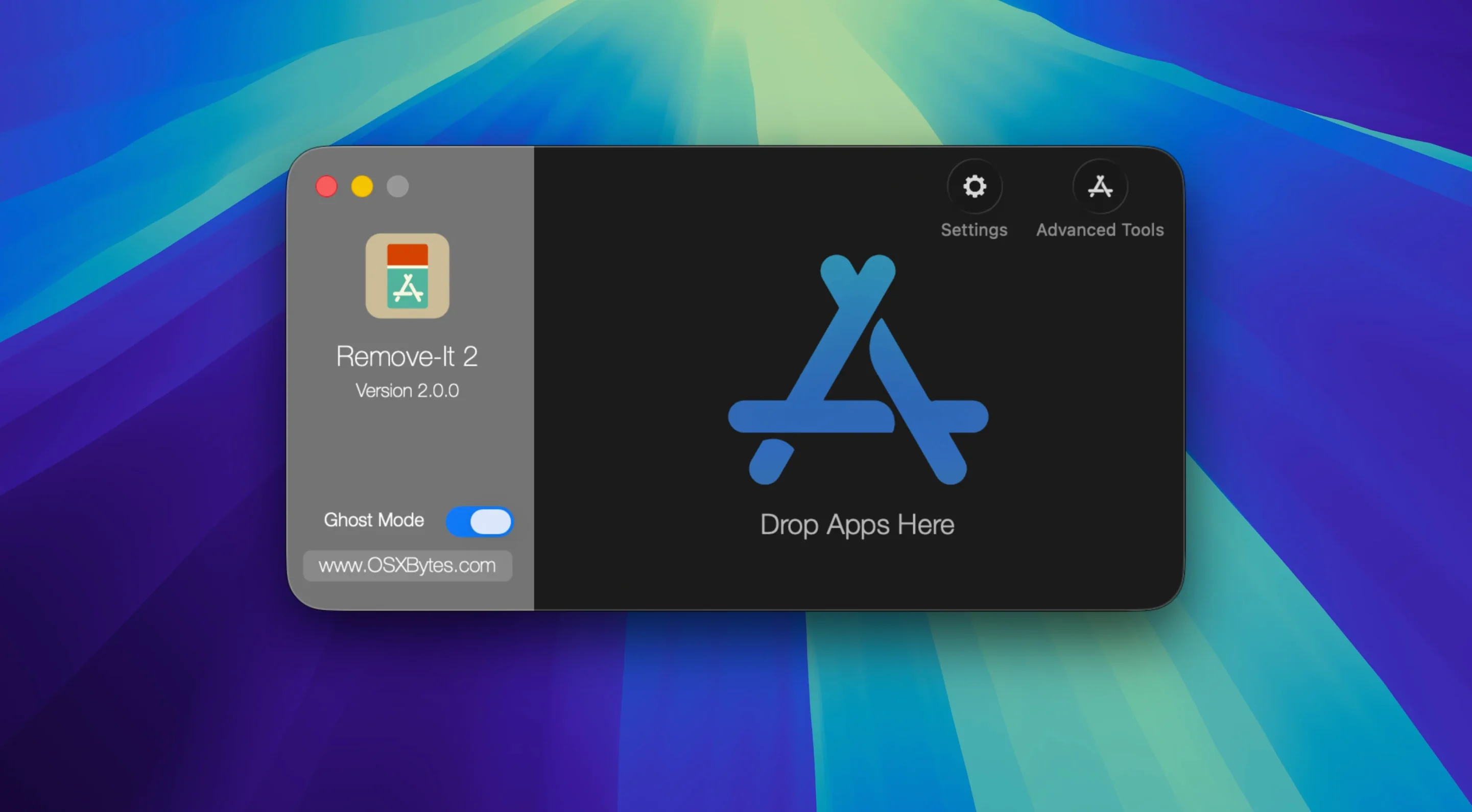
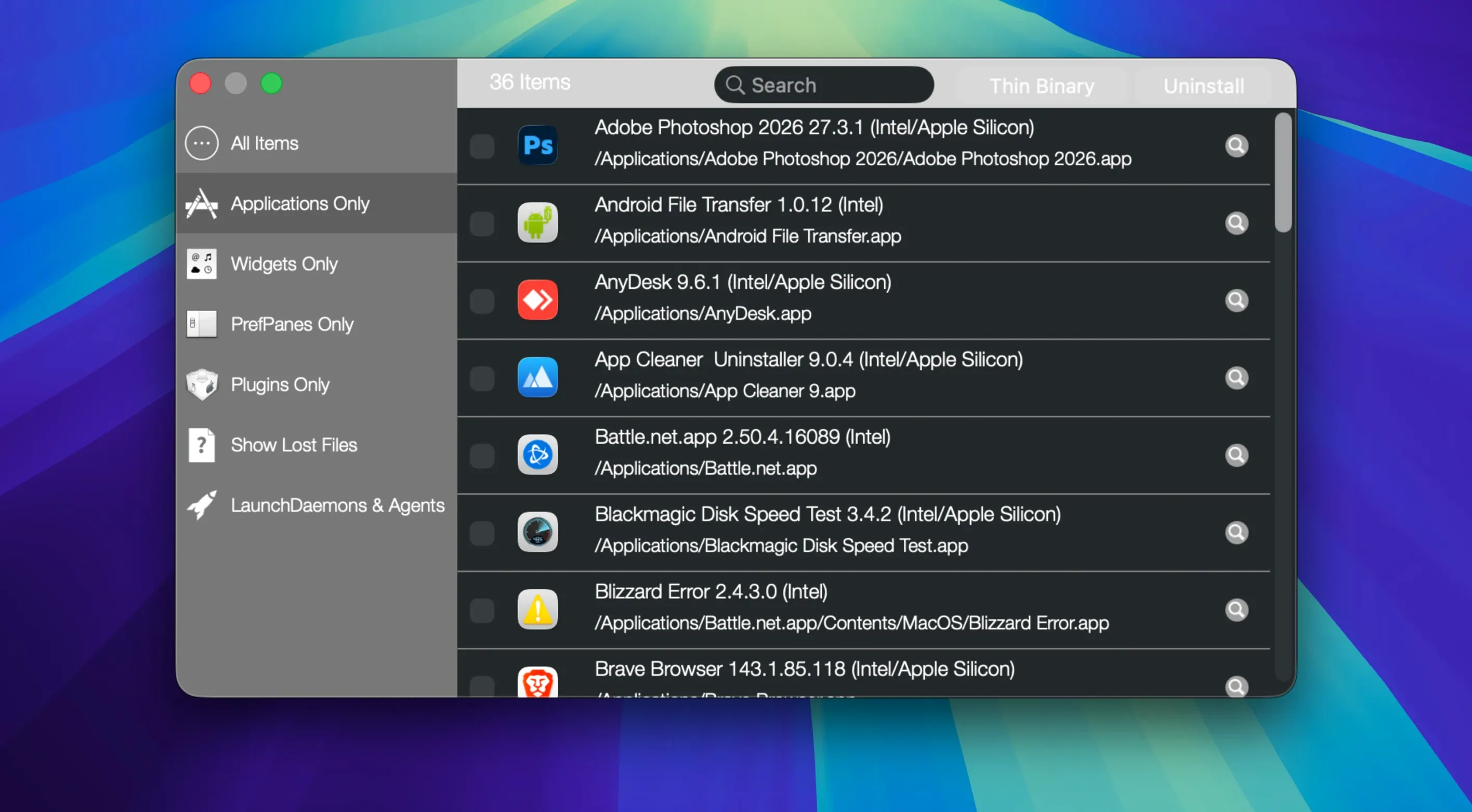
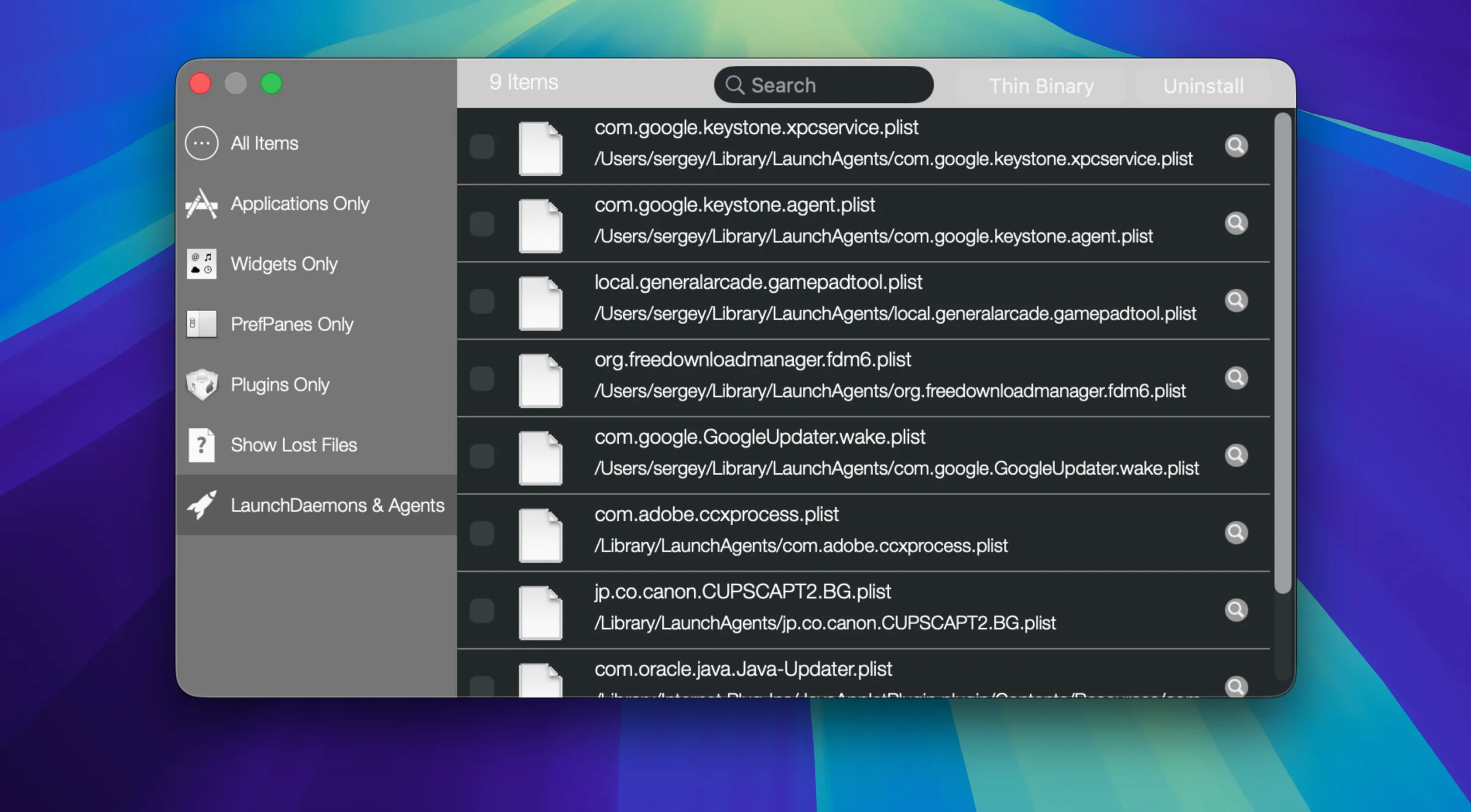
Click a screenshot to see it wider.
The Levenshtein distance search algorithm is the part that makes Remove-It different. Instead of just deleting an app bundle, it scans inside folders for applications and finds associated files by name similarity. That catches the plist files, support files, and other leftovers that normally stay behind.
| Detail | Info |
|---|---|
| Developer | OSXBytes |
| Version | 2.0.0.3.300 |
| Category | Cleaners |
| Compatibility | macOS 10.15 to 26.x, Apple Silicon and Intel |
| Language | English |
Remove-It is for anyone who wants a thorough uninstall without hunting through Library folders. Drag and drop an app, or use background mode to monitor. Expert mode digs up more possible related files. It can also remove unused architecture binaries from Universal Binaries to free storage. If you want to keep certain apps safe, protect them or their folders before running a cleanup. It is also known as iTrash, so you may see that name in places.
Drag App Icons, Not Folders
New users often drag entire folders into Remove-It instead of single app icons. Drag the app itself, not the enclosing folder. Dropping a folder into the Trash can make the app appear, but dragging folder icons into Remove-It directly won't trigger the scan correctly.
Another frequent mistake: skipping the review step. Remove-It shows you what it found before deletion. Some people click through without checking, then wonder why a needed support file vanished. Read the list. If you see something you want to keep, exclude it.
Users also forget to set protection before a deep scan. If you have apps you rely on, mark them as protected. This prevents Remove-It from flagging their support files during expert mode. Default applications can be protected automatically, but user-protected items require you to set them first.
Running expert mode on every uninstall is unnecessary. Expert mode widens the search and returns more results, but for standard apps the normal mode catches the important leftovers. Save expert mode for stubborn applications that leave traces after a normal removal.
Workflow: Removing an App and Its Leftover Files
This workflow covers a typical uninstall from start to finish. It works for any application you want to remove completely.
- Open Remove-It from Launchpad or your Applications folder.
- Find the app in the list. Remove-It shows installed applications across all volumes, not only the Applications folder. If you don't see it, check that it is actually installed on your primary drive.
- Drag the app icon from the Finder into the Remove-It window. Alternatively, use the search function to locate it by name.
- Wait for the Levenshtein distance search to complete. The scan finds visible and hidden related files, including .plist files, support files, and other associated items.
- Review the results. Remove-It lists everything it found. Check the list for anything you need to keep.
- If you see unrelated items, uncheck them. If you want more thorough results, switch to expert mode before continuing.
- Click the removal button. Remove-It deletes the app and the selected related files.
- Confirm the action when prompted. The app and its leftovers are removed.
This workflow takes a few seconds for most applications. Background mode is not needed here, but you can enable it if you want Remove-It to monitor for future installations automatically.
Apple Silicon Compatibility Confirmed
Does Remove-It work with Apple Silicon Macs? Yes. It supports both ARM and Intel 64-bit architectures. The official compatibility covers macOS 10.15 up to macOS 26.x, so current M-series machines are fine.
Will it delete important system files? No, but it will find them if they match the search. That is why the review step exists. You can also protect default applications and specific user files so they are never flagged for removal. If you are cautious, set those protections before your first scan.
Does it require Spotlight indexing? No. Remove-It works independently of Spotlight. It scans the file system directly using its own search. That means it works even if you have Spotlight disabled.
What happens if I drop something into the Trash first? Dropping an item into the Trash can make it appear in Remove-It's list. The app detects the trashed item and offers to complete the removal, including leftover files. This is a convenient way to handle partial uninstalls.
Can I remove unused architecture binaries from Universal Binaries? Yes. Remove-It can strip out unused architecture binaries to save storage space. This is useful if you have apps that include both Intel and ARM code and you only need the version for your processor.
Is it safe to remove multiple apps at once? You can uninstall apps one at a time or in sequence. Remove-It handles them individually, so there is no batch risk. Just review each result set carefully before confirming.
- macOS 10.15 or later
- Apple Silicon or Intel
Questions I get about this line
Yes, Remove-It supports both Apple Silicon and Intel Macs, and runs on macOS 10.15 through 26.x.
The install order
- Open the downloaded disk image.
- Drag the app to the Applications folder alias.
- After copying finishes, launch the app from Launchpad.
- If errors appear, follow the included instructions.