Free download (55 MB) Previous versions
- Version
- 9.0
- Developer
- DK CONSULTING
- Languages
- Russian, English, German, Spanish, Italian, Chinese (Traditional), Chinese (Simplified), Korean, Malay, Dutch, Norwegian, Portuguese, Ukrainian, French, Swedish, Japanese
- License type
- Included
| macOS range | macOS 11 or later |
|---|---|
| Chip | Apple Silicon, Intel 64-bit |
| Download | 55 MB |
| Previous versions | 2 on file |
Screenshots
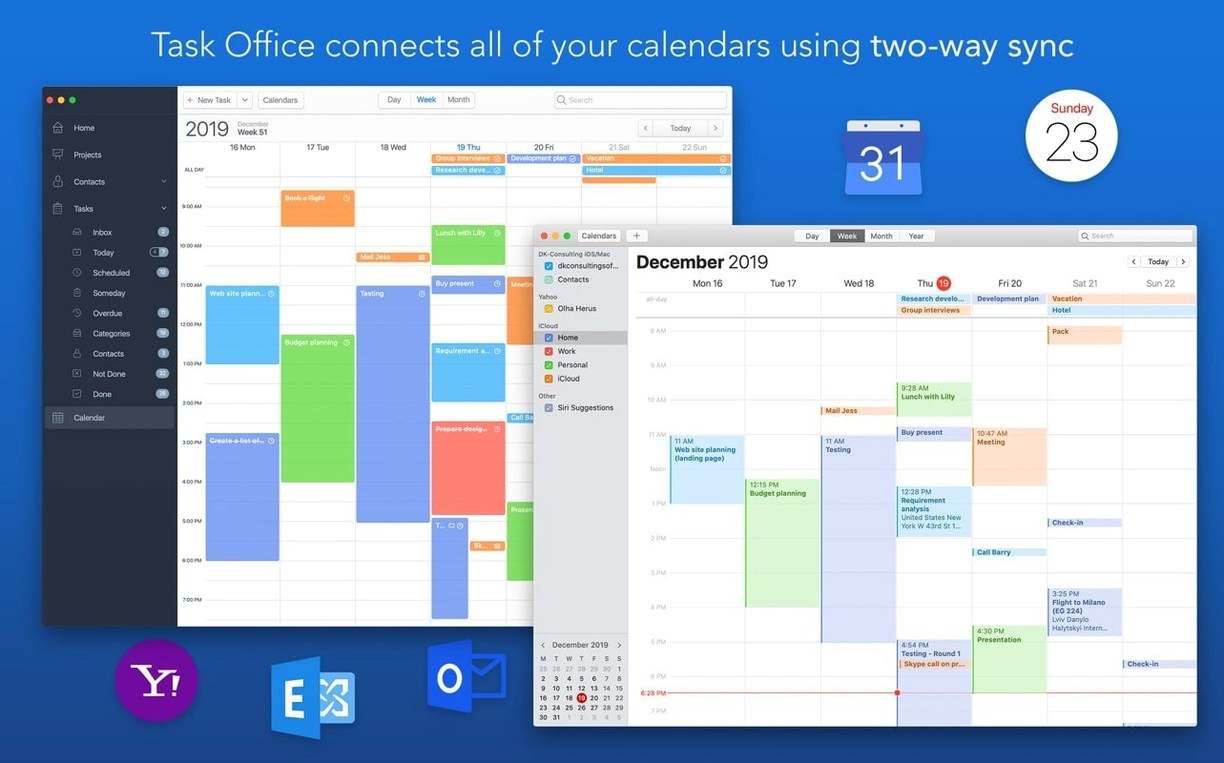
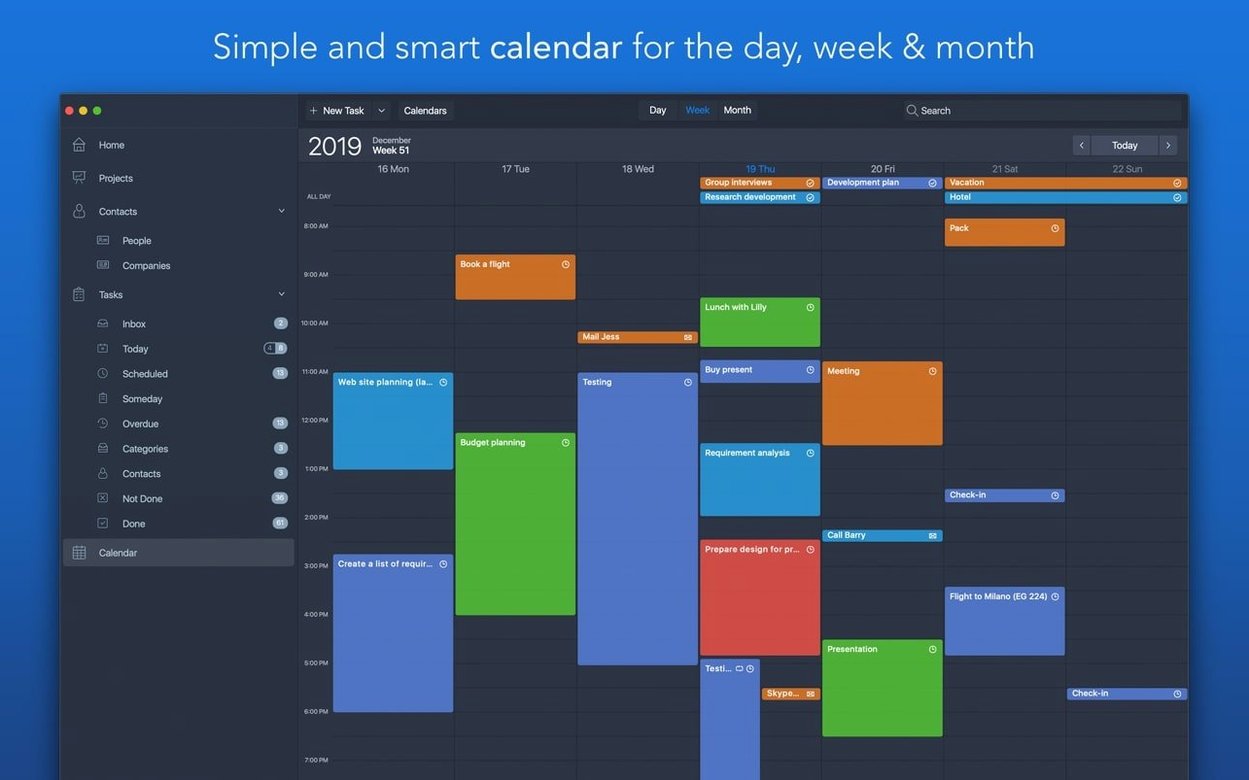
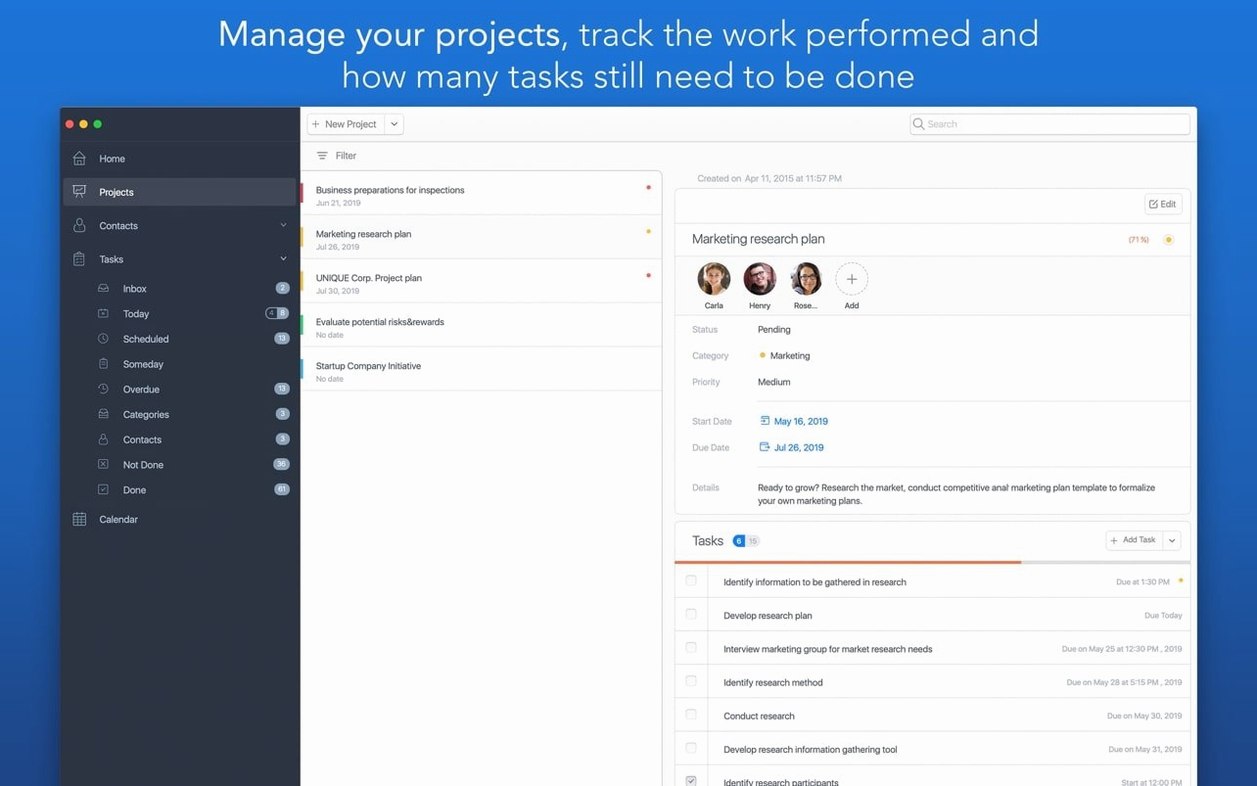
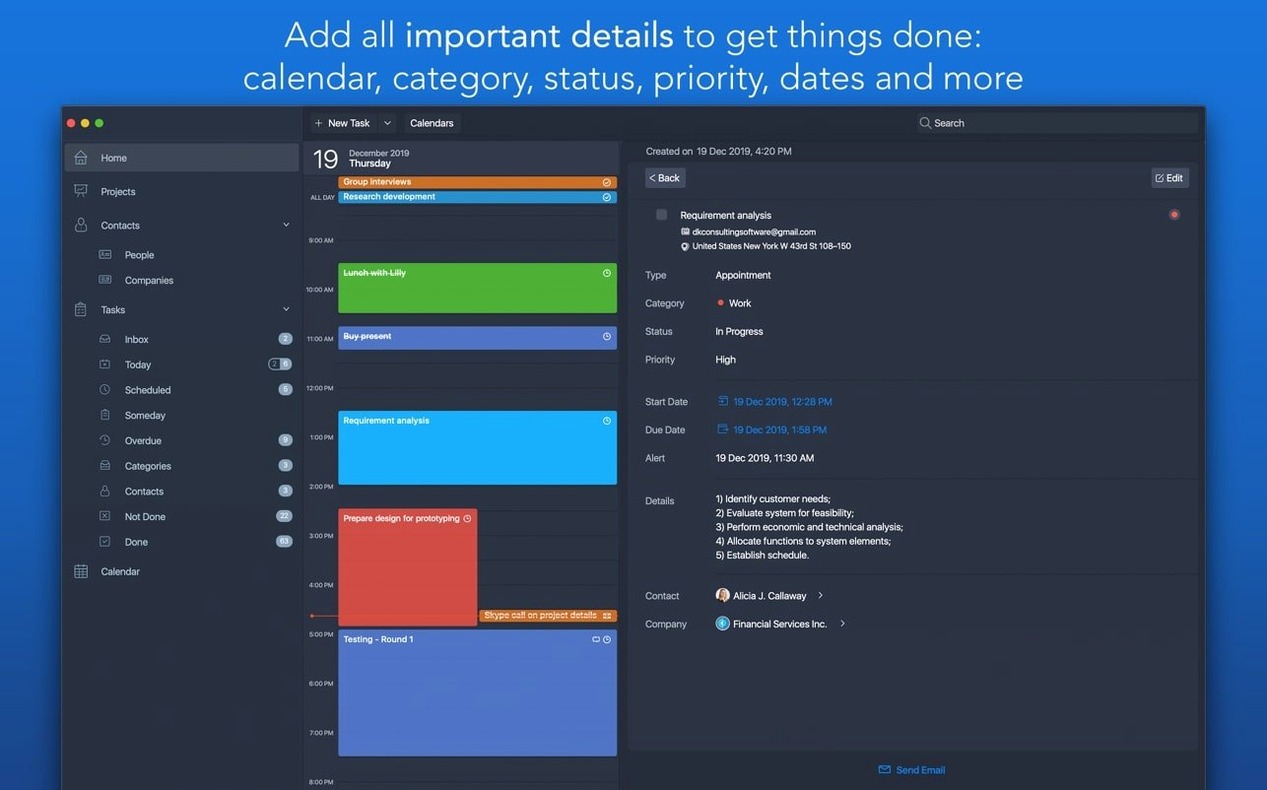
Click a screenshot to see it wider.
Task Office is a Mac organizer that combines tasks, projects, contacts, calendars, and notes in one GTD-style workspace.
Before you install it, here are the questions people usually ask:
- Does it sync between devices? Yes, tasks, projects, contacts, and related data sync through iCloud.
- Can I manage contacts beyond a basic list? Contacts can be grouped into private lists, created with detailed information, imported from the address book, and used to send email directly from the Contacts screen.
- How flexible are tasks? Each task can carry a category, status, priority, and dates. You can also add tasks to the calendar with Tap & Hold, and group tasks into categories for filtering.
- Does it handle quick follow-ups? It supports short Write/Call tasks for calls or email.
- What macOS version do I need? macOS 11 or later, on both Intel and Apple Silicon.
- What languages are supported? The interface covers 16 languages, including English, Russian, German, Spanish, French, Japanese, and Simplified Chinese.
Monday Morning Task Review
Monday morning, you open the app. The main screen shows today's scheduled tasks and what's coming up next week. A quick glance tells you what needs attention first.
You have a project due Friday. You assign one to a team member from your contact list. That task now shows their name, a deadline, and a location you added earlier.
Midday, a client calls. You switch to the Contacts screen, pull up their record, and send a quick email without leaving the app. The call reminded you to follow up — you create a short Write/Call task, set it for tomorrow, and drag it onto the calendar. Done.
Before you close for the day, you check the calendar in month view. A few meetings and multi-day ToDo tasks are visible. You adjust one task's duration with a simple drag. Everything is in one place, no tab switching between different tools.
Fixing Sync and Calendar Issues
- Tasks not syncing between devices. Verify iCloud synchronization is turned on in the app's settings. Also check iCloud is signed into the same account on both Macs.
- Calendar not showing events from Google or Exchange. Go to Calendar settings and re-authenticate the account connection. Sometimes tokens expire and need a fresh sign-in.
- Can't find a contact you imported. Check that you used the "Import from address book" option, not just copied the data. Then look in the correct contact group or the full list.
- Task categories not filtering properly. Make sure each task has a category assigned. Tasks without a category won't appear in filtered views.
- Drag and drop on calendar doesn't work. Try restarting Task Office. If it still fails, check that the task you're moving actually has a start date set.
Most issues come down to missing data or a stale connection. Double-check the fields and sync settings, and you'll be back on track quickly.
Task Office suits anyone who wants a single place for daily tasks, client contacts, and project tracking without juggling separate apps.
- macOS 11 or later
- Apple Silicon or Intel Mac
The install order
- Open the downloaded disk image.
- Drag the app to the Applications folder alias.
- After copying finishes, launch the app from Launchpad.