
Free download (70 MB) Previous versions
- Version
- 7.9.4
- Developer
- AgileBits Inc.
- Languages
- Russian, English, German, Afrikaans, Greek, Danish, Hebrew, Spanish, Italian, Chinese (Traditional), Chinese (Simplified), Korean, Dutch, Norwegian, Polish, Portuguese, Finnish, French, Czech, Swedish, Japanese
- License type
- K'ed by TNT team
| macOS range | macOS 10.12 or later |
|---|---|
| Chip | Intel 64-bit |
| Download | 70 MB |
| Previous versions | 1 on file |
Screenshots
Scroll the row, it snaps to each screenshot. Click one to see it wider.
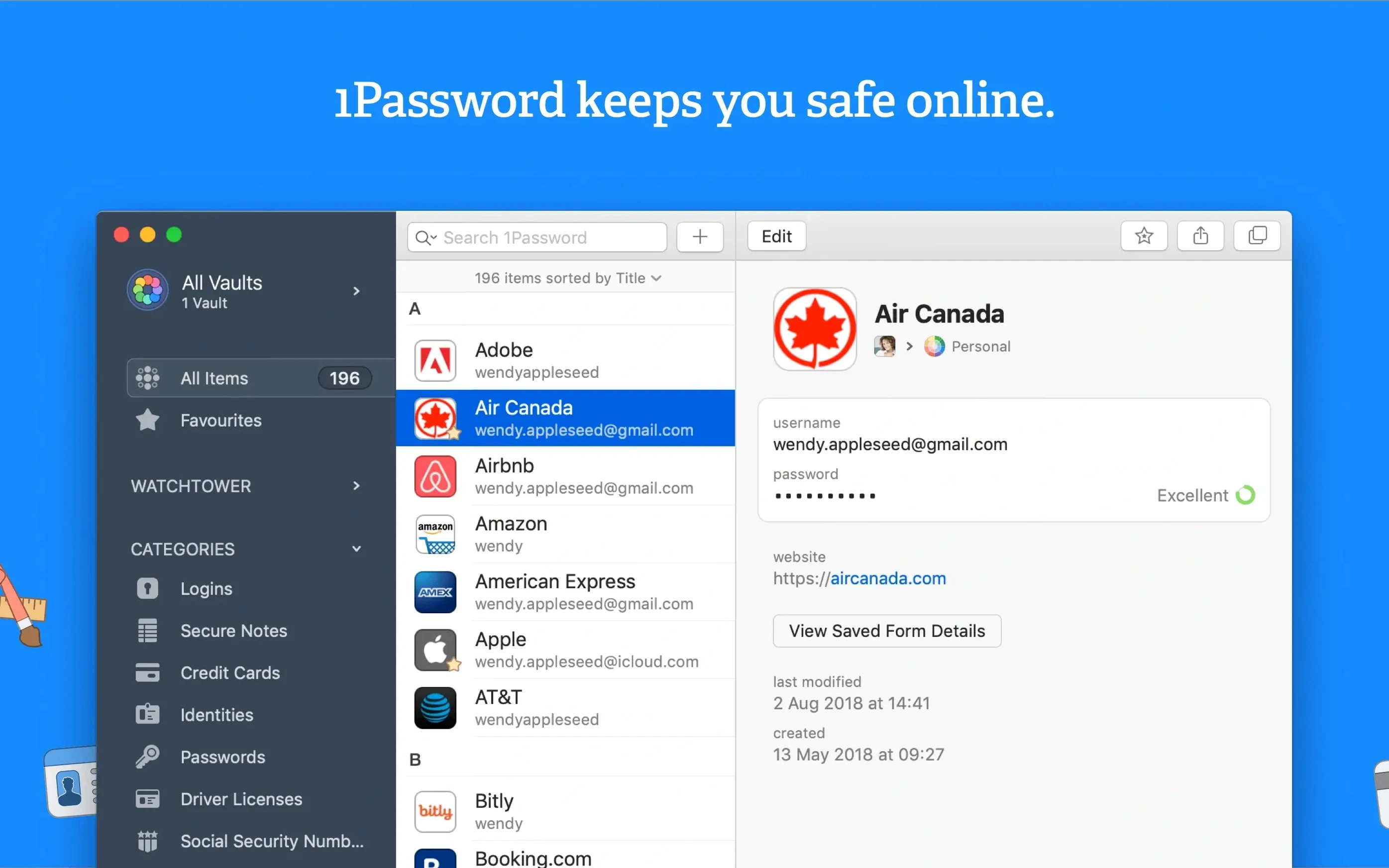
1Password is a Mac password manager that stores passwords, financial data, and other sensitive information in an encrypted vault. Here are the first three things to try after you install it.
Set Up Your Vault
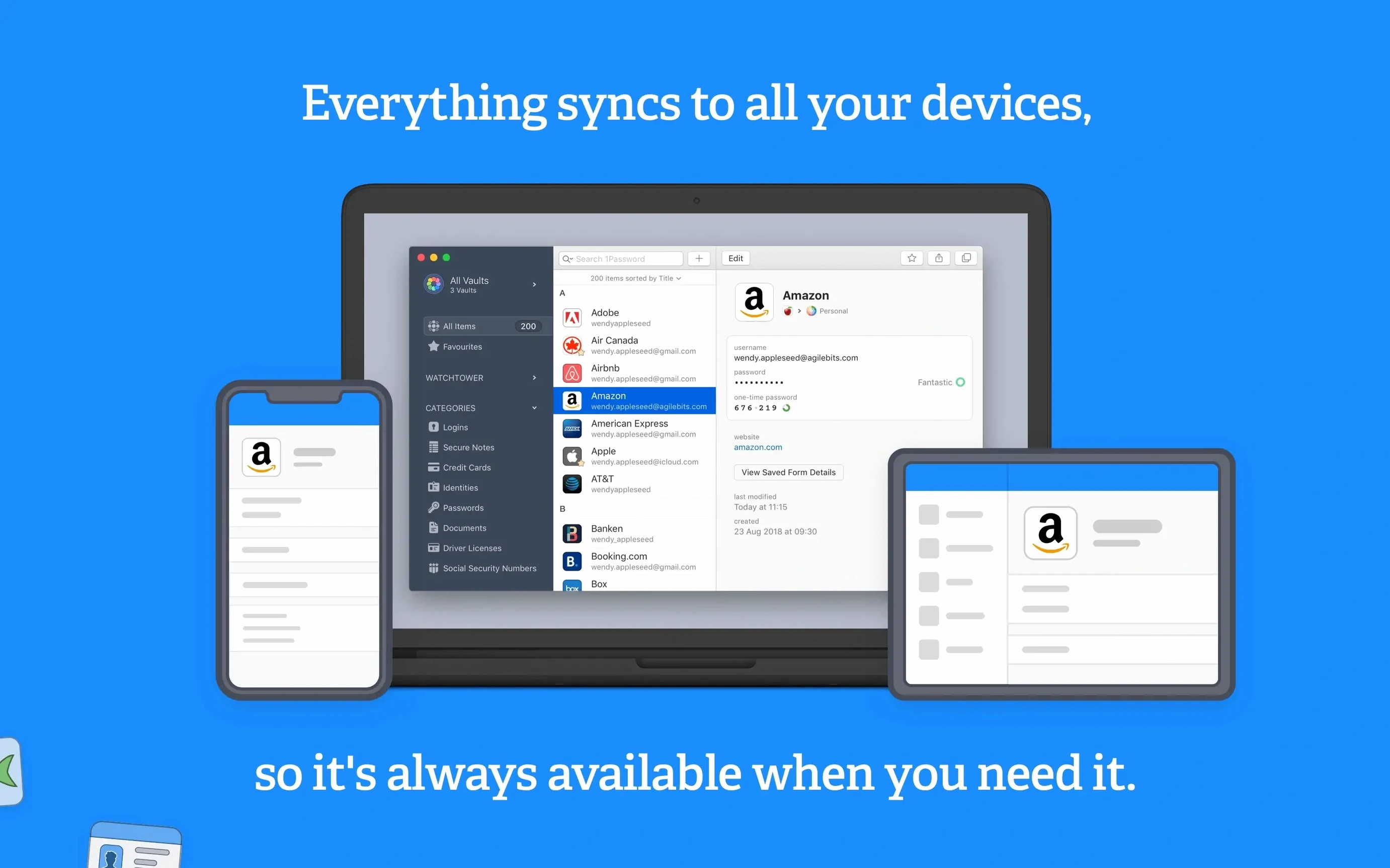
Add a few logins manually or import from your browser. The app organizes them into categories like passwords, credit cards, and secure notes. Everything syncs across devices once you sign in.
Run Watchtower
Watchtower scans your vault for weak, reused, or compromised passwords. It also flags sites that lack two-factor authentication or still use unencrypted HTTP.
Daily Workflow: Adding and Organizing a Secure Note
Here is a routine task from start to finish. You need to store a new Wi-Fi password for the clinic’s guest network.
- Open 1Password and unlock the vault with your master password.
- Click the New Item button and choose Secure Note from the list.
- Paste the network name and the password into the note body. Add a tag like "Wi-Fi" so it is easy to find later.
- Save the note. 1Password stores it encrypted inside your vault.
- To retrieve it later, search for the tag or scroll through your secure notes. Double-click the item to copy the password to your clipboard.
That is the whole cycle. You can follow the same steps for software license keys, server IPs, or any text you want kept safe.
Clipboard Auto-Clears After Copying
Version 7.9.4 brought few visible changes to everyday use. The core functions — saving logins, filling forms, running Watchtower — work the same way they did in earlier 7.x releases. The release notes page for Mac lists adjustments under the hood, but there are no new buttons, redesigned panels, or altered workflows to learn. If you used 1Password 6 before, the vault format and the browser integration behave identically. The main difference from older builds is compatibility: 7.9.4 still requires macOS 10.12 or later and Intel 64-bit, same as before.
Integrates With Browser, Clipboard and Keychain
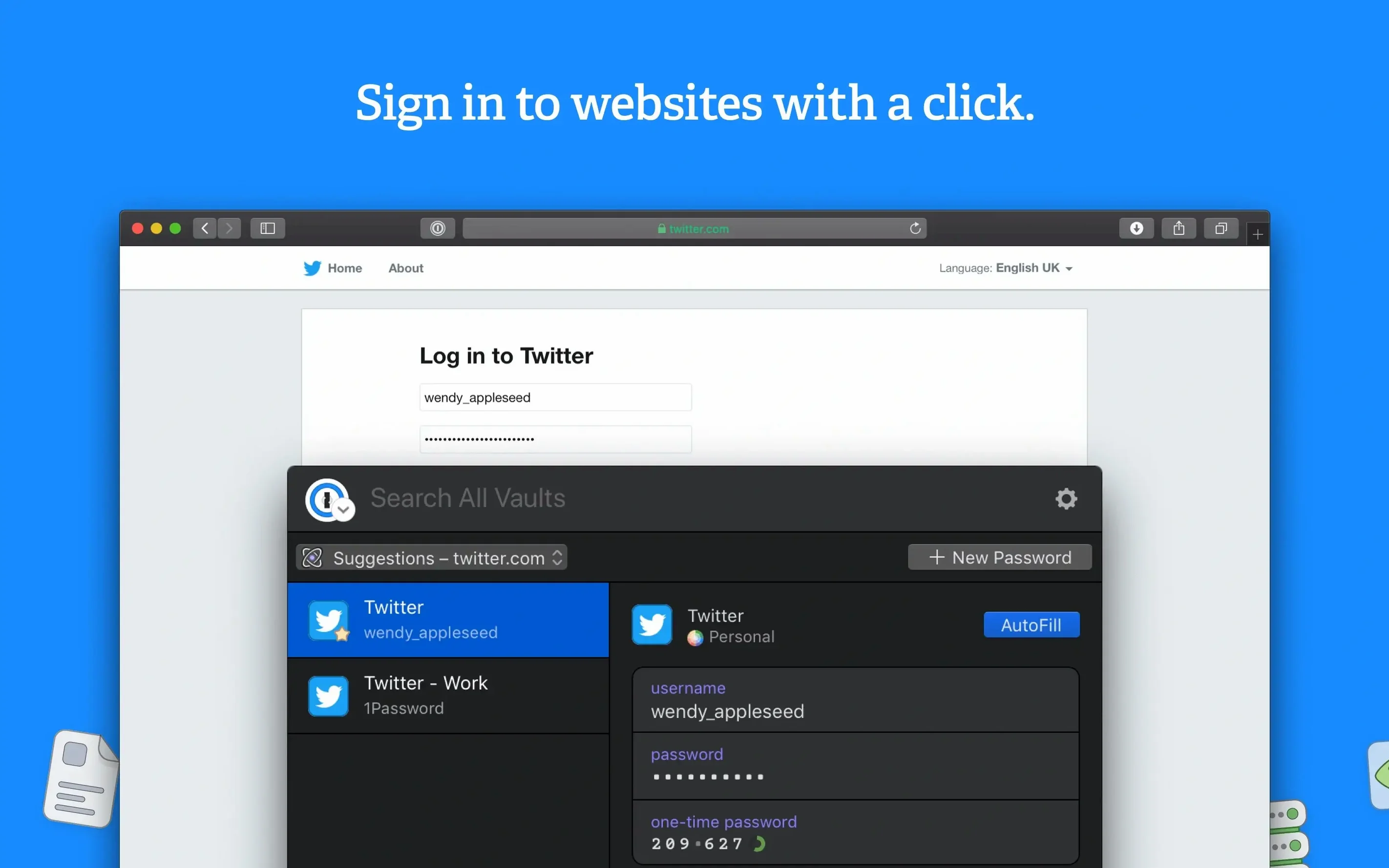
1Password works alongside your browser for one-click form filling, but it also integrates with the macOS clipboard and keychain. When you copy a password from 1Password, it clears the clipboard after a few seconds by default. That is a small safety measure that other password managers do not always offer.
You can drag items from 1Password into other applications, such as a text editor or an email draft, but the data stays encrypted inside the vault until you explicitly copy or drag it. The app also respects macOS user accounts: each user on a shared machine can run their own vault without interfering with another person’s data.
For IT work like managing multiple clinic locations, 1Password holds device serials, router admin URLs, and remote desktop credentials in the same vault alongside personal logins. The categories and tags keep them separated. That is the practical payoff: one app for both work and personal credentials, with no cross-contamination as long as you tag carefully.
In your browser, click the 1Password icon and select a login. The form fills with one action. No copy-paste needed.
- macOS 10.12 or later
- Intel architecture
The install order
- Mount the disk image and run the installer. Gatekeeper will prompt you; choose Open.
- Press Enter and wait for the process to finish.
- Follow the standard installation steps.
- The app is ready to use.