Free download (247 MB) Previous versions
- Version
- 26.3.5
- Developer
- OpenMedia LLC
- Languages
- Russian, English, Spanish, Italian, Chinese (Traditional), Chinese (Simplified), Korean, Dutch, Polish, Portuguese, Turkish, Finnish, French, Czech, Swedish, Japanese
- License type
- K'ed by TNT team
| macOS range | macOS 12 or later |
|---|---|
| Chip | Intel 64-bit |
| Download | 247 MB |
| Previous versions | 2 on file |
Screenshots
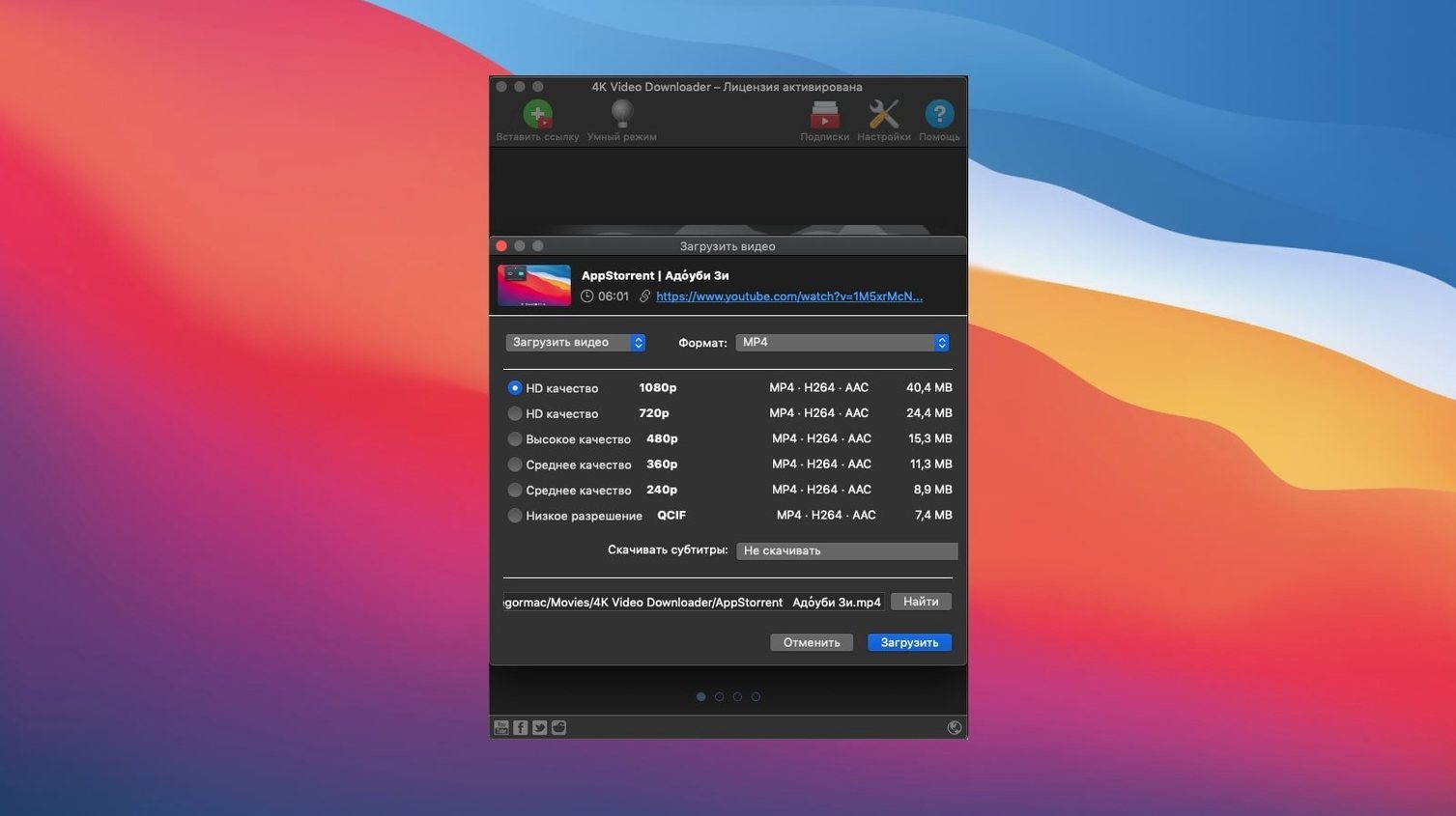
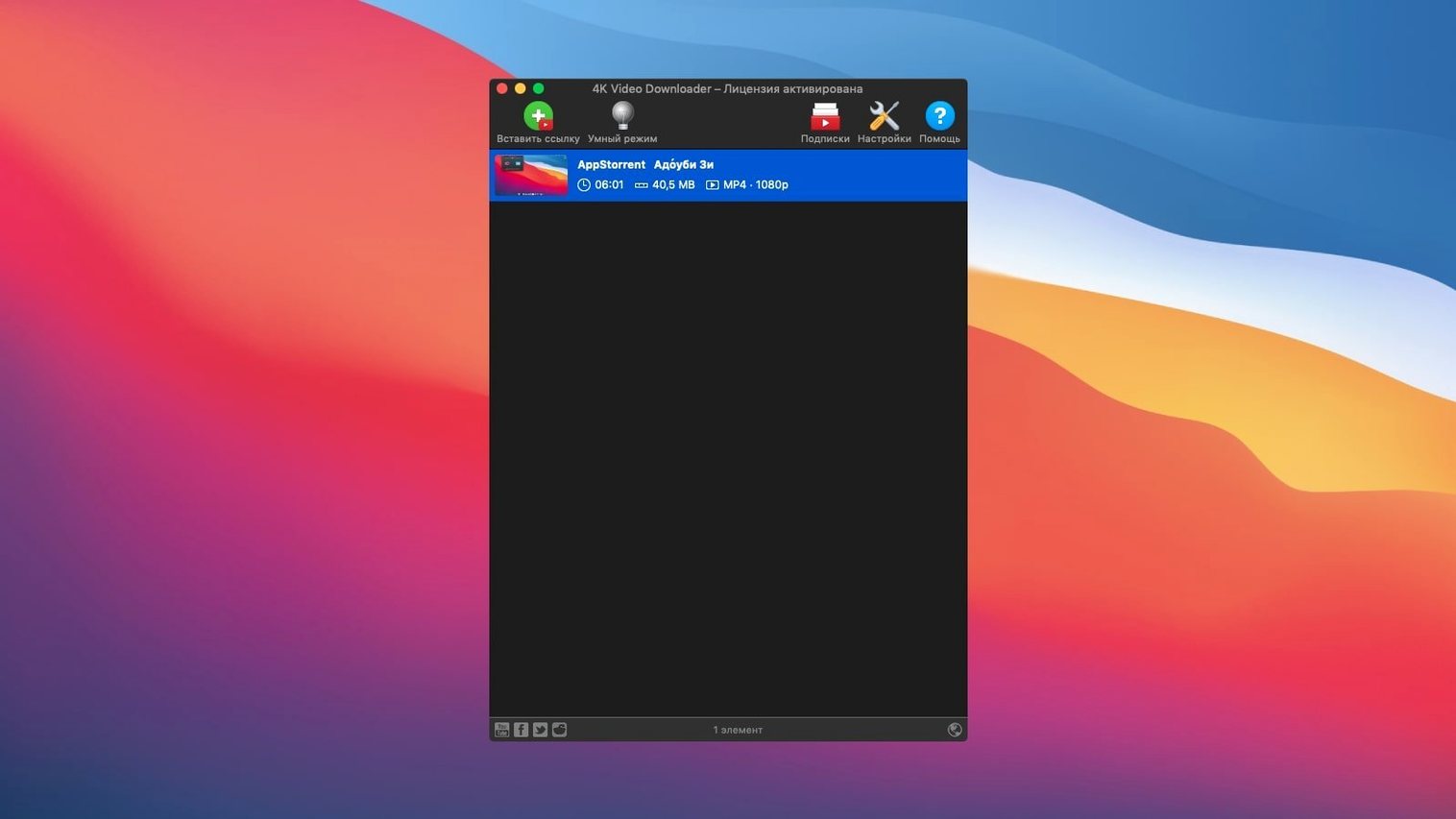
Scroll the row, it snaps to each screenshot. Click one to see it wider.
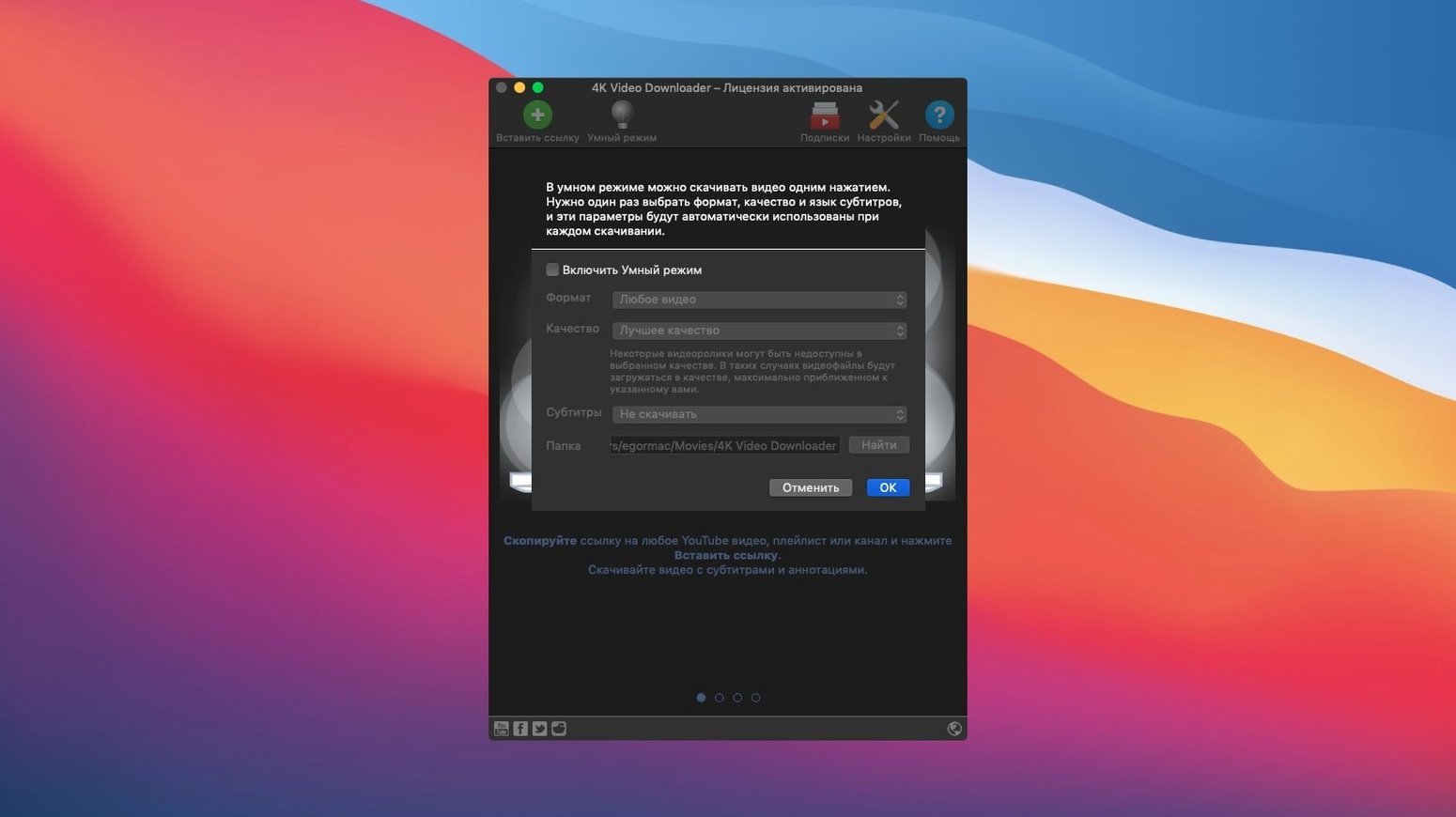
Smart Mode is the first thing to set up. It remembers your preferred quality and format, so every download after that is one click.
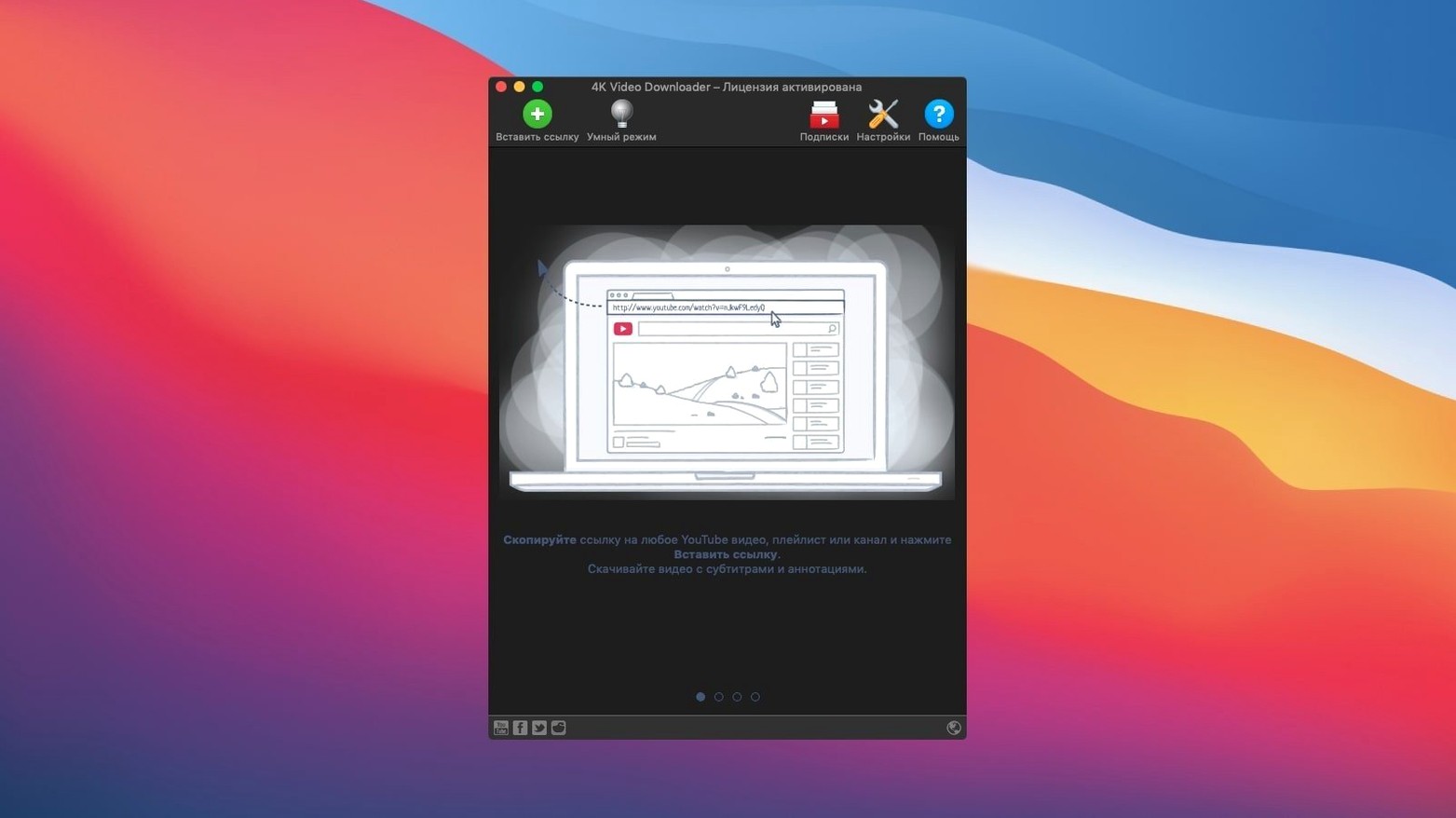
4K Video Downloader macOS — an app that grabs videos, audio, and subtitles from supported sites.
Paste Url — pastes the clipboard link and starts the fetch.
Clipboard link detection — the app watches the clipboard and offers the link automatically.
Quality presets — choose 1080p, 720p, or 4K, depending on the source.
Output formats — MP4, MKV, M4A, MP3, FLV, or 3G.
Smart Mode — applies your selected settings to all future downloads.
Supported sites — Vimeo, SoundCloud, Flickr, Facebook, DailyMotion, Instagram.
Paste URL from anywhere
The app does a few things quietly that add up over time.
- Paste Url works from anywhere — you don't have to be in the app window. Copy a link, switch to 4K Video Downloader, and the Paste Url action is immediately available. No extra clicks to find the right field.
- Smart Mode remembers everything — not just format and quality. It also remembers subtitle preferences, what to do with playlists, and where to save files. Set it once and forget it.
- Clipboard detection is optional — if you don't want the app popping up every time you copy a link, turn it off in the preferences. Some people prefer to paste manually.
- Playlist downloads show a preview — before you confirm, the app lists how many videos are in the playlist and their titles. You can uncheck the ones you don't want. No need to download a whole channel if you only need two videos.
- Subtitles come two ways — separate SRT files or embedded in the video. The app handles both. If you want to edit subtitles later, choose SRT. If you want one file, choose embedded.
- M3U files for playlists — when you download a playlist, the app can create an M3U file. That file works with media players like VLC or IINA. Open the M3U and the whole playlist is ready to play in order.
- 3D video downloads work — if the source has a 3D version, the app can grab it. This is a specific feature that not every downloader supports.
Best for content curators and researchers
The app is useful across a range of tasks, but some users benefit more than others.
- Content curators and researchers — people who collect video clips, tutorials, or presentations for offline reference. Downloading a channel or playlist in one pass saves hours of manual work.
- Audio extractors — anyone who wants MP3 or M4A from video without a separate conversion step. The app outputs audio directly.
- Language learners — downloading videos with subtitles (SRT files) lets you study offline. You can watch the video and read the text side by side.
- People with intermittent internet — if your connection drops often or you travel frequently, having videos stored locally means you can watch without buffering.
- Social media managers — grabbing videos from Facebook, Instagram, or Vimeo for repurposing or archiving. The app supports multiple source sites, so you don't need a separate tool for each platform.
Skipping Smart Mode setup
I've seen the same patterns pop up in clinic IT and from friends. A few are easy to avoid.
- Not setting Smart Mode first — beginners download one video at 1080p, then the next at 720p, then forget to pick the format. Smart Mode locks in your choices. Set it once.
- Downloading the entire channel when you only need a few videos — the playlist preview lets you uncheck individual videos. Take the extra second to review.
- Ignoring the subtitle options — the default might not include subtitles. If you need them, check the subtitle box before downloading. Adding them later means re-downloading.
- Forgetting to pick the right format for the device — MP4 is the safest bet for most Mac apps and iOS devices. MKV is better if you plan to edit. 3G is for older phones. Beginners often grab the first option and wonder why it won't play.
- Not checking the source quality — the app shows available qualities. If you pick 4K but the source only has 720p, the app will download 720p. No error message, just the best available.
- Leaving clipboard detection on when it's not needed — the app can pop up every time you copy a URL. That gets annoying fast. Turn it off in preferences unless you actively need it.
Versus Downie for macOS
There are other video downloaders for macOS. Here is how 4K Video Downloader stacks up against a few common ones.
Downie — Downie is a paid macOS app with a similar feature set. It supports many sites and has a clean interface. Downie tends to update frequently to keep up with site changes. 4K Video Downloader covers the same core sites and has playlist support. Both support subtitles and quality selection.
JDownloader — JDownloader is a Java-based tool that handles more than just video. It can grab files from many hosts, but the interface is cluttered and slower. JDownloader is free but requires Java, which some Mac users prefer to avoid. 4K Video Downloader is a native Mac app with a simpler layout. For pure video and audio downloads, 4K Video Downloader is easier to use and more focused.
youtube-dl / yt-dlp — These command-line tools are powerful and free. They support many sites and give you granular control. But they require terminal knowledge. Beginners often find the command line intimidating. 4K Video Downloader provides the same core functionality with a graphical interface. If you are comfortable with the terminal, yt-dlp might be your choice. If you want a visual app with one-click downloads, 4K Video Downloader is the practical option.
For a 4k video download from link, 4K Video Downloader handles it directly. The same applies for download xxx videos 4k or xxx video download 4k — the app pulls the best quality available from the source. No extra tools needed.
Each app has its strengths. 4K Video Downloader sits in the middle: more polished than JDownloader, less complex than yt-dlp, and comparable to Downie in daily use.
For a 4k video download from link, copy the URL, open the app, and use Paste Url. The rest is automatic.
- macOS 12 or later
- Intel 64-bit Mac
The install order
- Mount the disk image.
- Open Terminal and press Enter to bypass Gatekeeper.
- Drag the app to the Applications folder.
- Launch the app from Applications.