
Free download (49 MB) Previous versions
- Version
- 3.0-890
- Developer
- Guilherme Rambo
- Languages
- English
- License type
- Included
| macOS range | macOS 14 or later |
|---|---|
| Chip | Apple Silicon, Intel 64-bit |
| Download | 49 MB |
| Previous versions | 9 on file |
Screenshots
Scroll the row, it snaps to each screenshot. Click one to see it wider.
AirBuddy feels like the missing piece for Mac users who already rely on the menu bar for quick status.
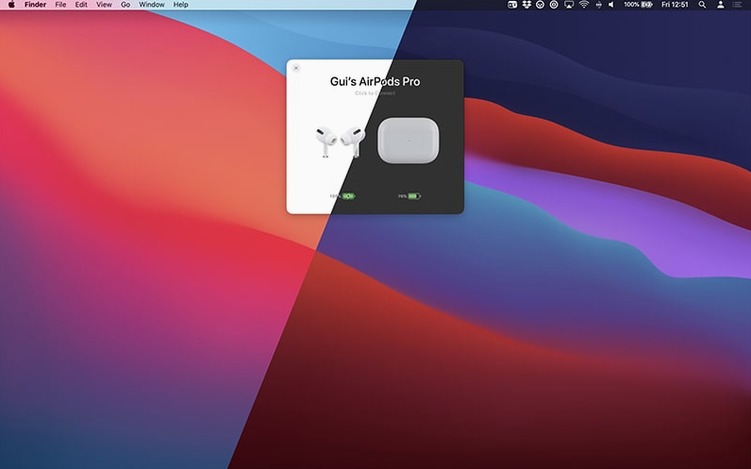
Pick a device to connect, or change the listening mode with a trackpad gesture on AirPods Pro. Custom connection modes can set the listening mode, volume, and microphone state automatically when you connect.
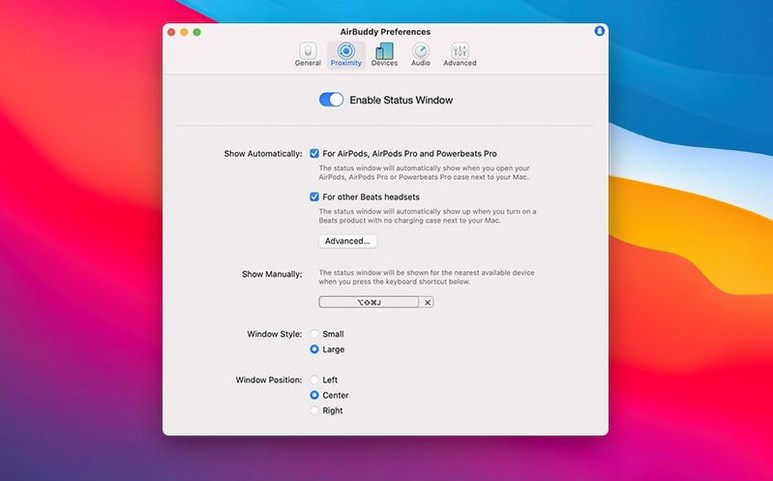
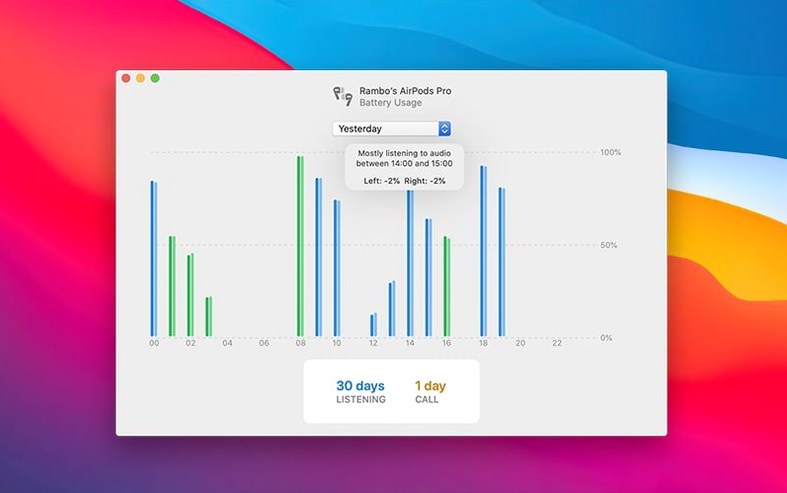
Beyond headphones, Magic Handoff moves a Magic Mouse, trackpad, or keyboard between Macs. The usage history shows headset activity for the last 12 hours, 24 hours, or previous day. Small and large status window designs let you keep an eye on things without clutter.
Let AirBuddy scan and discover nearby devices
Open AirBuddy and let it scan for devices. Give it a minute to discover everything nearby.
Pair your AirPods or Beats once through the app. After that, one-click connection becomes the normal routine. Set up a custom connection mode for your primary device: when it connects, AirBuddy can adjust the listening mode and volume to your usual starting point. This saves a couple of taps every session.
Check the usage history after a day or two. The left/right drain comparison is useful if one bud consistently runs low first. If you move between Macs, enable Magic Handoff for the mouse and keyboard. It takes a few tries to trust it, but it works.
Monday morning one-click connection with custom mode
Monday morning. You sit down, open the MacBook, and glance at the menu bar. You tap the icon, see the device list, and click to connect. The custom connection mode kicks in: listening mode switches to noise canceling, volume sets to 40 percent. No extra clicks.
Mid-morning, a colleague walks over. You pop out the right bud, and playback pauses automatically. After the chat, you put it back in. AirBuddy resumes the connection. No re-pairing needed.
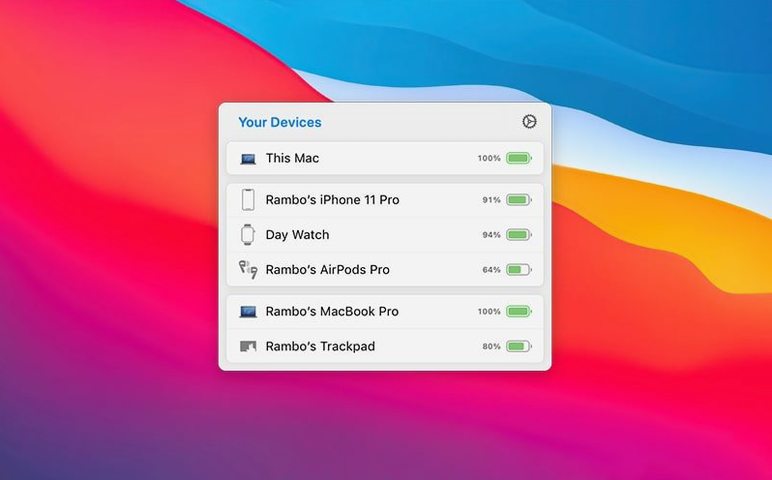
Lunch break. You want to switch to the iPhone in your pocket. The device status view shows the phone's remaining charge and lets you see if any other Macs around have your AirPods connected. You connect the buds to the phone directly. AirBuddy doesn't interfere.
Afternoon. You notice the left AirPod is dropping faster, down to 30 percent while the right is at 45. The usage history confirms the left has been the active mic side more today. Good to know before a call later.
End of day. You disconnect from the menu bar. The usage history logs the session. No fiddling with Bluetooth menus at any point.
AirPods Pro owners who switch listening modes
AirPods Pro owners who switch between noise canceling and transparency mode throughout the day. The trackpad gesture for listening mode saves going into System Preferences each time.
Beats users on a Mac. macOS treats Beats headphones as standard Bluetooth.
People with multiple Macs. Magic Handoff makes the mouse and keyboard follow you between machines. If you work on a desktop and a laptop in the same space, this alone is worth the install.
IT generalists who support a small fleet of Macs. AirBuddy's device status view shows nearby iPhones, iPads, and other Macs. Quick visibility into what is paired and where helps when someone says "my AirPods won't connect."
For an IT generalist, AirBuddy is a practical add-on for any Mac that regularly pairs with Apple earbuds or Beats.
- Menu bar icon can show the app icon, the battery indicator, or no icon.
- AirBuddy 3 introduces battery views, AirPods connection, playback controls, and Magic Handoff.
- macOS 14 or later
- Intel or Apple Silicon
- Interface in English
Questions I get about this line
AirBuddy 3 focuses on showing batteries, connecting AirPods, controlling playback, and moving peripherals between Macs.
AirBuddy requires macOS 14 or later and works on both Intel and Apple Silicon Macs.
The install order
- Install the app using the included instructions.
- Follow the included activation instructions.