Free download (14 MB) Previous versions
- Version
- 1.7.9
- Developer
- Henrik Ruscon
- Languages
- English
- License type
- Included
| macOS range | macOS 14 or later |
|---|---|
| Chip | Apple Silicon, Intel 64-bit |
| Download | 14 MB |
| Previous versions | 11 on file |
Screenshots
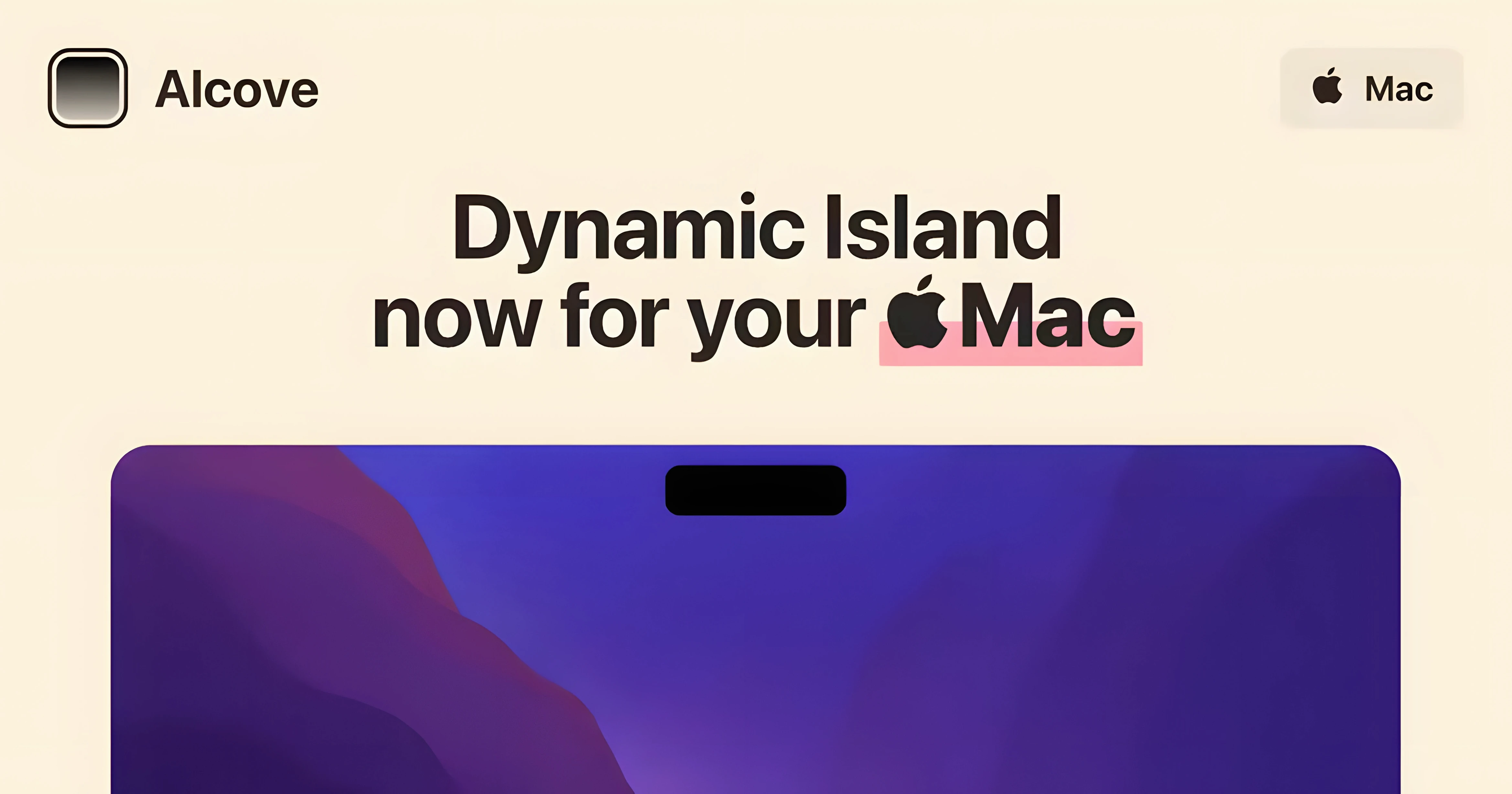
Scroll the row, it snaps to each screenshot. Click one to see it wider.
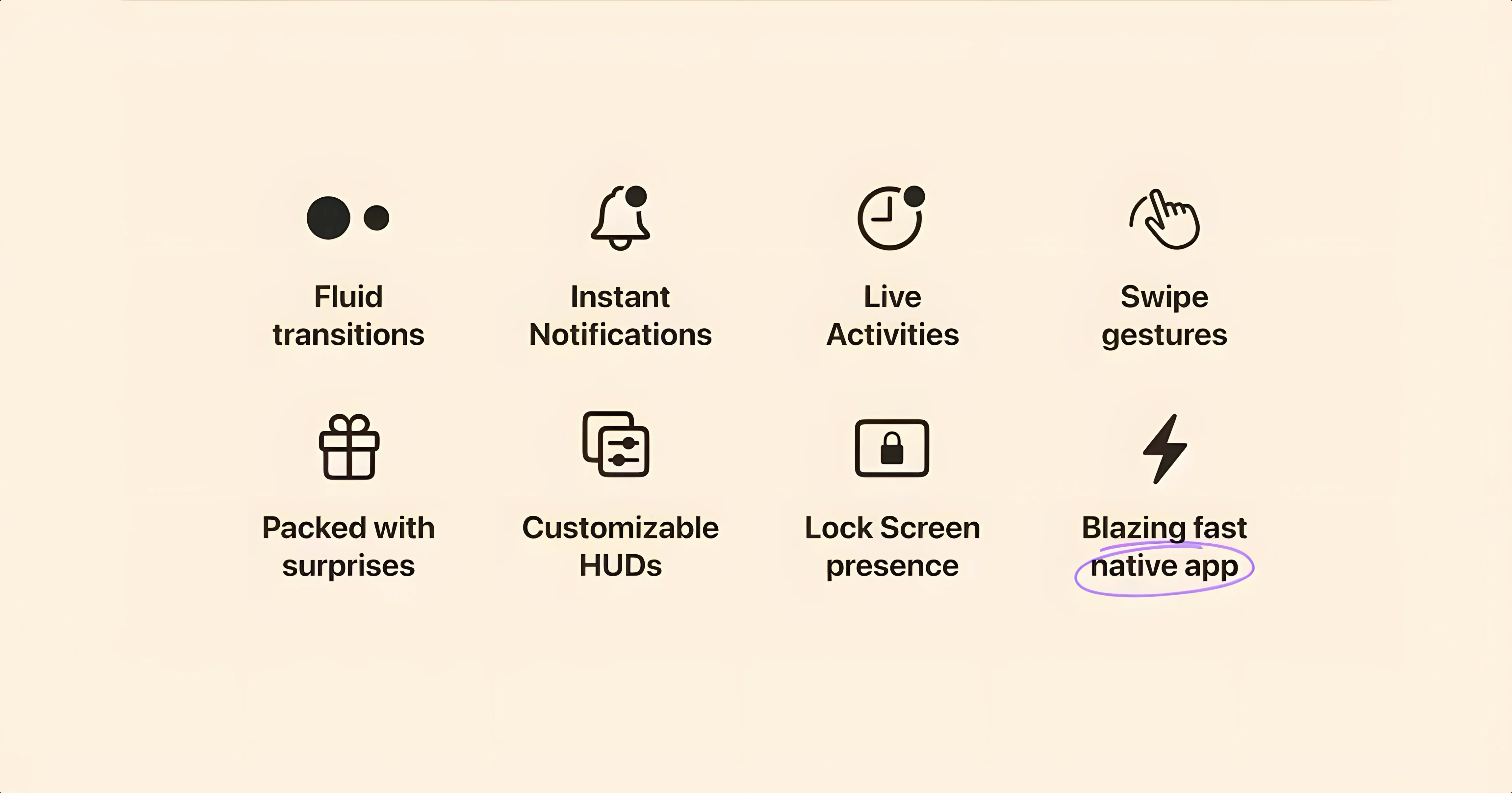
Alcove 1.7.9 is out, and it still does one thing well: it turns the notch into a working control point. Media playback, notifications, and Live Activities show up in a capsule at the top of the screen, and the stock volume and brightness HUDs get replaced with custom ones that match the look.
macOS 14 or Later Required
Requirements are straightforward. You need macOS 14 or later, and the app supports both ARM and x86 64-bit Macs. That means an Apple Silicon machine or an older Intel model will work, as long as the OS is current enough. The package is labeled as included, so no extra downloads are needed.
Notch Responds to Actions and Events
Once it is running, the notch responds to different actions and events. It is a small utility that changes how you interact with the top of the screen, and developer Henrik Ruscon keeps the interface in English only. For a free alcove build, it is a clean way to get Dynamic Island behavior without buying new hardware.
App Won't Launch? Drag to Applications
A few things trip people up after installing Alcove. Here is what to check first.
- App won't launch. Make sure you dragged it to the Applications folder, not just launched it from the disk image. If you ran it from the image, quit and re-drag.
- Notch area doesn't respond. Head to System Settings > Privacy & Security > Accessibility and grant Alcove permission to control the computer. Some Mac configurations block third‑party overlays by default.
- Volume HUD still shows the stock one. Alcove replaces the system HUD, but a few third‑party audio apps override it. Try quitting those apps, then adjust volume again.
- Notifications appear behind the notch. This is usually a display‑scale issue.
- Automatic updates keep nagging. The install steps say to turn off auto‑updates. Open Alcove's preferences and disable the update check. Without this, the app will try to phone home every few days.
Test Every Action: Music, Volume, Notifications
Get the most out of Alcove 1.7.9 with these practical tips.
- Test every action. Play music in Apple Music or Spotify, adjust volume and brightness, and trigger a notification. See how each one looks in the capsule. If something is missing, check your system permissions.
- Leave it running for a full day. Alcove is a background app. Give it a day to settle in while you use your normal workflow. The capsule adapts to what you do.
- Adjust your muscle memory. The stock HUDs are replaced, so the volume and brightness sliders show up in a different part of the screen. It takes a few hours to stop reaching for the old spot.
- Keep the disk image. Store the downloaded Alcove disk image somewhere safe. If you need to reinstall, you won't need to find it again.
How Alcove Compares to Similar Mac Apps
Alcove competes with a few other tools that modify the notch or add controls there. Here is how it stacks up against two alternatives.
- BTT Umm. This app also adds interactive elements to the notch. It focuses on media controls and system toggles. Alcove offers more event‑driven actions and custom HUDs for volume and brightness. BTT Umm is better for quick on/off switches, while Alcove is better for ongoing media and notification management.
- Mountain. Mountain is a notch‑based app that shows weather, time, and calendar events. It is more of an information display than a control panel. Alcove is more active, with Live Activities and dynamic responses to system events. If you want a static info bar, Mountain works. If you want hands‑on controls, Alcove wins.
- Nitro Notch. Nitro Notch is a lightweight utility that adds a few clickable buttons to the notch. It is simpler and uses less system resources. Alcove 1.7.9 is more feature‑rich but heavier. For a free alcove crack experience, Alcove gives you more depth, while Nitro Notch is better for minimalists.
Each app has its own approach. Alcove sits in the middle: not the simplest, not the most complex, but the most responsive to what your Mac is doing.
- macOS 14 or later
- ARM or x86 64-bit architecture
- Interface language: English
Questions I get about this line
Yes, Alcove supports both ARM and x86 64-bit Macs, so Intel models are covered as long as they run macOS 14 or later.
The install order
- Open the downloaded disk image.
- Drag the app to the Applications folder alias.
- Launch the app from Launchpad after copying finishes.
- Turn off automatic updates.