Free download (3 MB) Previous versions
- Version
- 2.20.2.2629
- Developer
- Adguard Software Limited
- Languages
- Russian, English, German, Amharic, Arabic, Bengali, Bulgarian, Hungarian, Vietnamese, Greek, Gujarati, Danish, Hebrew, Indonesian, Spanish, Italian, Catalan, Chinese (Traditional), Chinese (Simplified), Korean, Latvian, Lithuanian, Malay, Malayalam, Marathi, Dutch, Norwegian, Persian, Polish, Portuguese, Romanian, Serbian, Slovak, Slovenian, Swahili, Thai, Tamil, Telugu, Turkish, Ukrainian, Filipino, Finnish, French, Hindi, Croatian, Czech, Swedish, Estonian, Japanese
- License type
- Included
| macOS range | macOS 10.15 or later |
|---|---|
| Chip | Apple Silicon, Intel 64-bit |
| Download | 3 MB |
| Previous versions | 1 on file |
Screenshots
Scroll the row, it snaps to each screenshot. Click one to see it wider.
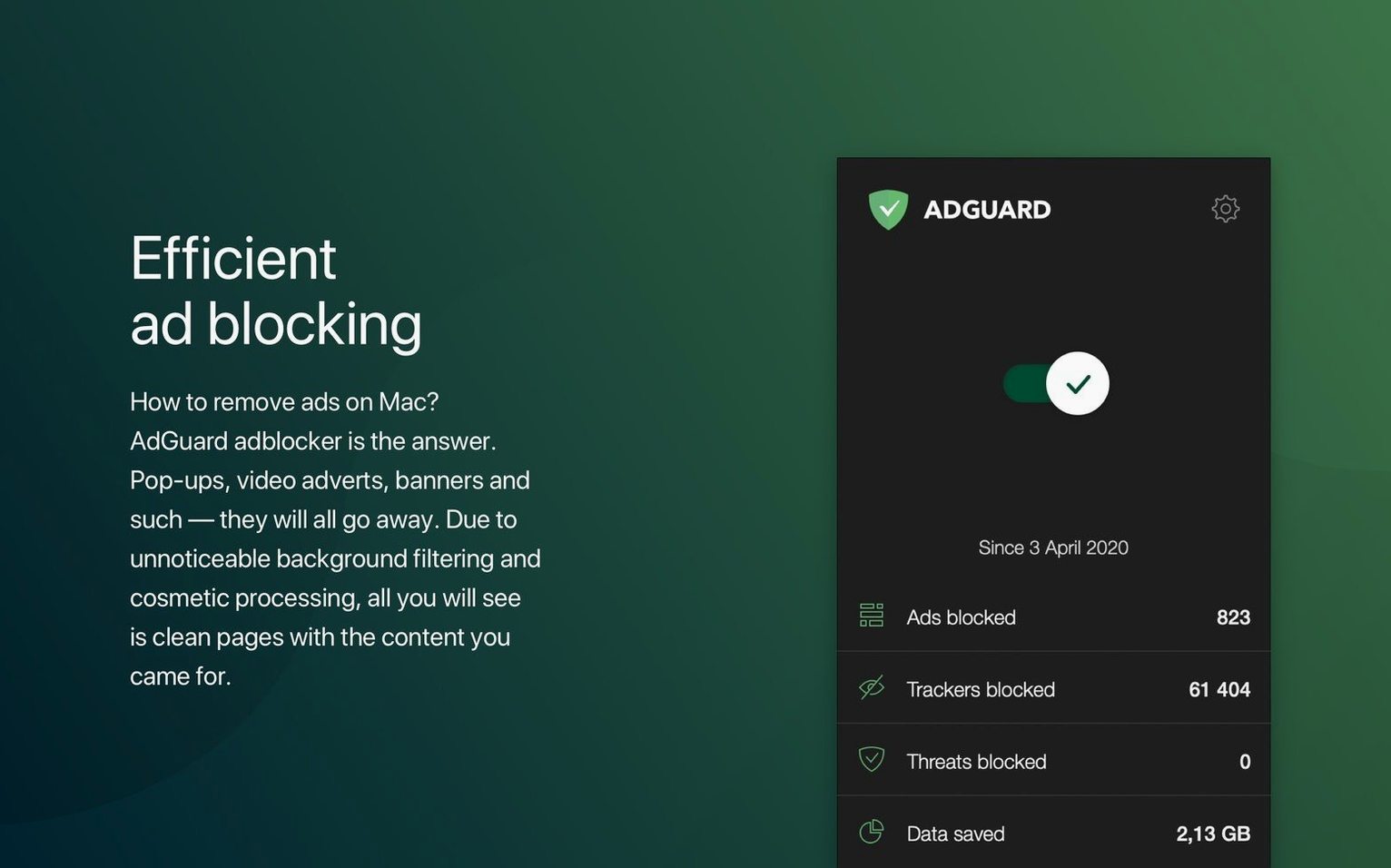
Open AdGuard's preferences and you'll notice the Safari protection toggle first. That's the entry point, but the real value sits in the system-wide filtering that covers every browser and app on your Mac.
Good for:
- Blocking ads in all browsers, not just Safari.
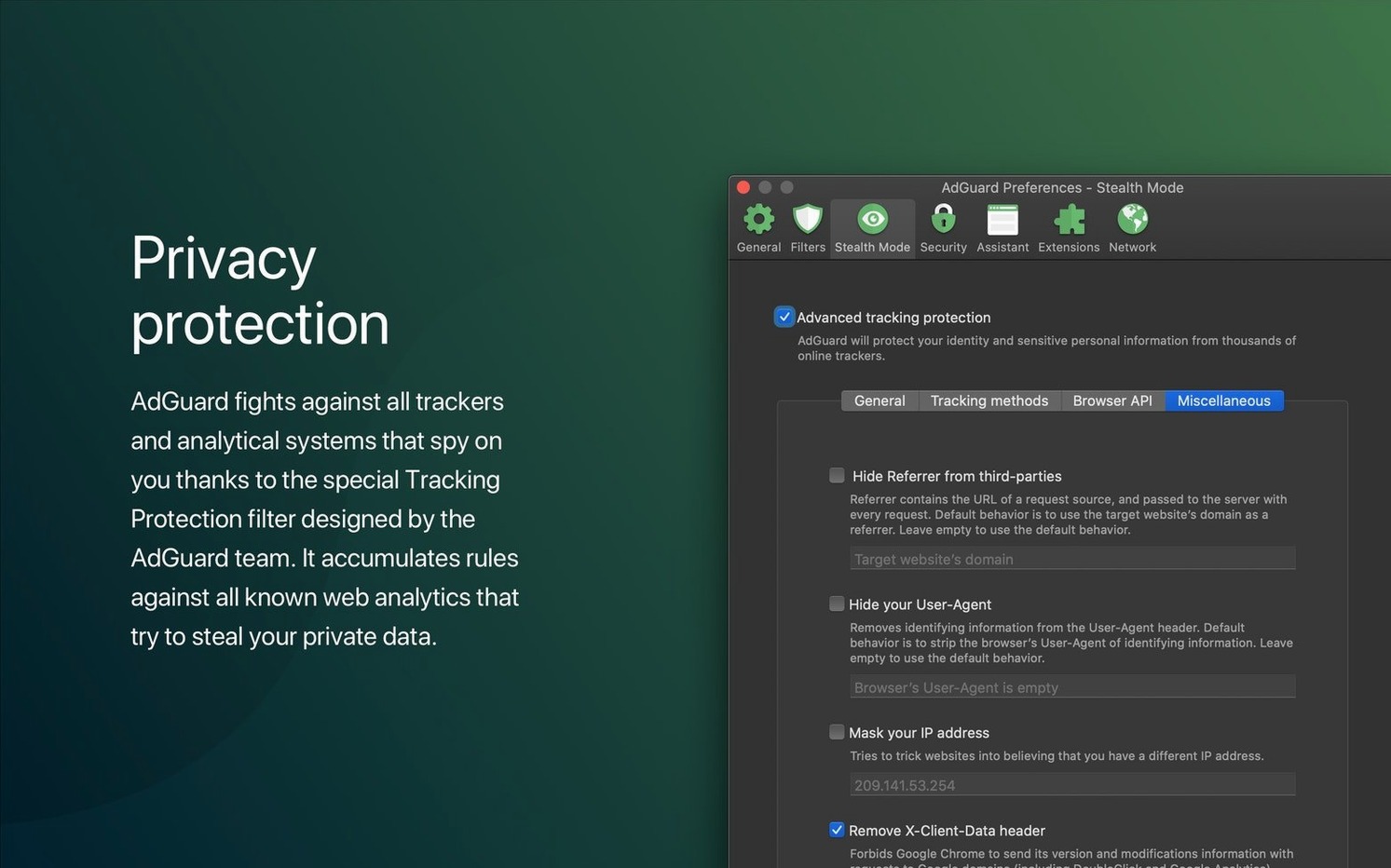
- Hiding personal data from trackers and analytics systems.
- Manually blocking selected ads or page elements with a simple click.
- Working in dark mode without straining your eyes.
Keep in mind:
- It's a system-level blocker, so it filters traffic at the network layer.
- The interface is simple, but the manual blocking tools take a bit of practice.
- Version 2.18 adds support for three AI-powered browsers and improved stability.
Enable Stealth Mode for Anti-Tracking
AdGuard works out of the box, but a few preference changes make it more useful day to day. Open the app, go to Preferences, and check these:
- Enable stealth mode. This is AdGuard's anti-tracking layer. It hides your search queries, blocks link-tracking parameters, and strips identifying headers from requests. Turn it on if you want less targeted ads and fewer analytics pings.
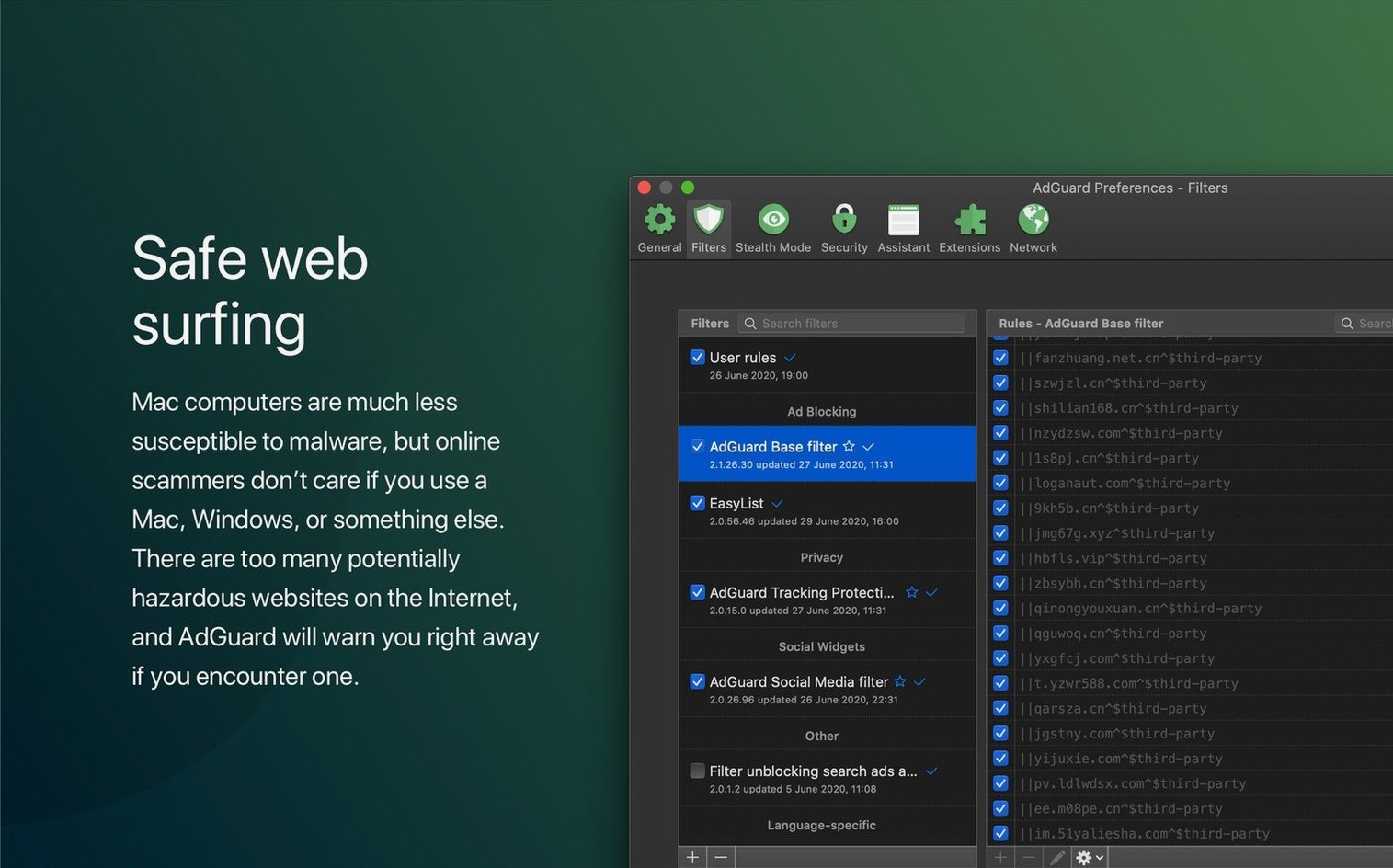
- Set your own filtering level. The default is moderate. Switch to "High" if you want aggressive tracker blocking. Just know that some sites might break — you can add exceptions per site if that happens.
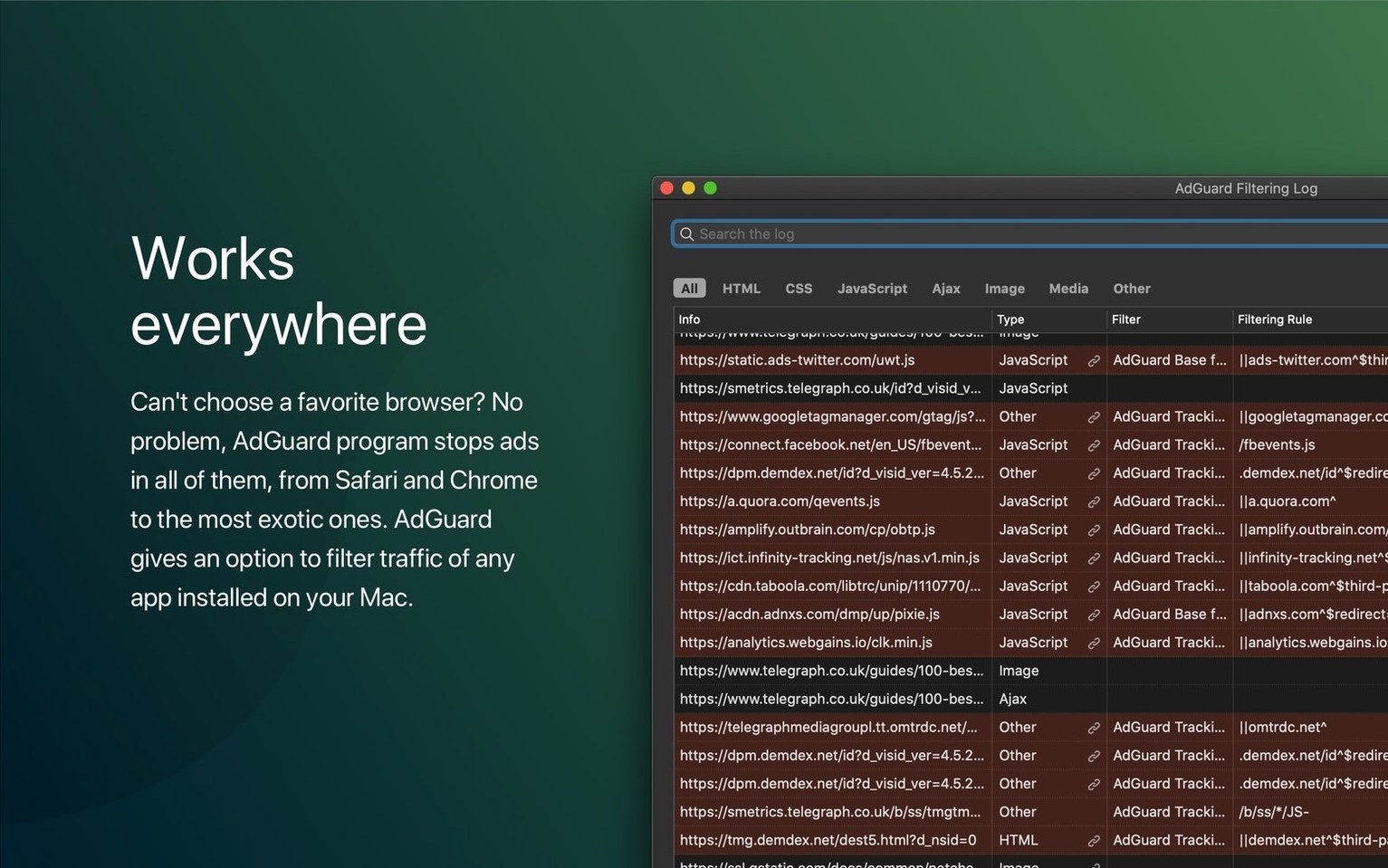
- Turn on filtering for all apps. AdGuard can filter traffic in any application, not just browsers. Check that the "Filter HTTPS traffic" option is enabled in the Advanced settings. This lets the blocker catch ads inside apps like Discord, Spotify, or any other software that loads web content.
- Adjust the dark mode. If you use macOS dark mode, AdGuard matches it automatically. But you can force it in Preferences if you prefer the dark interface even with a light system theme.
- Set up browser-specific filtering. In the Browser Protection section, you can manually enable or disable filtering per browser. If you run multiple browsers, make sure AdGuard is active in each one. The 2.18 release added official support for three AI-powered browsers — check the drop-down list to see if yours is there.
Now Supports AI-Powered Browsers
Version 2.18.0.2089 is a maintenance release with one clear improvement: it officially supports three AI-powered browsers. If you've switched to a browser that uses an AI assistant or chatbot interface built in, AdGuard now recognizes and filters it properly. No more gaps in coverage when you use those browsers alongside Safari or Chrome.
The update also includes general stability improvements. That means fewer unexpected crashes when switching between filter lists or toggling protection on and off. Nothing flashy, but the app feels more predictable during daily use.
System requirements were updated as part of this release. Make sure your Mac runs macOS 10.15 or later — older versions are no longer supported.
Pause Filtering When Sites Break
Not checking if a site breaks. New users install AdGuard, see ads disappear, and assume everything works. Then a login page, a payment form, or a video player stops loading. The solution is simple: pause filtering for that site using the AdGuard menu bar icon, or add it to the exception list. Most broken pages just need one filter rule turned off.
Forgetting that it filters non-browser traffic. AdGuard blocks ads and trackers in all apps. That's good, but it can also block legitimate content in apps that fetch data from ad-supported CDNs. If a weather app or a news reader stops showing images, check AdGuard's filtering log. Whitelist the domain, and the content comes back.
Running two ad blockers at once. Some people install AdGuard alongside a browser extension blocker. That causes double-filtering, slower page loads, and occasional blocks of each other's traffic. Pick one system-level blocker and turn off the rest. AdGuard's system-wide filtering is already more thorough than most browser extensions.
Ignoring the filtering log. The log shows every request AdGuard processes. Beginners rarely open it. But it is the quickest way to diagnose why a page looks wrong or an app can't load its content. Make a habit of checking the log when something seems off.
Skipping the manual blocking tool. AdGuard lets you click an element on a page and hide it permanently. Beginners assume the automatic lists catch everything. They don't. If you see a leftover ad or a layout element you don't want, use the manual blocker. It takes two clicks and saves you from hunting through filter lists.
- Support for three AI-powered browsers.
- Updated system requirements.
- Improved stability.
- macOS 10.15 or later
- Intel or Apple Silicon
The install order
- Follow the included installation instructions to set up AdGuard.
- Use the provided activation instructions to get the full version running.