Free download (35 MB) Previous versions
- Version
- 4.5.0
- Developer
- Anogeissus Limited
- Languages
- English, German, Spanish, Italian, Chinese (Traditional), Chinese (Simplified), Korean, Dutch, Polish, French, Japanese
- License type
- Not required
| macOS range | macOS 10.14 or later |
|---|---|
| Chip | Apple Silicon, Intel 64-bit |
| Download | 35 MB |
| Previous versions | 2 on file |
Screenshots
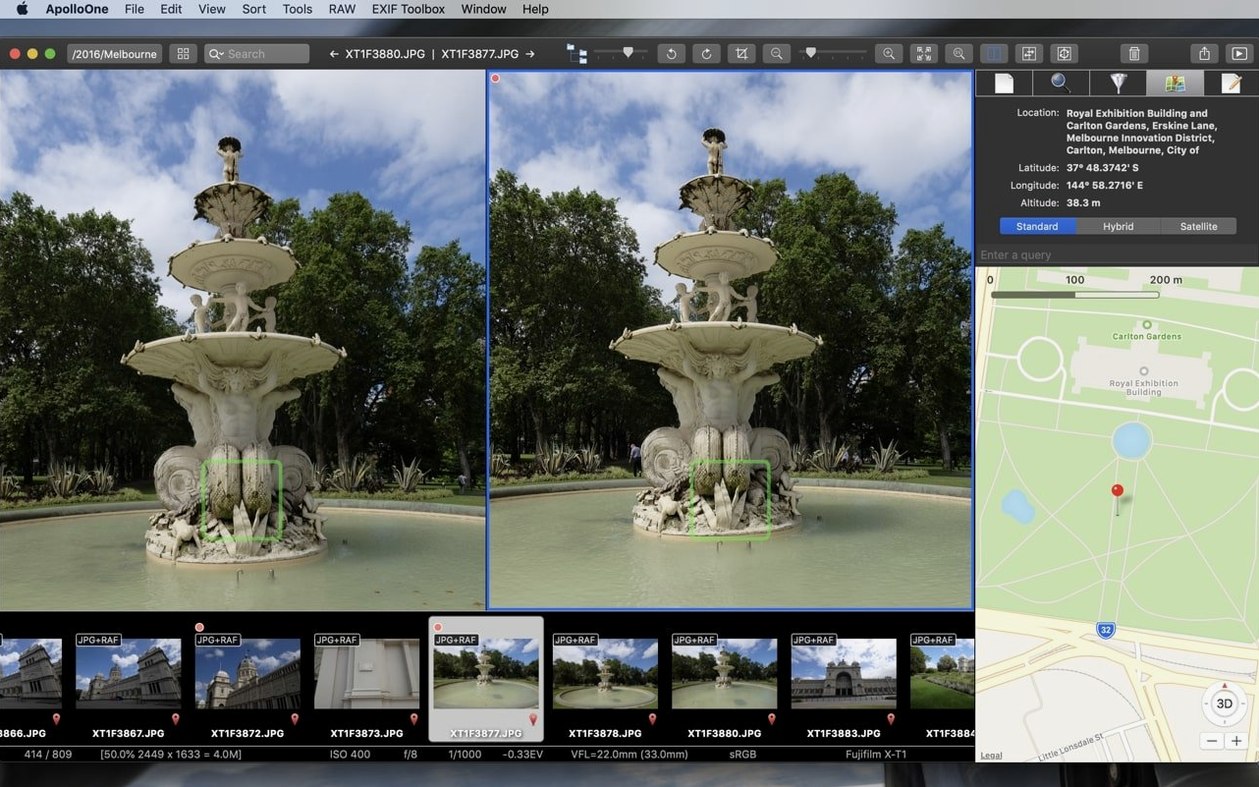
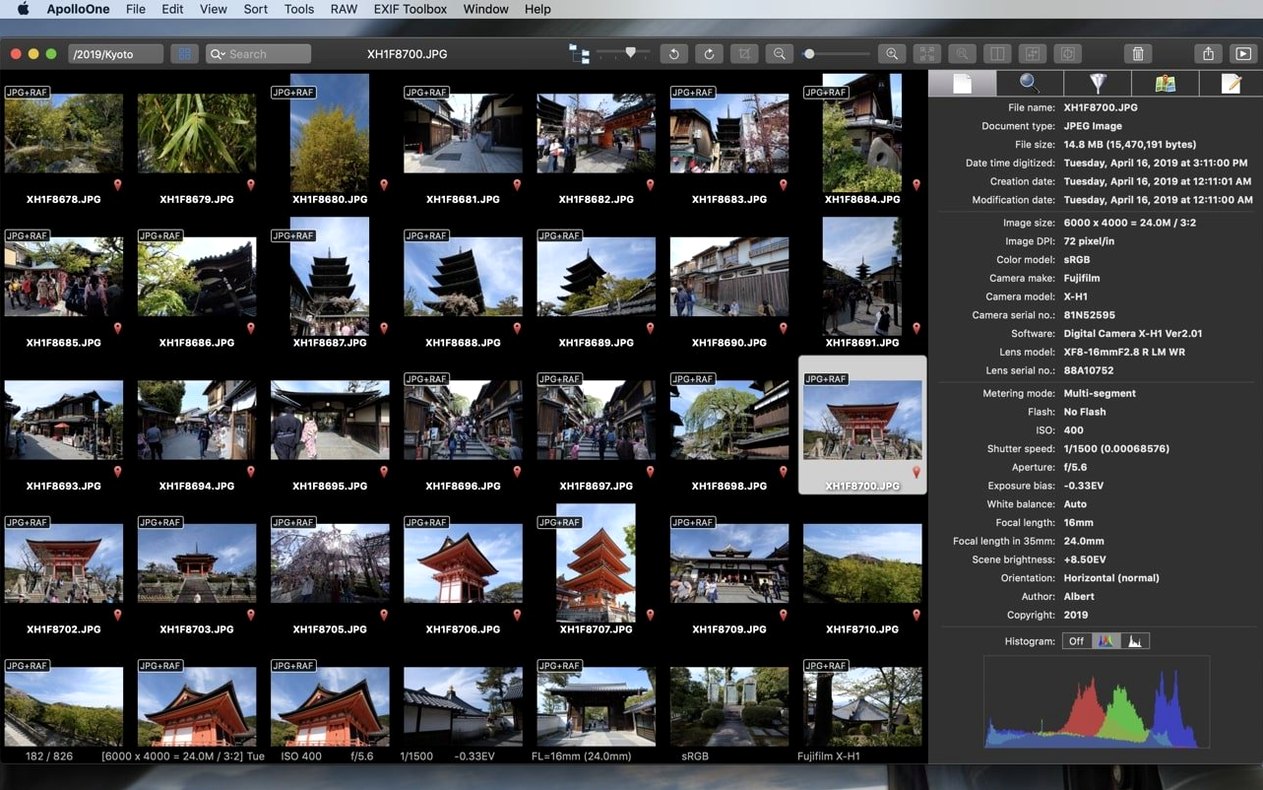
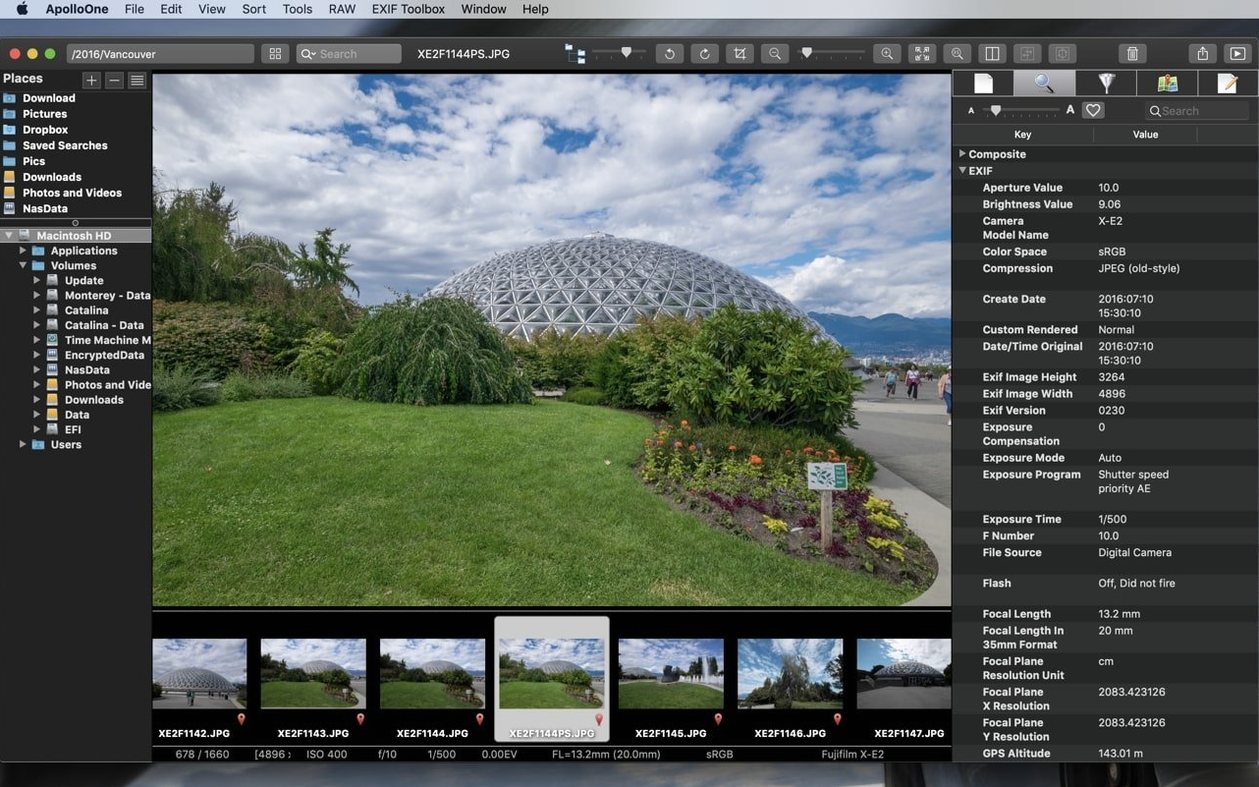
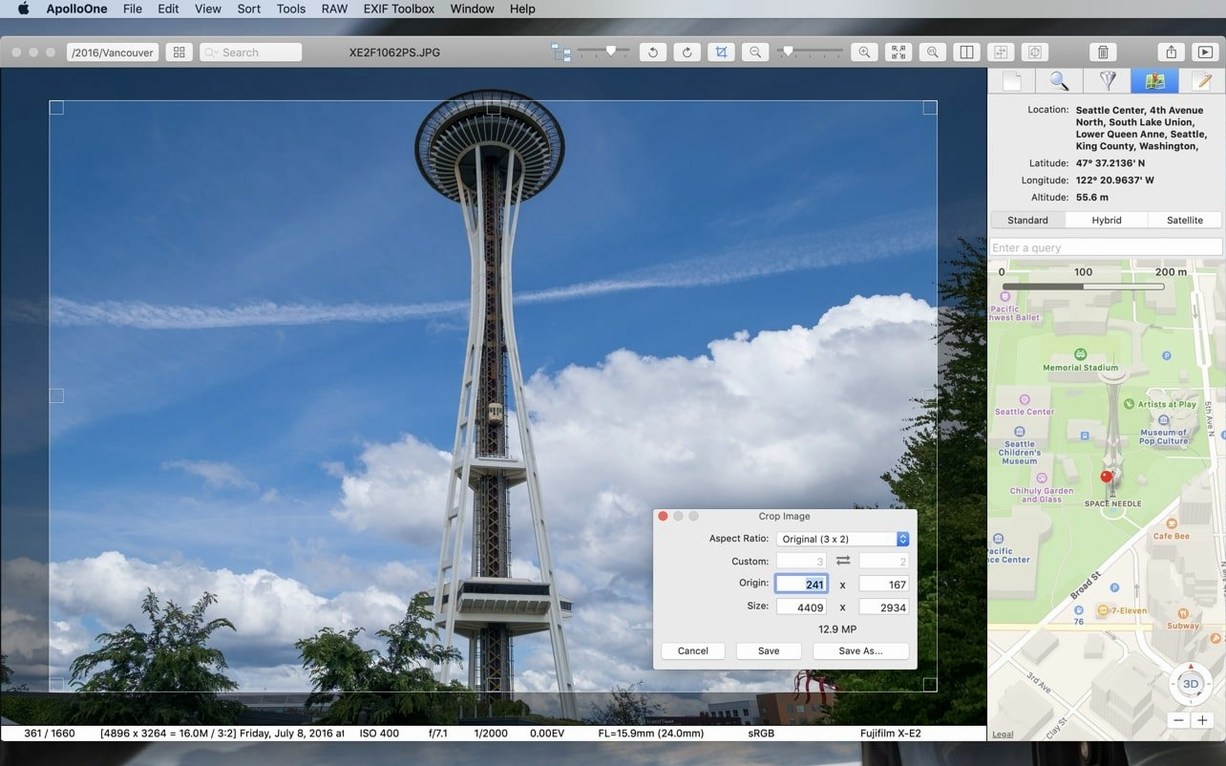
Click a screenshot to see it wider.
ApolloOne is an image viewer and digital asset manager built for seasoned amateurs and professional photographers.
Import from Memory Cards
Smart memory card import sorts incoming photos and videos into a logical folder structure, so you can skip the manual filing and get straight to editing.
Manage Metadata
Metadata management covers EXIF, IPTC, and more, letting you tag, rate, and search your library without leaving the app. It fits neatly between your existing Finder workflow and a full-blown DAM.
View and Organize
Fast previews, side-by-side comparisons, and flexible sorting handle day-to-day browsing. The app supports both ARM and 64-bit Intel Macs, so it works on your current setup and the next one.
How ApolloOne Compares to Other Mac Image Tools
If you are deciding between ApolloOne and similar Mac apps, the key differences come down to workflow philosophy. Three apps often come up: Adobe Bridge, Lyn, and RawPower.
It is a capable browser, but it leans heavily on Adobe's raw engine and expects you to open files into Photoshop or Lightroom for serious work. ApolloOne is a lighter, independent app that does not depend on other software to be useful.
Lyn is a longtime Mac image viewer with solid speed and full-screen browsing. It handles folders well but its metadata and search tools are more basic. ApolloOne goes further with IPTC management and smart import, which matters when you are dealing with large shoots and need to keep metadata consistent.
RawPower is a raw editor first and a browser second. Its strength is non-destructive adjustments, not library organization. ApolloOne focuses on viewing, culling, and cataloging — the jobs you do before you open a raw editor. They work side by side, but for managing thousands of images, ApolloOne is the better starting point.
Working Photographers and Enthusiasts
Three user groups benefit most:
- Working photographers — event, wedding, and portrait photographers who import hundreds of files per shoot. Smart import, rating, and batch renaming cut the time between card ejection and first edit.
- Photo enthusiasts with large libraries — people who have accumulated years of images in a folder hierarchy and want to browse, search, and rate without rebuilding their structure in a new DAM. ApolloOne reads what is already there.
- IT generalists supporting creative teams — a DAM that does not require a server, a database, or a migration project. Deploy it, point it at the shared photo volume, and users can find files with search and filtering without IT intervention.
Finder-to-Editor Bridge
ApolloOne sits between Finder and your editing apps. You can use Finder for storage and backups, ApolloOne for browsing and culling, then hand selected files to Photoshop, Capture One, or Affinity Photo by opening them from the app. No import, no export, no duplicate library.
macOS Quick Actions and Services work with ApolloOne because it respects your existing folder layout. You can set it as your default image viewer in Finder info, so double-clicking a raw file opens ApolloOne instead of Preview or Photos.
The app also makes use of macOS tagging. Tags you assign in Finder show up in ApolloOne, and tags set in ApolloOne are visible in Finder. This keeps your organization consistent across the system without extra syncing.
For photographers who use Time Machine or cloud backup, ApolloOne's folder-based approach means your backup strategy stays the same. You are not backing up a hidden database — just your image files, exactly where you put them.
- macOS 10.14 or later
- Apple Silicon or 64-bit Intel
The install order
- Open the downloaded disk image.
- Drag the app to the Applications folder alias.
- After copying finishes, launch the app from Launchpad.