- Version
- 2.9.0
- Developer
- Reincubate Ltd.
- Languages
- English
- License type
- Included
| macOS range | macOS 12.3 or later |
|---|---|
| Chip | Apple Silicon, Intel 64-bit |
| Download | 100 MB |
Screenshots
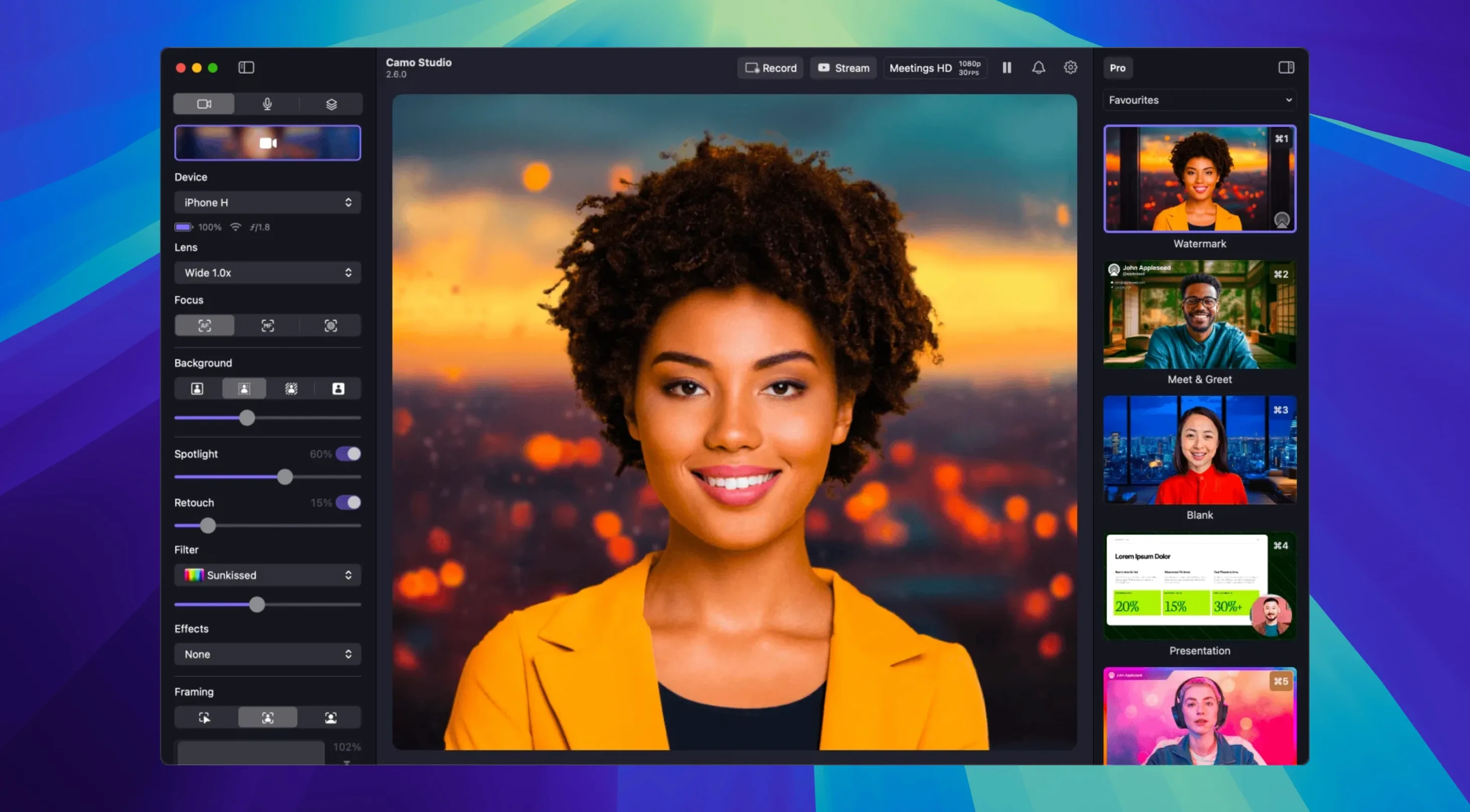
People who run video calls or record from a Mac often want better image quality than the built-in camera delivers.
iPhone or Android as a Mac webcam
- Using an iPhone or Android phone as a high-quality webcam on a Mac
- Portrait mode for a bokeh background effect
- Video Call mode that improves lighting
- AI face retouching for a polished look
Requires macOS 12.3+, no Tahoe support
- Requires macOS 12.3 or later; runs on both Intel and Apple Silicon
- Does not work on macOS Tahoe
- Version 2.9.0 adds isolated recordings and audio noise reduction for macOS
Set resolution to 4K or lower first
A few quick changes in Camo Studio make the biggest difference when you are setting it up for the first time.
- Check the resolution. The app can go up to 4K UHD, but many calls and recordings do not need that. Set it to 1080p if you want to save bandwidth or disk space.
- Turn on digital image stabilization if your phone is on a regular mount or you move around. It keeps the image steady without extra gear.
- Adjust white balance and exposure manually. Auto settings work for quick starts, but you get better color consistency with manual controls, especially if your lighting changes during the day.
- Set up a LUT or pick a built-in filter. Eighteen filters are included. Applying one early saves time later when you edit or stream.
- Enable background replacement or portrait mode before your first call. That way you see how it handles your environment and avoid a last-minute surprise.
Connect phone before launching the app
Most issues people hit are easy to avoid once you know what to watch for.
- Forgetting to connect the phone before launching the app. The app needs to detect the phone first. Connect it, then open Camo Studio.
- Leaving the phone's screen on. The phone processes video on its own chip, so it can get warm.
- Not testing the audio noise reduction. Version 2.9.0 adds audio noise reduction on macOS, but it is off by default. Enable it in the settings before a meeting if your room has background hum or fan noise.
- Expecting the same color in every app. The app sends a processed video feed, but third-party apps like Zoom or Teams sometimes apply their own color adjustments. Test your look in the actual call app beforehand.
- Ignoring automatic framing. This feature keeps you centered if you move. Turn it on if you tend to lean or shift while talking.
Phone handles processing, not your Mac
Camo Studio runs on macOS 12.3 and later, on both Intel and Apple Silicon machines. The processing happens on the phone, not your Mac, so heavy lifting for effects like background replacement or face retouching does not hit your CPU. That means the app itself stays lightweight on the system.
The interface is in English only. The app works with a connected iPhone, Android phone, or tablet. It does not support macOS Tahoe, so older machines stuck on that version cannot use it. The current release is 2.9.0.25534, which adds dual-format streaming and recording, isolated recordings, audio noise reduction, and the ability to control the app from AI agents. If you are looking to get the latest version, a camo studio crack download or camo studio torrent search may pop up online, but the official release is what this guide covers.
It is part of the Camo product family and pairs with the companion app for the phone side.
- Dual-format streaming and recording added for macOS
- Isolated recordings added for macOS
- Audio noise reduction added for macOS
- Control from AI agents added for macOS
- macOS 12.3 or later
- Architecture: Intel and Apple Silicon
Questions I get about this line
No, Camo Studio does not work on macOS Tahoe. It requires macOS 12.3 or later.
The install order
- Open the downloaded disk image.
- Drag the app to the Applications folder shortcut.
- After copying finishes, launch the app from Launchpad.