
Free download (19 MB) Previous versions
- Version
- 1.5.46
- Developer
- INCHMAN1900
- Languages
- English
- License type
- Included
| macOS range | macOS 14 or later |
|---|---|
| Chip | Apple Silicon, Intel 64-bit |
| Download | 19 MB |
| Previous versions | 1 on file |
Screenshots
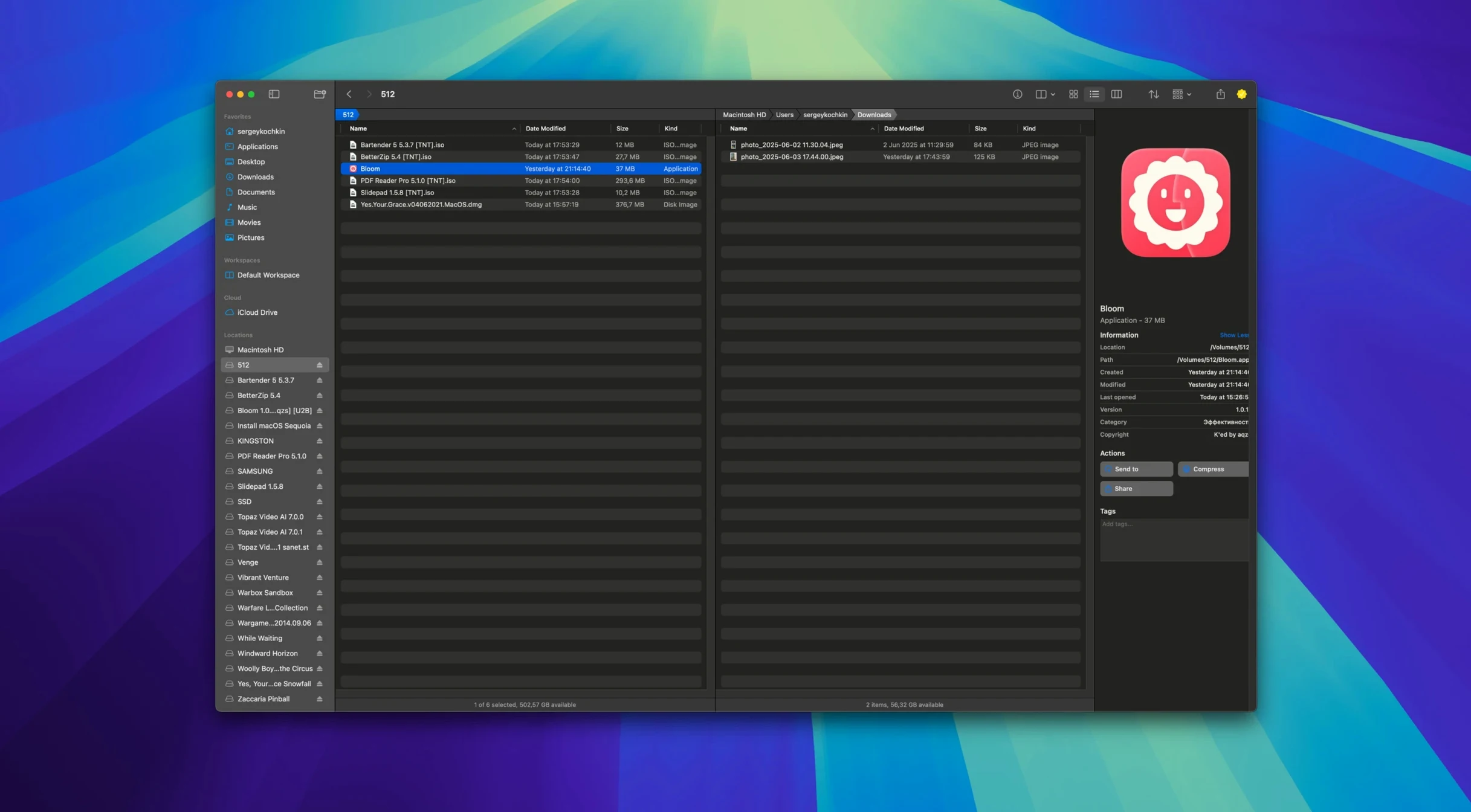
Bloom is a macOS file manager designed as an alternative to Finder.
Preview Pane and Undo for File Moves
Preview pane — View text, images, or PDF files under 10 MB without opening them in another app.
Undo operations — Every action is recorded, so you can undo file moves, renames, or deletions.
Advanced renaming — Rename batches of files using regular expressions for precise control.
Folder-based search — Search within the current folder or its subfolders without indexing the whole drive.
Insert images from the web — Pull images directly from URLs into your file system.
Portal Mode Pins Above Other Windows
Bloom’s Portal mode is a compact window without a sidebar or preview. Useful when you want file access without the full interface. The Portal can be pinned above other windows or docked at a screen edge. I keep it on the left side of my second display.
⌘⇧⏎ jumps you to any system location instantly — no clicking through folders. ⌘F searches inside the current folder, and ⌘R refreshes the results. These three shortcuts cover most of my daily file navigation.
Automatic column resizing adjusts column widths to fit content. Less manual dragging. The treemap view shows disk usage in colored blocks — handy for spotting what is eating space on a shared clinic drive.
Tag management is built in, no separate tagging utility needed. The task scheduler can automate regular file operations like archiving old patient records by date.
Lightweight with No Background Indexing
Does it replace Finder completely?
Bloom works alongside Finder. You can set it as your default for file browsing without uninstalling anything. Finder stays available for system-specific tasks like emptying Trash or accessing network volumes that Bloom does not handle.
Works with iCloud Drive for Synced Folders
It is a lightweight app. No background indexing service runs constantly. It scans only when you request a folder search or treemap. I have not noticed any change in system responsiveness.
Can I undo something I regretted?
Yes. Every operation is recorded — moves, renames, deletes. You can reverse them even after closing and reopening Bloom. That alone saved me once when I bulk-renamed the wrong folder.
Set Up Portal and Practice ⌘⇧⏎
Yes, Bloom integrates with iCloud Drive for file management within your synced folders.
Undo File Moves, Renames, or Deletions
- Set up Portal mode — Open a folder, press the Portal button, pin the small window where you want it. Try both pinned and docked positions to see what fits your workflow.
- Practice ⌘⇧⏎ — Type a path like
~/Documentsor/Systemand hit Enter. You will learn it in two uses. - Test search inside a folder — Open a cluttered folder, press ⌘F, type a term. Then press ⌘R to refresh results after moving files. This replaces Finder’s slow indexed search for most tasks.
- Try the treemap — Point it at your home directory or a project folder. It shows where space is going at a glance.
- Rename one batch — Select several files, open the renaming tool, apply a simple regex like
_old$→_archived. Undo if it goes wrong. - Preview a PDF under 10 MB — Click once, read it in the preview pane. No need to open Acrobat or Preview for quick checks.
Bloom is free, updates itself after installation, and runs on macOS 14 or later on both Intel and Apple Silicon Macs. Version 1.5.42.
- macOS 14 or later
- Intel or Apple Silicon processor
Questions I get about this line
Yes. Bloom supports both Intel and Apple Silicon Macs running macOS 14 or later.
The install order
- Mount the downloaded disk image.
- Drag the app to the Applications folder shortcut.
- After copying finishes, open the app from Launchpad.