Free download (20 MB) Previous versions
- Version
- 1.5.6
- Developer
- Seven Degrees Labs
- Languages
- English
- License type
- Included
| macOS range | macOS 15.6 or later |
|---|---|
| Chip | Apple Silicon, Intel 64-bit |
| Download | 20 MB |
| Previous versions | 1 on file |
Screenshots

Click a screenshot to see it wider.
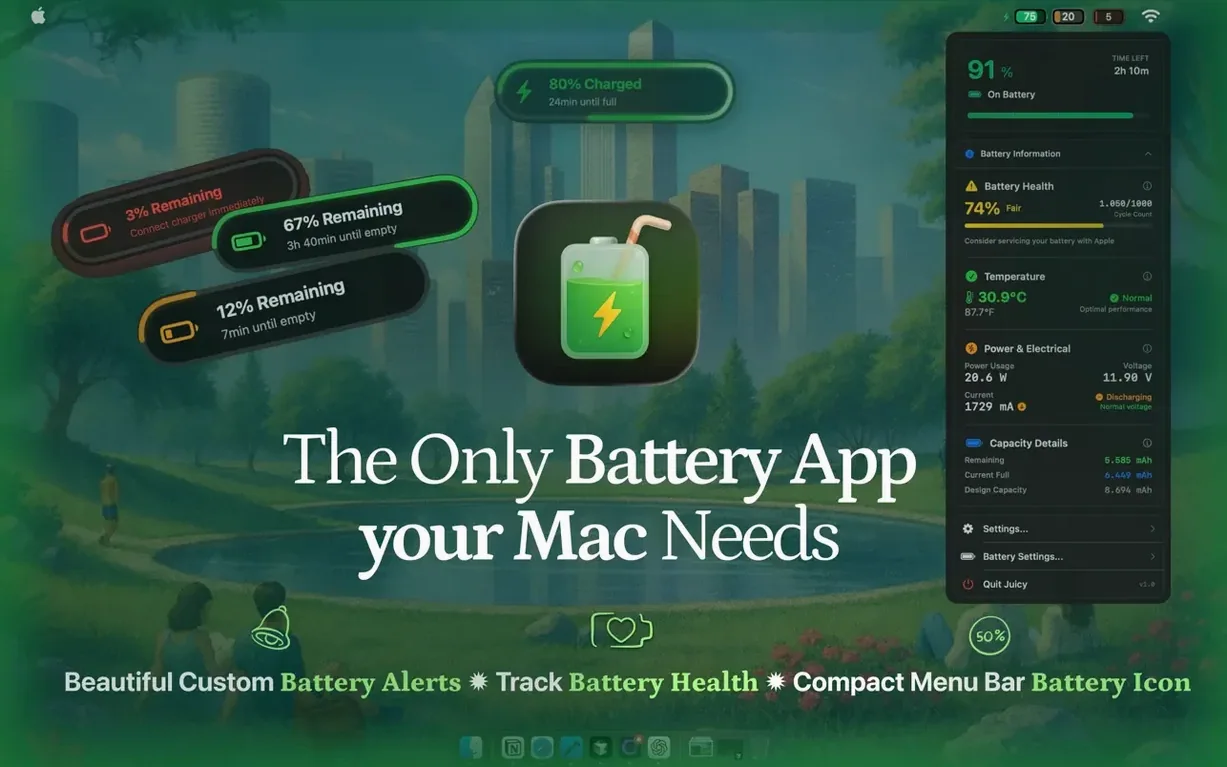
Watch temperature and charging limits
Set charging limits and let the app step in when heat builds up.
Check connected device batteries
One menu bar view covers everything you carry.
Read service recommendations
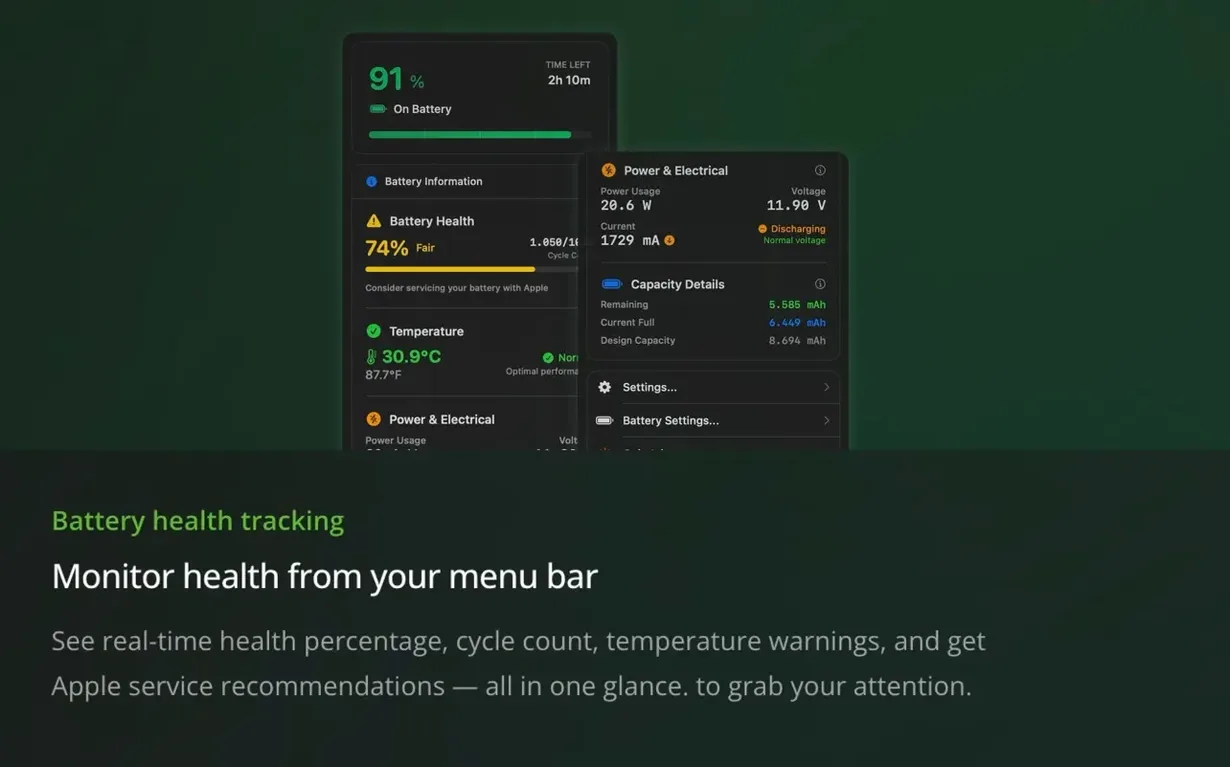
Cycle count is displayed with Apple's service recommendations, so you know when a trip to the shop is worth scheduling. All data processes locally, no cloud tracking involved.
Real-time glance without opening
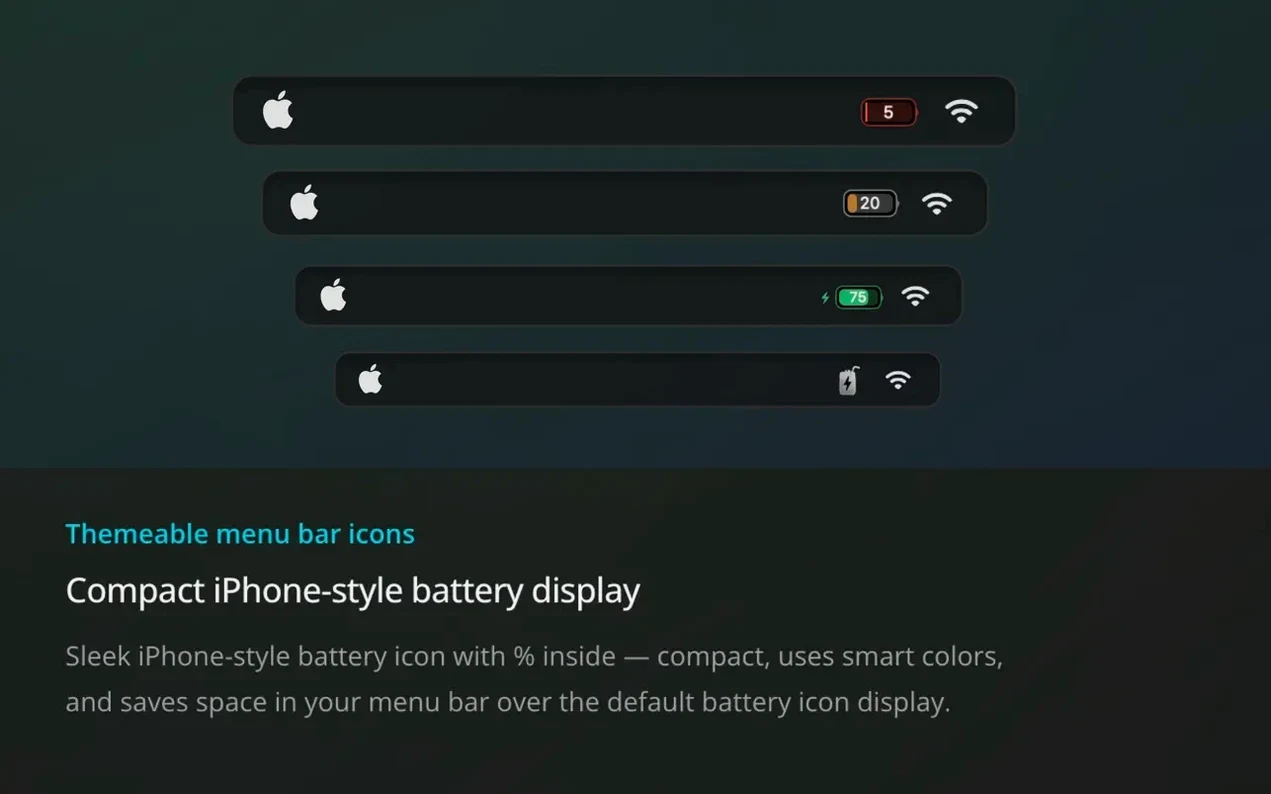
That alone saves a click compared to macOS's default popover. The percentage updates in real time, so you can glance while working without opening anything.
Widgets on the desktop are another timesaver. The widgets pull the same data as the menu bar, so they don't add overhead.
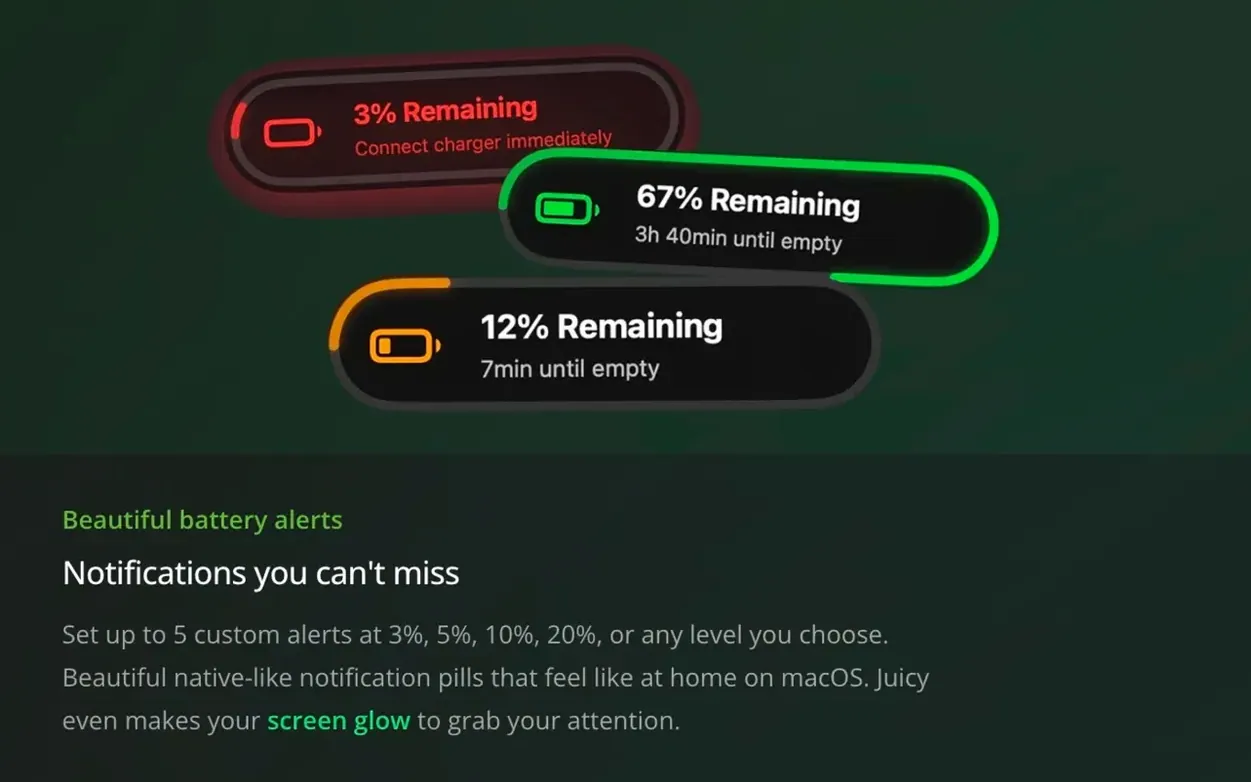
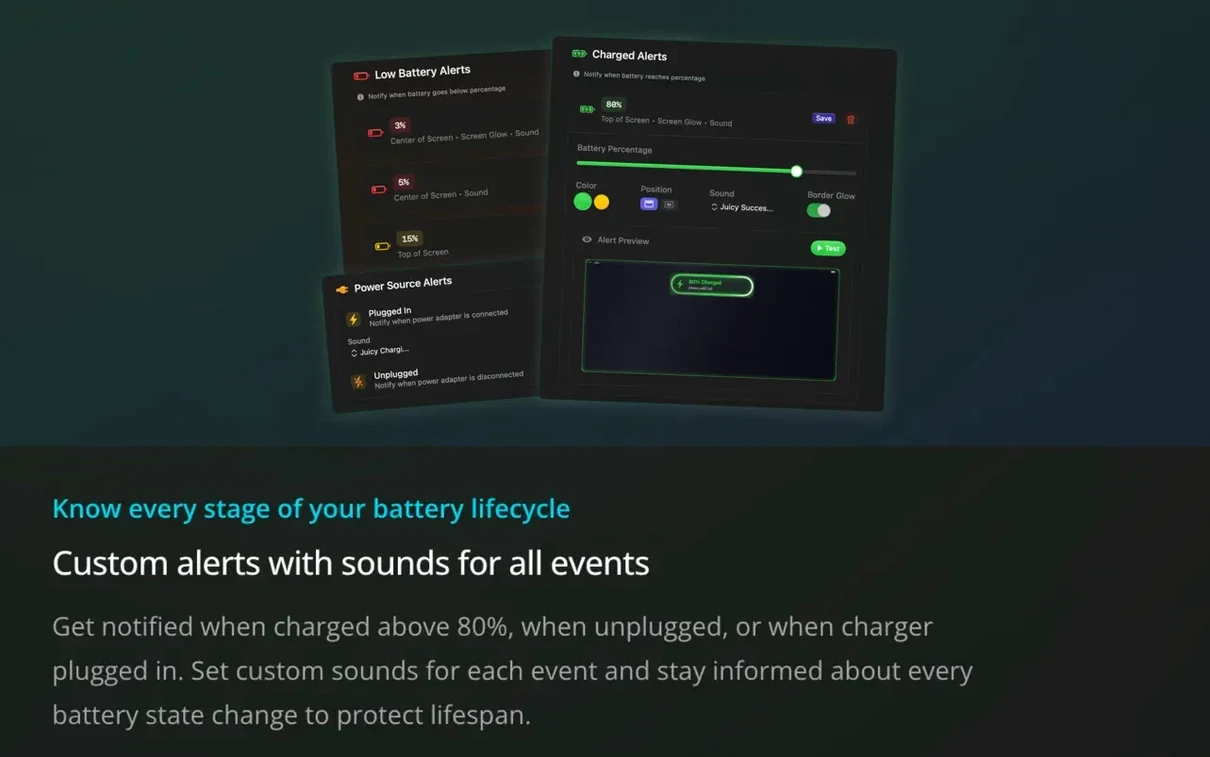
When you plug or unplug power, a brief notification appears.
Custom alert levels and dark mode
Open the app's preferences and check the alert levels. The defaults cover 3%, 5%, 10%, and 20%+, but you can pick any single value or a custom range.
Dark mode is worth turning on if you work late or keep the menu bar dark.
Multiple alert profiles let you switch settings between work and travel. Switch profiles from the menu bar — no need to re-enter levels each time.
Settings worth changing first
After dragging Juicy into Applications and launching it, open Preferences. The default 20% works for most people, but if you regularly work near an outlet, 10% gives you more usable range before the alert fires.
Pair that with the charging limit and heat protection added in version 1.5, and the app handles the rest.
Enable temperature monitoring if you work on soft surfaces or in warm rooms. The default warning temperature is reasonable, but you can lower it if you want earlier warnings.
Set up at least two alert profiles: one for desk work and one for travel. The desk profile can use higher thresholds and fewer alerts. Switch between them from the menu bar icon.
Small conveniences easy to miss
Juicy puts the number right in the icon, so you don't need extra menu bar space for a separate percentage readout.
AirPods, Magic Mouse, Keyboard, Trackpad, Beats devices, iPhone, and iPad all show up in one list.
Widgets on the desktop update live without opening the app. The widgets respect dark mode, so they don't clash with your wallpaper at night.
Power usage in watts is displayed in real time. That number helps you spot apps drawing unusual power without opening Activity Monitor. If you see watts climbing while the Mac is idle, you know something is running in the background.
A typical working session with Juicy
Monday morning. I sit down at the desk, MacBook plugged in from the night before.
I switch to the desk profile. The temperature warning is set to the default. I open a widget on the secondary display showing cycle count and health percentage. Both look normal.
Mid-morning, I unplug to move to a conference room. A brief notification appears: power disconnected. Juicy switches context. The menu bar icon now shows the current charge and starts updating as I work.
After lunch, I plug back in. Another notification: power connected. I glance at the temperature readout — normal, even after the Mac sat in a warm car.
Late afternoon, I check the connected device list. No need to open the Bluetooth panel or pull out my phone. Everything has enough charge to finish the day.
Before leaving, I check the per-app energy insights added in version 1.5. One browser tab is drawing more watts than expected. I close it, and the power usage drops. Juicy's live watt readout confirms the change.
I switch to the travel profile for the commute home. The app handles the rest. I close the MacBook and pack up.
The temperature warning threshold is also adjustable. All data stays on your machine, so adjusting these won't send any info to a server.
- Version 1.5 adds charging limits with heat protection.
- Version 1.5 adds per-app energy insights.
- Version 1.5 adds iPhone and iPad battery health display.
- macOS 15.6 or later
- Apple Silicon or Intel (x86 64-bit)
- Interface language: English
Questions I get about this line
Yes, Juicy supports both ARM and x86 64-bit Macs running macOS 15.6 or later.
The install order
- Open the downloaded disk image.
- Drag the app into the Applications folder.
- Launch the app from Launchpad after copying finishes.