
Free download (35 MB) Previous versions
- Version
- 11.0.4
- Developer
- Stairways Software Pty Ltd.
- Languages
- English
- License type
- Included
| macOS range | macOS 10.13 or later |
|---|---|
| Chip | Apple Silicon, Intel 64-bit |
| Download | 35 MB |
| Previous versions | 2 on file |
Screenshots
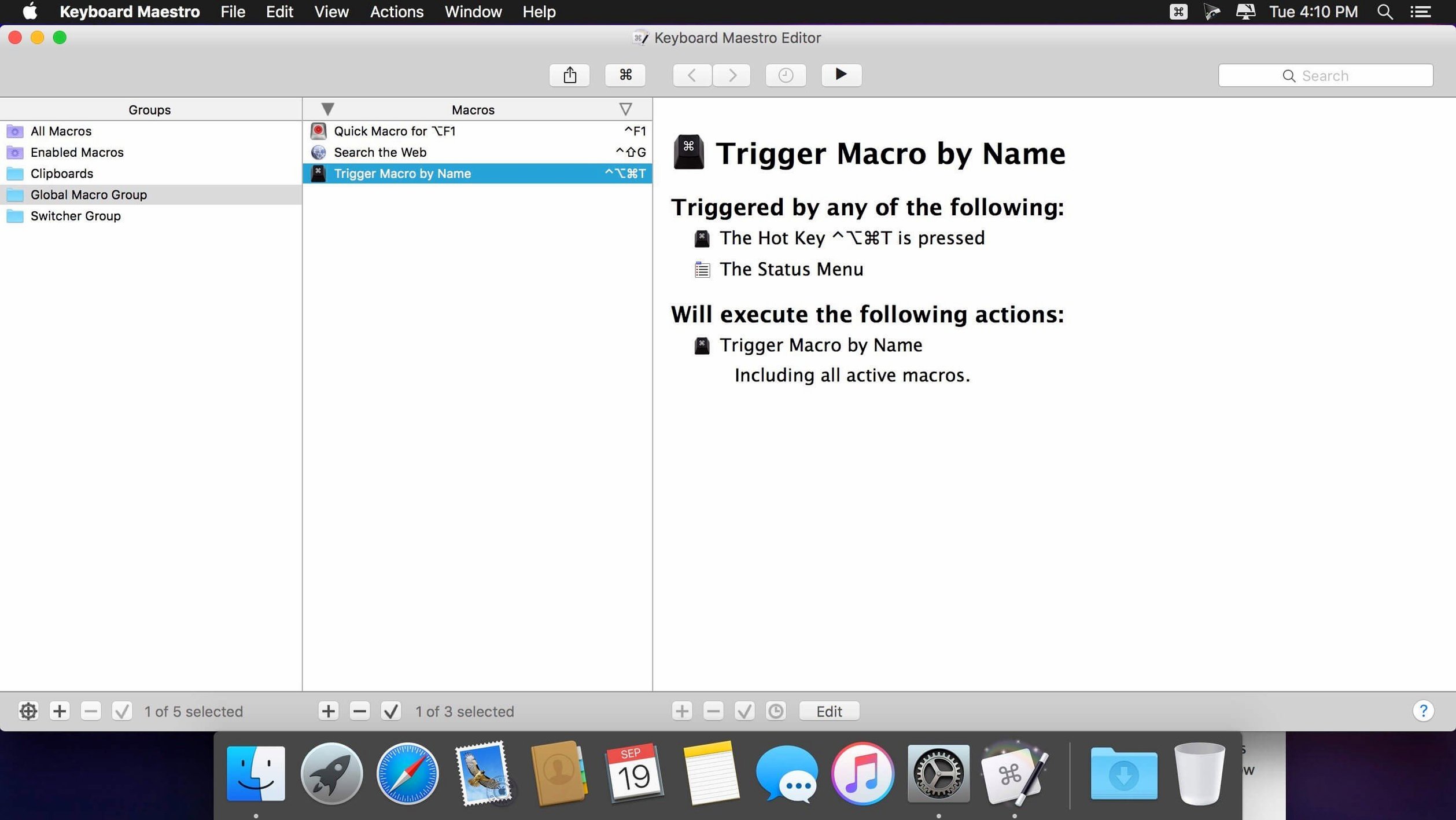
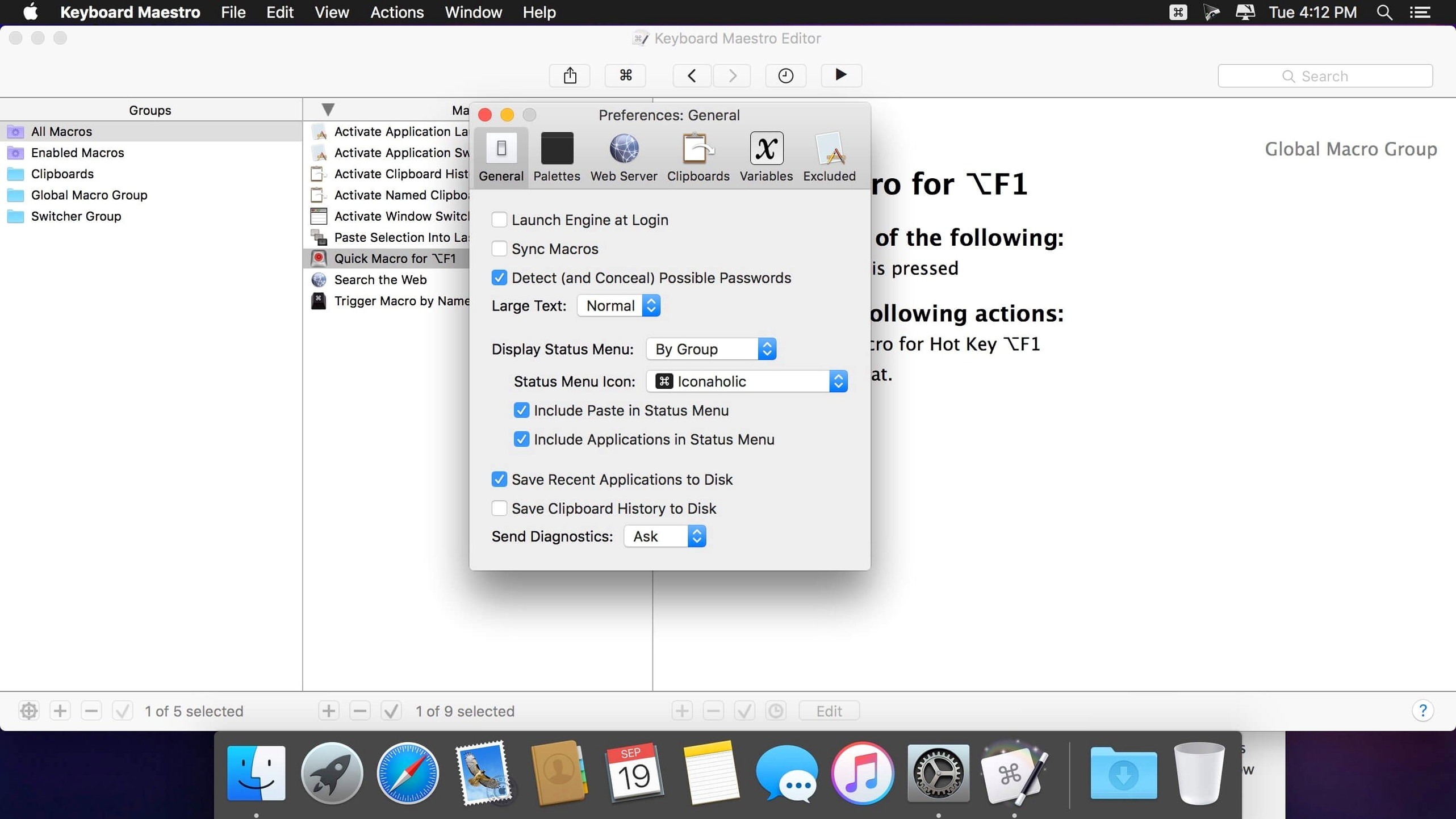
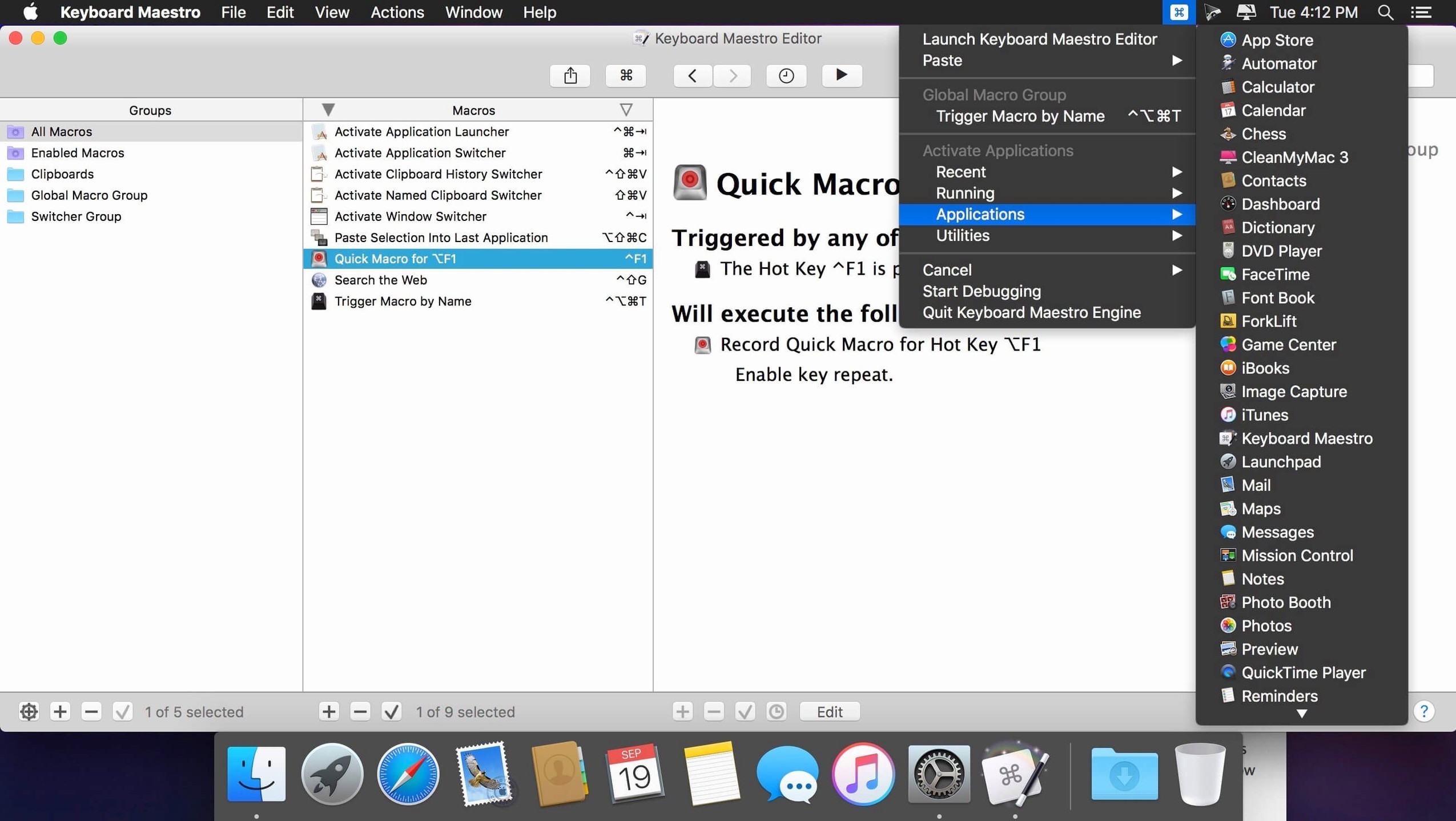
Scroll the row, it snaps to each screenshot. Click one to see it wider.
Repetitive tasks eat your day. Keyboard Maestro 11.0.4 for Mac puts those tasks on autopilot with custom keyboard shortcuts, scheduled triggers, and conditional logic. It opens documents, fills web forms, rearranges windows, filters the clipboard, and builds reports — all without scripting knowledge. Define a trigger, record a series of actions, and let it run. The current version keeps the core workflow intact while polishing the edges.
Macro automation — Create macros that automate apps, websites, text, or images, on command or on a schedule.
Keyboard shortcuts — Assign any key combination to fire a macro, turning shortcuts into one-tap workflows.
Clipboard tools — Filter pasted text and keep a history of multiple entries for quick reuse.
Window management — Resize, move, and arrange windows to fit your layout.
Form filling — Populate web forms automatically with saved data.
Reporting — Generate reports from your data without leaving the app.
Text expansion that saves real time
Keyboard Maestro packs a lot under its hood. A few features that do not shout for attention but save real time:
- Text expansion. Type a short abbreviation and Keyboard Maestro replaces it with a longer phrase or paragraph. Useful for email signatures, canned responses, or common code snippets.
- Clipboard history. The app keeps multiple clipboard entries. You can recall a previous copy without losing the current one. No extra software needed.
- OCR on images. The 11.0.4 update added support for Apple Text Recognition in the OCR Condition. If you have a screenshot or scanned PDF, the macro can read text from it and act on it – for example, extract a code or a date.
- Switch/Case display. When you build a macro with conditional branches, the editor now shows which case is true or would execute. It makes debugging branching logic faster. No need to guess.
- Macro Debugger tool tips. Hover over a step during debugging and a tool tip tells you what is happening. Small time-saver when a macro does not behave as expected.
- Search highlighting fix. Version 11.0.4 resolved an issue where search highlights would not trigger correctly. If you search within a macro list or editor, results now appear cleanly.
IT and sysadmins who benefit most
Keyboard Maestro is for anyone who does the same thing on a Mac more than three times a week. That said, a few user types benefit especially:
- IT and sysadmins. You manage multiple devices or accounts. Macros can log into admin panels, run diagnostic commands, generate reports, and arrange terminal windows to a preset layout. You cut out repetitive mouse work.
- Writers and editors. Text expansion and clipboard history speed up repetitive phrasing. You can also build macros to reformat text – for instance, strip line breaks from pasted text or convert CSV to a table.
- Data entry or customer service staff. Form filling and text snippets handle common responses and fields. A macro can open a web form, fill in customer details from a spreadsheet, and submit it. No copy-paste errors.
- Power users who hate context switching. If you jump between a browser, a code editor, and a terminal window all day, Keyboard Maestro can arrange windows on a single keystroke. It also launches apps and opens specific documents together.
Workflow: extract text from a screenshot and paste it into a report
Assume you receive a screenshot of a table with an invoice number and date. You need that data in a weekly report spreadsheet. Here is a macro workflow from start to finish:
- Trigger. Assign a keyboard shortcut, for example Command+Option+I. That key combination will start the macro.
- Capture the image. The macro opens the screenshot file or, if the image is already on the clipboard, proceeds directly. You can use a File Open action to select the image from a folder.
- Apply OCR. The macro uses the OCR Condition with Apple Text Recognition. It reads the text from the image and stores it as a variable.
- Filter and format. Use text actions to clean the OCR output. For example, strip extra spaces, remove line breaks, and extract the invoice number and date using a regular expression or a text position action.
- Copy to clipboard. The macro places the cleaned text into the clipboard. If you want both values, you can store the invoice number in one clipboard slot and the date in another using Clipboard History.
- Switch to the spreadsheet. Use an Activate Application action to bring your spreadsheet app to the front.
- Paste the data. The macro types or pastes the values into the correct cells. You can use a Mouse Click action to position the cursor.
- Close. The macro ends. The report now contains the extracted data.
The whole sequence runs from a single keystroke. No opening the image, no typing from memory, no switching between apps by hand. You build it once, and it works for every screenshot that follows the same pattern.
- Added display to Switch/Case actions showing which entries are true or would execute currently.
- Support Apple Text Recognition in OCR Condition.
- Added Tool Tips for Macro Debugger window.
- Fixed an issue with search highlighting triggers.
- macOS 10.13 or later
- Intel or Apple Silicon
- English
The install order
- Mount the downloaded disk image.
- Drag the app into the Applications folder shortcut.
- Launch it from Launchpad after copying finishes.
- Use CORE Keygen for activation.